If you’re setting up your iPad for school and looking for a note-taking app, Goodnotes and Freenotes are probably already on your shortlist. Both support handwritten notes with Apple Pencil, PDF annotation, class organization, and study tools.
The short version: While both note-taking apps cover the essentials for students, Goodnotes gives you more ways to take notes, study, and work across devices. You get Notebooks, Whiteboards, and Text Documents, advanced shape, math, and handwriting tools, audio linked to your notes, broader AI features, and extensive search. While Freenotes covers the basics well, Goodnotes gives you more features at each price point.
Ultimately, it comes down to the features you’ll use most:
- Which study and AI tools do you need?
- Which app gives you the better handwriting experience?
- How well can you annotate lecture slides, worksheets, and PDFs?
- Which makes it easier to organize notes across different classes?
- What does each app give you for free, and what sits behind a paid plan?
The long version: In this Goodnotes vs. Freenotes comparison, we look at both apps from a student’s point of view, with a focus on everyday note-taking, studying, organization, and cost.
Goodnotes vs. Freenotes for students: Which is the best note-taking app?

The best note-taking app depends on how you use your iPad. For example, a math or engineering student working through equations may consider handwriting, shape recognition, and math tools.
If you spend more time reading journal articles or annotating lecture slides, PDF tools and search may matter more. And if your notes need to follow you from your iPad to your laptop, device support becomes a much bigger part of the decision.
Before we compare Freenotes vs. Goodnotes, here's a quick look at decision criteria to keep in mind:
- Document types: Check what you can create and work with beyond a standard notebook. Depending on how you study, you might want notebooks, imported PDFs, flashcards, planners, or an infinite canvas for diagrams and mind maps.
- Basic note-taking tools: Consider pens, pencils, highlighters, erasers, text, and the lasso tool.
- Advanced note-taking tools: Compare features like audio recording, math support, shape recognition, timers, templates, flashcards, and other built-in study tools.
- Note-taking experience: If you handwrite most of your notes, pay attention to how responsive the pen feels and whether the app supports pressure sensitivity, palm rejection, and Apple Pencil gestures.
- PDF annotation: If your professors share slides, readings, worksheets, or past papers as PDFs, look at how easily you can import them, write on or highlight them, add pages, and export the annotated file again.
- AI capabilities: Look at what the AI tools can do with the material you already study from. These can include summarizing notes, explaining concepts, generating study material, working with handwriting, or answering questions about PDFs.
- User interface: Your most-used tools should be easy to find without breaking your writing flow. Compare the toolbar, gestures, navigation, page controls, and how quickly you can move between notebooks or PDFs.
- Organization and document retrieval: Look at folders, search, favorites, bookmarks, and any other tools that help you find formulas or lecture notes months after you wrote them.
- Device support: Even if most of your handwriting is on an iPad, you may want to review notes from your phone or computer. Check which devices each app supports and whether your notes sync between them.
- Multi-language support: If you take notes in more than one language, check which languages are supported for the app itself as well as handwriting recognition, search, transcription, and AI features.
- Pricing and pricing structure: Compare free-plan limits, annual subscriptions, lifetime options, and which features sit behind each paid tier.
- Customer support: If a notebook won’t sync the night before an exam, you’ll want support asap. Check whether the app has a searchable help center, troubleshooting guides, and an easy way to contact support.
With these criteria in mind, here’s how Goodnotes and Freenotes compare at a glance.
Goodnotes vs Freenotes: Key considerations and comparisons
Want the quick version before we get into the details? Here’s how Goodnotes and Freenotes stack up across the key features, including note-taking, studying, AI, devices, and pricing.
Here’s how to read it:
- ✅ Available
- ⚠️ Available with limitations, on selected plans or platforms, or with a different implementation
- ❌ Not available
Goodnotes vs Freenotes: Document types
Goodnotes offers three document types, so you’re not limited to using the same page format for every subject or assignment:
- Notebooks are page-based documents for taking handwritten notes (although you can also add typed notes, too). They work well for lectures, working problems, diagrams, and revision notes, and you can organize different subjects into separate notebooks.
- Whiteboards help you with mind mapping, flowcharts, brainstorming, and topics where you need more room to connect ideas visually without page boundaries.
- Text Documents are typing-first, pageless documents for longer written work such as essays, research notes, summaries, and study guides. You can structure them with headings, lists, tables, images, diagrams, and audio.
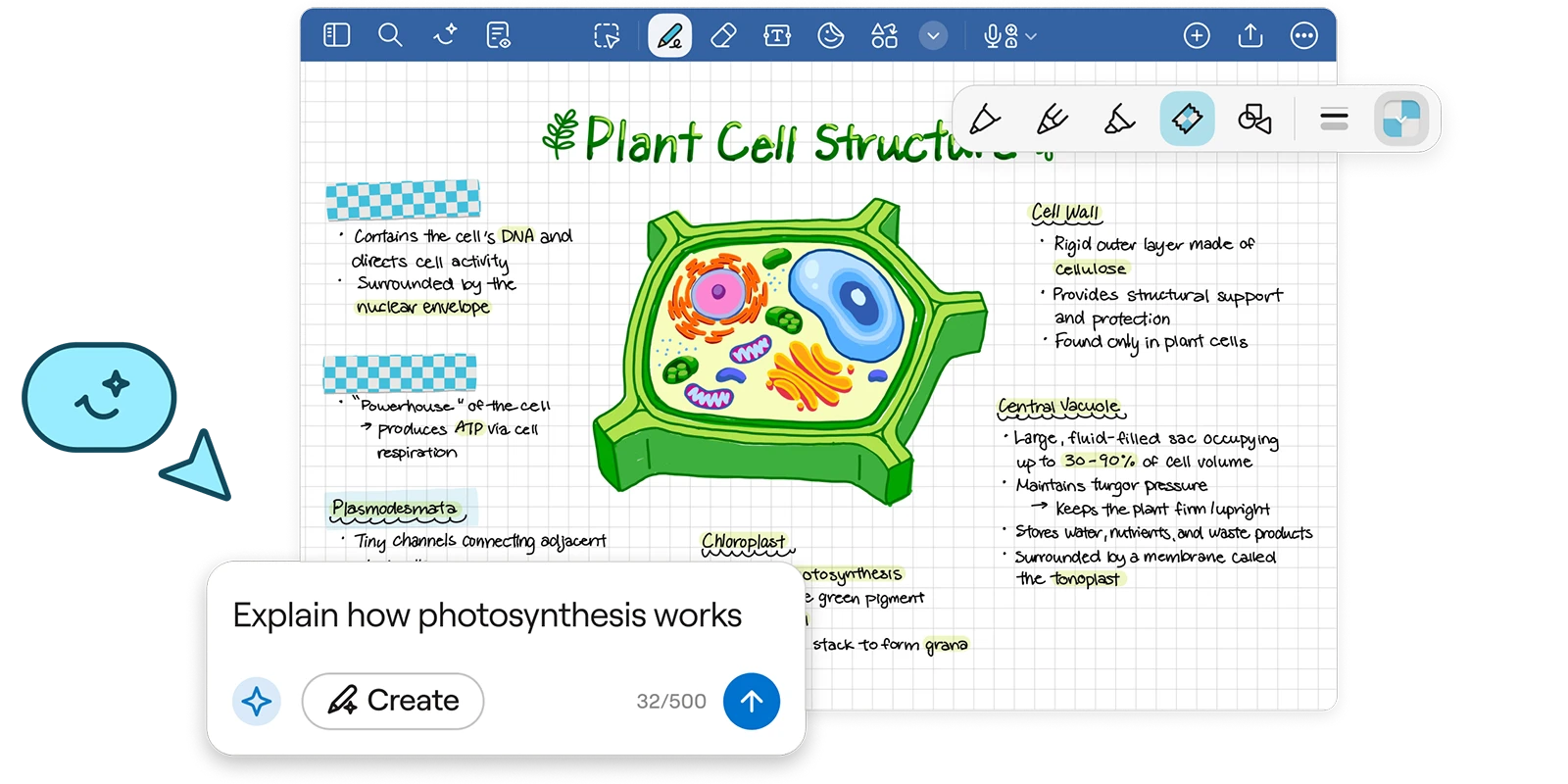
You can start from scratch or with Goodnotes templates from the Marketplace—such as for lecture notes, semester planning, assignment tracking, and study planning.
You can also import PDFs, images, Word documents, PowerPoint files, Goodnotes files, and backups on iPad and iPhone, so you can keep course materials alongside the notes you create yourself. And with auto backup, you can save copies of your notes to Google Drive, Dropbox, OneDrive, or WebDAV.
Freenotes gives you two main ways to work. For ideas that need more room, its Infinite Canvas works like a whiteboard, giving you an open space for mind maps, sketches, brainstorming, and connecting concepts without page boundaries.
For more structured note-taking, you can create page-based notes and choose the paper size, switch between portrait and landscape, change the paper color, and use plain, ruled, grid, or dot layouts.
Goodnotes vs Freenotes: Basic note-taking experience
Goodnotes is built around a stylus-first writing experience, with tools designed to make handwriting feel natural while giving you more control than you’d get on paper.
For students taking handwritten notes, that includes:
- Pressure-sensitive writing: The Fountain Pen and Brush Pen respond to how firmly you press with a compatible stylus. You can also adjust pressure sensitivity and, for the Fountain Pen, tip sharpness. If you prefer consistent strokes for fast lecture notes, the Ball Pen isn’t pressure-sensitive.
- Stroke Stabilization: Smooth out shaky or uneven strokes when you write quickly. You can adjust the level of stabilization to suit your handwriting, while the Highlighter has its own stabilization control for smoother highlighting.
- Palm rejection: Rest your hand on the screen while you write without leaving unwanted marks. Goodnotes provides automatic palm rejection and lets you adjust the sensitivity and writing posture when needed.
- Scribble to Erase: Scribble over handwriting and Goodnotes removes the strokes underneath, so you don’t have to switch to the Eraser every time you make a mistake.
- Circle to Lasso: Circle handwriting or a diagram with your pen to select it, tap and hold the circle you’ve created, then move, copy, resize, or edit it without first changing tools.
- Smart Ink editing: You can straighten and align handwriting, add space, change the width of written text, and reflow paragraphs while keeping your handwriting rather than converting everything to typed text.
- Handwriting spellcheck: Goodnotes flags misspelled words as you write and can correct them while preserving the appearance of your handwriting.
- Handwriting-to-text conversion: Select handwritten notes with the Lasso Tool and convert them into editable typed text. On iPad, you can also drag handwriting into another compatible app and have it converted to text.
- Apple Pencil Hover: On compatible iPads and Apple Pencil models, you can preview a pen stroke before touching the screen and hover over toolbar icons to see what they do.
- Apple Pencil Pro controls: Squeezing Apple Pencil Pro can open a floating Palette for switching tools, colors, and stroke widths. Barrel Roll can also change the stroke of the Fountain Pen as you rotate the Pencil

On iPad, you can write with Apple Pencil, while supported Android and Windows tablets work with compatible active pens. You can also use third-party styluses with Goodnotes.
Some devices get extra shortcuts. On Samsung tablets, for example, you can use the S Pen button to erase without switching tools, while Lenovo Tab Pen Plus supports gestures for quicker access to writing controls. So if you’re moving between different devices for school, you’re not locked into one pen setup.
Freenotes also gives students a good handwriting setup on iPad, with controls that let you tweak how the pen behaves. For everyday note-taking, you get:
- Apple Pencil support: You can write with Apple Pencil and keep finger input separate, which helps cut down on accidental marks while your hand rests on the screen.
- Adjustable pen stability: Freenotes lets you change the stability of the fountain pen, ball pen, and highlighter, so you can smooth out your strokes if your handwriting gets messy when you’re writing quickly.
- Pen sensitivity controls: You can adjust how some pen types respond while you write, while the ball pen keeps a consistent stroke.
- Handwriting-to-text: Select handwritten notes with the Lasso tool and convert them into editable text when you want a cleaner version.
- Handwriting beautification: Freenotes can tidy the appearance of your handwriting, which is useful if you want neater-looking notes without rewriting the whole page.
Goodnotes vs Freenotes: Writing, shape, and math tools
Goodnotes covers the everyday tools you’ll use to write, edit, draw, and work through problems in your notes:
- Pen and Pencil tools: Choose between Fountain Pen, Ball Pen, Brush Pen, or a graphite-style Pencil. You can change stroke thickness and colors, and save up to 12 color presets for quicker switching between subjects or annotation styles.
- Highlighter: Change color and thickness, stabilize your strokes, or make every highlight automatically draw as a straight line. You can also highlight selectable text directly inside PDFs.
- Tape Tool: Cover answers, key terms, or other information and tap the Tape to reveal it when you’re revising. You can adjust its thickness, choose solid colors or patterns, and draw it freehand or keep it straight.
- Eraser: Choose between Precision, Standard, and Stroke erasing. Filters let you erase only particular content, such as pen, pencil, highlighter, or Tape marks, without disturbing everything else on the page.
- Lasso: Select handwriting, text boxes, images, Sticky Notes, and other objects, then move, resize, rotate, copy, duplicate, or delete them. You can switch between freehand and rectangular selection too.
- Text and images: Add movable text boxes or type directly onto a notebook page, with formatting for fonts, lists, alignment, and hyperlinks. Images can be inserted, cropped, resized, or added as a full page for annotation.
- Elements and Sticky Notes: Save handwriting, diagrams, images, or text as reusable Elements, or add movable Sticky Notes for quick reminders and extra explanations without covering the rest of the page
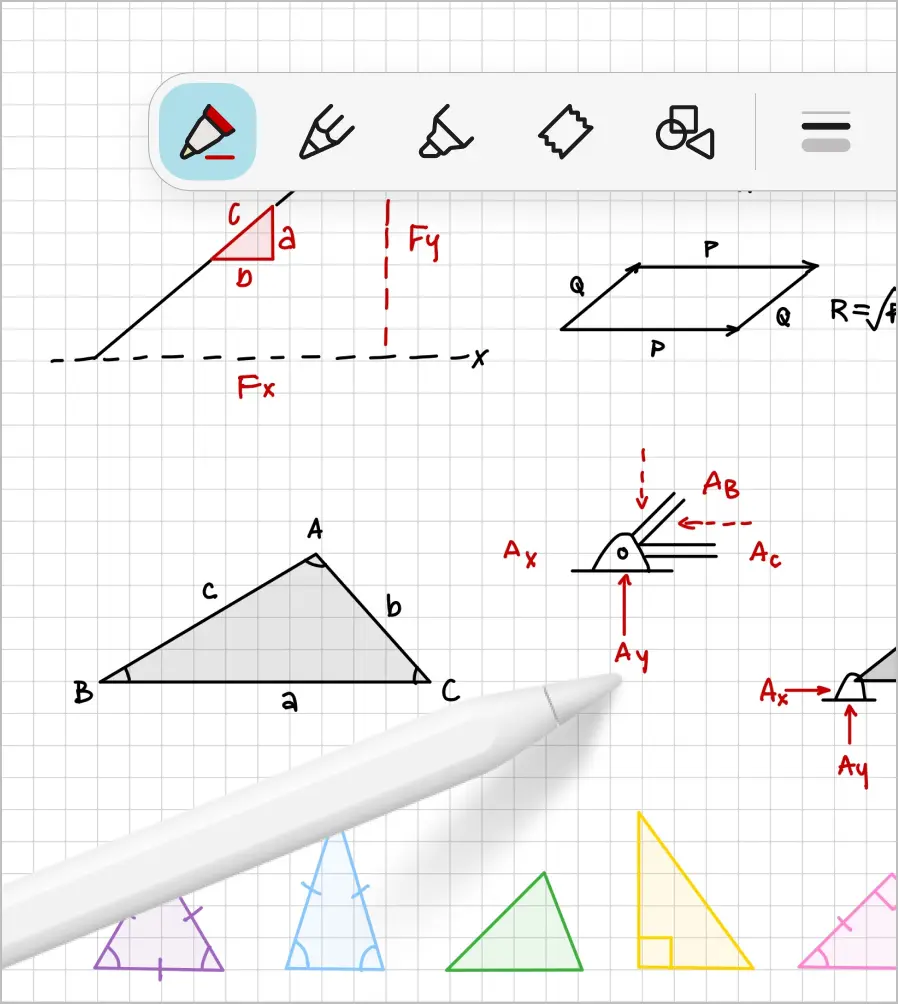
For diagrams and visual subjects, Goodnotes goes beyond basic shape recognition. With the Shape Tool, you can draw and hold shapes to clean up lines, curves, rectangles, and other diagram shapes. You can add text inside shapes, change their fill and outline, resize or rotate them, and connect them with lines that stay attached when you rearrange the diagram. Quick Diagramming also lets you keep adding connected shapes without repeatedly returning to the toolbar.
Math gets its own set of tools in Goodnotes. Math Conversion can turn a handwritten equation into a typeset equation, generate the corresponding LaTeX, and copy the rendered equation as an image.
And if you’re stuck solving a question, Goodnotes AI for Math has separate Solve and Teach Me options. You can handwrite a problem or select one from a worksheet or PDF, then either get a step-by-step solution or work through the reasoning behind it.
Freenotes also covers the core tools students need for handwritten notes, with some extras for drawing and marking up a page:
- Pens and highlighters: You can use different writing tools including fountain and ballpoint pens, with adjustable stroke stability to smooth your writing. The highlighter has its own controls, including an option for straight highlighting.
- Eraser and Lasso: Freenotes supports Scribble to Erase, and the Lasso can be set to select specific types of content. You can then move or edit selected elements without affecting everything else on the page.
- Straight Line Pen: For diagrams or neatly marking up notes, you can draw solid, dashed, wavy, zigzag, and double lines without trying to make them perfectly straight by hand.
- Tape: Freenotes’ Tape tool can hide information for revision and supports customizable thickness, colors, and patterns. You can apply it as a straight line, rectangle, or freehand stroke.
- Ruler: Freenotes includes a ruler for drawing precise straight lines, which is handy for graphs, geometry, and diagrams.
Goodnotes vs Freenotes: PDF annotation tools
Goodnotes lets you import files and work on them with the same tools you use in a notebook.
- Write, highlight, and type directly on PDFs: Add handwritten notes in the margins, underline key points, circle diagrams, or type comments on top of the page.
- Images, stickers, and GIFs: Add images from Photos or Files, crop and resize them, or save them as reusable Elements. You can also search GIPHY inside Goodnotes and drop animated GIFs or stickers straight onto a Notebook or Whiteboard.
- Search PDF text and your own annotations: Find words and phrases inside PDFs with selectable text, such as PDFs created with Word, PowerPoint, or Google Docs, alongside your handwritten and typed notes. Scanned worksheets or photographed pages may be image-only, so they need OCR before you import them if you want the text to be searchable.
- Manage pages: From the Sidebar, you can rearrange, rotate, copy, delete, move, or export individual pages. You can also bookmark pages you want to return to during revision.
- Use outlines and hyperlinks: Imported PDF outlines and hyperlinks remain usable, and you can create your own multi-level outline if a long textbook or reading doesn’t have a useful one.
- Use the full annotation toolkit: Your Pen, Pencil, Highlighter, Eraser, Lasso, Shapes, images, text boxes, and Sticky Notes can all sit on top of the PDF, so you can treat lecture slides much like a notebook page.
- Export your annotated PDF: Choose an editable PDF to keep annotations as separate objects that can still be moved or resized and preserve the original PDF’s outlines and hyperlinks. Or export a flattened PDF, which combines your notes and annotations into one layer for easier sharing and can make your handwriting searchable when handwriting recognition is enabled.
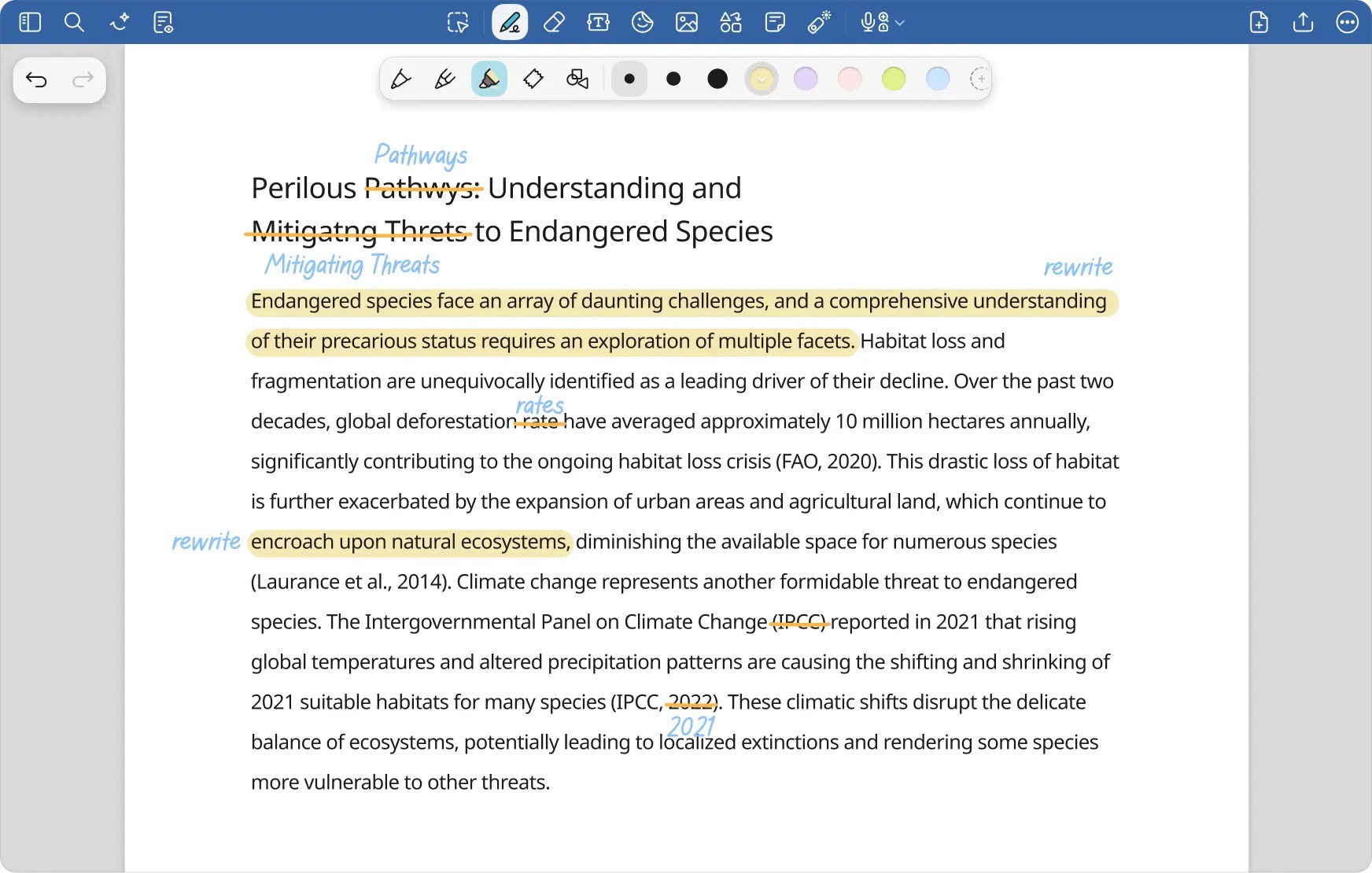
Freenotes also lets you annotate lecture slides, readings, worksheets, and other PDFs.
- Write, highlight, underline, and add comments: Mark up PDFs with Freenotes’ pen styles, highlighter, text, and other annotation tools.
- Search your handwritten annotations: OCR search can recognize handwriting in notebooks, including notes you add while working through PDFs, so you can find something you wrote earlier without manually scanning every page.
- Use PDF hyperlinks: Freenotes supports clickable internal and external links, which is particularly useful for hyperlinked textbooks, planners, and study PDFs.
- Add images: You can place images alongside your notes, and recent updates let you import multiple images onto a page and combine them into one note.
- Expand the page around a PDF: Freenotes includes canvas controls that can give you extra space beside a PDF page, handy when the margins on your lecture slides aren’t big enough for your own workings or explanations.
- Export annotated PDFs: Standard notes can be exported as PDFs, and Freenotes now preserves note outlines in the exported file so you can jump between sections afterward.
Goodnotes vs Freenotes: Audio notes
For Goodnotes, audio is closely tied to the notes you take during a lecture. You can:
- Record while taking notes: Start a recording inside a Notebook and keep handwriting, typing, or annotating while the lecture continues. Goodnotes can also keep recording if you move to another document, use split-screen, or briefly leave the app.
- Sync notes with the recording: Goodnotes timestamps your handwriting against the audio. Tap a handwritten note later and playback jumps to the moment you wrote it, which is useful when a formula or explanation in your notes no longer makes sense on its own.
- Transcribe recordings: Audio can be turned into searchable, editable text. Goodnotes offers on-device transcription on supported hardware and cloud transcription on eligible plans (Pro at $35.99/year and AI Pass starting from $9.99/month), with broader language support through the cloud option.
- Summarize recordings with AI: Turn a lecture recording into a summary of the key points, so you can review what mattered without working through the full transcript.
- Replay the lecture alongside your notes: Note Replay can reveal your handwriting as the audio plays, spotlight the part of the page that matches the current point in the recording, or keep the full page visible. Replay modes are currently available on iOS and macOS in Notebooks.
- Control playback: Skip forward or back, scrub through the recording, and use playback controls to revisit the part of a lecture you need rather than replaying the whole thing.
- Keep multiple recordings with one notebook: You can record several clips inside the same document, which works well if one notebook covers a full course with multiple lectures.
- Export your audio: Individual recordings can be exported separately on iOS. If you want to share the notebook with its audio intact, export it as a Goodnotes file; exporting as a PDF won’t retain the recordings.
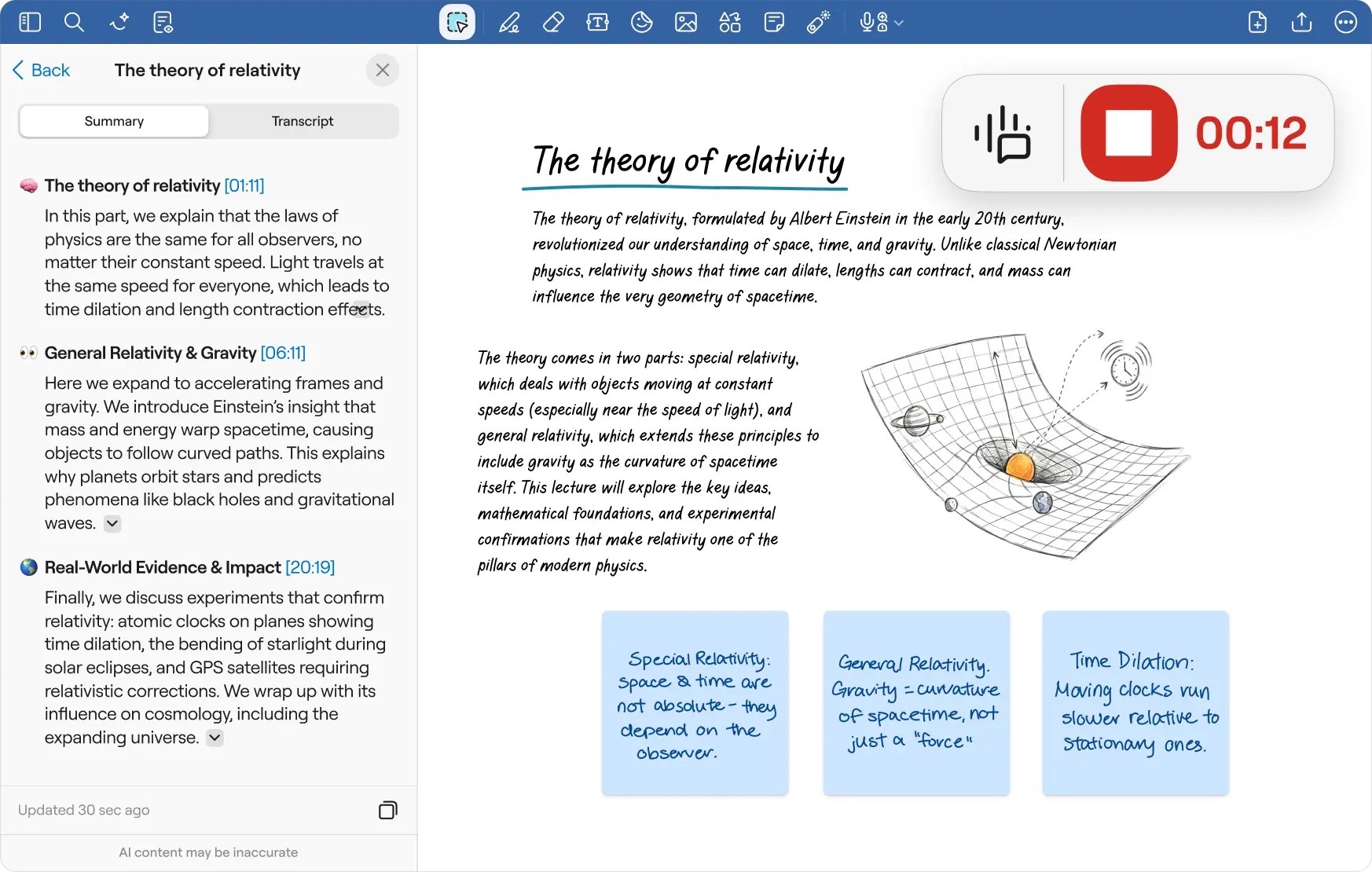
Freenotes also lets you record lectures while you take notes, offering many of the features Goodnotes offers:
- Lecture recording: Record audio directly in Freenotes while you work on your notes or lecture material.
- Voice-to-text transcription: Recorded audio can be converted into text, giving you a written version of a lecture to review afterward.
- AI summaries: Freenotes AI can pull key points from longer recordings, so you can turn a lecture recording into something shorter to revise from.
- Audio management: Recordings can be kept with your notes. If you accidentally record a lecture in the wrong note, you can export the audio file and import it into the correct one instead of losing the recording or having to keep it separate.
Goodnotes vs Freenotes: Study and focus tools
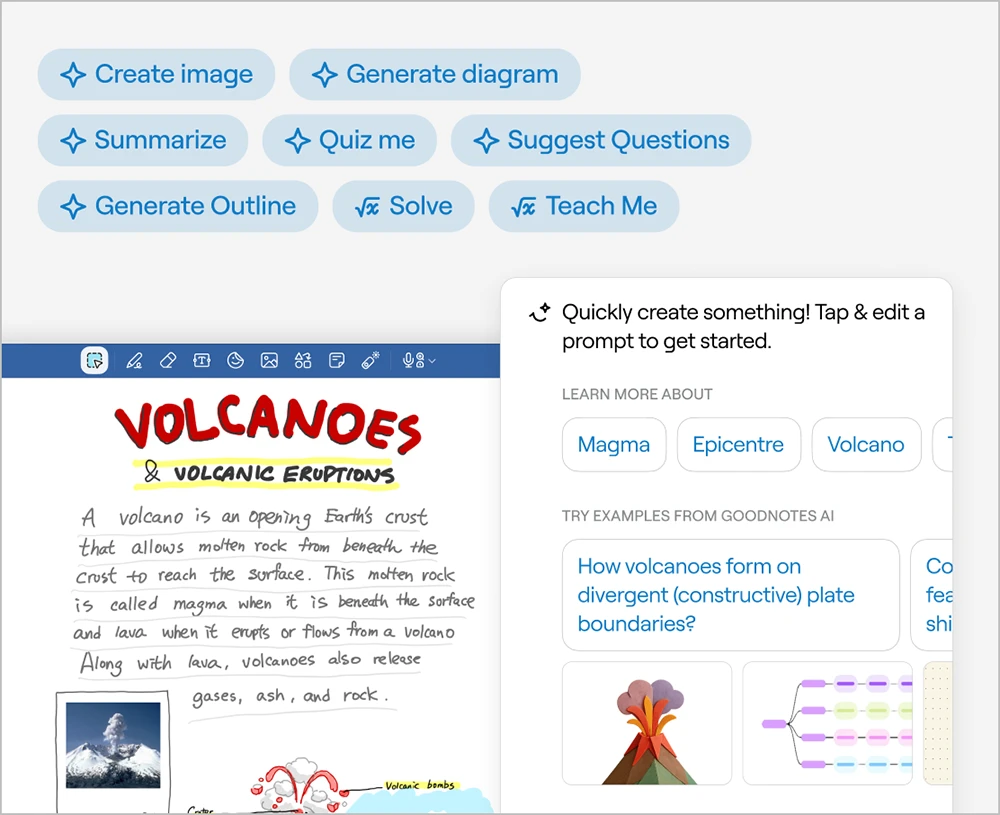
Goodnotes gives you several ways to convert your notes into revision materials.
- Tape Tool: Cover definitions, labels, formulas, or answers directly on a notebook page, then tap the tape to reveal what’s underneath. It’s a quick way to practice active recall without rebuilding your notes as flashcards. You can also change the tape color or pattern.
- Study Sets and flashcards: Create question-and-answer cards from scratch, add text or images, or import existing sets from .CSV, .TSV, .TXT, and Goodnotes files. You can also drag content from your notes or lecture slides into a Study Set while working in Split View.
- Quiz generation: Turn your existing notes into practice questions for revision. Free users get limited monthly uses, while Goodnotes Essential includes unlimited Q&A and quiz generation.
- Split View: On iPad, open two Goodnotes windows side by side, such as a Notebook or imported lecture PDF on one side and a Study Set on the other. You can then drag handwritten notes, text, or images across to build flashcards without switching between documents.
- Smart Learn: Smart Learn uses spaced repetition and your previous answers to decide which cards you should revisit. Cards you struggle with appear more often, while material you know well appears less frequently. You can also use Practice Mode when you simply want to run through the whole set.
- Flashcard audio: Study Sets can read flashcard content aloud in Practice Mode and Smart Learn, which can be handy for vocabulary or language study.
- Time Keeper: Set a countdown timer or stopwatch inside Goodnotes, save your own timer presets, and review previous study sessions to see how long you spent working in different notebooks. The timer keeps running even if you leave the app.
- Picture-in-Picture video: On iPad, keep a supported video playing in a small Picture-in-Picture window while you take notes in Goodnotes. This works well for following a recorded lecture or tutorial without constantly switching between the video and your notes.
Freenotes approaches this a little differently, with features built around studying and staying focused during a study session.
- Active Recall Tape: Cover parts of your notes, then reveal them to test whether you can remember the answer. This works well for definitions, diagrams, and other material you want to quiz yourself on without creating separate cards.
- Flashcards: Turn material from your note pages into study sets for exam revision.
- Exam Prep Center: Access built-in exam materials inside Freenotes and work through them using timers, layers, and split-screen tools. You can practice and simulate exam conditions directly in the app without repeatedly importing the same files.
- Picture-in-Picture video: Watch a YouTube video or recorded lecture in a floating window while writing notes underneath it. You can also capture a frame from the video and add the screenshot directly to your notes.
- Course Learning View: Freenotes has a dedicated split-screen setup that places your notes or mind map beside course material, rather than relying only on iPadOS multitasking.
- Pomo Flight: Turn a focus session into a simulated flight, with a timer and flight-themed experience that runs while you study. It also includes ambient audio to make the session feel more immersive. The feature is currently available on iOS only.
Goodnotes vs Freenotes: AI capabilities
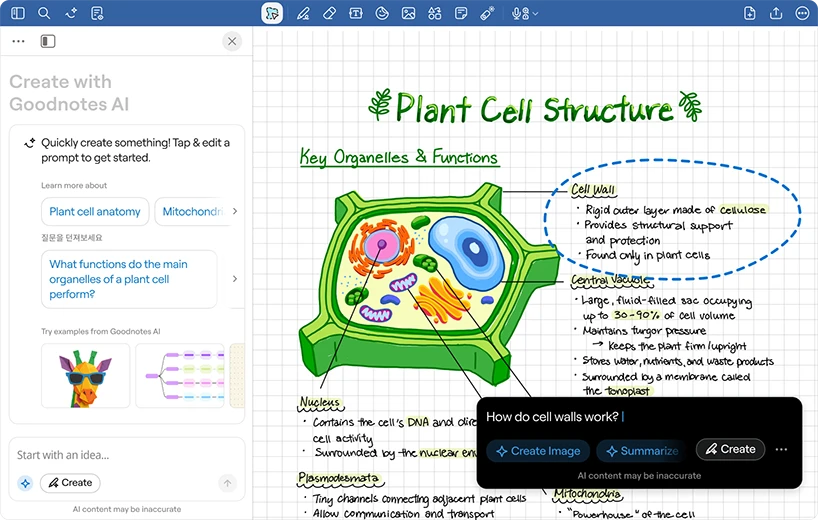
Goodnotes AI works with the material you already have in Notebooks, Whiteboards, and Text Documents. These include:
- Ask Goodnotes: Ask questions about your notes, get a lecture summarized, or have a concept explained. Goodnotes can work with typed text and handwriting, as well as supported content in PDFs and diagrams.
- AI for Math: Handwrite a problem, type it in LaTeX formula, or select one from a worksheet or PDF. Solve breaks down the solution step by step, while Teach Me guides you through the problem with hints and questions rather than jumping straight to the answer.
- Summaries and explanations: Summarize a document or selected section, pull out key points, or ask follow-up questions when part of your notes doesn’t make sense during revision.
- AI-generated diagrams: In Create Mode, Goodnotes AI can turn information into editable mind maps, flowcharts, timelines, and other visual summaries directly inside your notes. Create Mode requires Goodnotes Pro or AI Pass.
- AI for lecture audio: Goodnotes can transcribe recorded lectures and generate summaries, although the transcription and summary features available depend on your plan and device
Freenotes also adds AI into the study workflow, but it primarily focuses on asking questions about course material and getting help with homework.
- AI Summary: Condense long documents or recordings into key points, so you can get an overview before going back through the full material.
- AI Chat with PDF: Ask questions directly about an imported PDF, which can be useful when you’re working through a textbook chapter, reading, or lecture deck.
- AI Homework Helper: Upload a PDF or photo, or take a screenshot of a question, and ask Freenotes for help with the problem.
- AI Study Companion: Ask for explanations and definitions or have the AI check your handwritten notes for accuracy while you revise.
- AI organization: Freenotes can also categorize notes by course, project, or topic to help organize your library.
Goodnotes vs Freenotes: Organization and document retrieval
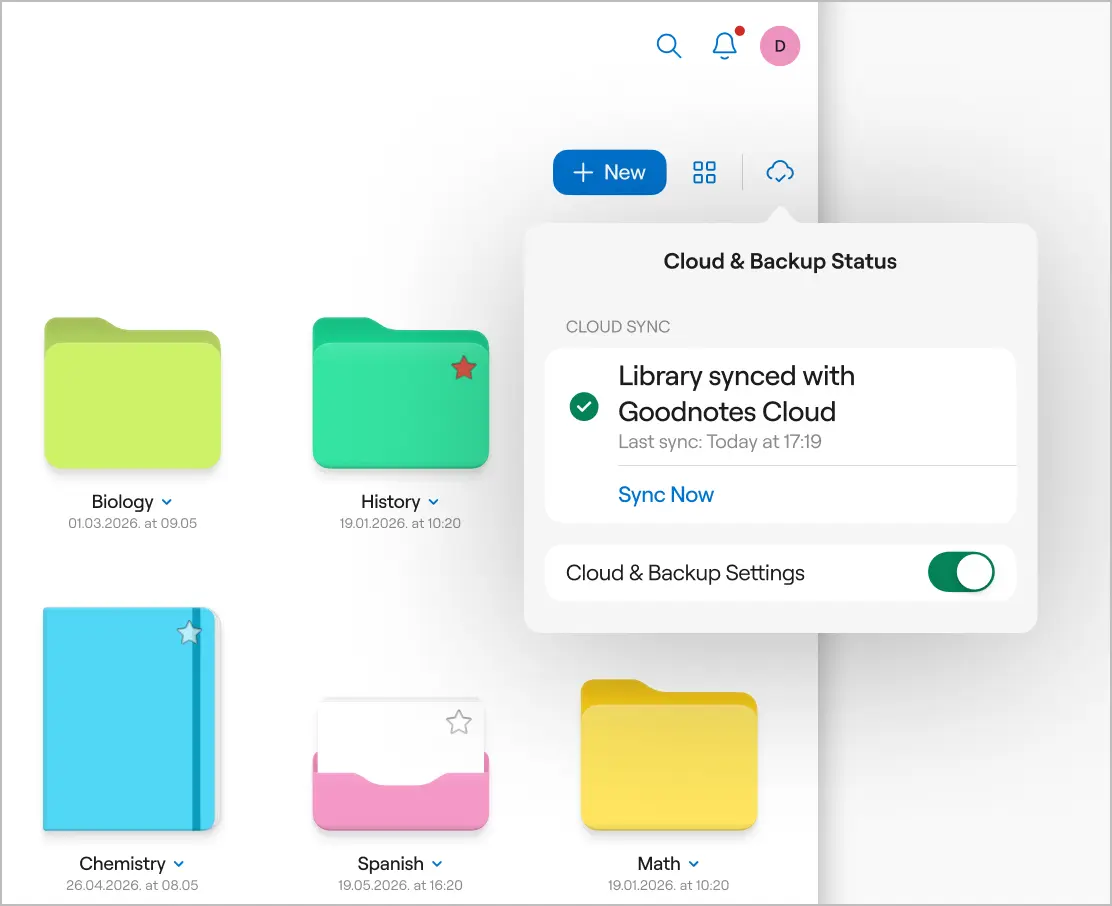
Goodnotes gives you several ways to organize a growing study library:
- Folders and subfolders: Group material by semester, course, module, or however you study. You can customize folders with colors and icons, then move documents between them as your library grows.
- Favorites and bookmarks: Star notebooks or folders you open often, or bookmark an individual page you want to return to during revision.
- Search across your library: Search your handwriting, typed text, searchable PDF text, scanned documents, document and folder names, and outlines. You can search everything at once or search within a single document and jump directly to the result.
- Document outlines: Build a multi-level outline for a long notebook or PDF, then jump straight to a chapter or topic instead of scrolling through hundreds of pages. You can create outlines yourself or have Goodnotes AI generate one.
- Page navigation: The Sidebar gives you thumbnails for every page, plus bookmarks and outlines, so you can move, reorder, copy, or jump between pages.
Freenotes also lets students organize documents into folders, subjects, and dividers. You can add customizable folder colors and icons plus drag-and-drop sorting for files and folders. It also supports hierarchical outlines, so you can structure a notebook by topic and subtopic and jump between sections.
Goodnotes vs Freenotes: Device support
Goodnotes works across:
With Goodnotes Cloud, your library can sync across Apple, Android, Windows, and web, so notes you create on your iPad can open on a Windows laptop or another supported device.
Freenotes is available on iPhone and iPad, with iCloud sync keeping notes updated across Apple devices. The iPad version can also run on Apple Silicon Macs, although the App Store describes it as an iPad app rather than a dedicated macOS experience. Freenotes is also available on Android phones, tablets, and Chromebooks.
Goodnotes vs Freenotes: Multi-language support
Goodnotes is available in 15 interface languages. Its multilingual features go beyond the app interface, with handwriting recognition and search available across languages including English, Chinese, Japanese, Korean, French, German, Spanish, Portuguese, and more. Goodnotes AI works with the same supported handwriting languages, while cloud audio transcription supports 99 languages.
Freenotes is available in 27 interface languages, including English, Arabic, Chinese, French, German, Japanese, Korean, Spanish, Vietnamese, and more. It also supports multilingual handwriting features, although Freenotes doesn’t publish one consolidated list showing language availability across handwriting recognition, AI, and transcription.
Goodnotes vs. Freenotes: Cost and pricing structure
Goodnotes has a free forever plan with up to three files, basic note-taking tools, and watermark-free exports.
For students who need unlimited notes, Essential costs $11.99/year. It includes unlimited files, unlimited audio recording, and limited AI features.
Pro costs $35.99/year and adds cross-device sync, collaboration, and more AI capabilities. You can also add AI Pass for $9.99/month to either paid plan for the full AI experience.
Freenotes doesn’t currently publish a clear pricing table on its website. Freenotes pricing appears to vary by region and promotion. Recent users have reported on Reddit different annual and lifetime offers, and some don’t see the lifetime option at all.
Goodnotes vs Freenotes: Customer support
Goodnotes gives you several support options, depending on whether you’re trying to solve a problem, understand a feature, or request something new:
- Help Center: A large searchable library with setup guides, feature walkthroughs, troubleshooting steps, and FAQs across iOS, Android, Windows, and web.
- Technical support forms: You can contact Goodnotes Technical Support and submit a support request for crashes, account or subscription issues, refunds, and bugs, with screenshots, screen recordings, and diagnostic data attached to help troubleshoot the problem
- Feature requests: Goodnotes has dedicated Customer Suggestions portals where users can submit ideas, vote on existing requests, and see which suggestions are getting attention. There are separate portals for Apple and for Android, Windows, and web users.
- Community help: Goodnotes also runs an official Discord community where students can ask questions, share tips, and learn from other users.
Freenotes also gives you a few ways to troubleshoot problems or get in touch with the team:
- Support Center: Freenotes has a help center with troubleshooting guides for issues such as iCloud sync, PDF imports, backups, fonts, and other common app problems.
- Email support: For account, technical, or app issues, you can contact the Freenotes team directly by email at contact@freenotetech.com.
- In-app feedback: Freenotes includes a Feedback option inside the app that opens an email to the support team, so you can report problems or send feedback without hunting for contact details separately.
Goodnotes vs. Freenotes: The final verdict
So, which one should you pick for school? For most students, Goodnotes is the better all-round choice. It gives you more flexibility across the whole study process, from taking handwritten notes to working with PDFs, revising, and finding things again later.
The biggest difference is depth. Goodnotes goes further with document types, math tools, audio notes, AI, search, and cross-device access. It also makes pricing easier to understand, so you know what you’re getting before you upgrade.
However, you may prefer Freenotes if you like its focus tools or Exam Prep Center.
Ultimately, it comes down to how much you want your note-taking app to do. If you want one place for handwritten notes, PDFs, study tools, AI, and revision, Goodnotes gives you more to work with.
FAQs
1. Is Freenotes free?
Yes, Freenotes is free to download, but advanced features sit behind a paywall. The Plus plan starts at $9.99/year and Pro at $39.99/year.
2. Freenotes vs. Goodnotes—which should I pick?
For most students, Goodnotes is the better choice if you want your note-taking app to support your entire study workflow. You can choose from document types, handwriting and math tools, audio-linked notes, AI, search, and cross-device access.
Freenotes could be a preference if focus modes, video study tools, and Exam Prep Center are higher priorities for you.
3. Is there a free Goodnotes alternative?
Yes. Freenotes has a free version, although it includes ads and some features or usage limits sit behind paid plans. Goodnotes itself also has a Free forever, so you can try its core note-taking, PDF, handwriting, and AI features before upgrading to Essential or Pro.
4. Does Freenotes have a limit/paywall?
Yes, Freenotes is limited on Free plans. Freenotes has Plus and Pro plans with subscriptions and a Plus lifetime purchase listed in the US App Store. The exact free note limit isn’t consistently published and appears to vary by platform or account. Users on Reddit have reported different free-note limits depending on the device, including as few as three notes on Android and up to 25 on iPad. So Freenotes doesn’t appear to have one universal free-note cap across platforms.