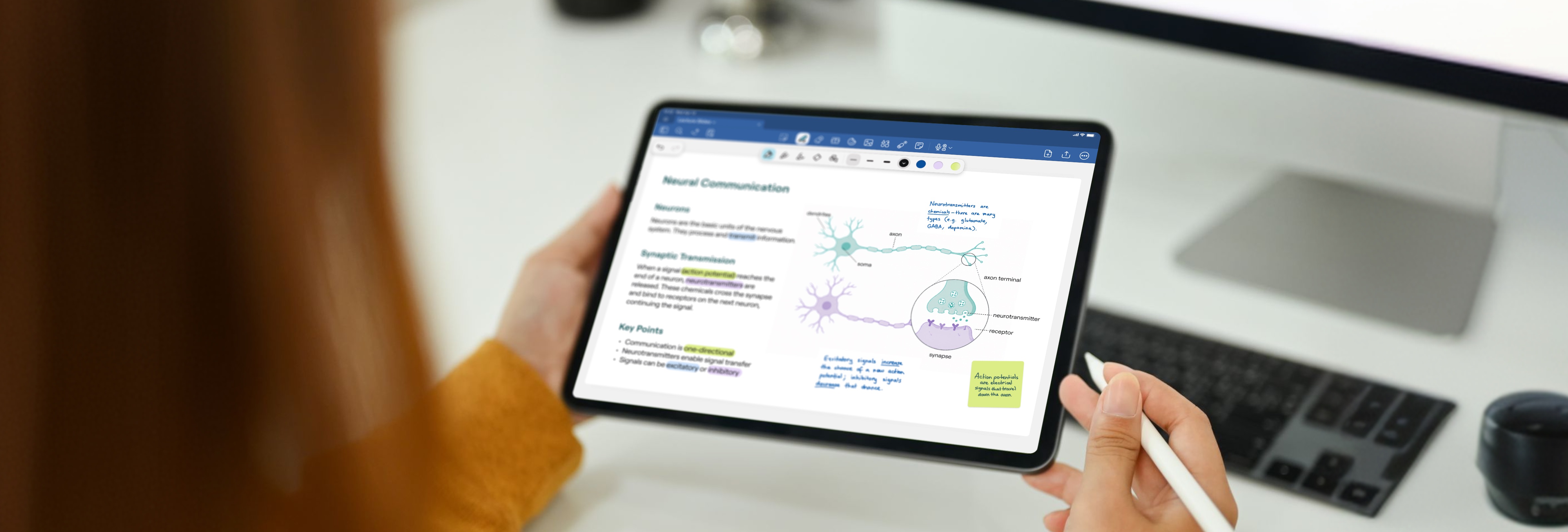
These days, every lecture comes as a PDF. Print it, and you’re stuck with something that can’t change once a teacher goes off script. Read it in a browser, and you have no easy way to annotate it, and none of what you’re reading is sticking.
Two students had two different approaches to the problem
Ishan Gautam is preparing for NEET in India, working through high volumes of Biology, Chemistry, and Physics slides from a coaching platform. Xinman Liu studied Education Data Science at Stanford, mixing technical lectures with heavy reading. Here’s how each of them take notes on lecture slides in Goodnotes.
Why annotating on Goodnotes beats printouts
Ishan printed his notes before he switched: Slow color printing for Biology, binding delays whenever the shop's machine broke. Worse, "my notes would end up scattered, and the topics wouldn't stay in sequence anymore," he says, whenever a teacher covered something out of order. NEET prep also meant carrying notes that were "really bulky and exhausting" to check back against theory.
Xinman ran into the same wall from a different angle, keeping her lecture notes in Notion, where every slide had to be screenshotted and written up separately. “It’s just hard to annotate,” she says. “With Goodnotes it’s just there in one place.”
Step 1: Import your slides and give them a home
Decide on your folder structure before term starts. Xinman organizes by year, then by course, with one whiteboard per module so everything from a single course sits together. Ishan works subject by subject, importing each lecture PDF from his coaching platform as it appears. “It’s even easier to access them by simply searching their names in the search bar,” Ishan says, “in case I get clumsy while arranging them.”
Step 2: Give yourself room to write
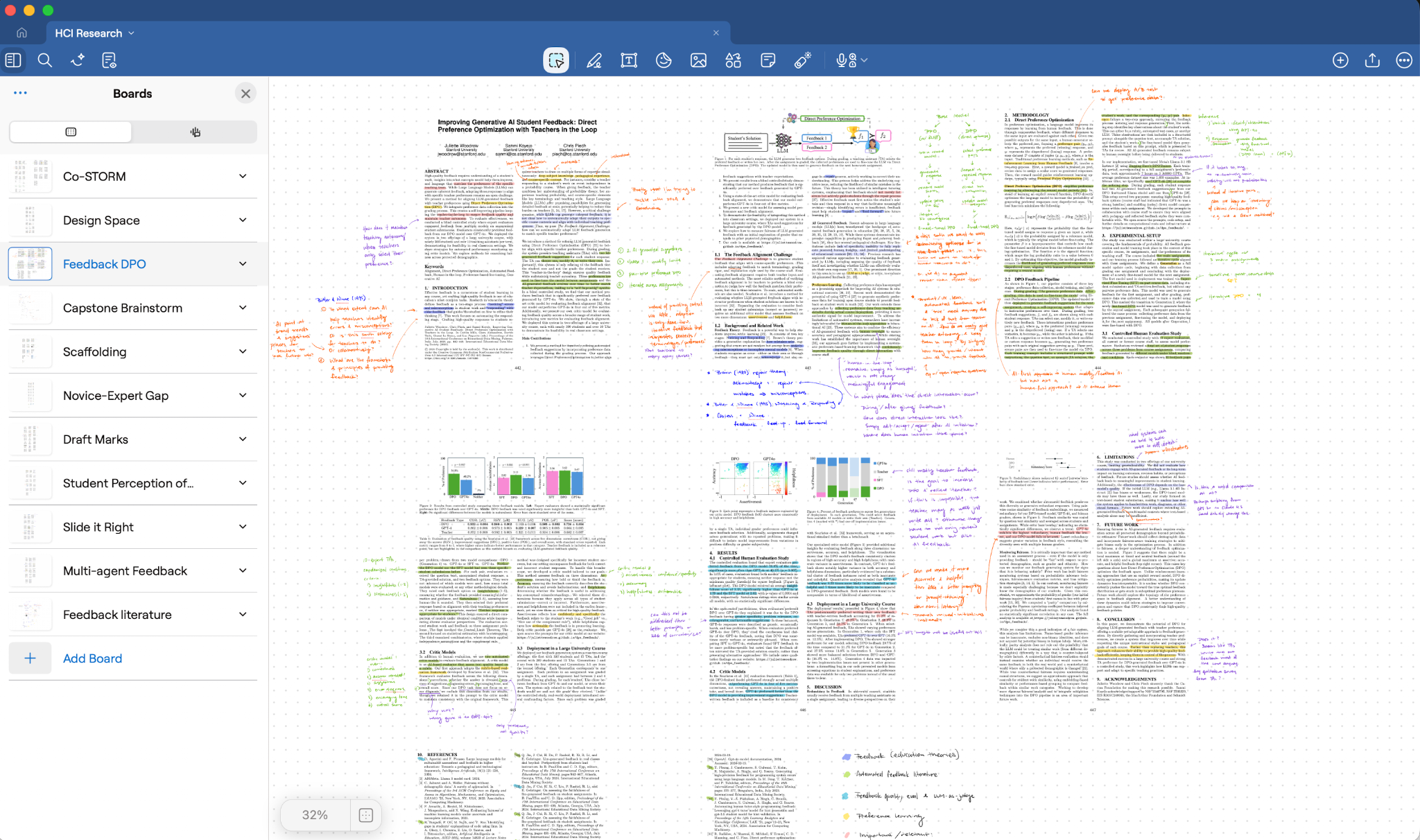
Lecture slides are built for projection. The margins are thin and the text runs close to the edges, so there is rarely space to write anything useful on the page itself.
Import your PDFs into a whiteboard instead of a standard notebook, then spread the slides out across the canvas. “I like to import it into the whiteboard feature,” Xinman says. “I space them out a bit more so then I have more space to write. The whiteboard is what I use the most.”
Step 3: Take notes
Both students work in roughly the same three categories.
Fill in what the slides leave out
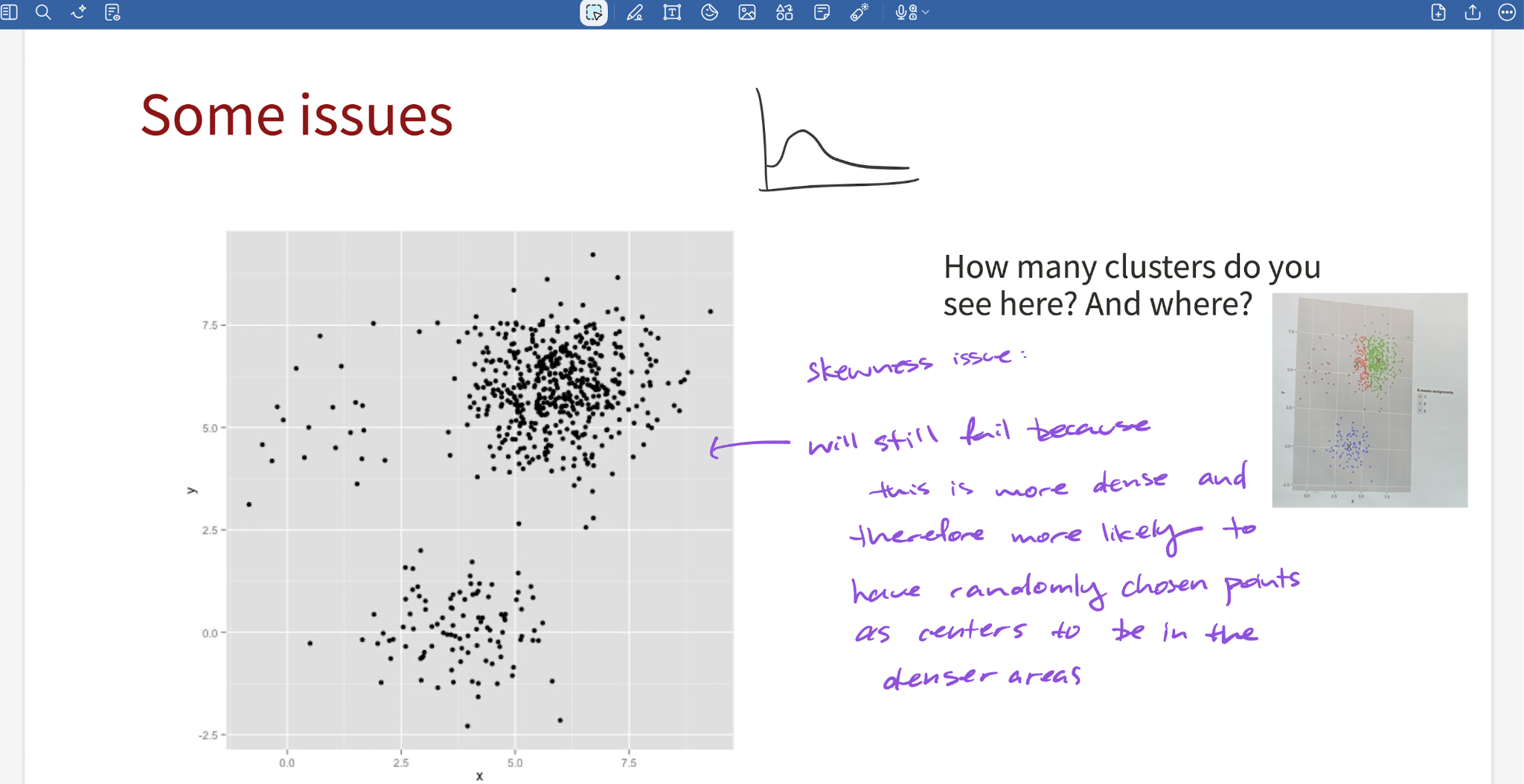
Lecturers say a great deal that never makes it into the slides, and they rarely tell you which parts matter. “I write additional explanations that the teacher mentions during the lecture,” Ishan says, “but doesn’t tell us whether we should note them down or not.” Xinman marks anything that connects to work she is doing elsewhere, so a lecture in one course can point at a project in another.
Use color as a filing system
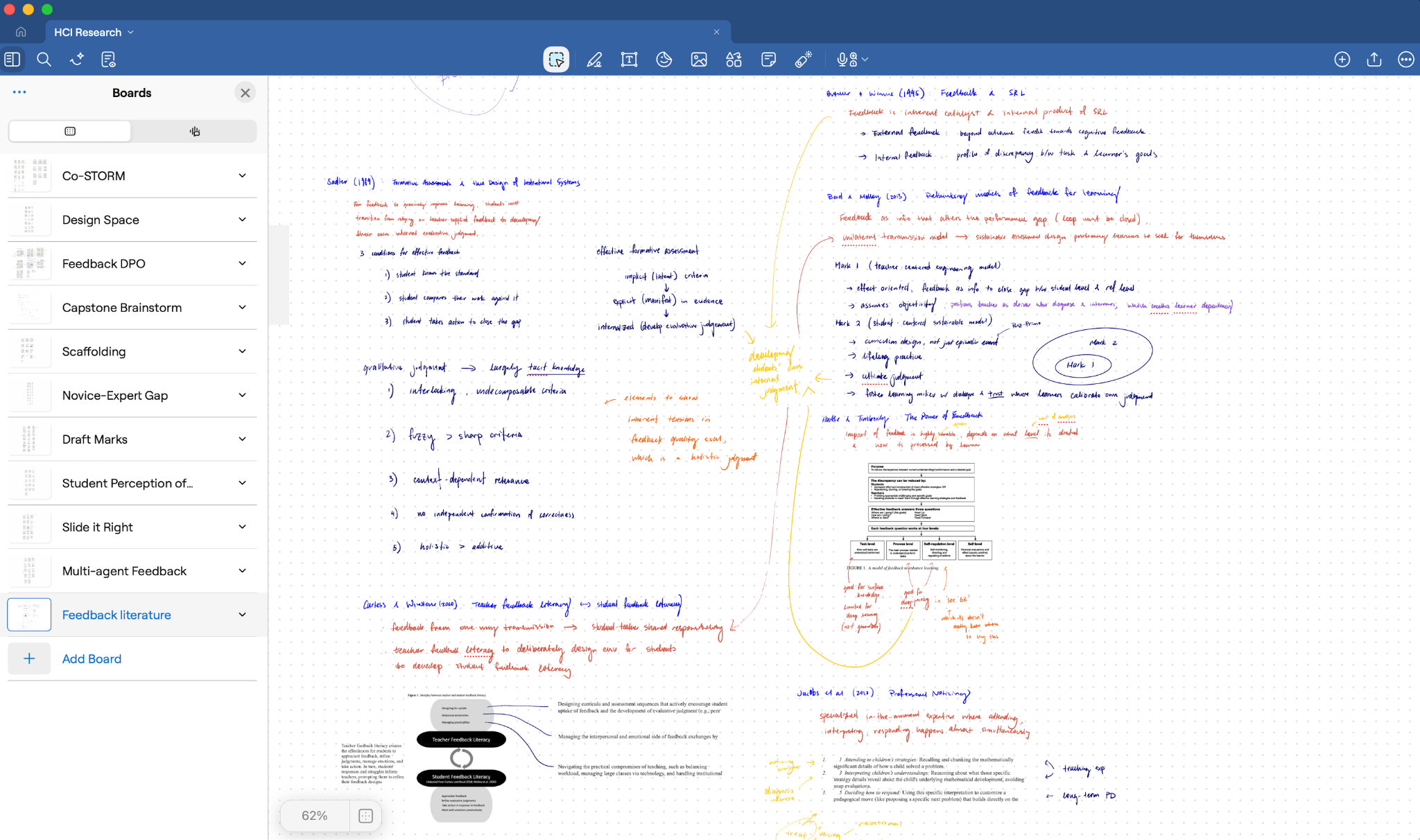
Xinman keeps a consistent four-color code across every course. “Dark blue would be the main notes, red would be important, yellow would be ideas, and orange would be relevance to other projects.” Ishan uses color differently, matching his biology annotations to diagrams that only make sense in color.
Flag what you will need again
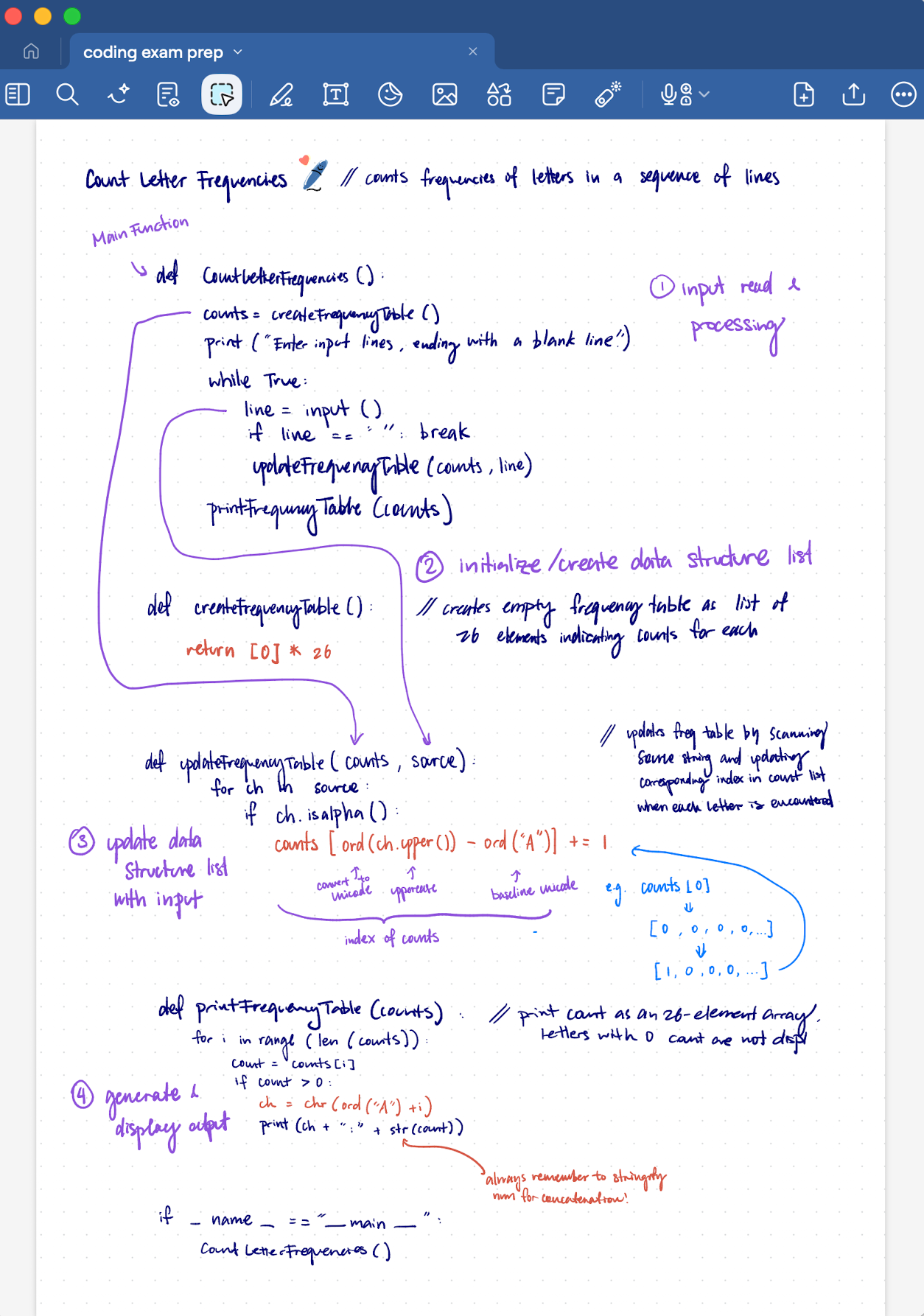
Both students use stickers in their notes. “I use stickers a lot since they’re easier to locate than symbols such as * or #,” Ishan says. Xinman uses them to mark syntax examples and steps she knows she will come back to.
Step 4: Read before you get there
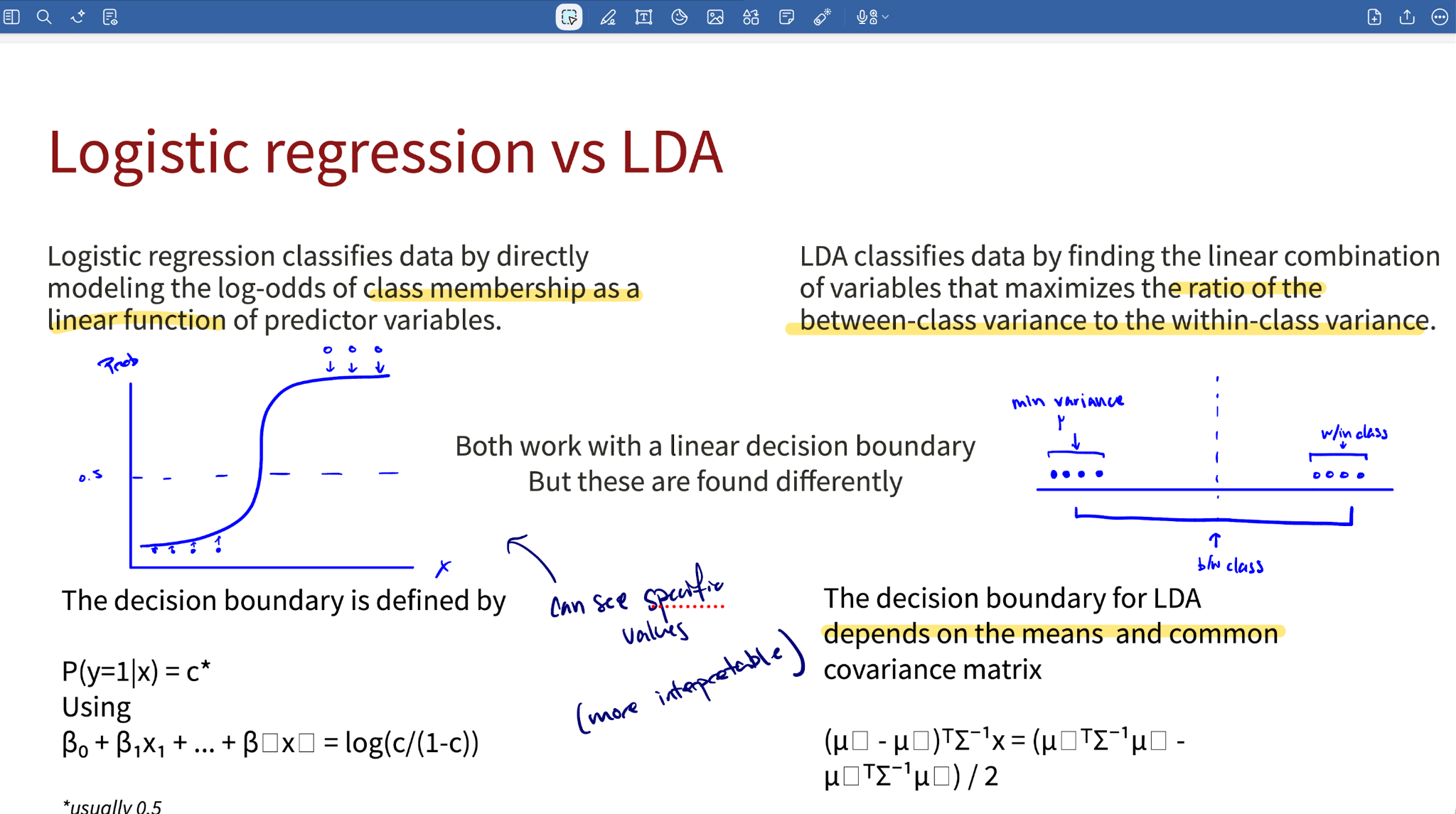
Xinman imports the slides and readings before the lecture, then annotates the highlights in advance. She arrives with a foundation and spends the hour adding to it instead of transcribing from scratch. “When the lecturer is talking about specific quotes, I can directly search for the quote,” she says, “which is very helpful.”
Step 5: Turn your slides into revision material
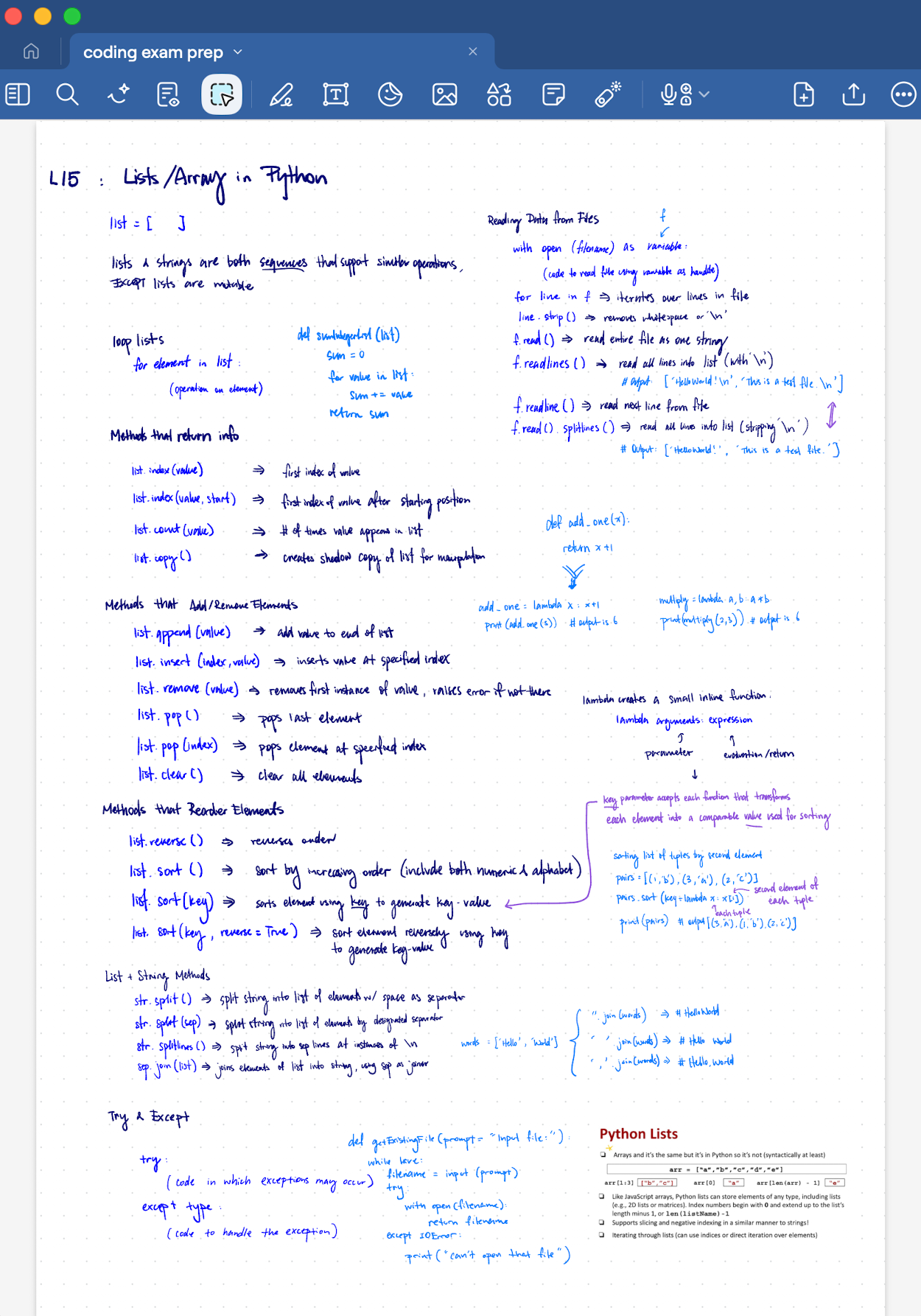
Both use workflows that keep revision inside the same file as the lecture notes.
“I also add active recall slides after each topic,” Ishan says, “so that I don’t have to passively read it again and again.”
Xinman handwrites a cheat sheet for each course, even when the exam does not allow one. “I actually learn the most during the revision process because this is how I try to synthesize what I learn,” she says. “Even though I cannot bring a cheat sheet to the exam, I do this process of writing down the cheat sheet – the act of writing it is the learning.”
She also uses tape to cover sections of her notes and test herself on what is underneath, and imports diagrams generated elsewhere so she can annotate on top of them.
3 takeaways to organizing your notes
Pick a folder and file naming system and stick to it. It could be as simple as a course code, week number, then topic. Sorting a mess out mid-term costs far more time than setting one up early.
Keep one whiteboard per course or module. Keep your slides and annotations from that class in one place instead of splitting them across separate notebooks
Use the search bar if the file lands in the wrong folder. Not sure where your notes are? Simply search for it to retrieve it.
Start taking lecture notes on Goodnotes
Download Goodnotes for free, then start small. Set up folders for this term’s courses, import one lecture PDF, and try either Ishan’s subject-wise structure or Xinman’s whiteboard approach to see which one suits how you study. The rest of the workflow from color coding to active recall, will build on top of that first import.
Related reading: