TL;DR
Goodnotes is an award-winning note-taking app designed for professionals who rely on tablets to think, work, and study, offering natural, stylus-first PDF markup.
Adobe Acrobat is a popular PDF platform designed for formal document workflows, such as text editing, redaction, and e-signatures.
In this guide, we evaluate both tools across their markup methods, direct editing capabilities, AI intelligence, cross-platform compatibility, and pricing.
- Choose Goodnotes if you want a natural handwriting and stylus workflow for your PDF annotation, rely heavily on a tablet, want to search your handwritten notes alongside PDF text, and prefer a highly cost-effective yearly subscription.
- Choose Adobe Acrobat if you need to directly edit the underlying text and images of a PDF, require formal e-signature routing, need to run OCR on scanned documents, and operate within strict enterprise compliance frameworks that require tools like redaction.
Goodnotes is best for stylus-first, tablet-based PDF markup, while Adobe Acrobat is built for direct text editing, OCR scans, and formal e-signature routing.
Which tool you need depends on your primary workflow. For example, if you spend a lot of time editing existing text, a tool that can directly edit PDF documents is a must. If you spend a lot of your workday marking up PDFs on the go, you’ll need a tool that can match your workflow.
Choosing the wrong platform can lead to overpaying for complex enterprise features you never use, or fighting clunky, cursor-based menus when you just want to write on the page.
Here is how Goodnotes vs. Adobe Acrobat stack up across markup, editing, AI, and price.
Goodnotes vs Adobe Acrobat for PDF annotation: Which is right for you?
Goodnotes offers a complete PDF markup and note-taking experience for professionals who rely on tablets for annotating PDFs on the go. Alongside PDF markup, Goodnotes also gives professionals a digital workspace for taking and organizing notes, recording and transcribing meetings, and brainstorming with teammates.
Adobe Acrobat offers a selection of software for creating, editing, viewing, and signing PDFs. These include:
- Adobe Acrobat Reader for free, basic PDF access and signing.
- Adobe Acrobat Standard/Pro for paid access to tools for editing, converting, and securing PDFs.
- Acrobat Studio for additional AI assistants and graphic tools at a cost.
To create a fair comparison of Goodnotes vs. Adobe Acrobat, we looked for the same key considerations in both tools. Broadly speaking, this includes:
- PDF markup & stylus experience: How naturally and effectively you can interact with the document.
Goodnotes delivers an analog, pen-on-paper inking experience built specifically for stylus users on tablets, featuring pressure sensitivity, custom pen types, and editing gestures like Scribble to Erase. Acrobat’s markup tools are cursor-based, focusing on text highlighting, strikethroughs, and comment callouts rather than native handwriting workflows.
- PDF editing & document management: The ability to alter the fundamental structure of the document itself.
Acrobat is the clear leader for direct PDF editing, allowing you to modify underlying text paragraphs, reflow layouts, author interactive form fields, permanently redact data, and route legally binding e-signatures via Acrobat Sign. Goodnotes focuses strictly on annotation overlays, letting you fill forms with text boxes or handwriting and apply reusable signature stamps without altering the base PDF structure.
- Search & intelligence: How the software helps you retrieve and synthesize information from your documents.
Goodnotes searches across typed text, PDF text layers, and handwritten annotations in 15+ languages. It also enhances document intelligence by linking your notes to synchronized audio recordings and providing an in-document Ask Goodnotes assistant. Acrobat does not index handwriting, but its desktop engine can run OCR to turn flat, scanned documents into searchable text, while its AI Assistant and PDF Spaces synthesize research across up to 100 uploaded files and web links.
- Workspace & organization: How the app manages your broader workflow beyond single PDFs.
Goodnotes functions as an all-in-one personal knowledge base, housing PDFs alongside digital Notebooks, infinite canvas Whiteboards, and structured Text Documents organized in nested folders. Acrobat operates strictly as a document viewer and management tool without native notebooks, whiteboards, or freeform digital stationery.
- Collaboration & platform availability: How you work with others and across different devices.
Goodnotes supports live, real-time co-editing with Live Cursors for up to 50 simultaneous collaborators across iPad, Mac, Windows, Android, and Web. Acrobat centers around asynchronous cloud review and comment threads, offering deep native desktop clients for Windows and macOS alongside mobile and web apps, though its mobile editing is more restricted than the desktop version.
- Business, security & compliance: The administrative and protective features required for corporate deployments.
Acrobat is used in many enterprise environments, featuring centralized user administration, SAML SSO, audit logs, and compliance standards including FedRAMP and HIPAA. Goodnotes also delivers enterprise governance with an Admin Console, SAML SSO, Intune SDK integration, SOC 2 Type 2 compliance, and the ability to operate entirely off vendor cloud servers via local MDM deployment.
- Pricing structure: The overarching cost model and how you are billed for access.
Goodnotes provides an affordable yearly model, ranging from a Free tier to Teams ($120/seat/year) and Enterprise (custom pricing). Acrobat represents a significant enterprise software line with recurring monthly commitments, including Standard ($14.99/user/month) and Pro for Teams ($23.99/seat/month).
With these considerations and high-level details in mind, let’s break down each dimension into specific features for easier Adobe Acrobat vs. GoodNotes decision-making.
Goodnotes vs Adobe Acrobat: Key considerations and comparisons
The table below dissects the main PDF markup features as well as the pricing plans of both tools to help you make your decision.
To make the breakdown easy to scan, we have used the following indicators:
- ✅ Available: Fully supported native feature.
- ⚠️ Available with limitations: Supported only on select plans, via specific platforms, or with a restricted implementation.
- ❌ Not available: Feature not supported.
While the overview table provides you with a sense of what a Goodnotes vs. Adobe Acrobat face-off looks like, the competition for the best PDF markup tool isn’t so clear-cut.
We’ve got further, deeper capability analysis to do…
Goodnotes vs Adobe Acrobat: Markup method
The most fundamental difference between Goodnotes and Adobe Acrobat lies in how each tool allows you to physically interact with a document. Goodnotes is designed from the ground up around a stylus-first, pen-on-paper functionality, whereas Adobe Acrobat remains rooted in traditional desktop cursor and keyboard input.
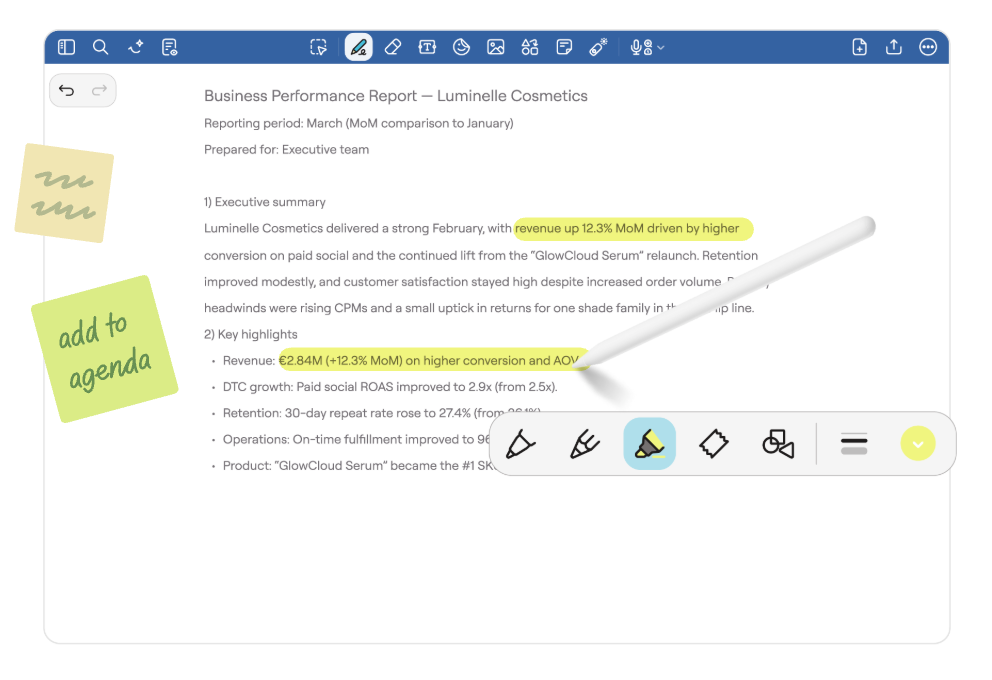
Goodnotes treats a PDF the same way it treats a paper notebook—as an open canvas where you can write, sketch, or draw anywhere on the page without friction. Using an active stylus, such as the Apple Pencil, Samsung S Pen, or Lenovo Tab Pen Plus, you get pressure-sensitive ink that mimics real pens, including fountain, ballpoint, and brush pen options.
The handwriting workflow is backed by responsive inking and tactile gestures, such as:
- Intuitive gestures: Edits happen without breaking your stride. Use Scribble to Erase to scrub out ink or Circle to Lasso to select, move, resize, or restyle handwritten notes without switching tools in a menu.
- Palm rejection and ergonomics: Native palm rejection lets you rest your wrist flat on the screen, with customizable writing postures so the screen never registers stray marks.
- Fluid markup: You can circle clauses, sketch diagrams in the margins, handwrite equations, or draw arrows connecting disparate sections of a brief or architectural plan.
Because Goodnotes was built specifically for tablet hardware, annotating lecture slides, clinical briefs, or engineering drawings feels virtually identical to marking up physical paper, but with digital flexibility.
Adobe Acrobat offers a document-review approach designed around mouse clicks and standard editorial markup. Its tools are built to edit existing typed text rather than facilitate spontaneous visual thinking.
Markup in Acrobat revolves around selecting text strings with a cursor:
- Text-bound actions: You click and drag across text to apply highlighters, strikethroughs, underlines, or a specific ‘replace text’ marker that attaches an editorial comment to the selection.
- Freehand limitations: Acrobat does include a freehand Pencil tool, but it is primarily intended for quick marginal checks or rough circling. It lacks analog ink modeling, pressure sensitivity, and stroke smoothing.
- Interface friction on mobile: Attempting to handwrite notes or draw freely in Acrobat using a tablet or phone frequently results in high friction; the mobile app lacks advanced palm rejection controls, and toolbars must be manually toggled to switch between drawing and erasing.
For legal teams, procurement managers, and editors reviewing dense contracts from a dual-monitor desktop workstation, Acrobat’s cursor-driven text selection fits standard corporate proofreading workflows. However, the moment you transition to a tablet or attempt freehand review, the experience feels rigid.
Goodnotes vs Adobe Acrobat: Markup tools
While the markup method dictates how you interact with the app, the markup tools determine what elements you can add to the page.
Goodnotes provides a rich, visual toolkit optimized for freeform note-taking, sketching, and study workflows, while Adobe Acrobat focuses on standardized editorial callouts, proofreading tags, and technical review utilities.
Goodnotes approaches document markup with the depth of a physical stationery kit, giving you total freedom over color, line weights, and visual styling:
- Customizable pen and ink engine: Choose between Fountain, Ballpoint, and Brush pens, with granular control over stroke sensitivity and tip sharpness to match your natural writing style.
- Highlighters and Tape: The highlighter can be used freehand or held down to snap into straight, translucent lines that sit cleanly beneath PDF text. For students memorizing terminology or professionals prepping for depositions, the dedicated Tape tool lets you cover up text or figures and tap to reveal them on demand.
- Smart Eraser: Control the size and sensitivity of the eraser tool, and even select which inputs it erases. Keep all pen strokes intact while erasing any pencil input—or vice versa.
- Smart shapes and geometric precision: Draw rough geometric figures—such as arrows, triangles, circles, or flowcharts—and hold the stylus tip at the end of the stroke to snap them into clean vector shapes.
- Lasso and Elements: The Lasso tool allows you to grab any combination of handwriting, highlights, or images to resize, reposition, recolor, or convert handwriting to typed text. You can also save frequently used diagrams, callouts, or sticker graphics into the Elements tool for one-tap reuse across any document.
- Sticky notes: Drop resizable sticky notes anywhere across a complex brief.
Adobe Acrobat’s markup tools include:
- Precision text markups: Acrobat excels at line-by-line proofreading. Selecting text allows you to apply strikethrough, underline, text callout, or a dedicated ‘Replace Text’ marker that indicates exact replacements directly within the document flow.
- Standard PDF callouts and comment threads: Acrobat uses standardized PDF comment boxes and callouts (a text box connected to an arrow pointing to a specific coordinate). Every note opens into a structured comment thread where team members can reply, change status (e.g., Accepted, Rejected, Completed), and filter feedback by reviewer or date.
- Stamps and dynamic metadata: Acrobat includes a library of formal administrative stamps (such as Approved, Reviewed, or Confidential) along with dynamic stamps that pull your system name and current timestamp automatically.
- Technical measurement tools: For architects, contractors, and civil engineers, Acrobat includes built-in dimension tools that can measure distance, perimeter, and area against calibrated drawing scales.
- Geometric markup and pencil: You can draw lines, rectangles, polygons, and clouds to flag revision zones, alongside a basic freehand pencil tool. However, these drawing tools lack stroke smoothing, pressure response, or styling flexibility.
Goodnotes vs Adobe Acrobat: PDF editing
Goodnotes does not provide direct PDF editing. Instead, it treats imported files as static documents, placing all highlights, handwriting, text boxes, and images onto an uneditable layer above the page that allows you to:
- Prevent clicking into an existing paragraph to correct a typo, reflow text, or swap out embedded graphics.
- Cover up errors using white boxes, digital tape, or handwritten corrections, and add new typed text boxes over blank spaces.
For students working through lecture slides or field engineers redlining architectural schematics, preserving the underlying file while marking up revisions is standard practice.
Direct editing is Adobe Acrobat’s primary strength. Beginning with Acrobat Standard, the platform lets you treat a PDF almost like an editable word-processing document:
- Text reflow and font matching: Click into any paragraph to rewrite copy, correct numbers, adjust spacing, and let text reflow naturally while matching original typography.
- Asset management: Easily replace, crop, rotate, or delete embedded images and update active hyperlinks directly on the page.
- Sanitization and compliance: With Acrobat Pro, you can permanently redact sensitive data and remove hidden document metadata before publishing.
For legal teams modifying contract terms, HR managers updating onboarding packets, or publishers making last-minute copy changes without the original source files, Acrobat provides full structural control.
Goodnotes vs Adobe Acrobat: Document management
During the document review process, students may need to insert blank pages into slide decks for extra notes, while professionals may need to merge, split, and extract formal project files. Whether a user is able to do that has to do with the page management capabilities of the PDF markup tool they use.
Goodnotes handles page management through a visual thumbnail grid.
From this view, you can easily insert blank pages or new document imports, reorder pages by dragging them, rotate pages, and export, delete, or duplicate specific sheets.
- Notebook flow: Because Goodnotes treats PDFs as part of its larger notebook system, you can seamlessly insert a blank piece of digital lined paper directly into the middle of a PDF report to give yourself more room for handwritten notes.
- Bookmarks and outlines: You can create custom, searchable document outlines and bookmark important pages to navigate large files quickly.
However, Goodnotes focuses on notebook organization, not advanced file extraction. It does not include tools for cropping margins or splitting a single file into multiple separate PDFs.
Adobe Acrobat provides a dedicated suite of tools for restructuring and assembling formal documents. Beyond simple reordering and deleting, Acrobat allows you to rotate pages, crop margins, and replace specific pages with updated versions without breaking the rest of the document.
Both tools support:
- Merge and split: You can combine multiple PDFs into a single master file, or split a massive 500-page document into individual chapters based on page counts or top-level bookmarks.
- File extraction: Acrobat allows you to extract specific pages and save them as entirely new, independent PDF files.
Goodnotes vs Adobe Acrobat: Form filling
The way each tool handles forms highlights their distinct approaches: Goodnotes lets you manually write or type over static pages, while Adobe Acrobat automatically detects and interacts with digital form fields, dropdowns, and formal e-signature lines.
Goodnotes treats forms like standard paper.
- Ink and text boxes: You fill in blanks by handwriting with a stylus or dropping in movable text boxes.
- Reusable signatures: You can draw your signature once, save it to the Elements tool, and stamp it onto signature lines whenever needed.
While fast for personal forms, Goodnotes does not recognize interactive PDF fields or support automated, legally binding multi-party sign-offs.
Adobe Acrobat is the enterprise benchmark for digital forms and signatures.
- Interactive field detection: Acrobat automatically recognizes form fields, letting you tab cleanly through text boxes, radio buttons, and dropdowns.
- Form creation: Acrobat Pro allows you to build interactive forms with validation rules and calculations.
- Acrobat Sign: Route documents to multiple recipients in a specific sequence, track signing status in real time, and generate audit-trail certificates.
Goodnotes vs Adobe Acrobat: Search and handwriting OCR
Retrieving information quickly across dozens of files requires powerful search capabilities regardless of whether you are locating a scribble in lecture notes or extracting text from a scanned historical archive.
Goodnotes indexes your own writing alongside digital text:
- Searchable handwriting: Powered by handwriting OCR across 15+ languages, Goodnotes lets you search your handwritten margin notes, circled terms, and rough sketches as easily as typed text.
- Existing text search: It seamlessly searches typed text and PDFs that already contain an underlying OCR text layer.
Goodnotes does not generate new OCR text layers onto scanned image PDFs; it searches existing text layers or ink you write on top.
Adobe Acrobat Pro (or higher tiers like Acrobat Studio) can convert flat paper into machine-readable digital files, allowing for:
- Full document OCR: Acrobat automatically recognizes characters in scanned paper or flat image PDFs, converting them into searchable, selectable, and editable text.
- Scanned font matching: It generates actual system fonts that match the original scan, letting you copy text or correct scan typos.
Acrobat does not index freehand pencil marks or stylus handwriting, leaving handwritten notes unsearchable.
Goodnotes vs Adobe Acrobat: AI tools
Both platforms feature embedded AI, but their engines serve completely different stages of document review.
Goodnotes AI is designed to help you interact directly with your working notes, lectures, and open PDFs:
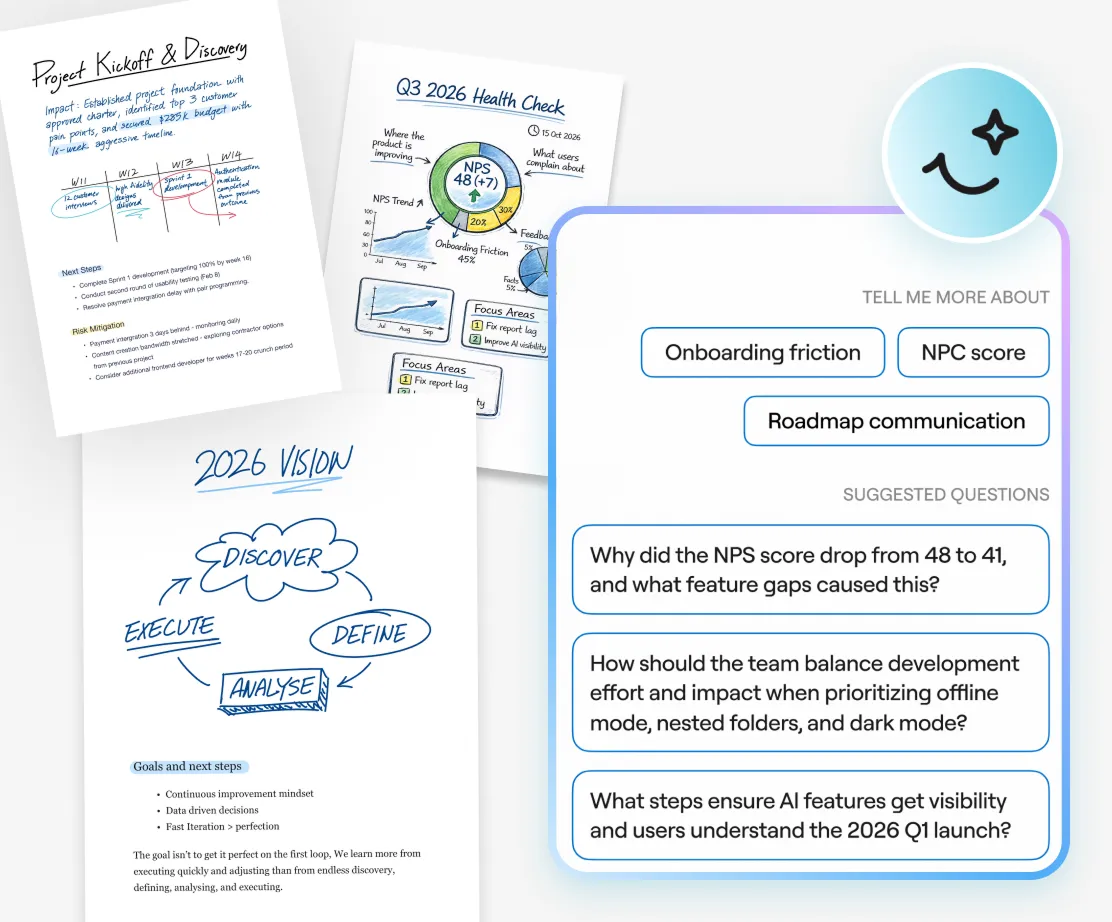
- Ask Goodnotes: Chat directly with your documents to summarize long readings, explain dense passages, translate text, or surface key details across handwriting and typed notes.
- Study aids and math: Automatically generate practice quizzes from your imported notes and textbooks, or get step-by-step assistance with handwritten math equations.
- Meeting intelligence: Automatically transcribe recorded audio, detect action items, and create concise post-session summaries.
Goodnotes focuses on processing and learning from individual files and notebooks within your personal library.
Adobe Acrobat targets structured enterprise research and deliverable creation, primarily through Acrobat Studio and its AI Assistant:
- PDF Spaces: Combine up to 100 PDFs, web links, and files into an interactive research hub to query broad document sets simultaneously.
- Source citations: The AI Assistant answers questions about complex briefs and contracts with clickable, page-level source citations.
- Content repurposing: Powered by Adobe Express, it transforms source PDFs into slide presentations, social posts, or podcast-style audio overviews.
Goodnotes vs Adobe Acrobat: Audio recording
Capturing spoken discussions alongside your notes is essential for lectures, client interviews, and team meetings.
Goodnotes includes built-in audio recording mapped directly to your handwriting:
- Timestamped handwriting: As you write or sketch during a lecture or meeting, your strokes sync to the recording. Tapping any handwritten note jumps playback straight to that exact moment in the audio.
- Live transcription and summaries: View live transcripts, separate speakers, and automatically surface action items and meeting summaries.
Adobe Acrobat does not support native audio recording during document review.
- No live capture: You cannot record ambient audio, lectures, or meetings inside the app while marking up a PDF.
- Studio summaries only: Acrobat Studio can generate AI podcast-style overviews from source documents, but it cannot capture live audio or sync voice to your notes.
Goodnotes vs Adobe Acrobat: Device compatibility
Both platforms support all major operating systems, but each is optimized for entirely different hardware setups.
Goodnotes is engineered primarily for tablets and mobile touchscreens:
- Operating systems: Available across iPadOS, iOS, macOS, Windows, Android, and Web.
- Hardware optimization: Built specifically for active stylus input, featuring dedicated hardware integrations for Apple Pencil on iPad, Samsung S Pen on Galaxy tablets, and Lenovo Tab Pen Plus.
- Lightweight footprint: Installs quickly and runs smoothly on tablets without heavy storage demands.
Adobe Acrobat is rooted in the desktop workstation environment:
- Operating systems: Native desktop clients for Windows and macOS, Acrobat Web, Chrome/Edge extensions, and iOS and Android mobile apps.
- Mobile limitations: While desktop Acrobat is feature-packed, its mobile apps on iOS and Android are geared toward basic viewing, signing, and light commenting, lacking robust editing tools.
- System footprint: The full desktop app requires significant disk space (roughly 4.5 GB on Windows and 2.75 GB on macOS).
Goodnotes vs Adobe Acrobat: Cross-platform sync
Seamless syncing ensures your annotations and documents follow you from a desk setup to meetings, site visits, or lecture halls.
Goodnotes syncs your complete library—including Notebooks, Whiteboards, Text Documents, and annotated PDFs—across devices via Goodnotes Cloud and iCloud (Apple only):
- Immediately pick up anywhere: Mark up a PDF with an Apple Pencil on iPad, pull it up on a Windows laptop or phone to check notes, and continue reviewing in a web browser.
- Synchronized collaboration: Share a link to your notebook or PDF to co-edit in real time with up to 50 people at once. Any handwritten notes, annotations, or edits made by invited collaborators update instantly across all screens, eliminating the need to email new versions back and forth.
- One-way auto-backup: In addition to active cloud sync, Goodnotes supports automatic one-way backups to Google Drive, OneDrive, Dropbox, or WebDAV.
Adobe Acrobat synchronizes PDFs and review workflows through Adobe Document Cloud:
- Instant file availability: Save a file to Document Cloud on your desktop, and it immediately reflects on Acrobat Web and the mobile apps.
- Synchronized review streams: Shared review links update in real time, so comments, replies, and signature statuses sync automatically across all invited reviewers without emailing new versions.
Acrobat sync is built around tracking individual document files and comment threads rather than maintaining a personal notebook ecosystem.
Goodnotes vs Adobe Acrobat: Security and compliance
Both tools provide enterprise-grade safeguards, but they target different layers of document governance.
Goodnotes focuses on securing internal notes and supporting flexible deployment across mobile hardware:
- Offline and private infrastructure: Through MDM platforms like Microsoft Intune and Jamf Pro, Enterprise deployments can keep notes off Goodnotes Cloud entirely, backing up directly to an organization's private WebDAV servers.
- Centralized admin: Teams and Enterprise tiers provide an Admin Console, SAML SSO, and domain control to manage team access.
- Document-level security: Lock individual notebooks or PDFs with Face ID, Touch ID, or a universal password on iOS.
- Compliance and AI privacy: Fully certified for ISO/IEC 27001, SOC 2 Type 2, GDPR, and CCPA. User data and document contents are never used to train AI models.
Goodnotes operates on an annotation overlay and does not offer native tools to permanently redact underlying PDF text or metadata.
Adobe Acrobat is the institutional enterprise benchmark for formal file sanitization and legal compliance:
- Permanent redaction: Acrobat Pro includes permanent redaction tools to sanitize sensitive text, graphics, and hidden metadata before files are shared publicly or filed in court.
- Enterprise distribution: Centrally managed via the Adobe Admin Console, offering transferable seats, single sign-on (SSO), and audit logs.
- Strict industry compliance: Certified across rigorous global standards, including HIPAA-compliant e-signing, SOC 2, ISO 32000, and FedRAMP authorization.
Goodnotes vs Adobe Acrobat: Pricing and plans
The two tools take completely different approaches to cost. Goodnotes uses an accessible annual subscription model, while Adobe Acrobat is a significant enterprise budget line item billed monthly.
Goodnotes offers straightforward pricing split between individuals and managed teams:
- Free: Up to 3 files of each type and a 5 MB file import limit with standard note-taking tools.
- Essential ($11.99/year): Unlimited notebooks, all handwriting and markup tools, unlimited audio recording, and Google Calendar integration.
- Pro ($35.99/year): Everything in Essential plus cross-platform sync across Apple, Windows, and Android, real-time collaboration, cloud backup, and AI features. (An optional AI Pass add-on is available for $9.99/month for unlimited AI).
- Teams ($120/seat/year): Adds centralized seat management via Admin Console, SAML SSO, domain control, and included AI Pass.
- Enterprise (custom): Includes Microsoft Intune App SDK, custom security reviews, and options to keep notes entirely off vendor cloud servers.
Essential and Pro include a 7-day free trial; Teams includes a 30-day trial.
Adobe Acrobat segments features across specialized software tiers, sold primarily as annual commitments billed monthly:
- Acrobat Reader (free): Basic PDF viewing, simple text highlighting, comments, and basic signature placement.
- Standard ($14.99/user/month): Direct PDF text and image editing, file conversion, and fill-and-sign; available on Windows and Web only (no OCR, redaction, or comparison).
- Pro ($19.99/user/month): Unlocks full desktop tools on both macOS and Windows, including OCR on scanned PDFs, permanent redaction, side-by-side document comparison, and advanced forms.
- Studio ($24.99/user/month): Pro tools plus Acrobat AI Assistant, multi-file PDF Spaces, generative presentations, podcast audio summaries, and Adobe Express Premium.
- Business tiers: Pro for Teams starts at $23.99/seat/month ($287.88/user/year) and Studio for Teams at $29.99/seat/month, adding the Adobe Admin Console, transferable licenses, and SSO.
Goodnotes vs Adobe Acrobat: Additional tools
Beyond annotating PDFs, both platforms provide specialized capabilities tailored to different daily workflows.
Goodnotes expands beyond standalone PDFs into a comprehensive digital workspace:
- Infinite canvas Whiteboards: A boundless workspace for visual brainstorming, process mapping, architecture diagrams, and team ideation.
- Structured Text Documents: A dedicated, typing-first format featuring rich text, headings, lists, and embedded media alongside handwriting.
- Digital Notebooks & Marketplace stationery: Organize personal notes, planners, and client project logs using customizable paper templates, digital covers, and stickers.
- Presentation Mode & Laser Pointer: Present clean pages over AirPlay or HDMI while keeping menus, split-screen notes, and tools hidden from the audience.
Acrobat focuses on deliverable creation, legal administration, and drawing verification:
- Content repurposing via Adobe Express (Studio): Automatically transform research PDFs into polished presentation decks, podcast-style audio overviews, and social graphics.
- Side-by-side document comparison (Pro): Automatically scan two PDF versions to highlight every visual, layout, and text revision between drafts.
- Bates numbering: Apply standardized sequential numbering across massive multi-document bundles for legal discovery and audit compliance.
- Calibrated measurements: Measure scaled distances, perimeters, and surface areas directly on architectural blueprints and engineering schematics.
Goodnotes vs Adobe Acrobat: The final verdict
Choosing between Goodnotes and Adobe Acrobat comes down to whether you need to think and markup on a tablet or manage and execute formal document operations on a desktop.
- Choose Goodnotes for PDF annotation if: You are a student, field professional, or knowledge worker who relies on a tablet and stylus to annotate lecture slides, redline drawings, and capture ideas. It gives you an authentic pen-on-paper feel, searchable handwriting, synced audio recording, and an integrated notebook workspace for a fraction of the annual cost.
- Choose Adobe Acrobat if: You are a heavy document reviewer, legal professional, or administrator who needs source-level text editing, OCR on flat scans, permanent redaction, or sequenced, legally binding Acrobat Sign workflows.
For many teams, the two apps serve complementary roles:
- Adobe Acrobat handles the formal back-end compliance and sign-offs.
- Goodnotes serves as the daily digital workspace for reviewing, learning, and thinking through documents.
By choosing a tool that aligns with your hardware and habits, you can eliminate interface friction and streamline your entire review process.
FAQs
1. Which is better for professionals, Goodnotes or Adobe Acrobat?
It depends on your core deliverables. Goodnotes is better for professionals who do on-the-go review—such as architects sketching over blueprints, consultants marking up decks, or project managers taking meeting notes. Adobe Acrobat is better for professionals handling contracts, compliance, or published documents that require direct text editing, data redaction, and multi-party e-signatures.
2. Which is better for students, Goodnotes or Adobe Acrobat?
Goodnotes is significantly better for students. It is built for stylus handwriting, lets you annotate lecture slides directly, solves handwritten math, records lecture audio synced to your notes, and costs a fraction of an Adobe subscription.
3. Which PDF editor is free?
Both offer free access with limitations. Adobe Acrobat Reader is free for basic viewing, commenting, and simple signing, but does not allow text editing or OCR. Goodnotes offers a free tier allowing you to create up to three notebooks, import files up to 5 MB, and use its full suite of handwriting and markup tools on imported PDFs.
4. What is the best tool for marking up PDFs?
If you mark up documents visually using a stylus, Goodnotes is the best option thanks to its fluid handwriting engine, shape recognition, and searchable ink. If your markup consists primarily of desktop text proofreading—such as strikethroughs, replacements, and status-tracked comment threads—Adobe Acrobat is the industry standard.