TL;DR
- Adobe Acrobat includes everything from PDF annotation to OCR, redaction, forms, and e-signatures. But its price, storage requirements, and feature-heavy interface may be unnecessary for everyday annotation.
- The eight alternatives compared are Goodnotes, Nitro PDF, Power PDF, Foxit, PDFgear, Bluebeam, DocHub, and PDF-XChange Editor.
- Goodnotes is best for handwriting and everyday PDF annotation, while Nitro PDF, Power PDF, and Foxit offer more traditional PDF editing and document management tools.
- PDFgear is free, Bluebeam is designed for construction drawings, DocHub works well for browser-based workflows, and PDF-XChange Editor offers a Windows-focused option with perpetual licensing.
- The best choice depends on whether you prioritize annotation, advanced editing, collaboration, platform support, or price.
Adobe Acrobat is a PDF management platform for creating, editing, annotating, signing, and sharing PDF documents. It offers solutions for adding comments, as well as more advanced tools for OCR, redaction, forms, document comparison, and e-signatures.
But Acrobat users often highlight some key drawbacks that push them to consider alternatives:
- Steep pricing: Adobe Acrobat Pro costs $29.99/month and no longer offers perpetual Acrobat licenses, meaning you’re tied to the monthly subscription. Although Acrobat Pro 2024 is available as a one-time purchase, the license is limited to three years of desktop access, with no ongoing feature updates or Acrobat online services.
- Storage requirements: Acrobat Pro requires 4.5 GB of free disk space on Windows and 2.75 GB on macOS just for installation. That means Acrobat itself takes up several gigabytes of your device’s storage. If you mainly use PDFs for highlighting, commenting, and annotations, you may prefer a PDF tool that takes up less storage space.
- Excessive bells and whistles: Acrobat includes advanced tools for redaction, form authoring, document comparison, AI support, presentations, and more. This is great, if you use them. If you just need a simple, effective way to annotate PDFs, you can end up paying more for features you never use.
In this article, we compare eight PDF editor alternatives to Adobe Acrobat, in no particular order. We look at their annotation features, pricing, platform support, ease of use, and user reviews to help you choose the right tool for your PDF annotation needs.
Let’s take a look, starting with Goodnotes.
1. Goodnotes
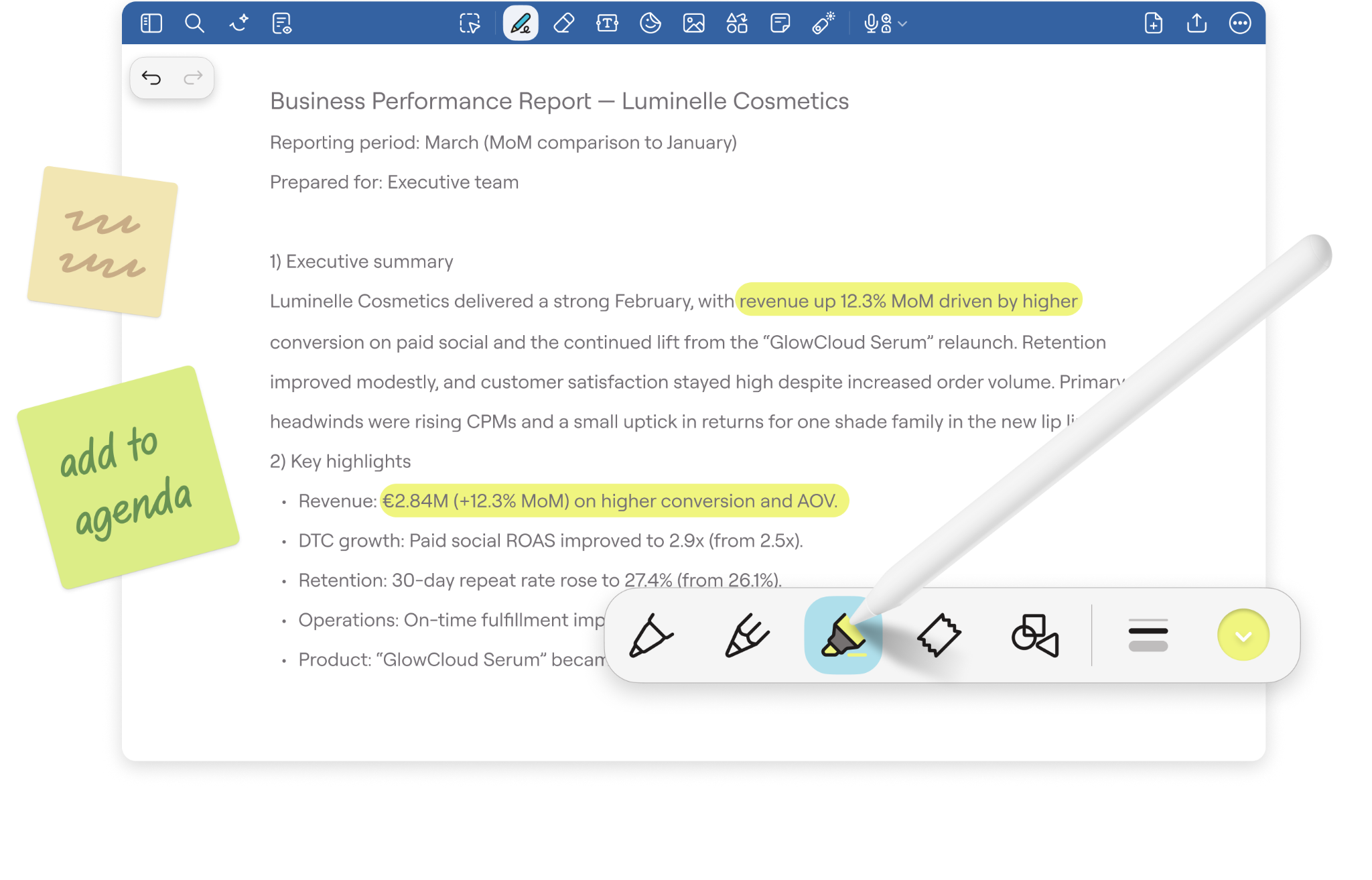
Goodnotes is a note-taking experience built for professionals who rely on tablets to take notes and annotate files on the go. Also available on desktop for seamless cross-platform collaboration and syncing, Goodnotes gives professionals and their teams a secure space to annotate PDF documents, take handwritten notes, and collaborate on digital whiteboards.
On-the-go PDF annotation is where Goodnotes shines. You can easily import a PDF and annotate it with handwritten or typed notes, highlights, sticky notes, images, and more. You can even add audio notes for other team members working on the same document, so they can pick up exactly where you left off.
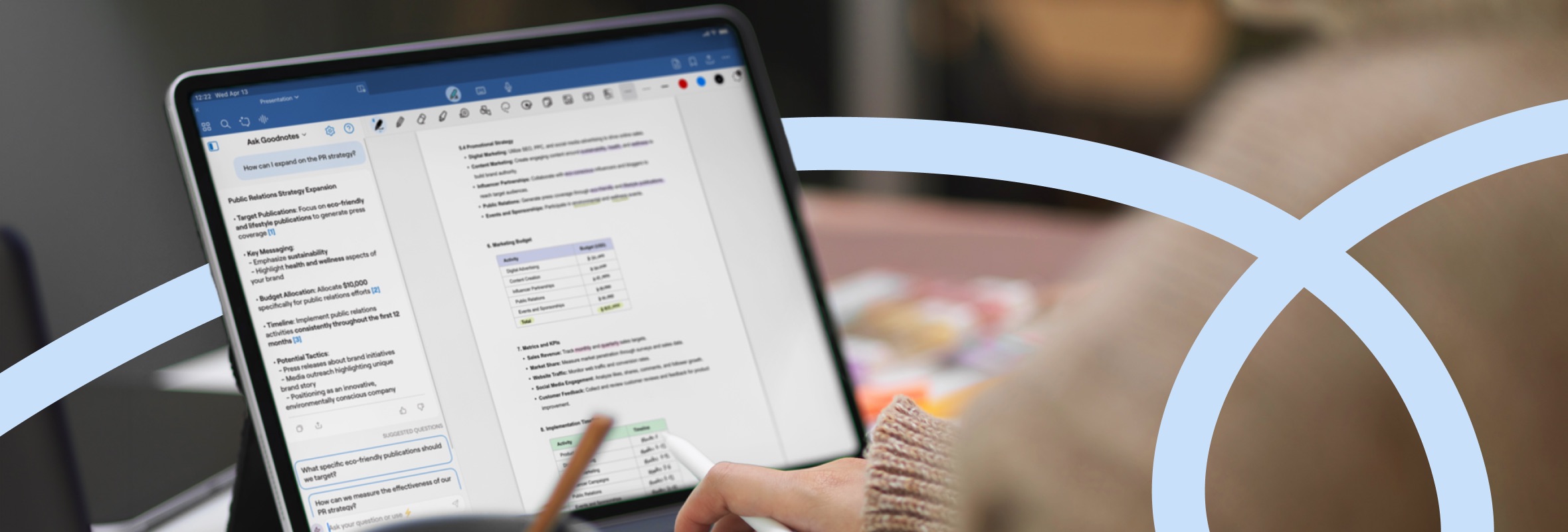
With Goodnotes AI you can search across PDFs and handwritten notes, summarize content, and surface information without manually working through every document or page. No more scrambling to find that document you were just working on.
Goodnotes works across iPadOS, macOS, Windows, Android, and the web, and is optimized for a wide range of devices through its established partnerships.
Key features:
- PDF annotation: Edit and annotate PDFs with handwritten notes, colored highlights, typed comments, sticky notes, images, audio notes, and more.
- Handwriting tools: Use your tablet stylus to take notes on the go, with key note-taking tools like the pen, pencil, highlighter, ruler, eraser, and more. You can also easily convert handwritten notes to text.
- Goodnotes AI: Search across all files—including notepads, whiteboards, and PDFs—and use AI search to find answers or summarize information in documents. Ask Goodnotes for in-document support, like spotting inconsistencies or generating graphs.
- Searchable annotations: Find information across handwritten notes, typed text, and PDFs.
- Audio recording: Record comments or conversations before, after, or during your note-taking, with transcription, AI summaries, and searchable audio.
- Reusable signatures: Save your handwritten digital signature as an Element and place it directly onto PDFs when you need to sign documents.
- Cross-platform access: Available on iPad, iPhone, Mac, Android, Windows, and web, with cross-device sync.
- Real-time collaboration: Share documents and work together in notepads, text documents, whiteboards, and PDFs using comments, annotations, handwriting, and sketches.
- Device-specific optimization: Goodnotes works with supported Apple, Samsung, Lenovo, and HP devices and includes hardware-specific experiences and offers.
Pros and cons
Pricing
The Goodnotes Essential and Pro plan both offer a 7-day free trial, while the Teams plan includes a 30-day free trial. You can also add the AI Pass for $9.99/month to Essential or Pro to unlock the full AI experience. Goodnotes AI is included in the Teams plan.
2. Nitro PDF
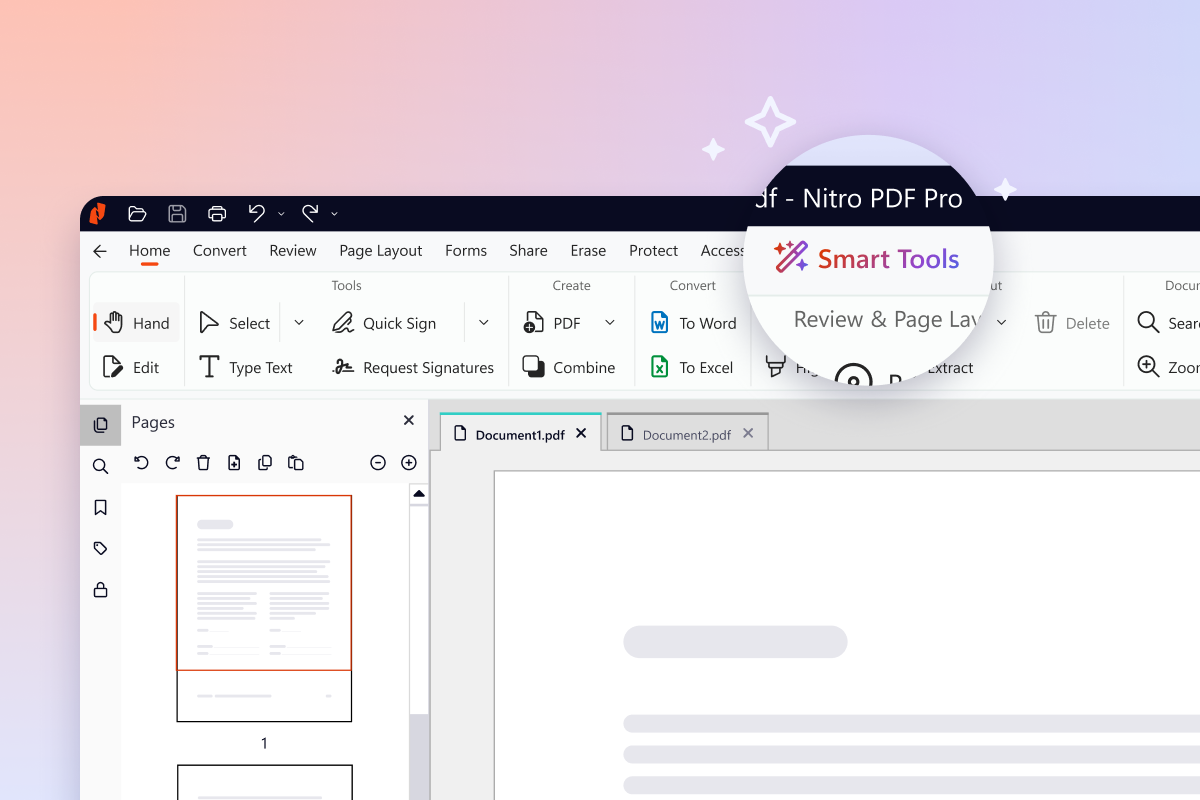
Nitro PDF is a PDF editing solution for working with text, images, scanned documents, forms, and annotations. The desktop and mobile app, Nitro PDF Pro, lets you edit text and images directly in PDF files and highlight or add comments during reviews.
It also uses OCR to make scanned documents searchable and editable. Plus, Nitro PDF Pro’s AI Assistant can summarize content, answer questions, and extract table data, a similar approach to Ask Goodnotes.
Key features:
- OCR: Make scanned PDFs searchable and editable. Find, copy, or update text without recreating the document.
- PDF AI Assistant: Ask questions, summarize documents, and extract information from PDFs in 80+ languages. Use it to pull out key details or table data faster.
- Scribble and draw: You can write or draw freehand directly on PDFs using your finger, Apple Pencil, or a supported stylus.
- Forms: Create and fill interactive PDF forms. Add text fields, checkboxes, dropdowns, and other fields people can complete digitally.
- Electronic signatures: Add your own e-signature or send PDFs to others for signing. Use it for contracts, approvals, and other documents that need a legally binding signature.
- Bates numbering: Add sequential page numbers across multiple PDFs. Use them to organize, reference, and track large document sets.
- PDF conversion: Convert PDFs to and from Word, Excel, PowerPoint, and other file formats.
Pros and cons
Pricing
3. PowerPDF
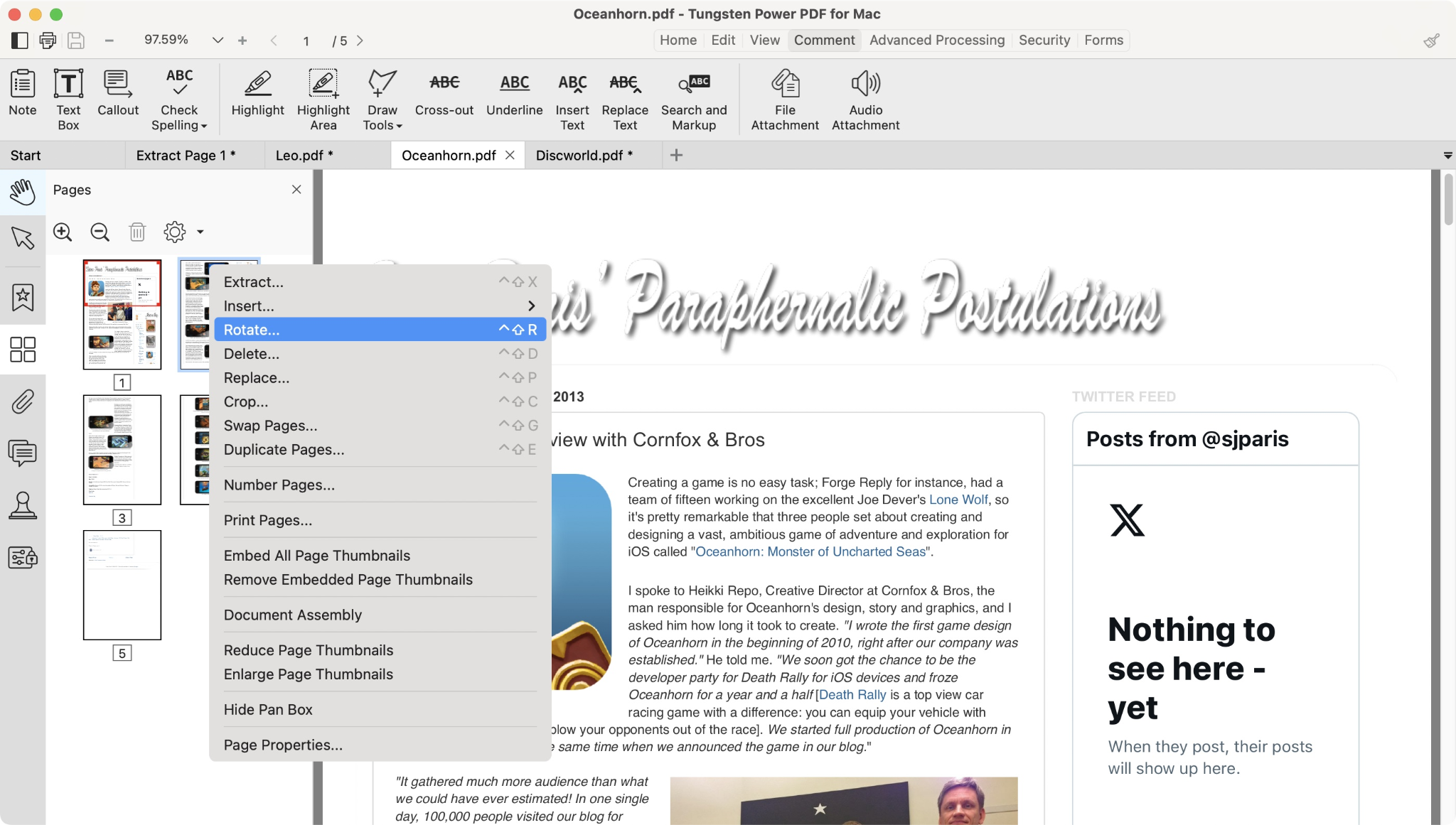
Power PDF is Tungsten Automation’s PDF editor, previously sold under the Kofax brand. It helps businesses create, edit, annotate, convert, sign, and secure PDFs, with desktop and browser-based options for working on documents.
Teams can work on the same PDF together, adding comments, markups, and edits locally or through a private server. You can also use OCR to make scanned documents searchable, permanently redact sensitive information, add password protection, and review PDFs directly in a browser or Microsoft Teams.
Key features:
- Annotation and markup: Highlight, underline, or cross out text, add comments and notes, draw on pages, and use stamps to give feedback directly on a PDF.
- OCR: Make scanned or image-based PDFs searchable, so you can find and work with text that would otherwise just sit as an image on the page.
- Redaction: Permanently remove sensitive text, images, or metadata from a PDF before you share it with someone else.
- PDF conversion: Turn PDFs into editable Word, Excel, PowerPoint, JPG, HTML, and other file types, or convert those formats back into PDFs.
- Document comparison: Compare two versions of a PDF to see what has changed and check whether requested edits were made.
- Forms: Create and fill PDF forms with text fields, checkboxes, radio buttons, and signature fields, or turn a scanned paper form into a fillable PDF.
- Security controls: Password-protect PDFs and control whether other people can print, edit, copy, comment on, or make other changes to the document.
- Cloud editing: Open and edit PDFs directly in your browser without installing the desktop app, so teams can review documents from different locations. This is included with Power PDF Business.
Pros and cons
Pricing
Power PDF offers individual desktop licences and separate plans for businesses. Standard and Advanced are one-time purchases, while Power PDF Business is designed for teams that need organisation-level licensing, deployment, collaboration, and admin controls.
4. Foxit
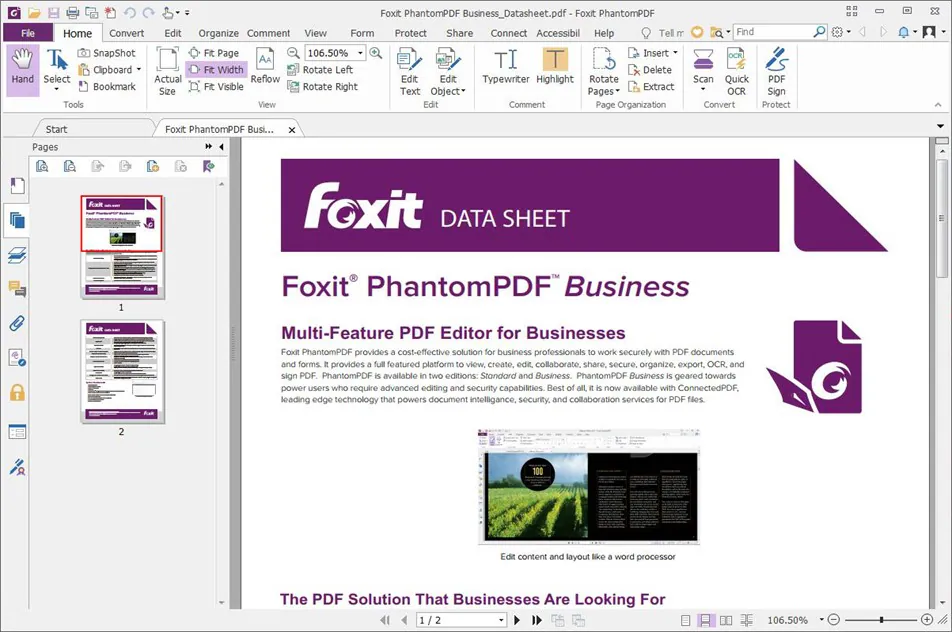
The Foxit PDF Editor lets you edit paragraphs with automatic text reflow, change tables directly, link or split text blocks, and reposition images and other page elements without recreating the document. For repetitive work, its Action Wizard can apply the same edits across hundreds of PDF files.
Foxit’s AI Assistant can summarize documents, answer questions, translate content, and surface information from PDFs. Foxit also connects with business tools including Microsoft 365, SharePoint, OneDrive, Google Drive, Dropbox, and other document-management systems.
Key features:
- Advanced text editing: Edit paragraphs, tables, and other editable text directly in the PDF while preserving the existing layout.
- Markup tools: Highlight text, add comments, draw on pages, and leave feedback during document reviews.
- Action Wizard: Apply repeatable edits or formatting changes across multiple files instead of updating each PDF manually.
- AI Assistant: Chat with PDFs, summarize long documents, translate content, and extract key information.
- OCR for scanned files: Turn scanned PDFs into searchable and editable documents.
- Collaboration tools: Start shared reviews and collect comments from multiple stakeholders in one place.
- Security tools: Protect files with password encryption, permissions, and redaction tools for sensitive information.
- PDF conversion: Convert files to and from common file types, including Microsoft Word, Excel, and PowerPoint.
Pros and cons
Pricing
5. PDFgear
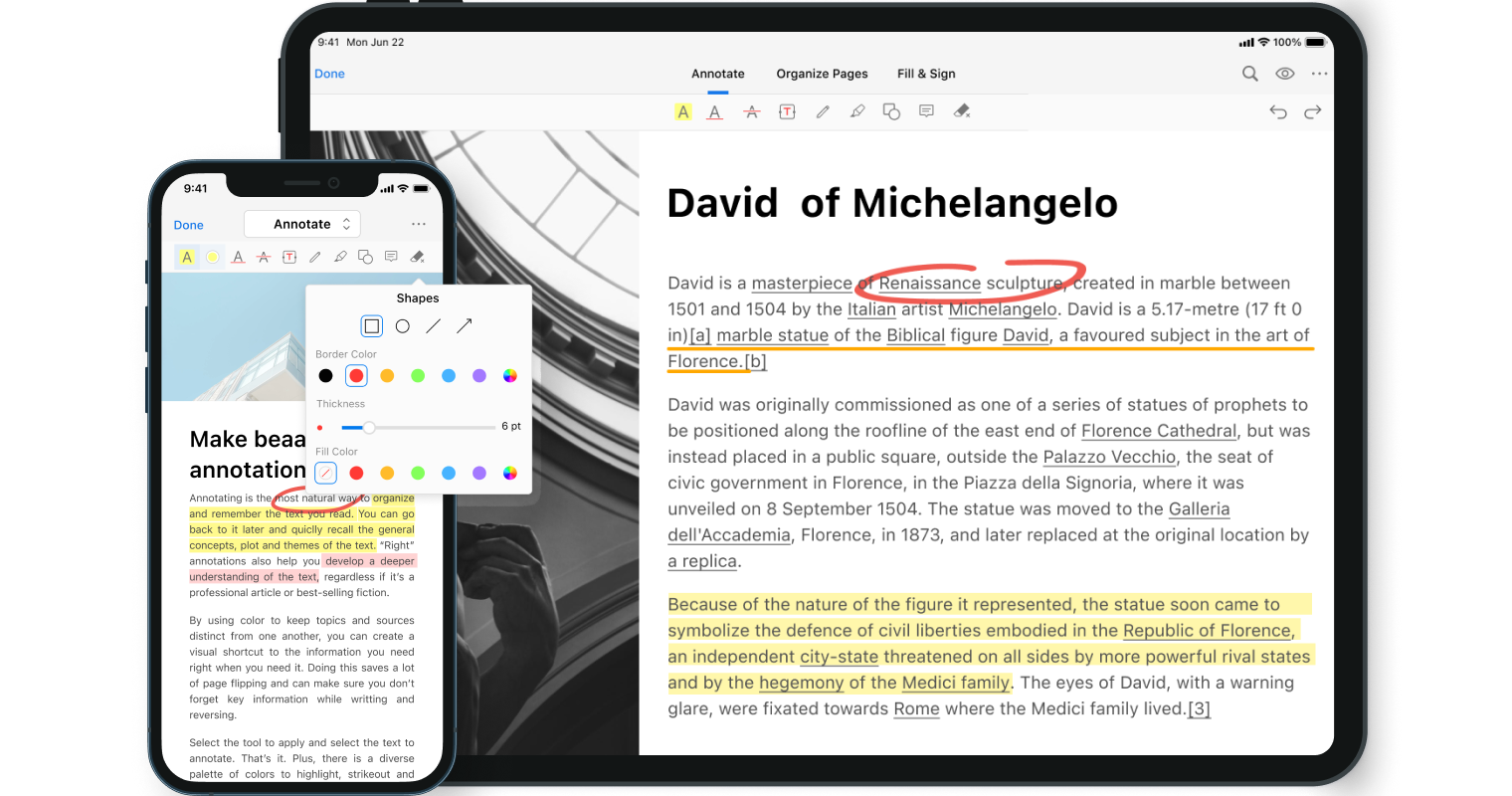
PDFgear gives you a choice between a browser-based PDF editor and downloadable apps for Windows, macOS, iOS, and Android. Its online editor is useful for quick markup because you can add highlights, comments, drawings, text, stamps, and signatures without installing anything or creating an account.
The downloadable version handles more advanced work, including direct text editing, OCR, PDF conversion, page organization, and bookmarks. PDFgear also includes PDF Copilot, which lets you use natural-language prompts to summarize documents, ask questions about a PDF, or trigger common editing tasks.
Key features:
- Online PDF annotation: Add highlights, comments, drawings, text, stamps, signatures, and other markup directly in your browser.
- PDF Copilot: Ask questions about a PDF, generate summaries, and use natural-language prompts to complete common PDF tasks.
- PDF conversion: Convert PDF files to and from Word, Excel, PowerPoint, JPG, PNG, and other common formats so you can deliver the right files to clients.
- Page organization: Merge, split, rotate, crop, extract, add, or delete PDF pages.
- Forms and signatures: Fill out PDF forms, create fillable forms, and add signatures to speed up frequent PDF tasks.
- Password protection: Encrypt PDFs and restrict access to sensitive documents with individual PDF passwords.
- Cross-platform access: Use PDFgear on Windows, macOS, iOS, Android, or through its online editor.
Pros and cons
Pricing
PDFgear is free to use across its online editor, desktop software, and mobile apps. There are no paid plans, premium versions, watermarks, subscriptions, or in-app purchases.
6. Bluebeam
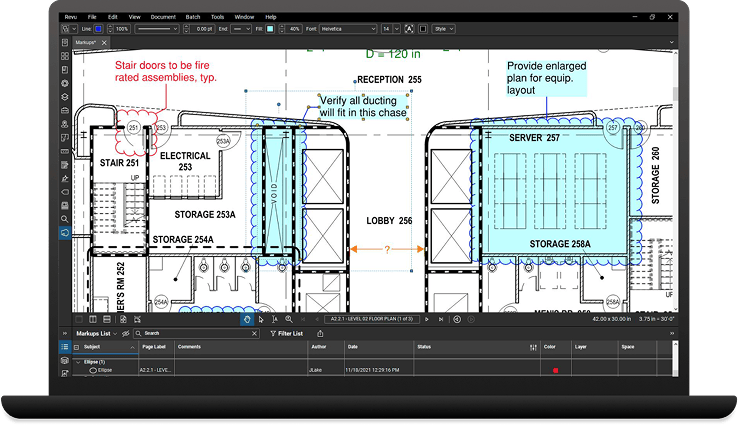
Bluebeam is construction collaboration software built for teams handling PDF blueprints and documents. Its desktop application, Bluebeam Revu, is designed specifically for working with technical PDF drawings and documents, with tools for markups, measurements, and document review.
You can add scaled annotations, callouts, images, and metadata directly to drawings, then organize and track that feedback in the Markups List. Bluebeam also includes Studio, where teams can work from the same set of drawings, assign markups, track statuses, and keep an activity record.
Key features:
- Scaled markups: Add customizable annotations, symbols, callouts, images, and metadata directly to technical drawings.
- Measurement tools: Measure length, area, depth, volume, and other quantities using the drawing’s scale.
- Markups List: Sort, filter, group, assign, and track annotations across a project.
- Studio collaboration: Review drawings with teammates in real time and keep an activity record of changes.
- Check in/check out: Only one person can edit a project file at a time. Once someone checks it out, everyone else has to wait until they check it back in before making changes.
- Tool Chest: Save and reuse standardized markups across drawings and projects.
- Visual Search: Use computer vision to locate symbols, images, or annotations across drawings.
- Batch processing: Apply stamps, slip sheets, and other document changes across multiple PDFs at once.
- Web and mobile access: Open and mark up drawings from a browser or mobile device when you’re away from the Revu desktop application.
Pros and cons
Pricing
7. DocHub
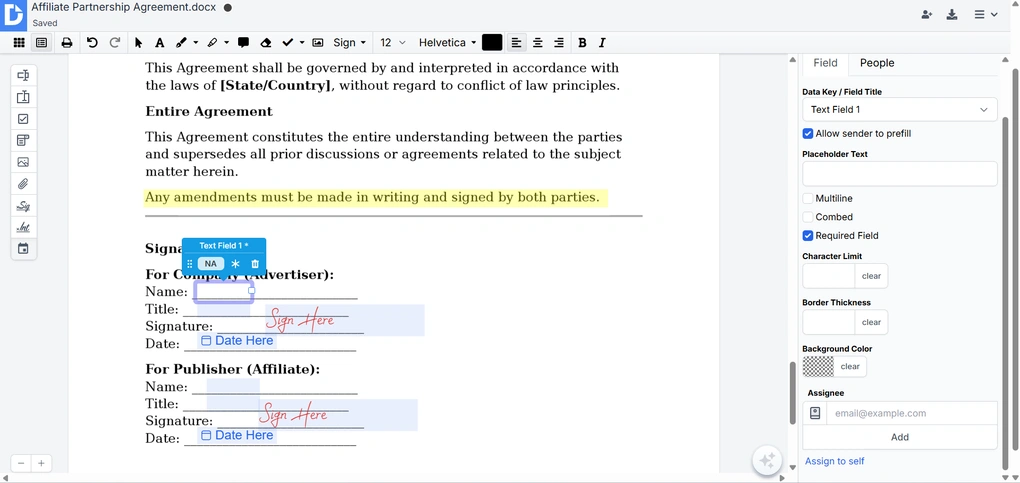
DocHub is a browser-based PDF editor and eSignature tool that lets you review and annotate documents without installing desktop software. Its toolbar covers everyday markup, such as highlighting, underlining, drawing, sticky notes, text, whiteout, stamps, and comments.
It connects with the Google ecosystem: you can open documents from Google Drive or Gmail, edit and sign them in DocHub, then save or share them without moving files between separate apps. It also supports Dropbox and lets teams share documents for others to view, edit, comment on, or sign online.
Key features:
- Online PDF editing: Make basic edits directly in your browser without installing a desktop version of DocHub.
- eSignatures: Create a signature by drawing, typing, uploading an image, or signing from your phone, then send documents to others for signature.
- Fillable forms: Create and edit forms with text fields, checkboxes, signature fields, and other form data, then assign fields to specific recipients.
- Page management: Merge, split, rotate, reorder, or delete pages from PDF files.
- Document collaboration: Let others view, edit, comment on, or sign documents online, with changes saved automatically.
- Google Workspace integration: Open, edit, sign, and share files through Google Drive and Gmail, with additional connections to Dropbox, OneDrive, and Box.
- File format support: Work with PDFs as well as Word files, spreadsheets, presentations, TXT files, and other common file types.
Pros and cons
Pricing
8. PDF XChange
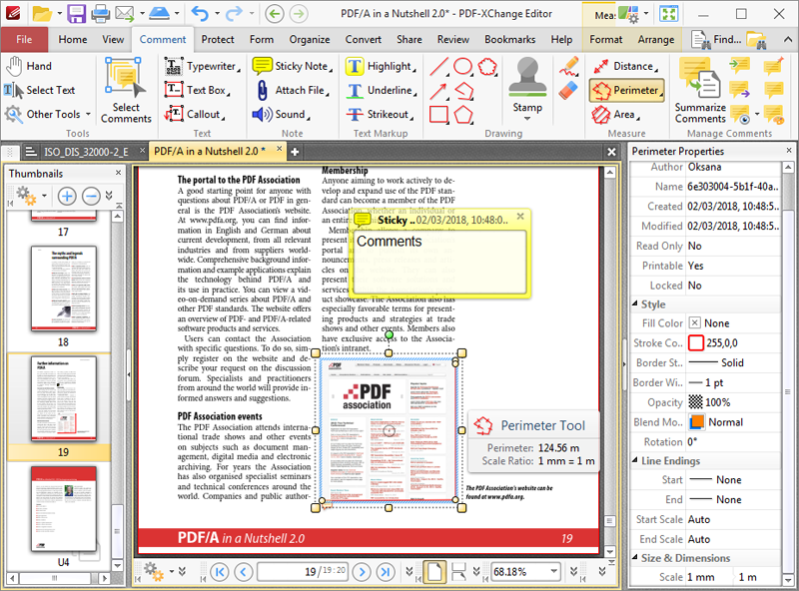
PDF-XChange Editor is a Windows-only PDF editor. Its free version offers around 70% of its features, including tools for viewing PDFs, adding comments and annotations, signing documents, and running OCR on scanned files.
The paid Editor and Editor Plus perpetual licenses add more advanced editing and document tools. Editor Plus includes a more accurate OCR engine, fillable form creation, dynamic stamps, and document comparison.
Key features:
- Annotation and commenting: Add highlights, text boxes, shapes, hyperlinks, and audio comments to PDF documents.
- PDF editing: Edit text, images, and other document content directly in PDF files.
- Digital signatures: Sign PDF documents electronically from within the editor.
- File conversion: Convert PDF files to and from Microsoft Word, Excel, PowerPoint, and other common formats.
- Enhanced OCR: Editor Plus adds a more accurate OCR engine for scanned and image-based documents.
- Document comparison: Compare two versions of a PDF to identify changes. Available with Editor Plus.
Pros and cons
Pricing
PDF-XChange offers separate pricing for PDF-XChange Editor and the more advanced PDF-XChange Editor Plus. All licenses are perpetual, so you pay once and can keep using the software without an annual subscription.
Pricing scales by the number of users: one individual who will use the software. Each licensed user can activate PDF-XChange on up to two devices. For example, a five-user license can cover five people across up to 10 devices.
Compare Adobe Acrobat alternatives
As you compare PDF alternatives to Adobe Acrobat, look beyond the feature list and consider how each tool fits the way you work with:
- PDF tools: Do you mainly need annotation, editing, OCR, forms, signatures, or a mix?
- Device compatibility: Can you use it across the devices you actually work on? What about the devices your clients work on?
- Collaboration: Can you share, comment, or review documents with others when needed? Is it a smooth process or a tricky one? Can you set different permissions for users?
- Support: Is help available if you run into issues? How easily can you reach the tool’s support team?
- Pricing: Is there a free plan, subscription, or one-time licence that fits how often you’ll use it? What exactly are you getting for your money?
- Best-fit workflow: Is the tool designed around the kind of PDF work you do most often? Does it offer additional solutions that you could use alongside the PDF editor?
The table below makes those differences easier to compare at a glance.
Switch from Adobe Acrobat today
Some Adobe Acrobat alternatives are built around advanced editing, security, and document management, while others focus on annotation, note-taking, and working across devices.
If you want both, Goodnotes brings handwriting, highlighting, typed comments, sticky notes, audio notes, images, and searchable annotations into one place—and combines it with top-level security and document management. It’s easy to use and cost-effective, whether you’re a freelance consultant or a 100-person engineering team.
You can give Goodnotes a go before committing to a plan, and use it for more than just PDF annotation. It’s the go-to tool for professionals who need fast, reliable solutions for on-the-go PDF annotation and note-taking.
Give it a try today.
FAQs
1. What is the best PDF editor alternative to Adobe Acrobat?
Goodnotes is the best Adobe Acrobat alternative for professionals looking to easily review and annotate PDFs. It combines handwriting, highlighting, typed comments, sticky notes, images, audio notes, and searchable annotations in one place. You can also use Goodnotes AI to search and summarize longer documents, then continue working across tablet and desktop.
2. Is there a cheaper alternative to Adobe Acrobat?
Yes! If you mainly use Adobe Acrobat Pro to view and annotate PDF files, Goodnotes gives you a much lower-cost entry point. There is a free version for testing the core PDF annotation experience, while paid plans are billed annually rather than at Acrobat Pro’s monthly price. Other tools on this list also offer lower-cost or free alternatives, including PDFgear and PDF-XChange Editor.
3. What should I look for in a PDF annotation tool?
Start with how you review PDFs. A good PDF solution should give you the editing tools you use regularly without making the user interface harder to navigate. Look for support for handwriting, highlighting, comments, search, collaboration, and the devices you use. If you work with large files or complex documents, also check performance and file-size limits. For business documents, consider integrations, offline access, sharing controls, and security features.
4. What are some other Adobe alternatives for PDF annotation?
Alongside the alternatives listed here, you can also investigate other alternatives to Adobe Acrobat:
- PDF expert has a wide set of tools and an intuitive interface for Apple users
- pdfFiller offer similar tools via an intuitive web interface
- PDF Candy offers 98 tools for free PDF editing
- LibreOffice Draw is an open-source tool for editing PDFs
Finding the best fit for you depends on your exact needs.