Annotating a PDF should be simple. Open the document, highlight what matters, scribble a note in the margin, maybe add a comment, and keep going. The best PDF annotation tools make it easy to mark up documents without disrupting your workflow.
So, what should you look for when choosing one?
- Does handwriting feel natural?
- Will it handle a 200-page PDF without issue?
- Can you search your annotations later?
- Can you pick up where you left off on another device?
In this guide, we compare the best PDF annotation apps across annotation features, device support, pricing, and the kind of PDF work each tool is best suited to.
Before we compare the apps, let’s look at exactly what a good PDF annotation tool should help you do.
What do you need from a PDF annotation tool
Highlighting text in a PDF document and digitally signing a contract involve different requirements than marking up lecture notes, reviewing a manuscript, or sketching over a floor plan. A good PDF annotation tool should give you access to the features you need easily. If that’s all of them, even better.
Here’s what to look for:
- Markup tools: At minimum, you should be able to highlight, underline, strike through, draw, add shapes, and leave comments or text notes.
- Handwriting: If you annotate with a stylus, look at pen responsiveness, palm rejection, pressure sensitivity, and how easy it is to erase or move handwritten notes.
- Direct PDF editing: Annotating and editing aren’t quite the same thing. If you need to change existing text, images, or other content inside the PDF, check whether the app also supports direct editing.
- Page management: Look for tools that let you reorder, rotate, duplicate, add, or remove pages without sending the document through another app.
- Search and OCR: Optical character recognition (OCR) can make scanned PDFs searchable. Some apps can also search handwritten notes.
- Audio recording: If you annotate PDFs during classes, meetings, or reviews, built-in audio recording can help you keep spoken context alongside your notes.
- AI tools: Depending on the app, AI can help you summarize documents, ask questions about a PDF, or collect key information.
- Cross-platform access: Check which devices the app supports and whether your documents and annotations stay in sync when you switch between them.
- Export and sharing: Make sure you can send an annotated PDF without losing comments, handwriting, or other markup along the way.
- Large-PDF performance: If you regularly work with lengthy reports, textbooks, plans, or reference documents, check how comfortably the app handles bigger files.
- Pricing: Some free PDF annotation tools offer the basics, while features such as OCR, AI, advanced editing, or additional storage may sit behind a paid plan.
The 8 best PDF annotation tools in 2026: A side-by-side comparison
To help you scan the table quickly, here’s how we’ve marked each feature:
✅ = supported
⚠️ = supported with limitations or only on certain platforms/plans
❌ = not supported
1. Goodnotes
Goodnotes is a note-taking app with PDF annotation tools built into its handwriting-first experience. Optimized for tablets, you can import a PDF and mark it up just like you would on paper, using handwriting, highlights, drawings, typed notes, and more. Beyond PDF annotation, it also brings in audio recording, cross-device and team collaboration, and AI-powered summaries and search.
Its partnerships with brands including Samsung, HP, Lenovo, LG, and ASUS also optimize parts of the experience for specific hardware, such as S Pen support on Samsung tablets and Apple Pencil on iPad.
Additionally, for businesses, Goodnotes is ISO/IEC 27001 certified and SOC 2 Type 2 compliant, and compliant with GDPR and CCPA. You can find all security and compliance documentation, including its SOC 2 report and penetration test information, in the Goodnotes Trust Center.
Key PDF annotation features
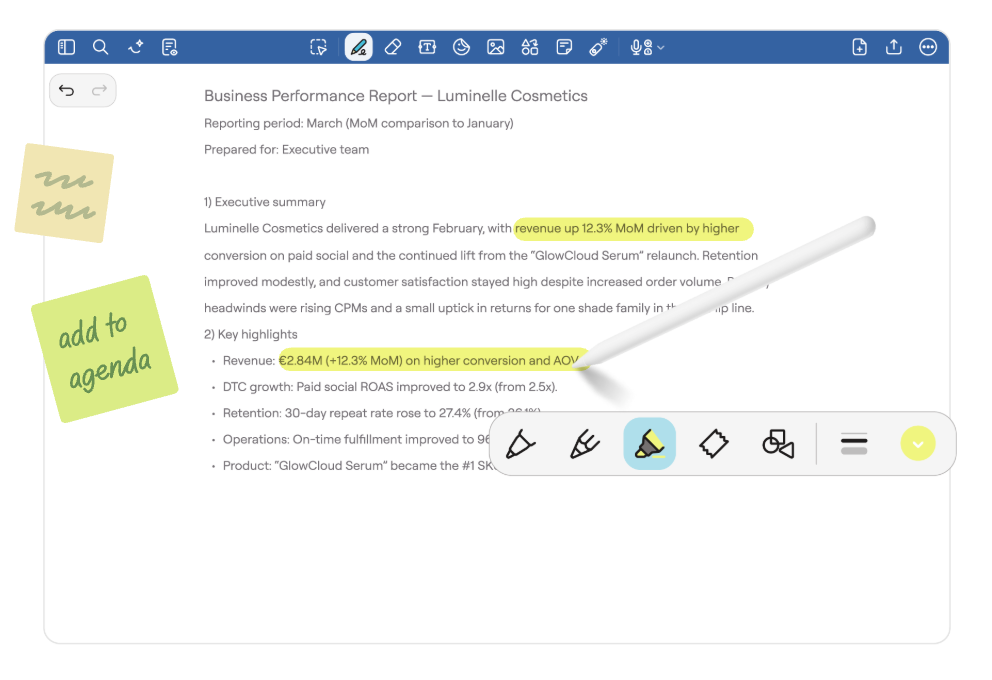
- Handwrite directly on PDFs: Use a stylus to write, draw, circle, or sketch on the page—with customizable colors, pen thickness, and more. Goodnotes’ stylus experience also includes gestures such as Scribble to Erase and Circle to Lasso for quicker edits. You can easily annotate on iPad or other supported devices using the same tools you already use for note-taking.
- Search your notes: Goodnotes can search handwriting, typed text, and text inside PDFs that already contain an OCR layer, which is useful when you’re working through longer documents.
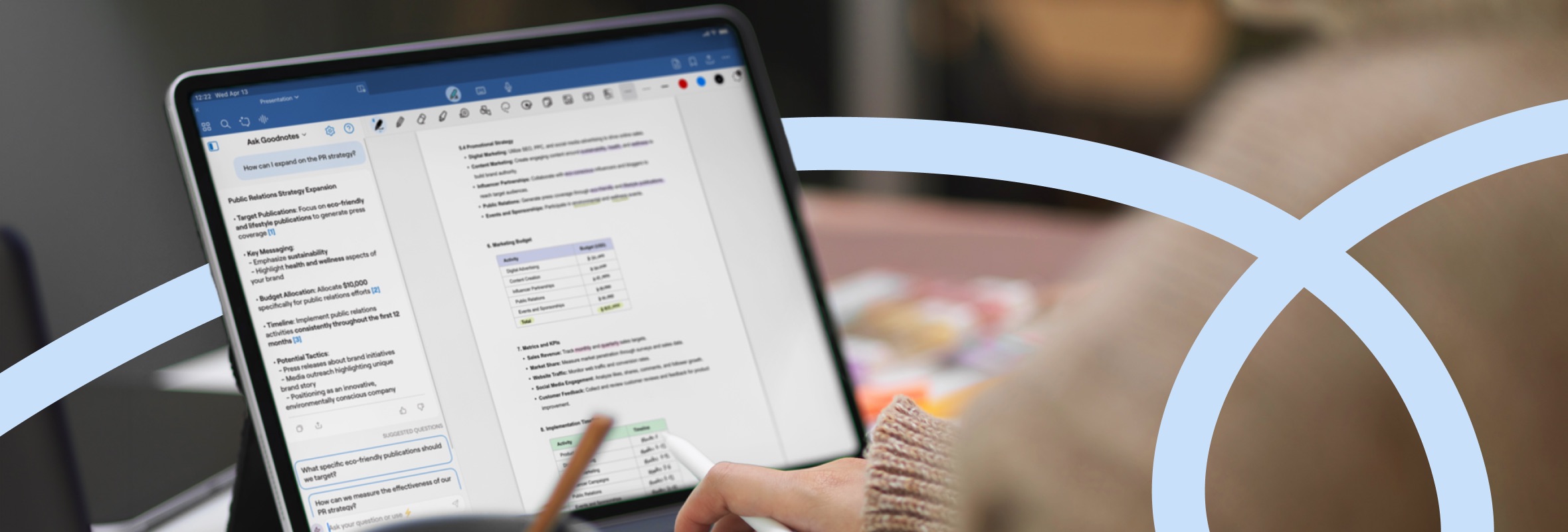
- Use AI with your PDFs: Goodnotes AI can help you work with the information inside your documents, including finding information, summarizing content, and asking questions about your notes and PDFs.
- Add signatures to PDFs: You can handwrite a signature directly onto forms, contracts, and other PDFs when you need to sign a document as part of your PDF markup.
- Record audio while you annotate: With Audio Recording, you can record while taking notes and return to the relevant part of the recording by tapping the handwritten notes you took during the recorded session.
- Collaborate on shared documents: Goodnotes supports real-time collaboration, so multiple people can add handwritten notes, comments, sketches, and annotations to shared documents.
- Keep PDFs organized and searchable: You can import contracts, reports, presentations, forms, technical drawings, and other PDFs into Goodnotes, then keep them organized alongside (and within!) your other notes for easier retrieval.
- Export annotated PDFs: You can choose between export formats like editable and flattened PDF exports depending on whether you want to preserve movable annotations and links or prioritize broader PDF-viewer compatibility and searchable handwriting.
- Cloud backup: Auto Backup also keeps copies of your Goodnotes documents in Google Drive, Dropbox, OneDrive, or WebDAV. This works as a one-way backup, which gives you an additional copy of important work outside of Goodnotes
Pros and cons
Pricing
The Goodnotes Essential and Pro plan both offer a 7-day free trial, while the Teams plan includes a 30-day free trial. You can also add the AI Pass for $9.99/month to Essential or Pro to unlock the full AI experience. Goodnotes AI is included in the Teams plan and above.
Goodnotes also offers Special Edition, a one-time purchase with no renewal date or expiration. However, it’s currently available only through the Apple App Store.
Xodo
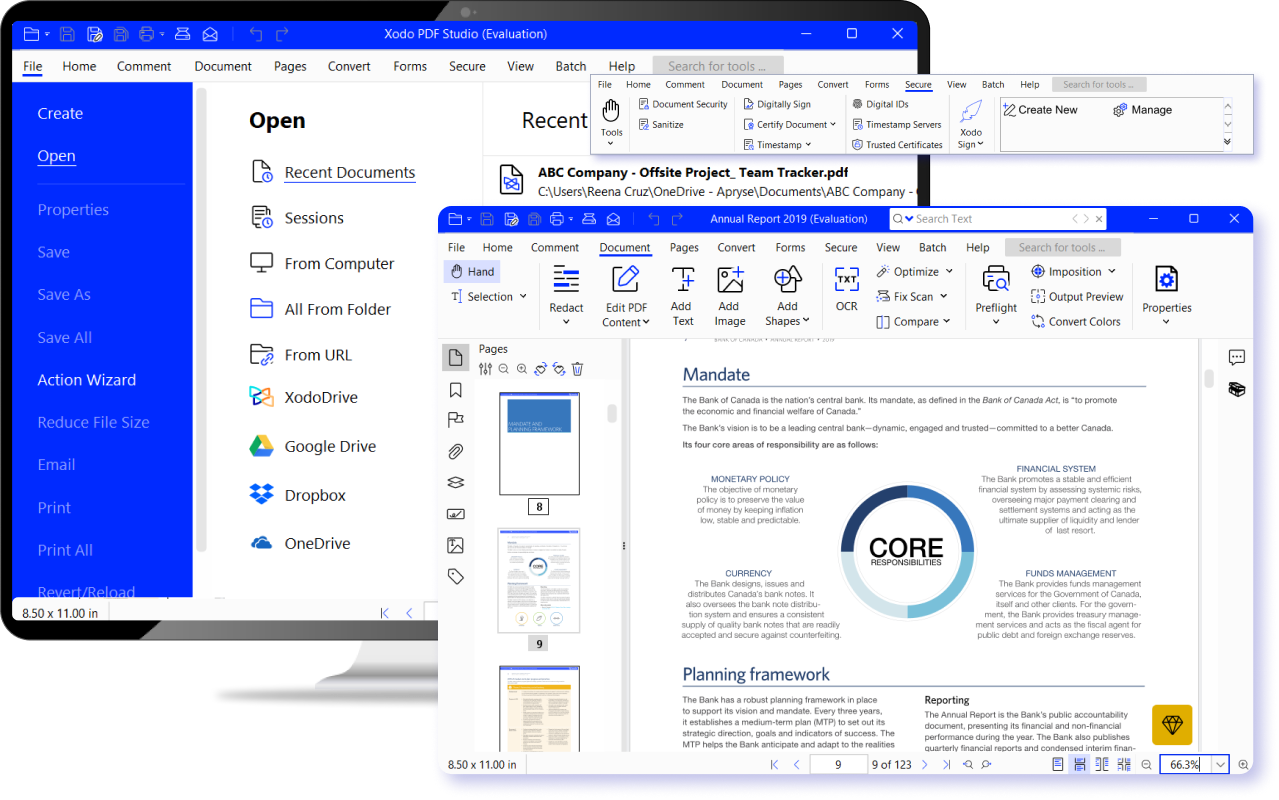
Xodo is a cross-platform PDF editor available on the web, desktop, and mobile. Its free PDF Reader includes everyday annotation tasks such as highlighting, comments, drawing, and filling forms. However, the paid PDF Studio plan adds more advanced PDF editing features like OCR, direct text and image editing, page organization, redaction, digital signatures, and batch processing.
Key PDF annotation features
- Annotate with text, highlights, and drawings: Xodo lets you highlight, underline, strike through, add sticky notes or text boxes, and draw freehand on PDFs.
- Work online or offline: You can use the browser-based annotator for quick edits, or Xodo PDF Reader on Windows, macOS, and Linux when you want to annotate without an internet connection. Mobile apps are also available for iOS and Android.
- Edit PDFs directly: PDF Studio lets you directly edit text, images, and shapes, organize pages, create forms, and redact content.
- Sign PDFs: The free Reader supports signing documents, while PDF Studio supports digital signatures.
- Connect cloud storage: You can save PDFs through Xodo Drive, Google Drive, Dropbox, and OneDrive, which is useful if your documents already live outside Xodo.
Pros and cons
Pricing
On the Xodo web, you get one free action per day, but unlimited use requires a paid Xodo Web plan. The iOS and Android apps are free to download and include free reading and annotation features, with additional tools available through in-app purchases or a subscription. If you want full access across web, desktop, and mobile, paid plans start at $10.99/month.
3. Adobe Acrobat
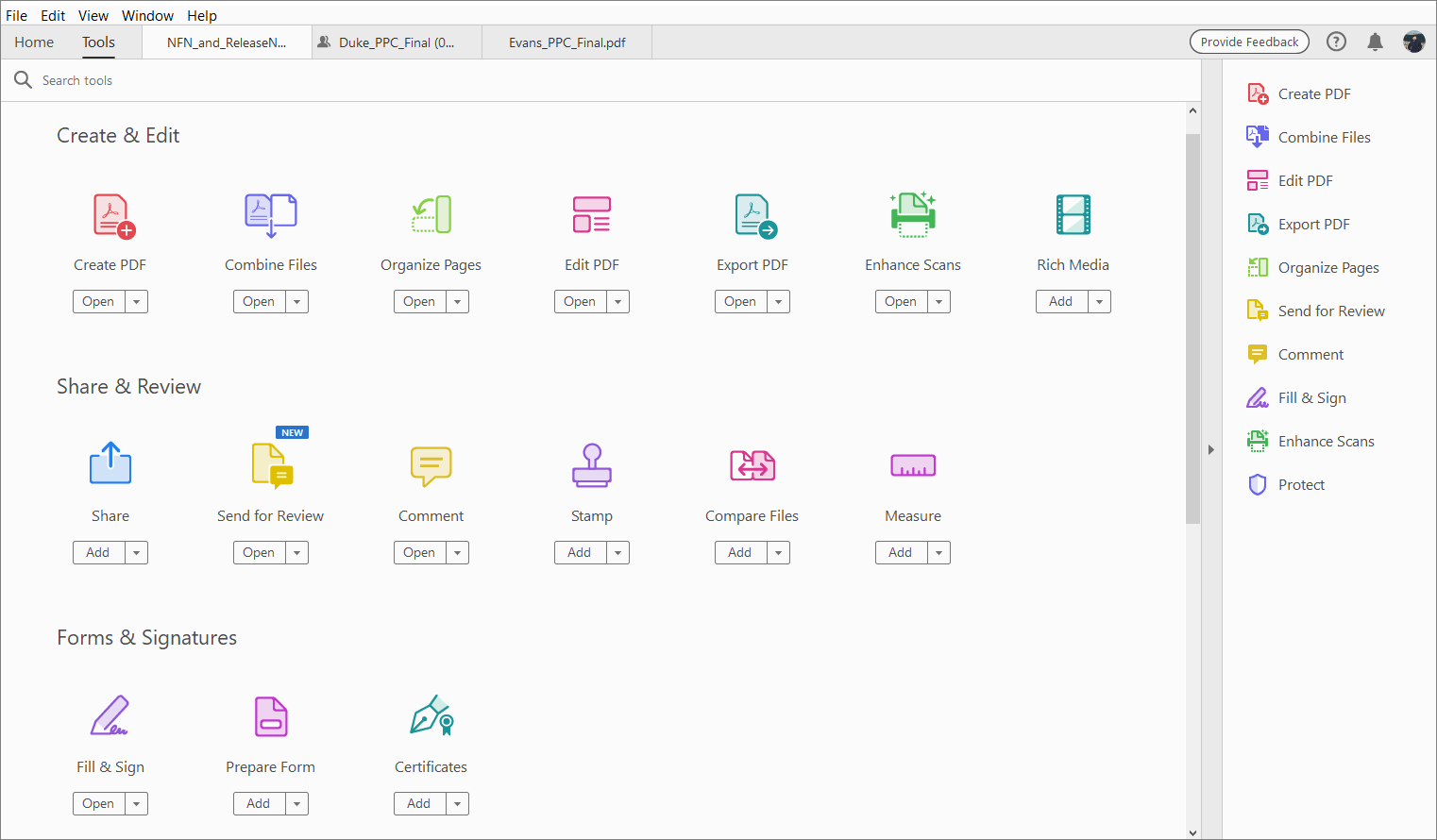
Adobe Acrobat is Adobe’s PDF software for reading, reviewing, editing, and sharing documents. The free Acrobat Reader handles everyday tasks such as viewing PDFs, highlighting text, adding comments and sticky notes, filling forms, and adding signatures. It works on desktop and mobile. Adobe Acrobat Pro adds tools to edit existing text and images, organize pages, convert files, redact information, and use OCR to make scanned documents searchable and editable.
Key PDF annotation features
- Mark up text precisely: Highlight, underline, strike through, or mark where text should be inserted or replaced. You can attach comments to those changes to explain your feedback.
- Draw and add shapes: Use freehand drawing for handwritten notes or add lines and shapes when you need to point out something visually.
- Keep review conversations on the PDF: Share a link to the document so other people can view it, add comments, and reply to feedback without sending new PDF versions back and forth.
- Fill and sign documents: Complete form fields, check boxes, and add a signature directly to a PDF.
- Measure technical drawings: Acrobat includes measurement tools for distances, perimeters, and areas, with options to set a scale for drawings and plans.
- Use AI to work through PDFs: Acrobat AI Assistant can answer questions about documents and help summarize contents.
Pros and cons
Pricing
Adobe’s team plans are annual subscriptions billed monthly, so you pay each month but commit for the year. Pricing is per license, which means your total cost increases with the number of people who need access.
4. PDF-XChange
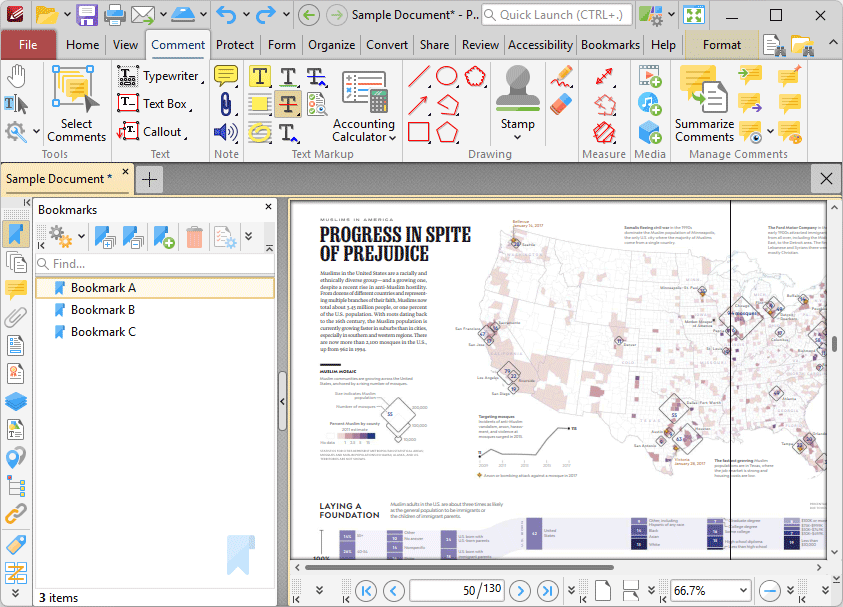
PDF-XChange Editor is a Windows-only PDF editor. You can annotate PDFs, change existing content, organize pages, work with forms, run OCR, compare document versions, and add signatures. It also includes tools for measurements, stamps, and AI-assisted document analysis.
Key PDF annotation features
- Write and draw freehand: Use the Pencil Tool to handwrite notes, sketch, or mark up areas visually. You can also move, resize, rotate, or erase those annotations afterward.
- Customize how annotations look: Adjust colors, opacity, line thickness, and other properties, then save preferred styles for reuse across documents.
- Measure technical drawings: Add distance, perimeter, and area measurements to PDFs, which can be useful for plans, drawings, and other technical documents.
- Search scanned documents with OCR: Convert image-based text into searchable and selectable content. Editor Plus includes a more advanced OCR engine for greater accuracy.
- Compare document versions: See replacements, insertions, deletions, and formatting changes between two PDFs, which is useful during review cycles.
- Add signatures and signing placeholders: Insert signatures or initials into documents, and mark where another person needs to sign or initial.
- Use AI to analyze PDFs: The built-in AI Assistant can help you interact with and analyze document content using supported OpenAI, Anthropic, or Google models. You need to provide your own API key.
Pros and cons
Pricing
PDF-XChange uses a perpetual license model, so you pay once and can continue using that version of the software. Pricing increases with the number of licensed users.
5. Drawboard PDF
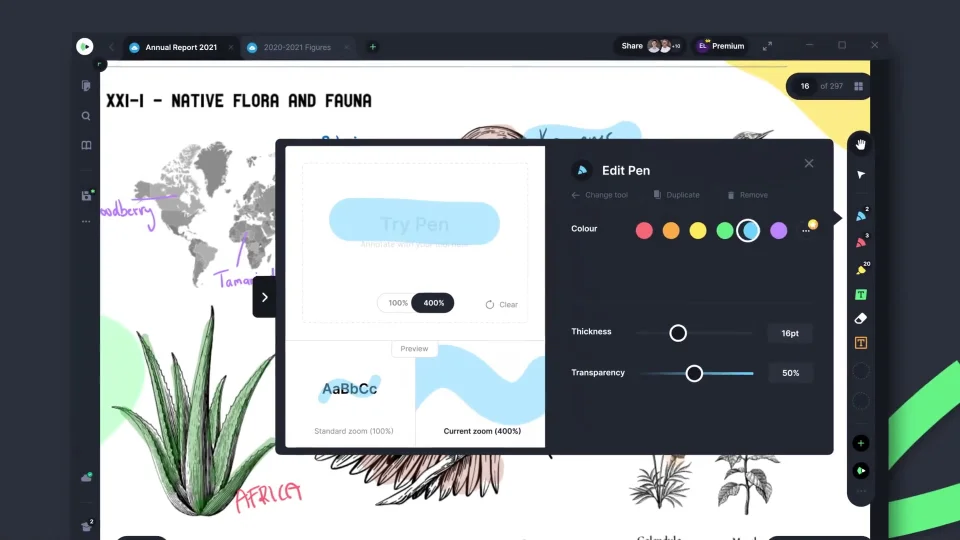
Drawboard PDF offers pen- and touch-based markup at the center of the experience. It runs on Windows, iOS, macOS, Android, and the web, with pressure-sensitive inking on supported tablet devices. Similar to Goodnotes, it’s particularly well-suited to drawings and visual documents, with scaled measurements, layers, and real-time markup sharing alongside everyday PDF annotation.
Key PDF annotation features
- Write with pressure-sensitive ink: Drawboard is designed for stylus use, with pressure-sensitive writing on supported devices. You can adjust pen color, thickness, and opacity, and use tools such as ink-to-line and ink-to-shape for cleaner markups.
- Measure drawings to scale: Calibrate a PDF and measure lengths, multi-point distances, areas, and angles. This makes Drawboard particularly useful for reviewing floor plans, technical drawings, and other documents where scale matters.
- Collaborate on the same PDF: Store+Share lets you invite other people to a document and see their annotations as they’re added. Your own markups can also sync across devices, so you can start reviewing on one screen and continue elsewhere.
- Work with scanned documents: OCR can turn text in scanned PDFs and images into selectable and searchable text, so you’re not limited to visually marking up a flat scan.
- Reuse common markups: Save frequently used annotations to the Markup Library rather than recreating the same symbols or notes each time. Drawboard also supports callouts, signatures, hyperlinks, snapshots, and redaction for more detailed reviews.
- Add audio notes: You can attach audio notes to a PDF when written feedback isn’t enough. This is an audio annotation, though, rather than audio that automatically syncs to your handwriting as you take notes.
Pros and cons
Pricing
Drawboard PDF has a free Basic plan for personal use, while its paid tiers use a subscription model—all billed annually. All Pro plans include a 7-day free trial.
6. PDFgear
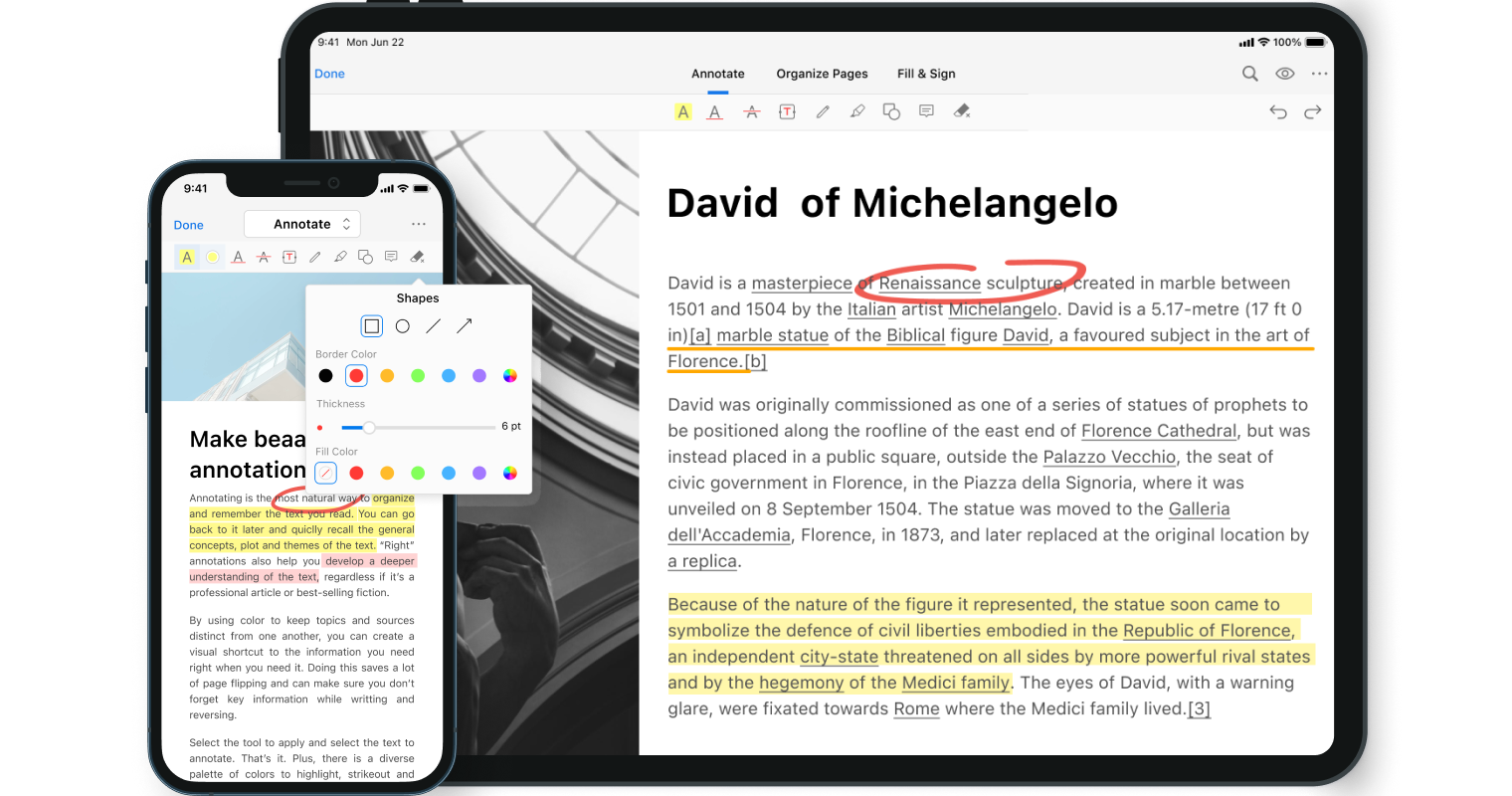
PDFgear is a completely free PDF editor available on the web and as downloadable apps for Windows, macOS, iOS, and Android. The browser version is handy for quick jobs like highlighting, commenting, drawing, signing, and filling forms without creating an account. The desktop app can directly change existing PDF text, run OCR, reorganize pages, convert files, and edit images and other document elements.
Key PDF annotation features
- Edit the PDF itself: On desktop, you can change or delete existing text rather than simply placing a new text box over the page. You can also adjust formatting and work with images and other objects.
- Use AI to navigate PDF tasks: PDFgear Copilot understands natural-language instructions and can carry out actions such as deleting pages, compressing files, or converting PDFs without making you hunt through menus.
- Ask questions about long documents: The AI assistant can summarize PDFs and answer questions based on their contents, which can help when reviewing reports, research papers, manuals, or other lengthy documents.
- Run OCR on scanned PDFs: PDFgear can recognize text in scanned or image-based documents so you can search, select, extract, or convert that content.
- Reorganize longer documents: Add, delete, rotate, reorder, split, merge, or extract pages when the PDF itself needs restructuring rather than just annotation.
- Sign and fill PDFs: Add signatures and initials, complete form fields, and work with checkboxes, dropdowns, and other form elements.
Pros and cons
Pricing
PDFgear is free to use across its online editor, desktop software, and mobile apps. There are no paid plans, premium versions, watermarks, subscriptions, or in-app purchases.
7. PDF Annotator
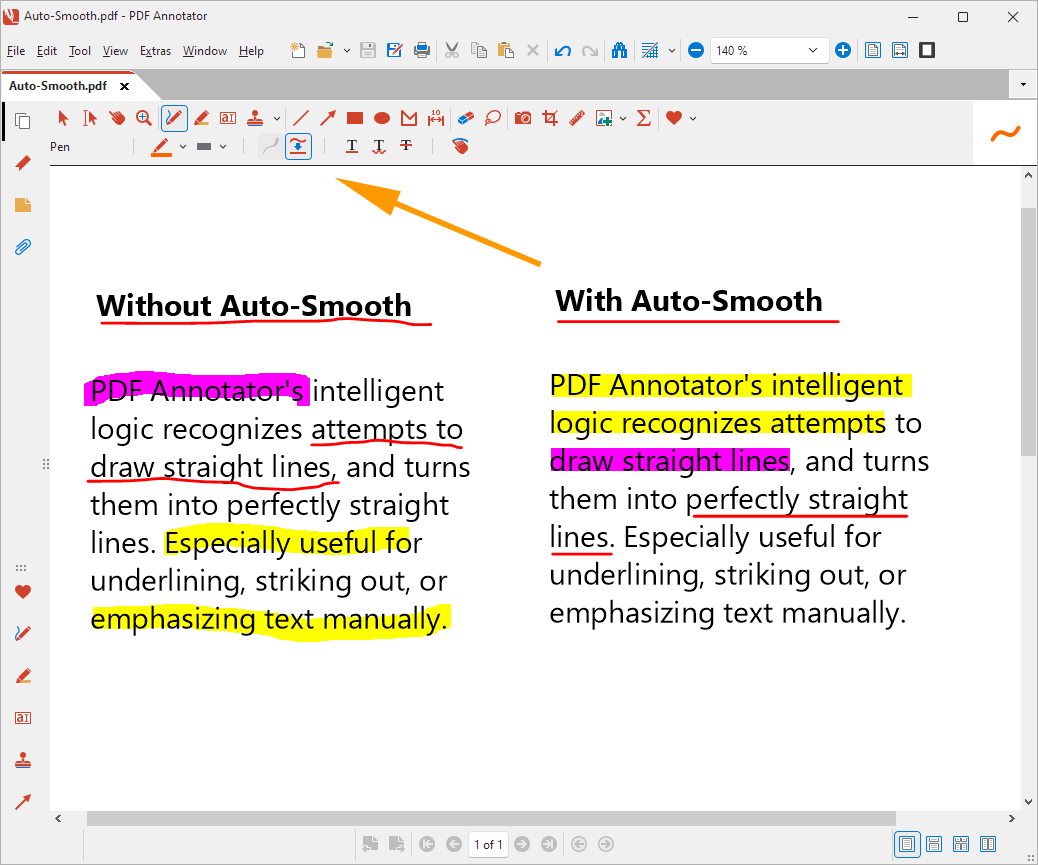
PDF Annotator is a Windows-only PDF annotation and editing app designed specifically for pen-based review. You can write directly on PDFs with pressure-sensitive digital ink, then add more structured markup such as measurements, stamps, images, and comments.
Key PDF annotation features
- Build reusable stamps: PDF Annotator includes more than 330 predefined stamps. You can also turn text, images, signatures, or combinations of annotations into custom stamps for repeated reviews.
- Move annotations between document versions: Export annotations from one PDF and import them into an updated version, which can be useful when a document goes through several review rounds.
- Add images and formulas: Insert and mark up images or camera captures directly in a PDF. There’s also a formula editor with LaTeX support for adding mathematical and scientific notation.
- Create more room for notes: Add margins around a page when the original PDF doesn’t leave enough space for feedback, then crop them again when needed.
- Reorganize the PDF itself: Merge documents, insert or clone pages, extract selected pages, change their order, and delete or crop pages from the Page Manager.
Pros and cons
Pricing
PDF Annotator costs $79.95 per user as a one-time license. You can optionally add two years of upgrades and support for $19.97 per user, per year.
8. PDF Expert
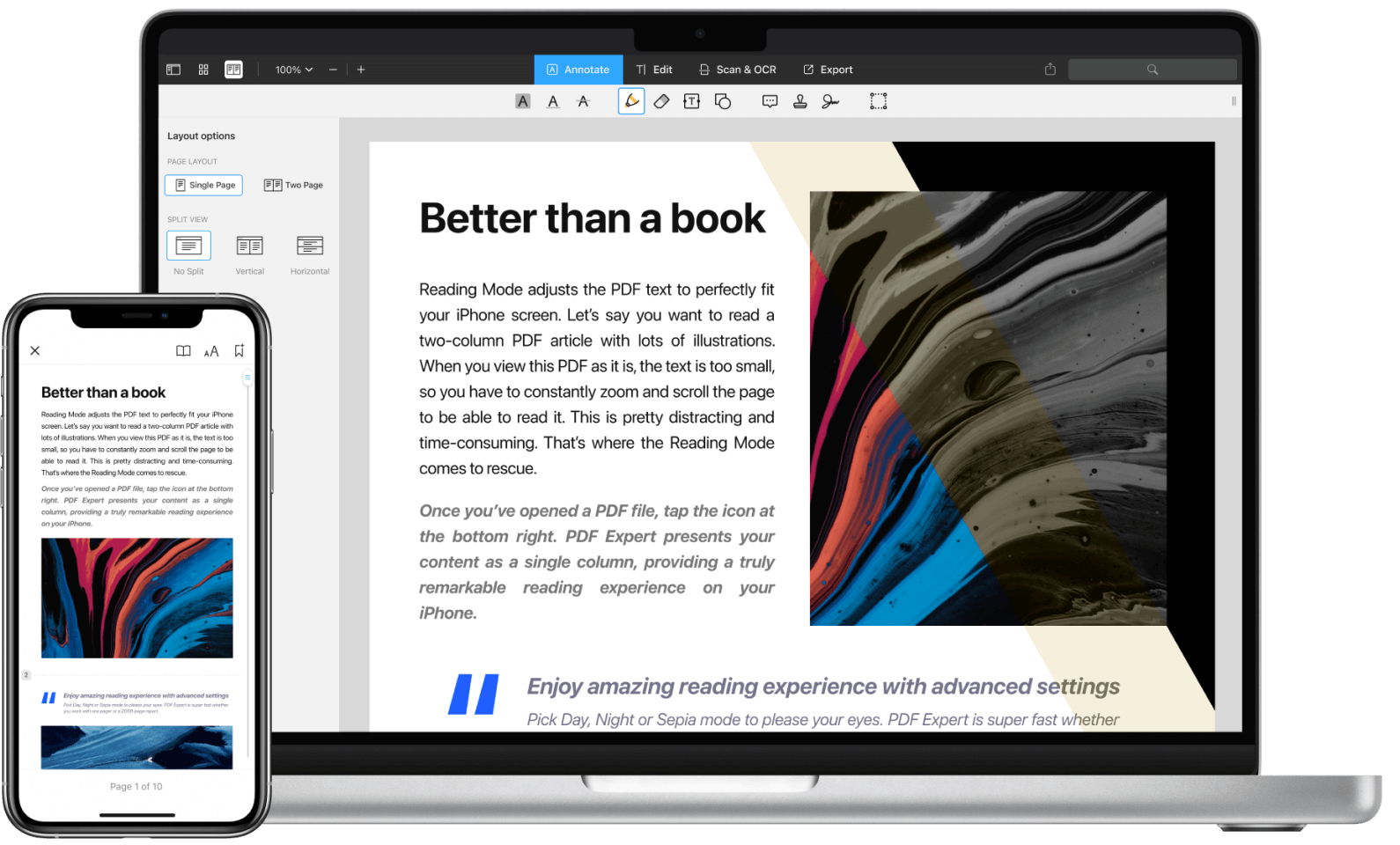
PDF Expert is a PDF editor built specifically for iPhone, iPad, and Mac. It combines PDF annotation with direct editing, OCR, page management, forms, and signatures, while making good use of Apple Pencil on iPad. You can also connect cloud storage services to access files from different Apple devices.
Key PDF annotation features
- Search through your annotations: PDF Expert gathers comments and markup into an annotation summary. You can search text-based annotations, filter them by color, and jump straight to the relevant page. Freehand pen annotations aren’t searchable.
- Export your review notes separately: Turn highlights, underlines, comments, stamps, and shapes into an HTML, text, or Markdown summary, so you can use your feedback outside the original PDF.
- Work directly with scanned PDFs: OCR makes scanned text searchable and selectable. PDF Expert also uses AI-powered Enhance to clean up scans by correcting distortions, shadows, and contrast.
- Edit the original PDF content: Change existing text, images, and links rather than only adding annotations on top of the page.
- Manage complex documents: Rearrange, extract, delete, rotate, crop, or merge pages. On iOS, you can even filter the thumbnail view to show only pages that contain annotations.
- Add audio notes: Attach recordings to a PDF alongside written annotations when you want to capture extra context from a lecture or meeting.
Pros and cons
Pricing
PDF Expert offers two annual subscription plans, both paid upfront for the year. There’s also a one-time Lifetime option for Mac users, but it comes with fewer ongoing features than the subscription plans.
Access PDF annotation tools and more with Goodnotes
So, which PDF annotation tool should you pick? If PDFs are part of how you take notes, review work, or think through ideas, Goodnotes gives you the flexibility.
You can mark up PDFs with a stylus, search handwritten annotations, record audio alongside your notes, and use Goodnotes AI to work through longer documents. Your PDFs can also sit alongside Notebooks, Whiteboards, and Text Documents.
Plus, Goodnotes works across devices, so you can annotate a PDF on your tablet and pick it up again on your laptop or desktop.
FAQs
What is the best way to annotate a PDF?
The best way to annotate a PDF is to use a tool that matches how you review documents. For quick feedback, that might mean highlighting text, underlining key points, and adding comments. If you work more visually, you may also want to handwrite notes, draw directly on the page, or use a stylus for more natural markup.
What is the best free PDF annotator app?
If you want to try PDF annotation without committing to a subscription, Goodnotes offers a free forever plan. You can import PDFs, handwrite and highlight directly on them, add notes, and use Goodnotes’ core note-taking tools.
PDFgear is another free tool. Its web and desktop tools are free, with no sign-up, watermarks, premium tier, or in-app purchases. You can annotate, sign, organize pages, edit existing text on desktop, run OCR, and use AI tools.
Can I annotate a PDF online?
Yes. Tools like Goodnotes, Xodo, PDFgear, and Drawboard PDF let you annotate PDFs in a web browser without installing desktop software. Depending on the tool, you can highlight text, add comments, draw, insert text, or sign the PDF online. However, browser versions offer fewer features than desktop apps, so you need to check what’s included before choosing one.