TL;DR
- If you want one app for handwritten and typed notes, PDFs, lecture audio, and AI study tools, give Goodnotes a go. The Free plan gives you the core experience before you decide whether you need more files, longer recordings, or cross-platform syncing.
- If you mostly type your notes, look at OneNote, Notion, Obsidian, or Joplin. OneNote is better for traditional class notebooks, while Obsidian and Joplin suit students who want linked notes or more control over how their notes are stored.
- If revision is your priority, RemNote is built around flashcards and spaced repetition.
- If you only need quick reminders, lists, or short notes, Google Keep and Simplenote are much lighter options.
- Pay attention to the free-plan limits before you choose an app. Notebook caps, file sizes, syncing, AI access, and device support vary widely across all the tools’ free plans.
If you’re setting up a new iPad for class or trying digital notes for the first time, a free note-taking app is the place to start. It lets you test the features you’ll use most during your day-to-day note-taking before potentially upgrading to a paid plan. You might need handwriting for math equations, space for diagrams, or an easy way to annotate lecture slides and PDFs.
So, what should you look for in a free note-taking app?
- Can you handwrite and type comfortably?
- Can you import and annotate PDFs or lecture slides?
- Can you keep notes organized across different classes?
- Does the free plan limit notebooks, storage, or syncing?
We compare 15 free note-taking apps by their key features, free-plan limitations, and device support, so you can narrow down your options without testing every app yourself.
The best free note-taking apps for students: An overview
The table below gives you a quick look at all 15 apps on our list, including how you can take notes, what you get for free, which platforms and sync options are supported, and the main limitation to know about.
1. Goodnotes
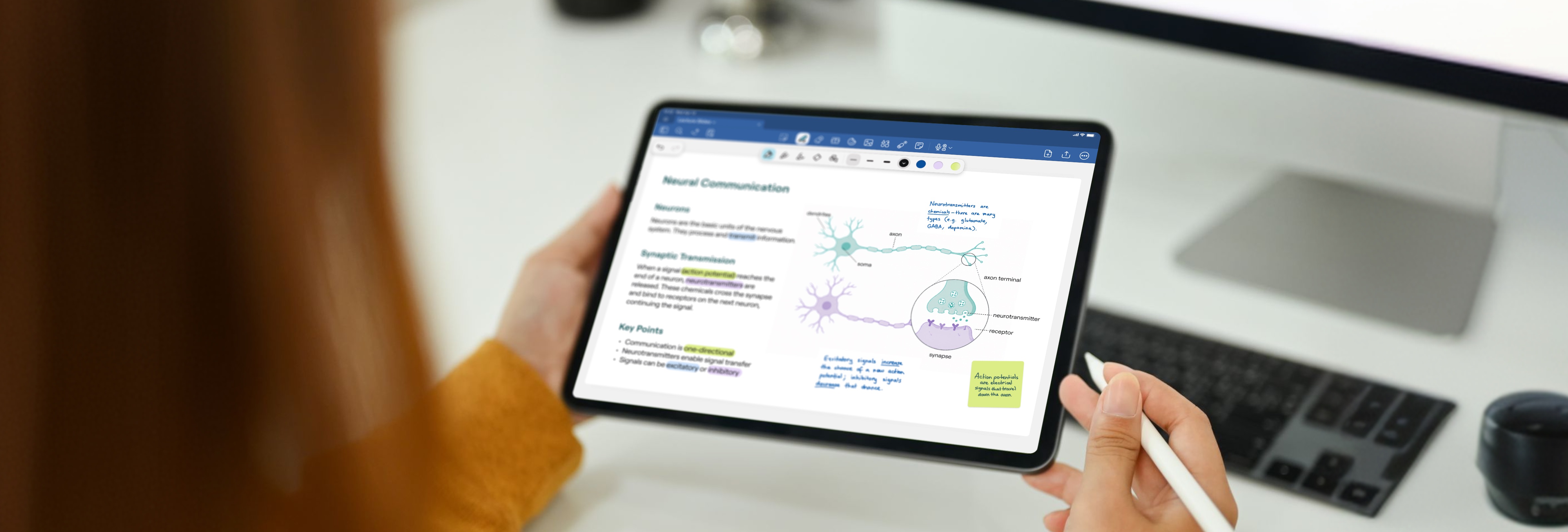
Goodnotes is the most popular note-taking experience for students who require both the flexibility of handwriting and the power of technology. It’s available on the App Store for iPad, iPhone, and Mac, as well as on Android tablets, Windows, and the web.
It offers a stylus-first writing experience and works with Apple Pencil, Samsung S Pen, Logitech Crayon, and other third-party styluses supported by your device. If you’re using an iPad, there are also several stylus options for note-taking beyond Apple Pencil. On iPad, Goodnotes supports pressure-sensitive writing and handwriting tools designed to make digital writing feel closer to pen and paper.

Why is Goodnotes a good note-taking app for students?
Goodnotes gives students the core tools needed to take notes, work with class materials, and review them later.
- Take handwritten or typed notes: Create up to three Notebooks for page-based handwritten notes, three Text Documents for longer typed notes, and three Whiteboards for when you need an infinite canvas for diagrams, mind maps, or brainstorming. Handwriting tools include pressure sensitivity, multiple pen styles (Fountain, Ballpoint, Brush, and Pencil), and customizable colors.
- Annotate on class materials: Import photos, PDFs, and JPGs, then use annotation tools to write, highlight, draw, or add shapes directly on the page.
- Record alongside your notes: Up to 20 minutes of audio recording and transcription to turn recordings into text.
- Edit handwritten notes easily: Use the lasso tool to move content around, convert handwriting to text, and use tools such as the ruler and tape. You can also convert handwritten notes to typed notes.
- Find notes again later: Search handwritten notes, bookmark important pages, and organize your work across up to three folders.
- Use AI study tools for free: Goodnotes AI includes handwriting spellcheck and Math AI, plus up to five Q&A requests and five Quiz Generator uses per month.
- Present and get feedback: Comments and Presentation Mode are both included on the Free plan.
What are the limitations of the Goodnotes free plan?
Goodnotes Free includes the core note-taking tools, but it limits how many notebooks, folders, imports, and AI uses you get.
- Three notebooks, text documents, and whiteboards
- Imported files are limited to 5 MB
- Audio recording is limited to 20 minutes
- Q&A Support and the Quiz Generator are each limited to five uses per month
- Templates and Digital Stationery are not included
- Cross-platform sync and cloud storage integration are not available
- Public or private link sharing and real-time collaboration are not available
- Meeting AI and Create Mode are not included on the Free plan
2. Apple Notes
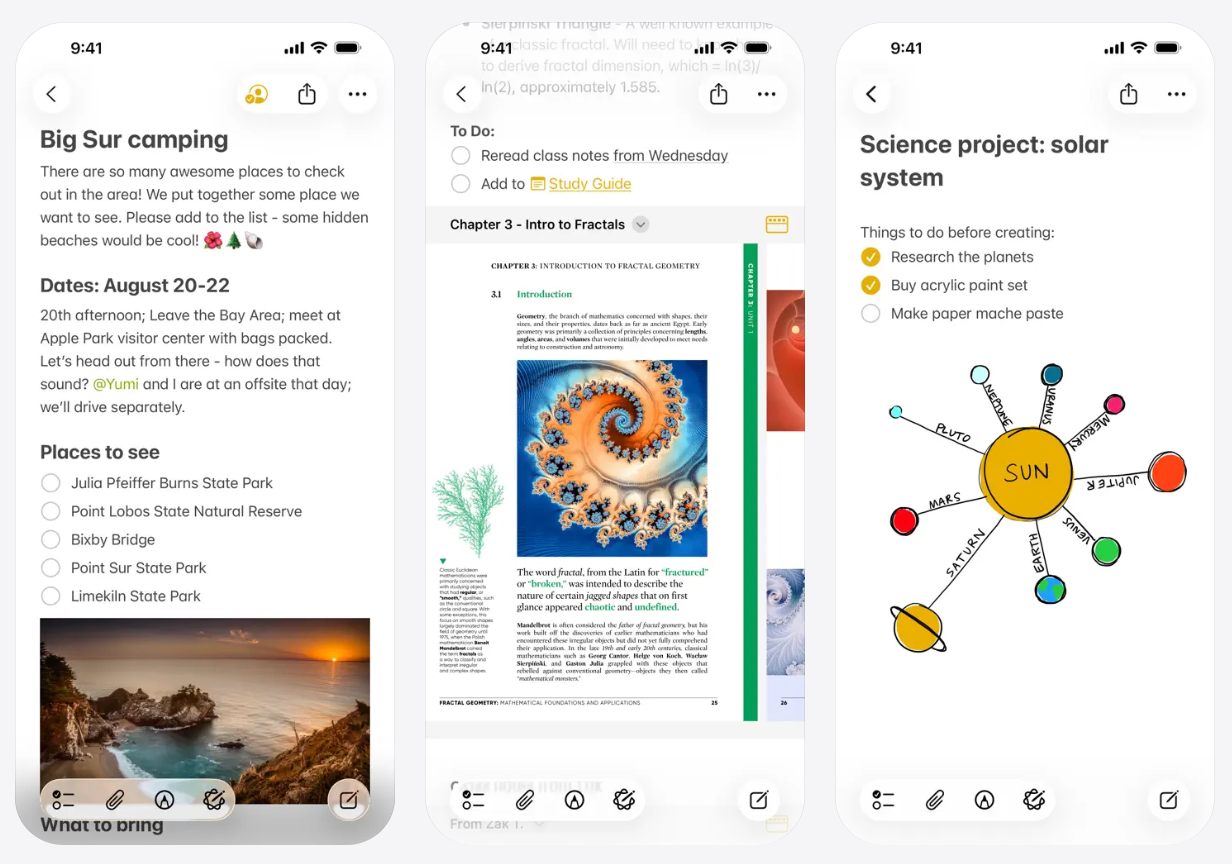
Apple Notes is among the best free iPad note-taking apps, and it comes pre-installed on iPhone, iPad, and Mac. It offers typed and handwritten notes, PDF markup, document scanning, audio recording, and iCloud sync. You can also open your iCloud notes in a browser on a Windows PC, if you work across operating systems.
Why is Apple Notes a good note-taking app for students?
- Handwrite with an Apple Pencil: Write or sketch directly in a note, use tools like the lasso and ruler, and convert handwriting into typed text with Scribble. Supported iPads can also smooth and straighten handwriting.
- Annotate PDFs and scanned documents: You can attach PDFs to a note and write or sketch directly on them.
- Record lectures and transcribe the audio: Notes can record audio and turn speech into searchable text on supported iPads and languages.
- Find old class notes quickly: Search works across typed text, handwriting, scanned documents, images, PDFs, and other attachments.
- Keep subjects organized: Folders, tags, and Smart Folders give you a simple way to separate classes and filter notes later.
- Share notes with classmates: Notes stored in iCloud can be shared and edited collaboratively.
What are the limitations of the Apple Notes free plan?
Apple Notes doesn’t have any paid tier, so its limitations are mostly about devices and storage.
- There’s no native Apple Notes app for Windows or Android. Windows users can access Notes through iCloud.com, but the full iPad note-taking experience stays on Apple devices.
- The free iCloud allowance is 5 GB. That storage is shared with your photos, device backups, files, and other iCloud data, so PDFs, scans, and audio recordings can eat into it.
- Apple Pencil handwriting requires a compatible iPad. You can draw with a finger on an iPhone or iPad, but the full stylus experience depends on supported iPad hardware.
- Some newer AI features depend on Apple Intelligence. Features such as Writing Tools, Image Wand, and audio summaries require supported devices, languages, and regions.
- It lacks more advanced note-taking features. Apple Notes doesn’t give you controls for pen pressure sensitivity, stroke stabilization, tip sharpness, or custom pen presets. It also limits page backgrounds to a small selection of lines and grids rather than offering a wider template library.
3. Freenotes
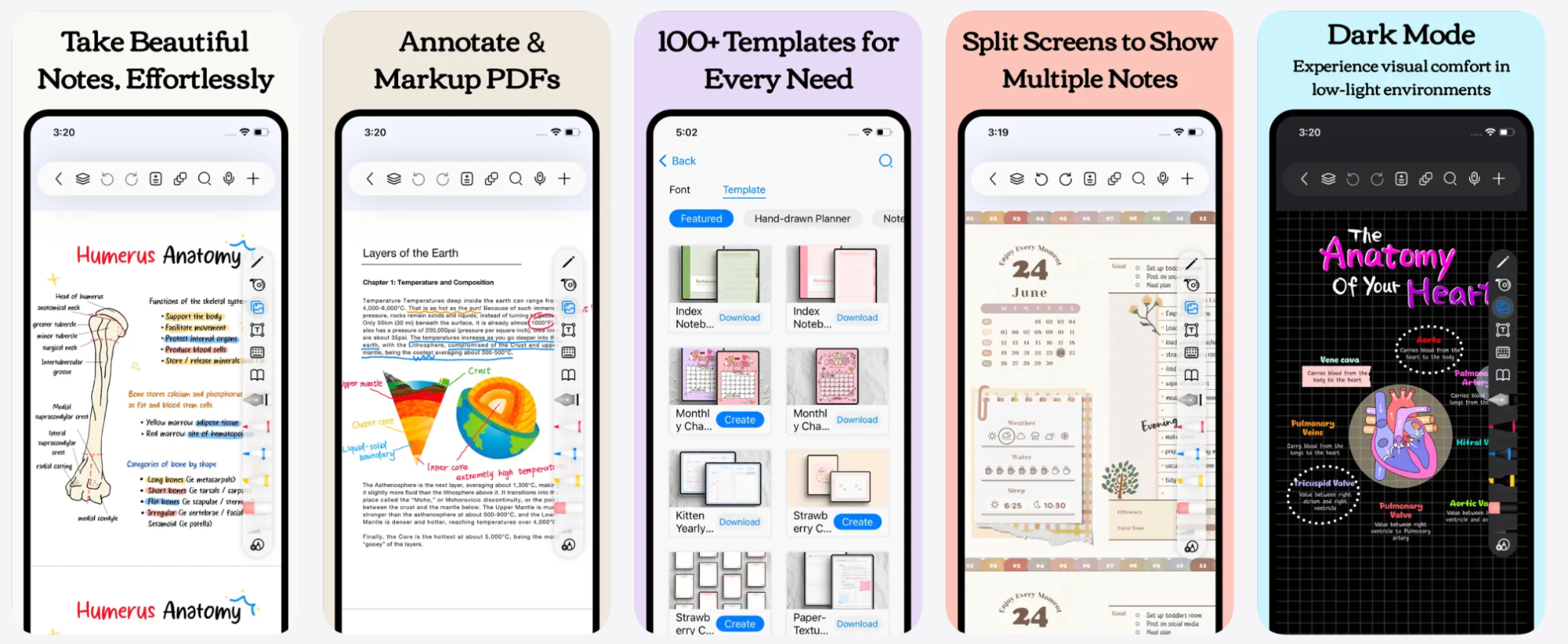
Freenotes is a free app for handwritten notes with tools for writing, organizing notes, and marking up PDFs. It’s available on iPad, iPhone, and Android. It supports handwriting search, folders, shape recognition, and an infinite canvas.
Why is Freenotes a good note-taking app for students?
- Handwrite notes with a stylus: Freenotes supports pressure-sensitive pen tools and Apple Pencil Pro for handwritten class notes, equations, and diagrams.
- Annotate lecture slides and readings: Import PDFs to highlight text, write in the margins, and add your own notes directly to the document.
- Find handwritten notes later: OCR lets you search for words within your handwriting instead of manually flipping through pages.
- Keep different classes organized: Freenotes supports folders and note organization by course, project, or topic.
- Use more space for diagrams and brainstorming: The infinite canvas gives you an expandable page for mind maps, sketches, or visual notes.
What are the limitations of the Freenotes free plan?
Freenotes offers a free version with ads, but it doesn’t publish a clear feature-by-feature breakdown of the free plan.
- The free version contains ads. The US App Store currently lists Freenotes as free to download with advertising and several paid upgrades.
- AI study tools require Freenotes Pro. AI summaries, PDF chat, homework help, the AI Study Companion, and AI-powered study features sit behind the Pro tier rather than the basic free experience.
- There’s no clear public feature-by-plan comparison. Freenotes lists Plus, Pro, lifetime, and ad-removal purchases, but doesn’t clearly spell out every free-plan cap before you download the app.
- Free limits may not be consistent across users or platforms. Students have reported different notebook and page restrictions, so we can’t state a universal notebook or page cap unless Freenotes publishes one officially.
4. Notion
If you want a note-taking app for college that also helps you plan your coursework, Notion lets you create pages for lectures and readings, then connect them to assignment trackers, course databases, to-do lists, and calendars. The app provides a workspace for typed notes, and works across web, desktop, iOS, and Android, so you can update the same workspace from whatever device you’re using.

Why is Notion a good note-taking app for students?
- Create as many pages as you need: The Free plan gives individual users unlimited pages and blocks, so you can create separate spaces for every subject, lecture, or semester.
- Build your own study system: Databases support custom properties, filtering, subtasks, and dependencies, which can help you track assignments, readings, exams, and deadlines alongside your notes.
- Connect related notes: You can link pages together, which makes it easier to connect lecture notes with readings, projects, or revision material.
- Plan around deadlines: Notion Calendar is free and can display dates from your Notion databases alongside your calendar events.
- Work with classmates: The Free plan supports comments and up to 10 external guests, which can be useful for shared study notes or group projects.
- Keep course material with your notes: You can embed PDFs, videos, and images directly inside a page.
What are the limitations of the Notion free plan?
- File uploads are capped at 5 MB each, which can be restrictive for large lecture decks, textbooks, or scanned PDFs.
- Page history only goes back seven days, so you have a short window to view or restore older versions of a page.
- Notion AI is only available as a limited trial on the Free plan, including Notion Agent, Meeting Notes, and Research Mode.
- Offline access requires you to choose which pages to download, rather than keeping your entire workspace available offline automatically.
- Adding another workspace member introduces a block limit. The Free plan stays unlimited for one person, but workspaces with two or more members are limited to 1,000 blocks.
- It isn’t built around handwritten note-taking. Notion can embed or import PDFs, but its native workflow is suited to typed, structured notes rather than writing equations or annotating slides with a stylus.
5. Obsidian
Obsidian is built mainly for typed notes, with your writing saved as Markdown files directly on your device, combining some of the benefits of digital note-taking with control over your locally stored files. Linked notes let you connect lecture notes, readings, concepts, and revision material into one searchable knowledge base.

Why is Obsidian a good note-taking app for students?
- Use the full app for free: Obsidian describes its core app as ‘free without limits,’ with no account required and no cap on the number of notes you can create.
- Connect ideas across classes: Link a lecture note to a reading, concept, person, or previous topic instead of copying the same information into multiple places.
- See how your notes relate: Graph View turns those links into a visual map, which can be useful when you’re revising a subject with lots of connected concepts.
- Build visual study boards: Canvas gives you an infinite space for arranging notes, PDFs, images, web pages, and other material together.
- Save research as you browse: The free Web Clipper lets you highlight and save material from websites directly into your vault.
- Customize it around your subjects: Thousands of community plugins and themes let you add new workflows and change how Obsidian looks and works.
- Keep working without Wi-Fi: Your notes live on your device, so you can access them offline without a cloud connection.
What are the limitations of the Obsidian free plan?
While Obsidian doesn’t place the usual notebook or feature caps on its free app, you pay for optional services such as official syncing and publishing.
- Obsidian Sync isn’t included for free. Official cross-device syncing starts at $4 per user/month when billed annually. Students and faculty can get a 40% discount.
- Shared-vault collaboration comes with Obsidian Sync. If you want classmates editing the same synced vault, you’ll need the paid Sync service.
- Publishing notes to the web costs extra. Obsidian Publish starts at $8 per site/month when billed annually.
- It isn’t a handwriting-first app. Obsidian’s native experience is focused on typed and linked notes.
- Getting the setup you want can take some time. Plugins are one of Obsidian’s biggest advantages, but you may need to spend time choosing and configuring them before the app works the way you want.
6. Notability
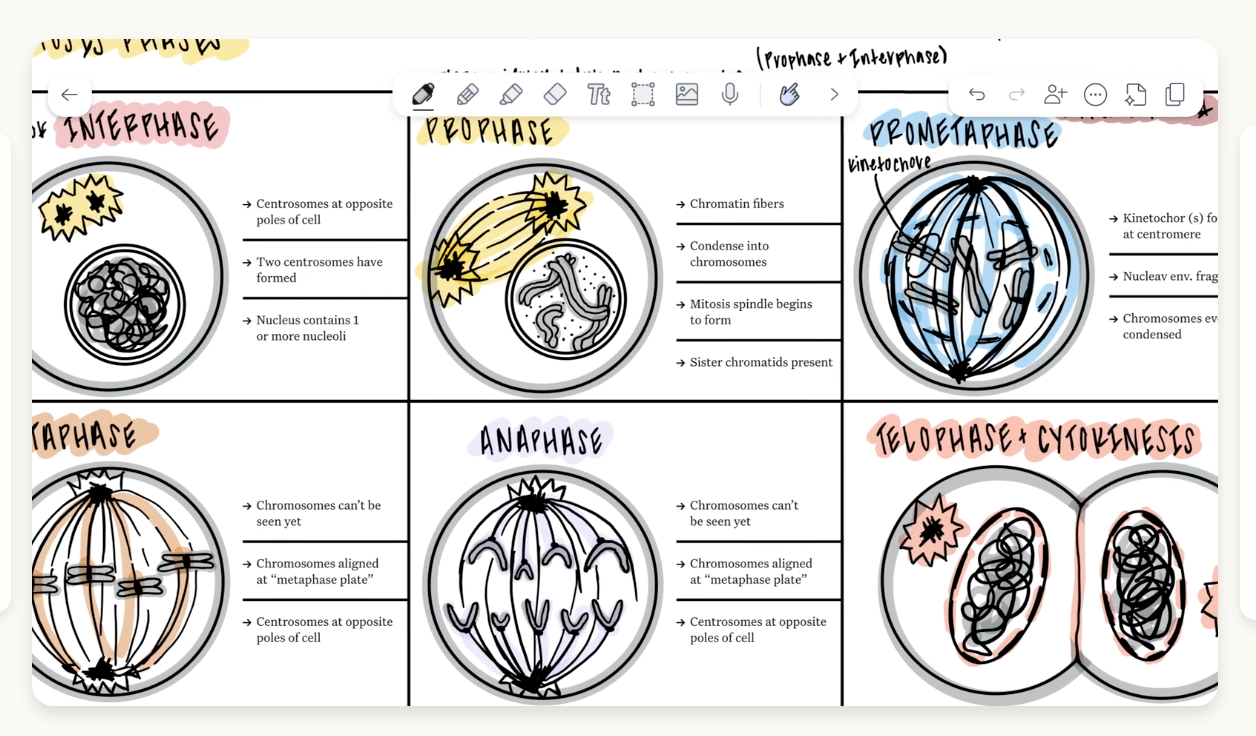
With Notability, you can handwrite or type your notes, and import PDFs or lecture slides when you need to annotate existing material. You can also record audio during class and keep it alongside the notes you take. Higher plans add transcription and AI study tools such as quizzes, flashcards, summaries, and chat.
Why is Notability a good note-taking app for students?
- Handwrite and annotate notes: Use Notability’s pen, highlighter, eraser, text, selection, tape, ruler, and other editing tools for class notes and diagrams.
- Work directly on course material: Import PDFs, documents, and slides into your notes instead of keeping your annotations in a separate app.
- Record lectures alongside your notes: Notability supports audio recording, so you can keep the recording and your written notes together for review.
- Start with ready-made layouts: The free plan includes access to more than 20,000 note-taking templates for different subjects and study styles.
- Recover recent changes: Starter includes seven days of version history if you need to return to an earlier version of a note.
What are the limitations of the Notability free plan?
Notability Starter only gives you five notes.
- You need a paid plan if you want unlimited notes.
- Handwriting search and recognition are only available on higher plans.
- Audio transcription and AI study features such as quizzes, flashcards, summaries, and chat with your notes require higher tiers.
- Third-party backups require Notability Lite or above and are currently available on iOS only.
- Starter only keeps seven days of version history, compared with 30 days on Plus and 90 days on Pro.
7. Microsoft OneNote
Microsoft OneNote is a note-taking app that helps you organize your notes into notebooks, sections, and individual pages, so you can keep lecture notes, research notes, and assignments separated by class. Its free-form canvas lets you type anywhere on the page, add handwriting, insert images or files, and record voice notes without following a fixed document layout.

Why is Microsoft OneNote a good note-taking app for students?
- Keep different classes organized: Create separate notebooks and sections for subjects, then use individual pages for lectures, biology notes, math notes, projects, or exam revision.
- Type and handwrite together: OneNote includes handwriting support for stylus users, including students taking notes on a Surface Pro, alongside typed text, drawing tools, highlighting, and handwriting-to-text conversion.
- Work with assigned readings: You can insert PDFs and research papers as printouts, then write or highlight directly over them.
- Capture more than written notes: Add images, files, links, and voice notes to the same page when you need more context than a regular notes app provides.
- Collaborate on shared notes: Real-time collaboration lets classmates view and edit shared notebooks for group projects or study notes.
What are the limitations of the Microsoft OneNote free plan?
- You only get 5 GB of free OneDrive storage, and large PDFs, images, audio recordings, and other attachments all count toward that allowance.
- Copilot isn’t part of the free personal plan, so AI tools for summarizing, rewriting, or generating content require an eligible paid Microsoft subscription.
- Math Assistant isn’t included with the standard free version, which may matter if you want more advanced support for working through math notes.
- Local files are mainly a Windows desktop feature, while other versions rely more heavily on notebooks stored through OneDrive.
8. Kilonotes
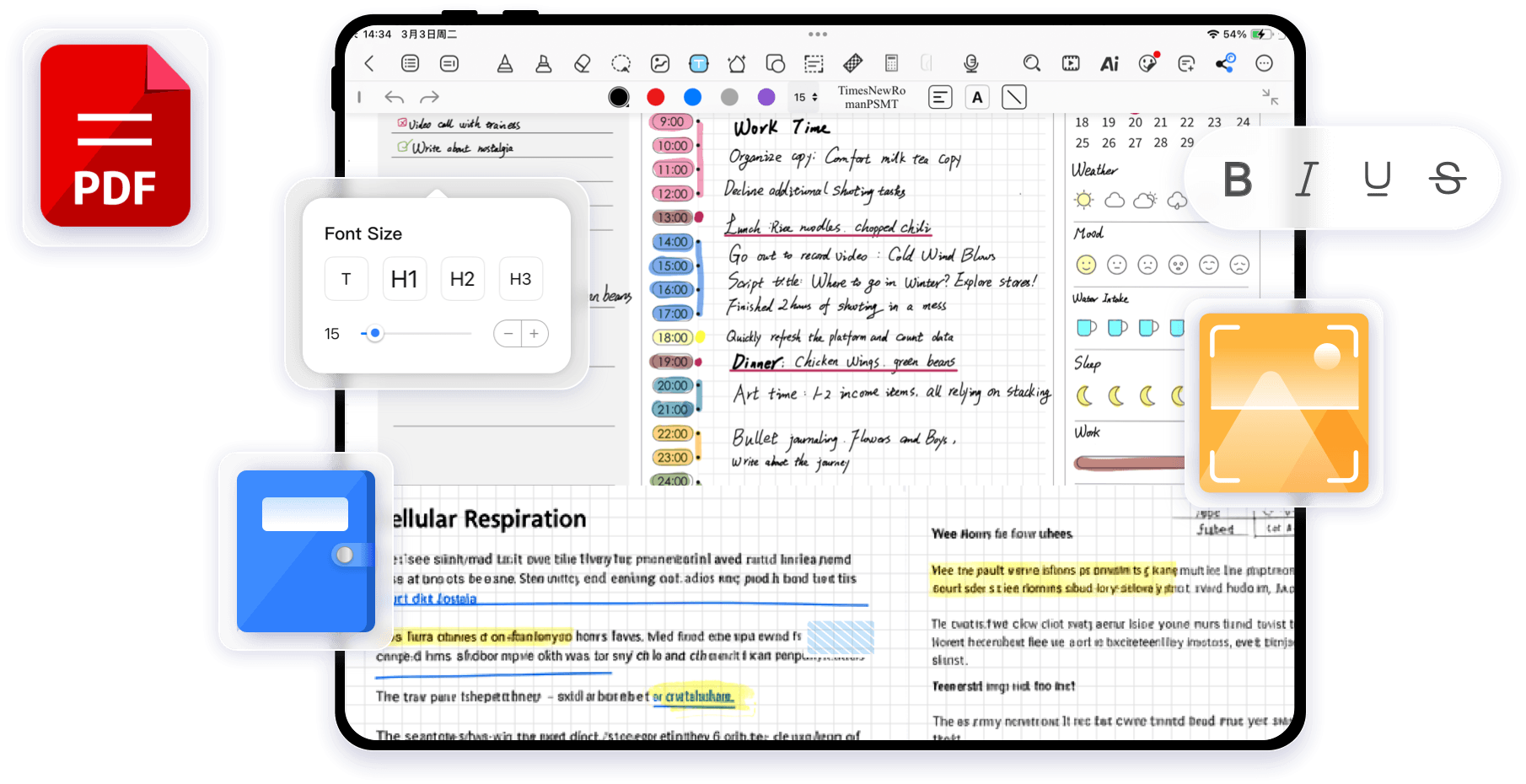
Kilonotes is built around handwritten study notes, with support for taking notes on iPad and Samsung S Pen on Android tablets. You can write during lectures, import and annotate PDFs, record audio, and use AI tools to turn your notes and class material into summaries or other study aids.
Why is Kilonotes a good note-taking app for students?
- Handwrite naturally with a stylus: Kilonotes supports pressure sensitivity, palm rejection, and low-latency ink for handwritten notes, equations, and diagrams.
- Annotate PDFs: Import lecture slides, assigned readings, or worksheets and write or highlight directly on them.
- Search your handwriting: Handwriting recognition helps you find information across your notebooks without flipping through every page.
- Record lectures: Audio recording lets you capture what was said alongside the notes you take in class.
What are the limitations of the Kilonotes free plan?
- You can only create five notebooks before you need to delete one or upgrade.
- Full AI access requires Pro, including more advanced AI tools and study features.
- Custom fonts and exclusive page styles are paid features, so much of Kilonotes’ customization sits behind the Pro plan.
- Kilonotes’ own cloud syncing requires a membership, so free users may need to back up and move files manually between devices.
- Advanced editing and recording tools are restricted, including features like text-to-handwriting conversion and continuous audio recording.
9. Noteful
Noteful focuses on handwritten notes and document markup, with Apple Pencil support for iPad. You can import PDFs and Microsoft Office files, add handwriting or typed text, organize notes with tags, use layers, and record audio alongside your notes.
It’s important to note that Noteful publishes very little information about what is included in its Free and Pro plans, so some limits are harder to verify before you download the app. Noteful is available only on iPad and iPhone, with no native Windows or Android app.

Why is Noteful a good note-taking app for students?
- Handwrite with Apple Pencil: Noteful uses its own ink engine for pressure-sensitive handwriting and includes ballpoint pen, fountain pen, highlighter, and shape recognition tools.
- Annotate your class material: You can import PDFs and Microsoft Office documents, then add handwriting, highlights, images, shapes, and typed text.
- Organize notes with tags: Tags and nested tags let you group notebooks or individual pages by subject, topic, or priority.
What are the limitations of the Noteful free plan?
- You’re limited to 10 notebooks, so you may run out quickly if you create separate notebooks for every class, semester, or project.
- iCloud sync requires Noteful Pro, so the Free plan won’t automatically keep your notes synced between your iPad and iPhone. Noteful marks cross-device syncing as a Pro feature in its App Store listing.
- Some layer tools require Pro, including advanced multi-layer layouts.
- Handwriting recognition is missing even after you upgrade. Noteful can recognize geometric shapes, but it does not currently advertise handwriting-to-text conversion or searchable handwritten text.
- There’s no native Windows or Android app, so Noteful is a poor fit if your study setup moves between an iPad and any non-Apple device.
10. RemNote
RemNote combines note-taking with flashcards and spaced repetition, so the notes you take can work as material for exam revision. You can type structured notes, turn information into flashcards without leaving the page, annotate study material, and use an exam scheduler to plan what to review each day. RemNote also supports handwritten notes, although the Free plan limits the number of documents.

Why is RemNote a good note-taking app for students?
- Take unlimited notes for free: The Free plan gives you unlimited notes, so you can keep lecture notes and revision material without a page cap.
- Create unlimited flashcards: Flashcards live alongside your notes and can use spaced repetition to bring material back for review at scheduled intervals.
- Sync across unlimited devices: Your notes and flashcards can stay available across the devices you use for studying.
- Annotate study material: You can bring PDFs, files, and webpages into RemNote and add annotations, although the Free plan limits this to three documents.
- Try handwritten notes: RemNote supports handwriting and sketches on tablets, but Free users can create only one handwritten document.
- Plan for an exam: The Free plan lets you schedule one exam and use RemNote to organize your studies around that date.
- Use some AI study tools: You get 250 AI credits per month, with limited access to tools for generating cards, quizzes, explanations, transcription, and other study tasks.
What are the limitations of the RemNote free plan?
While RemNote gives you unlimited notes and flashcards, its study features have specific usage caps.
- You can annotate only three PDFs, files, or websites.
- You can create one handwritten document.
- Image Occlusion is limited to five images, which can be restrictive if you use diagrams heavily for subjects like anatomy or biology.
- The Exam Scheduler is limited to one exam.
- AI use is capped at 250 credits per month, and individual AI tools have additional usage limits.
- File uploads are capped at 20 per day, with a maximum size of 8 MB per file.
- The Free plan limits some organizational tools, including two knowledge bases and three tables.
11. Evernote
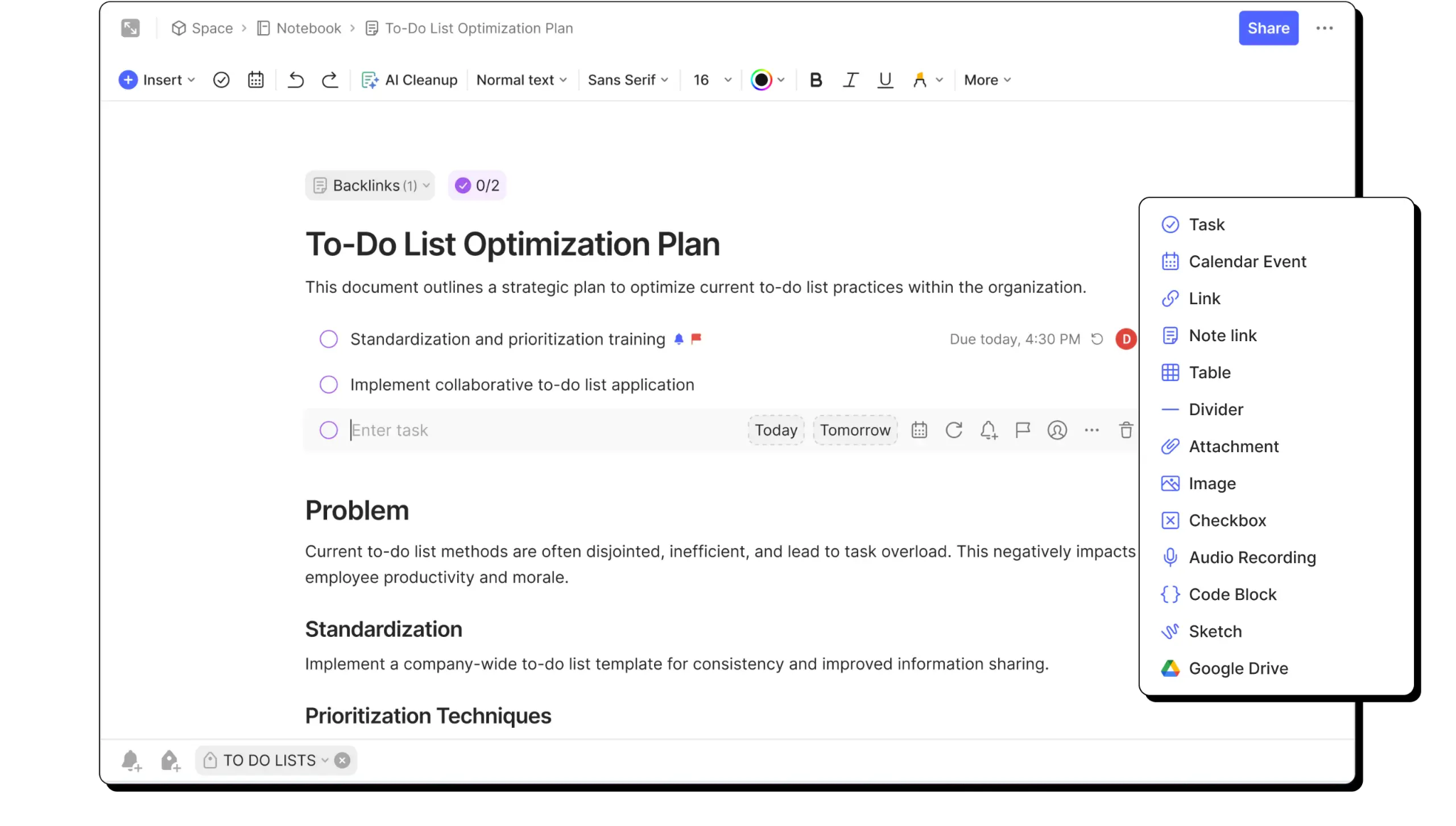
Evernote is built for typed notes, research, and planning. You can save webpages with Web Clipper, attach files, annotate PDFs, and search across your notes. Tasks and calendar tools also help you keep deadlines and study plans in the same place.
Why is Evernote a good note-taking app for students?
- Create up to 50 notes: The Free plan gives you 50 notes and one notebook for lecture notes, research, or revision material.
- Save research from the web: Web Clipper lets you capture webpages and bring useful sources into Evernote alongside your own notes.
- Work with PDFs and other files: PDF annotation, image and document search, and up to 200 attachments are included.
- Keep deadlines with your notes: Tasks, reminders, Evernote Calendar, and one connected Google or Microsoft calendar are available for free.
- Study without an internet connection: Offline notes are included on the Free plan.
- Use Evernote’s AI tools: Free users get access to AI Assistant, Semantic Search, AI Transcribe, AI Edit, and AI Cleanup.
- Search beyond exact keywords: Advanced search and Semantic Search can help you find information buried across class notes, research material, and attachments.
What are the limitations of the Evernote free plan?
Evernote’s Free plan includes a broad set of features, but the note and device limits are restrictive for long-term use.
- You can create only 50 notes and one notebook, which can fill up quickly if you take notes regularly across several classes.
- You can connect only one device, even though Evernote itself is available across iOS, Android, Windows, Mac, and the web.
- Storage is limited to 1 GB, with up to 1 GB of uploads per month.
- You get five Spaces, 20 tags, and 200 attachments.
- Only one external calendar can be connected on the Free plan.
- Connecting Evernote to external AI tools through MCP isn’t included.
- In-note encryption on Mac and Windows isn’t included with the Free plan.
12. Joplin
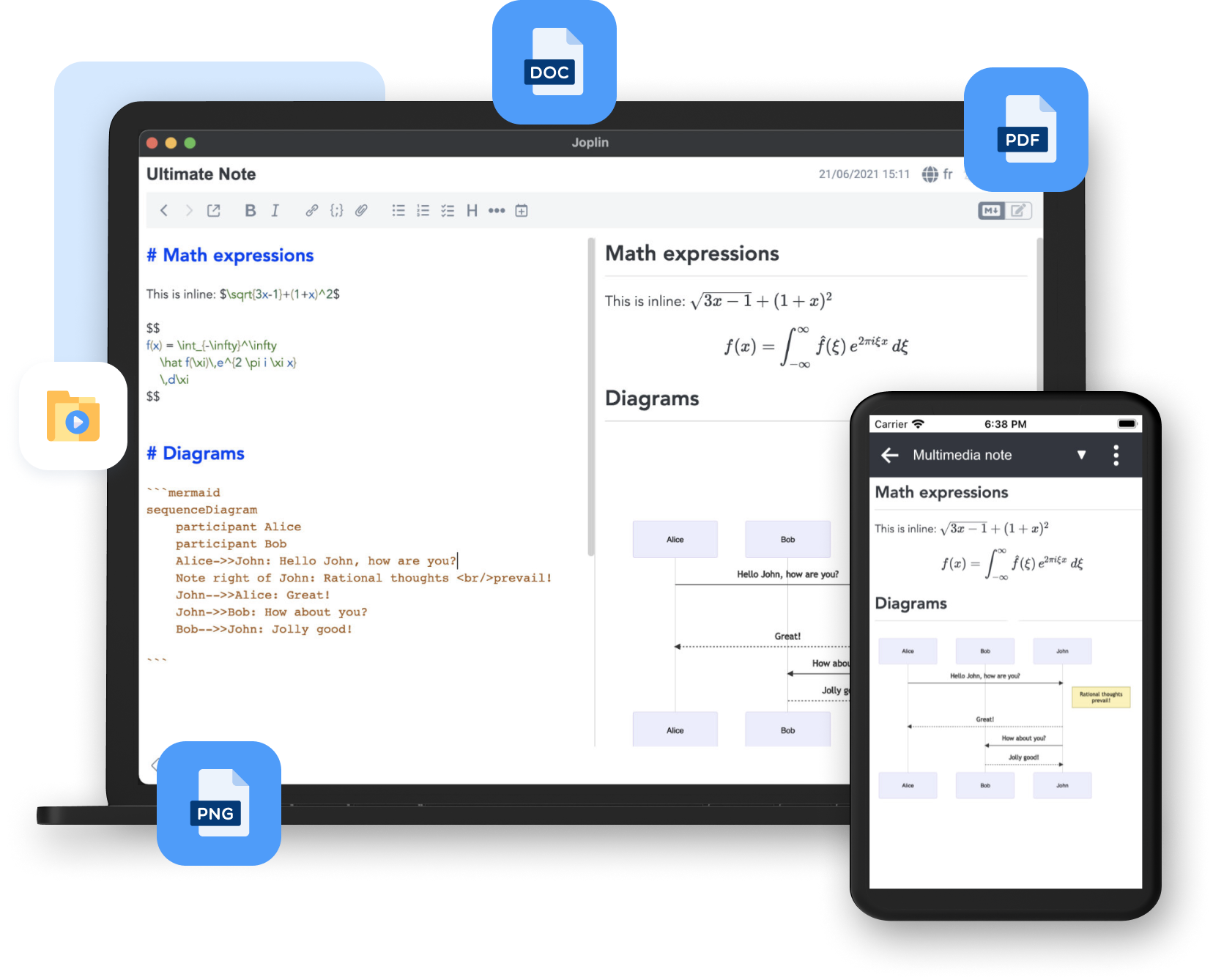
Joplin is an open-source note-taking software built around privacy and local control. Your notes are stored on your device, and you can write in Rich Text or Markdown, attach PDFs and media, create math expressions and diagrams, and organize your notes with notebooks and tags. Joplin works on Windows, Mac, Linux, iOS, and Android.
Why is Joplin a good note-taking app for students?
- Take unlimited notes for free: Joplin’s core app is free and does not impose the usual note or notebook caps.
- Keep private notes on your device: Joplin stores your notes locally and supports end-to-end encryption when you sync them.
- Add more than text: Notes can include images, videos, PDFs, audio files, math expressions, and diagrams.
- Save research from the web: The Web Clipper can capture webpages and screenshots for research notes and assigned reading.
- Work offline: You can create and edit notes without an internet connection.
- Sync without paying Joplin: You can connect Joplin to services such as OneDrive, Dropbox, Nextcloud, WebDAV, or S3 instead of subscribing to Joplin Cloud.
- Customize your note-taking tools: Plugins, themes, Rich Text, and Markdown give users control over their setup.
What are the limitations of the Joplin free plan?
Joplin doesn’t really have a traditional free tier. The main app is free, while Joplin Cloud adds quick syncing, sharing, publishing, and AI features.
- Cross-device sync takes some setup. You need to connect your own supported cloud service or pay for Joplin Cloud.
- Sharing a notebook so other people can edit it is a Joplin Cloud feature.
- You need the hosted service to create a public link that people can open in their browser.
- Handwriting support is fairly basic. Joplin lets you draw with a stylus, but its OCR currently only recognizes printed text rather than handwritten notes.
- There can be a steeper learning curve. Setting up syncing and choosing between Markdown, Rich Text, and plugins takes more configuration than a default note app that works out of the box, like Goodnotes or Apple Notes.
13. Google Keep
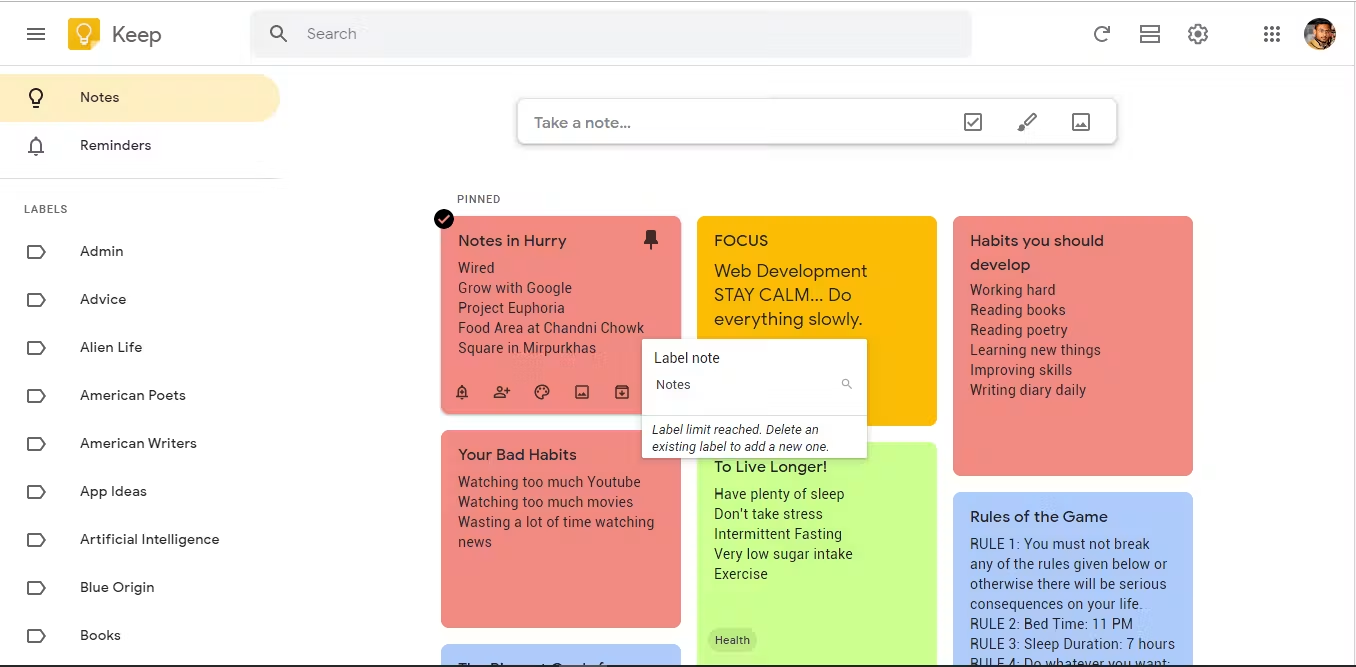
Google Keep is designed for quick notes. You can create text notes, checklists, drawings, image notes, and reminders, then organize them with labels, colors, and pins. Keep also connects neatly with Google Docs, so you can move a short note into a document when it needs more space.
Why is Google Keep a good note-taking app for students?
- Capture quick notes fast: Keep works well for reminders, short study notes, reading lists, and ideas.
- Create different note types: You can use text, checklists, images, drawings, and audio notes on supported devices.
- Organize notes with labels: Keep supports up to 50 labels, plus colors and pins for sorting important notes.
- Set reminders from a note: Timed reminders can also appear in Google Tasks and Google Calendar.
- Share individual notes: Classmates can edit shared text, lists, images, drawings, and audio recordings together.
- Move longer work into Google Docs: You can copy a Keep note directly into Google Docs when a quick note turns into something more substantial.
- Search text inside images: Keep can find words inside photos in English, which can help with screenshots or photographed class material.
What are the limitations of the Google Keep free plan?
Google Keep is free to use, so limitations focus on what’s missing from the platform.
- There are no notebooks or folders. Keep uses labels, colors, pins, and a feed of individual notes instead of a notebook-and-section structure.
- Long notes have a size limit. Google’s support community documents a limit of about 20,000 characters per note, although Google does not clearly publish this limit in its main Keep documentation.
- Desktop offline access is not available. You can access notes offline in the mobile apps, but Keep on a computer runs through the web and requires an internet connection.
- There’s no native PDF annotation workflow. Keep can store images and drawings, but it is not designed for importing a lecture PDF and writing through its pages like a handwriting-first notes app.
- Handwriting tools are basic. You can draw with a finger or stylus, but Keep does not offer the deeper handwriting tools you get in apps built for handwritten class notes.
- It isn’t designed for long research notes or structured study systems. Google itself positions Keep around notes, lists, reminders, images, and drawings rather than full document or notebook management.
14. Simplenote
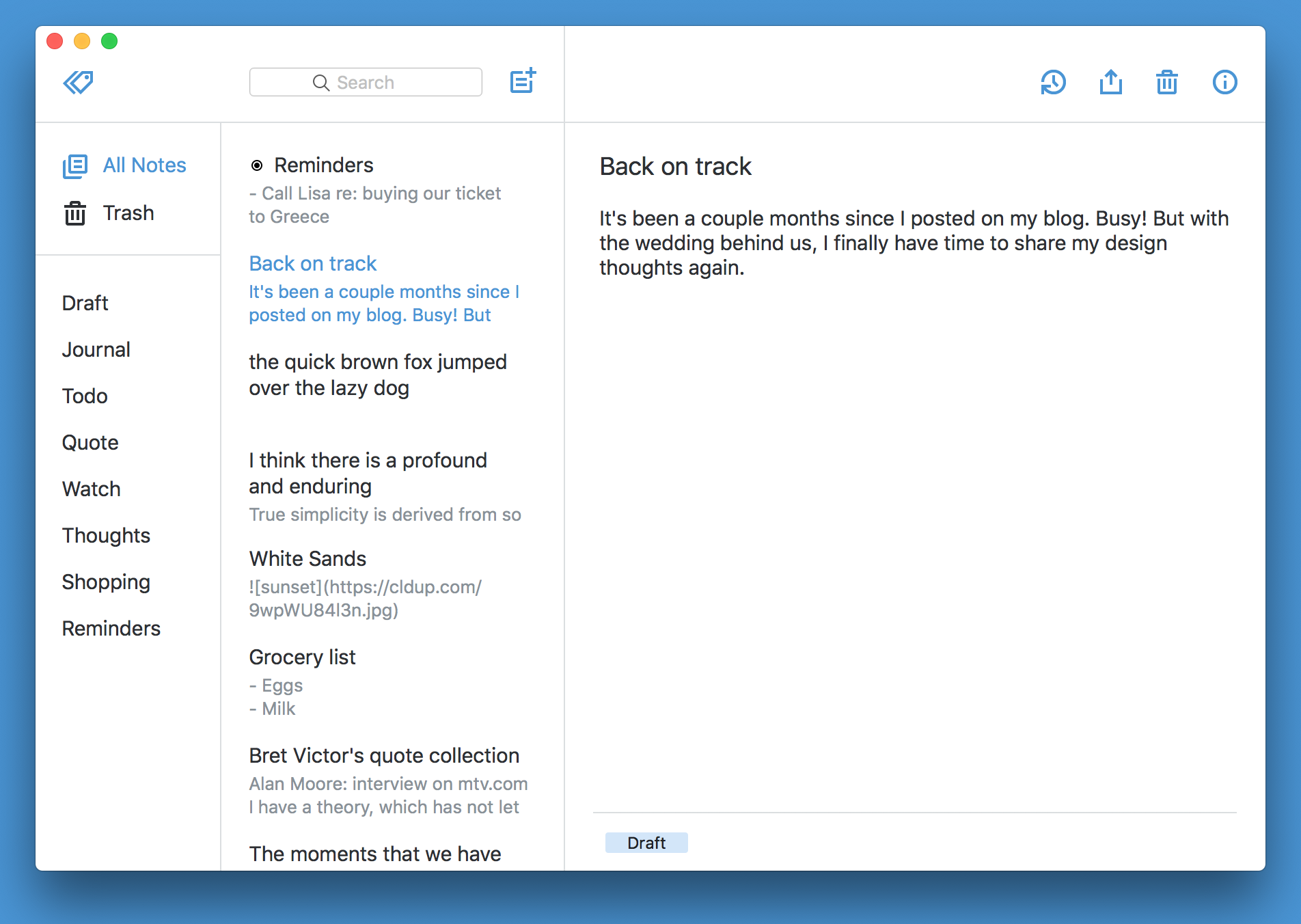
Simplenote is built for fast, text-based note-taking with very little setup. You can create unlimited notes, organize them with tags, search them instantly, and keep everything synced across iOS, Android, Windows, Mac, Linux, and the web.
Why is Simplenote a good note-taking app for students?
- Create unlimited notes: There are no caps on how many notes you can keep.
- Sync across unlimited devices: Your notes update automatically across every device you use.
- Keep things simple: Simplenote is useful for lecture notes, quick ideas, reading notes, and study lists when you do not need images or complex formatting.
- Organize with tags: Tags and pinned notes make it easy to group material by class, topic, or priority.
- Recover older versions: Every change is backed up, so you can return to an earlier version of a note.
- Share notes with others: You can collaborate on notes or publish them with a shareable link.
- Use Markdown: Markdown support gives you basic structure for headings, lists, links, and emphasis without adding a heavy formatting interface.
What are the limitations of the Simplenote free plan?
Simplenote doesn’t have a paid tier, so these are limitations of the app itself rather than restrictions on a free plan.
- You cannot attach images, PDFs, audio, or video, which makes Simplenote a poor fit for lecture slides or research papers.
- There is no handwriting or stylus support, so you cannot use it for handwritten math notes, diagrams, or Apple Pencil input.
- There are no notebooks or folders. All notes live in one searchable list and are organized with tags.
- Formatting is basic. Simplenote relies on plain text and Markdown rather than a rich-text toolbar.
- There is no PDF annotation, document scanning, or visual canvas for working directly with class material.
15. OrigNotes
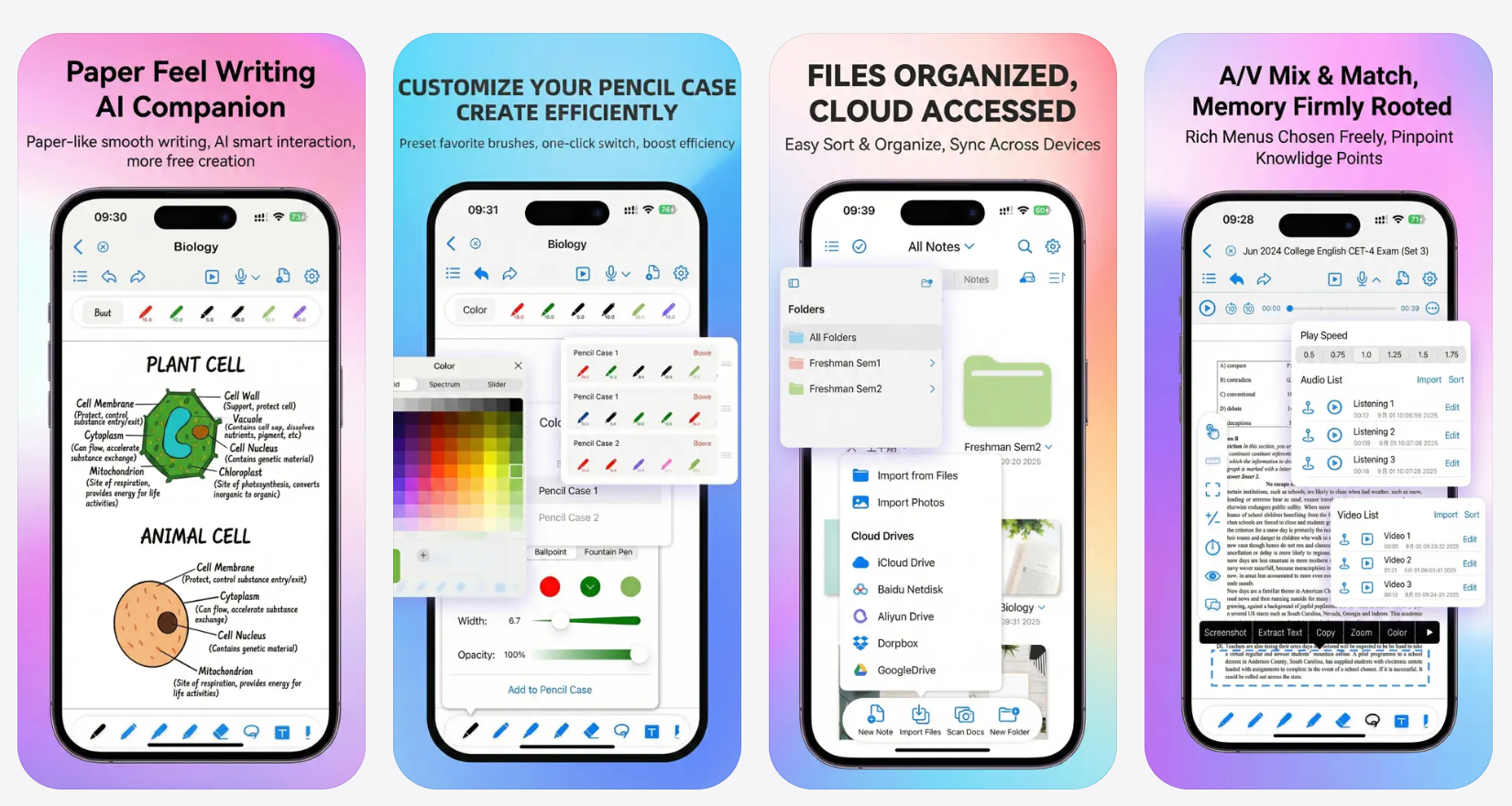
OrigNotes is focused on handwritten notes and PDF annotation, with writing tools designed around Apple Pencil use. You can draw, add images, customize paper styles, search handwritten content, and convert handwriting into formatted text. OrigNotes doesn’t have a dedicated product website, so most up-to-date information about the app comes from its App Store listing.
Why is OrigNotes a good note-taking app for students?
- Handwrite with Apple Pencil: Palm rejection, different brushes, writing settings, and optimized ink are built around handwritten notes.
- Annotate class PDFs: You can import PDFs, highlight them, write directly on the page, and copy text from PDFs.
- Search handwritten notes: Full-text search works across handwriting, PDF text, and text boxes, with matching results highlighted for quicker navigation.
- Turn handwriting into text: The Text Pen can convert handwriting into formatted text, while the lasso tool can convert existing handwriting.
- Organize large sets of notes: Document sorting, bookmarks, custom covers, and paper styles help separate different classes and study material.
- Back up and sync your notes: OrigNotes lists multiple backup options and cloud sync among its current features.
What are the limitations of the OrigNotes free plan?
OrigNotes’ biggest free plan limitation is platform support.
- There’s no Windows or Android app. OrigNotes is designed for iPad and iPhone, so it is a poor fit if your school setup includes a Windows laptop or Android phone.
- Desktop support is limited. The App Store lists compatibility with Apple-silicon Macs, but OrigNotes does not offer the broad desktop support you get from apps such as Goodnotes or Obsidian.
- It remains primarily handwriting-focused. OrigNotes has added text editing and handwriting-to-text tools, but it is not designed for long-form typed documents or database-style organization.
- There is little public product documentation outside the App Store. Most current feature information and update details come directly from its App Store listing.
Choosing the best free note-taking app for 2026
The right free notes app for iPad or Android depends on how you study. Some students mainly type lecture notes, while others need handwriting, PDF annotation, flashcards, or quick notes they can access across devices.
For example, if you exclusively type lecture notes, OneNote or Obsidian may be a good enough solution. If you want flashcards and spaced repetition built into your study routine, RemNote is a better fit. And if you mainly jot down quick reminders or short ideas, Google Keep or Simplenote may be all you need.
But if you want to do it all, opt for Goodnotes.
Goodnotes gives you handwriting, PDF annotations, diagrams, lecture slides, and audio notes in the same place. The Free plan gives you the core Goodnotes experience at no cost, with Essential available at $11.99/year when you want all note-taking tools, unlimited audio recording, additional AI capabilities (like limitless quiz creation), and Google Calendar integration.
FAQs
1. What is the best free note-taking app for iPad?
Goodnotes is the best free note-taking app for students who want to handwrite notes, annotate PDFs and lecture slides, record audio, and organize class material in one place. The Free plan also includes selected AI study tools, so you can try more than the core writing and annotation features before upgrading. Goodnotes also works beyond the iPad, with support for iPhone, Mac, Windows, Android tablets, Chromebooks, and the web.
2. Is Freenotes better than Goodnotes?
No. Goodnotes Free has a broader and more clearly documented set of free features, including handwriting, PDF annotation, audio recording, handwriting search, and limited AI study tools. Freenotes is a solid handwriting-focused option, but its free-plan limits and paid feature split are less transparent. For a closer look at handwriting, organization, study tools, pricing, and free-plan limits, check out our Goodnotes vs. Freenotes comparison.
3. Should I switch from Goodnotes to Freenotes?
If you’re already a Goodnotes user, we recommend trying to fix the issue before you switch apps and move all your notes. You can contact Goodnotes Technical Support for crashes, bugs, account issues, subscription problems, or refunds. You can also submit and vote on feature requests through the feedback portals for Apple and Android, Windows, and web, or ask other students for help in the Goodnotes Discord community.
However, if you’ve tried everything and still aren’t happy—we’re sorry to see you go. There are plenty of great note-taking apps for students out there, and we’re sure you’ll find the right one for you and your note-taking needs.