TL;DR
- We compare Goodnotes and Notability across tools and features, AI capabilities, note-taking, PDF annotation, organization, meetings and presentations, collaboration tools, enterprise capabilities, pricing, and customer support.
- Goodnotes is the more versatile choice for professional use. It gives you more ways to work beyond standard notes, with Notepads, Whiteboards, Text Documents, Goodnotes AI, deeper document organization, and more extensive team and enterprise controls.
- Notability has some clear advantages too. Shared Libraries give teams a dedicated space to organize and collaborate on notes.
- In terms of pricing, Goodnotes Pro is significantly more cost-effective than Notability Pro: $35.99/year vs. $79.99/year.
- Choose Goodnotes if you want an app that can support everything from everyday handwritten note-taking and PDF review to meetings, collaboration, and managed team workflows. Choose Notability if you prefer a solely note-focused workflow.
If you’re looking for a digital note-taking app, Goodnotes and Notability are probably already on your shortlist. Both let you create handwritten notes with a stylus-centered experience, which can make the choice feel pretty similar on paper.
But you need to look beyond the basics:
- Which app makes it easier to organize notes?
- Which gives you the better writing experience?
- How easy is it to search handwritten notes when you need something later?
- What if you need to review PDFs for work, record audio, or keep years of notes?
- And, of course, which one gives you the best value for the price?
In this Goodnotes vs. Notability comparison, we’ll look at the features and everyday workflows that matter most to professionals, so you can work out which app fits you better.
Goodnotes vs Notability for work: Which is right for professionals and teams?
The right choice depends on the kind of work you’re doing. A consultant reviewing long PDFs will care about annotation and document management. Someone capturing meeting notes may care more about how easily they can organize, revisit, and build on those notes after the session. A designer or field professional sketching through ideas with clients will need a different mix of handwriting tools, visual features, and collaboration.
Before comparing Notability vs. Goodnotes directly, consider these decision criteria:
- Tools and features: Think about the writing tools you’ll actually use, from handwriting and typing to drawing shapes, recording audio, and working with different page templates. Also consider whether you need extras such as shape detection, document tabs, or quick access to recent notes.
- AI capabilities: Look at where AI-powered writing aids could save you time or make your notes more useful. This could include summarizing information, working through ideas, finding answers in your notes, or helping you turn rough material into something you can actually use.
- Note-taking experience: Consider how the app feels during everyday use. Pay attention to pen responsiveness, pressure-sensitive writing, quick gestures, and whether it can accommodate your own handwriting style. The user interface matters too, especially when you’re moving between several notes or switching tools quickly.
- PDF annotation tools: If PDFs are part of your workflow, check how easily you can import, navigate, mark up, sign, and export them. Also consider whether you can add a reusable signature, fill out forms, and add content to work with document content more efficiently.
- Organization and document retrieval: Look closely at note organization and the overall folder system. Depending on how much material you keep, you want features such as nested folders, structured notebooks, and handwriting search across digital notebooks.
- Meeting and presentation tools: Consider what you need before, during, and after meetings. That may include an audio recording feature, audio transcription, audio sync with your notes, or a presentation mode for walking someone through a document while you annotate it.
- Team collaboration tools: Consider permission controls, shared libraries, version history, external sharing, and whether you can remove someone’s access when they no longer need it.
- Cross-platform access: Think about where you need to work. If your team uses a mix of Apple devices, Windows, Android, or a web version, check the level of cross-platform support and whether important features remain available when you move between devices.
- Enterprise capabilities and security: Check whether sensitive notebooks, folders, or documents can be password-protected or locked, and whether biometric authentication is supported. Then look at the organization-level controls your IT team may need, such as centralized user and seat management, admin permissions, SSO, domain controls, audit logs, and mobile device or app management. Data storage and backup controls matter too, along with recognized security and privacy standards such as SOC 2, ISO 27001, and GDPR.
- Pricing and structure: Compare what you get for the price. Look at free tiers, paid plans, subscriptions, one-time purchase options, and which features sit behind higher-priced plans.
- Customer support: Consider what happens when you hit a technical issue or need help with your account, especially if the app is part of a workflow your team heavily depends on.
Now that you have a clear checklist of what to look for, let’s take a closer look at how Goodnotes and Notability compare.
Goodnotes vs Notability: Key considerations and comparisons
The table below gives you a quick overview of how the two apps compare across the criteria we outlined earlier. We then take a closer look at each of these criteria with an in-depth comparison.
To make the comparison easier to scan, we’ve used the following symbols throughout the table:
- ✅ Available
- ⚠️ Available with limitations, on selected plans or platforms, or with a different implementation
- ❌ Not available
Goodnotes vs Notability: Tools and features
Goodnotes gives you three distinct ways to work:
- Notebooks are built for handwriting-first note-taking, with pressure-sensitive pen, pencil, highlighter, eraser, lasso tools, ruler, shape tools, handwriting-to-text conversion, images, sticky notes, and audio recording. Goodnotes supports unlimited custom colors for pens, pencils, highlighters, and pages.
- Whiteboards give you an infinite canvas for sketching, mind maps, diagrams, and more visual ways of working.
- Text Documents are designed for typed work, with headings, lists, tables, images, diagrams, and other rich content.
You can use features such as Tape, the Laser Pointer, Zoom Window, shape recognition, and reusable Elements depending on what you’re working on. Goodnotes also supports customizable page templates, while the Goodnotes Marketplace offers planners, paper templates, notebook covers, stickers, and other digital stationery.
Notability keeps the experience inside a single note format. Its customizable toolbox includes a pen, pressure-sensitive pencil, highlighter, erasers, text boxes, selection tools, ruler, tape, laser pointer, media, and sticky notes. Multi-Note lets you work on two notes side by side, while the Note Switcher gives you quick access to other open notes.
Notability also supports handwriting recognition and conversion, document scanning and imports, plus 20,000+ templates and its Note Gallery.
Verdict: Choose Goodnotes if you want one app for more than standard note-taking, especially if your work moves between handwritten notes, visual planning, typed documents, and templates. Choose Notability if you prefer a note-centered setup and don’t need separate document types for different kinds of work.
Goodnotes vs Notability: AI capabilities
Goodnotes AI works across the entire note-taking workflow. Current AI features include:
- Ask Goodnotes: Ask questions about your notes, summarize longer passages, translate content, or generate practice questions. Goodnotes AI can search across typed text, handwriting, PDFs, images, and diagrams to surface relevant information.
- Create Mode: Use AI to help create and refine content inside Notebooks, Whiteboards, and Text Documents. It can generate things like custom templates, drawings, or first drafts, then help you develop the work further.
- Handwriting Spellcheck: Goodnotes can spot misspelled handwritten words and suggest corrections while preserving your handwriting style. This runs on-device.
- Quiz generation: Turn your existing notes into practice questions or study material.
- Goodnotes AI for Meetings: Record and transcribe meetings, see a Live Summary while the conversation is happening, and generate meeting notes afterward.
- ChatGPT and Claude integrations: Goodnotes also connects with ChatGPT and Claude, so you can create Goodnotes-compatible text documents and other content through an AI conversation and bring it into Goodnotes for further work.
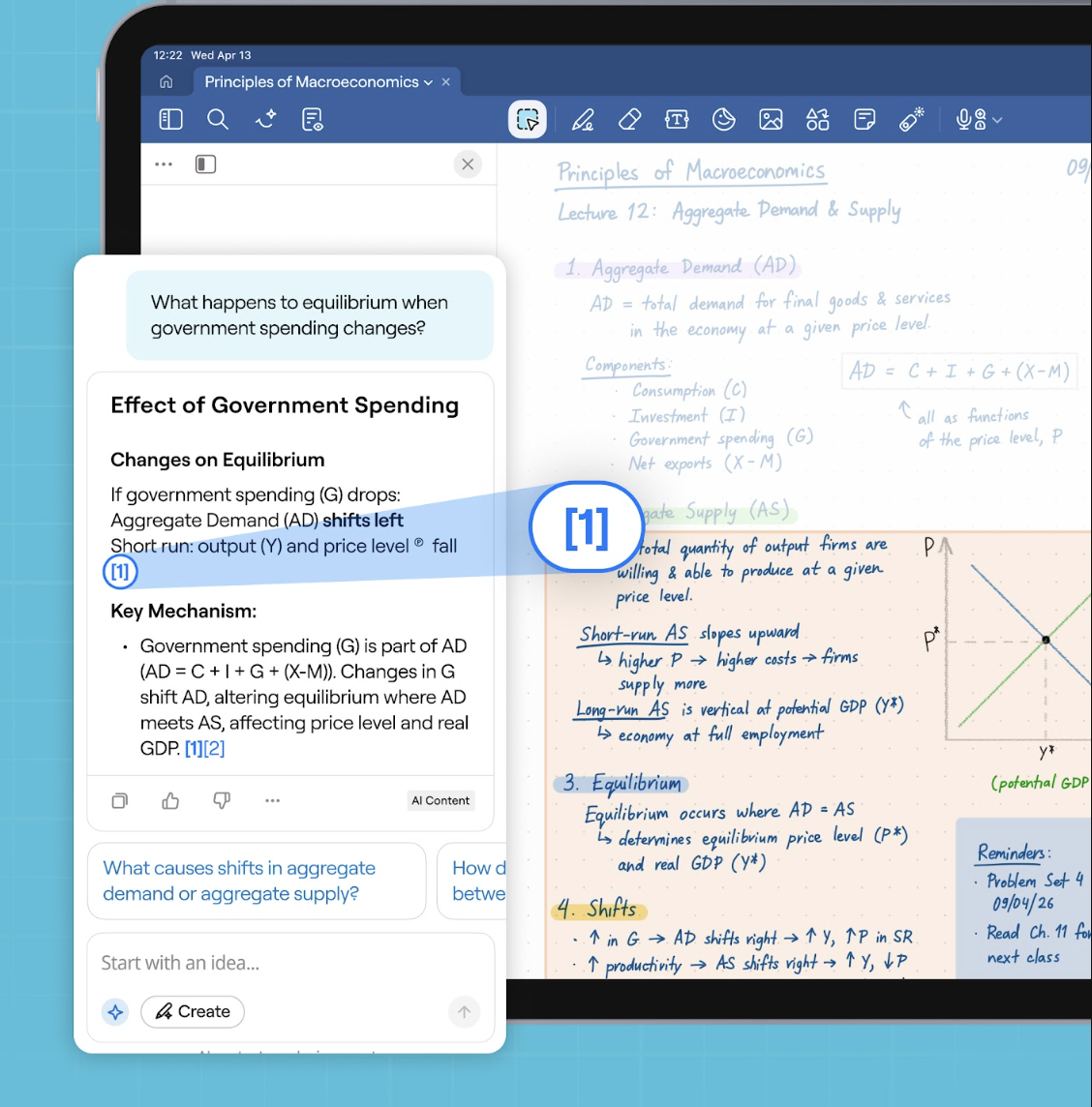
Notability’s AI focuses on turning notes, recordings, PDFs, and other source material into easy-to-review notes. It offers:
- AI-powered summaries: Generate summaries from notes, PDFs, and recordings.
- Live Smart Notes: Record a conversation while Notability transcribes and creates structured notes and summaries in real time.
- Chat with Your Notes: Ask questions about an open note to clarify details or find information within that content.
- Quizzes and flashcards: Turn your existing material into AI-generated quizzes and flashcards. Notability Learn can also generate fill-in-the-blank activities.
- Live audio transcription: Transcribe recordings as they happen and work with the resulting text inside your notes.
- YouTube link-to-note conversion: On the web app, you can paste a YouTube link to bring in its transcript and generate Smart Notes, summaries, quizzes, and flashcards from the video.
Verdict: Goodnotes offers the broader AI toolkit if you want AI to work across handwriting, documents, visual thinking, and meetings. Notability is a good fit if you only want to turn recordings or source material into transcripts, summaries, and structured notes.
Goodnotes vs Notability: Note-taking experience
Goodnotes is built around a stylus-first writing experience. Some of the main handwriting features include:
- Pressure-sensitive writing: With a compatible stylus, the thickness and character of your digital ink can respond to how firmly you press. Goodnotes’ Fountain Pen and Brush Pen styles use pressure sensitivity, and you can further adjust settings such as stroke sensitivity and tip sharpness.
- Palm rejection: Rest your hand naturally on the screen while writing without accidentally adding marks. You can also adjust palm-rejection sensitivity and your writing posture if the default detection doesn’t suit how you hold your stylus.
- Shape recognition: Draw a rough circle, rectangle, arrow, or other supported shape and hold your stylus at the end to turn it into a cleaner shape automatically.
- Straight lines and curves: Draw a line or curve and hold at the end to straighten or smooth it, which is useful for diagrams, tables, underlining, and quick sketches.
- Smart Ink: Resize a handwritten section and have the words reflow across lines, insert extra space between existing notes, and straighten or align handwriting without rewriting the page.
- Gesture-based editing: Use Scribble to Erase to remove ink or Circle to Lasso to select content without constantly switching tools.
- Handwriting editing: Select written content and move, copy, paste, resize, or delete it rather than starting again.
- Handwriting Spellcheck: Flag errors as you write while keeping the look of your own handwriting style.
- Handwriting-to-text conversion: Turn handwritten notes into editable typed text when you need to share or reuse them elsewhere. Goodnotes supports handwriting features across 15+ languages.
- Handwriting search: Search written content rather than having to remember which notebook or page contains it.
- Apple Pencil controls: On supported iPads and Apple Pencil models, Goodnotes works with features such as Hover, double-tap, and Apple Pencil Pro Squeeze. Apple Pencil Pro can also use Barrel Roll with supported pen styles, so rotating the Pencil changes the angle of the digital stroke.
Goodnotes isn’t tied to one stylus ecosystem. It works with styluses supported by your device, including Apple Pencil on iPad and compatible active pens on Android and Windows.
Its device partnerships make Goodnotes optimized for Samsung devices and the S Pen, including tap-and-hold erasing, while Lenovo Tab Pen Plus gestures can provide quick access to writing tools. Goodnotes also partners with HP, LG, ASUS, and Chromebook manufacturers.
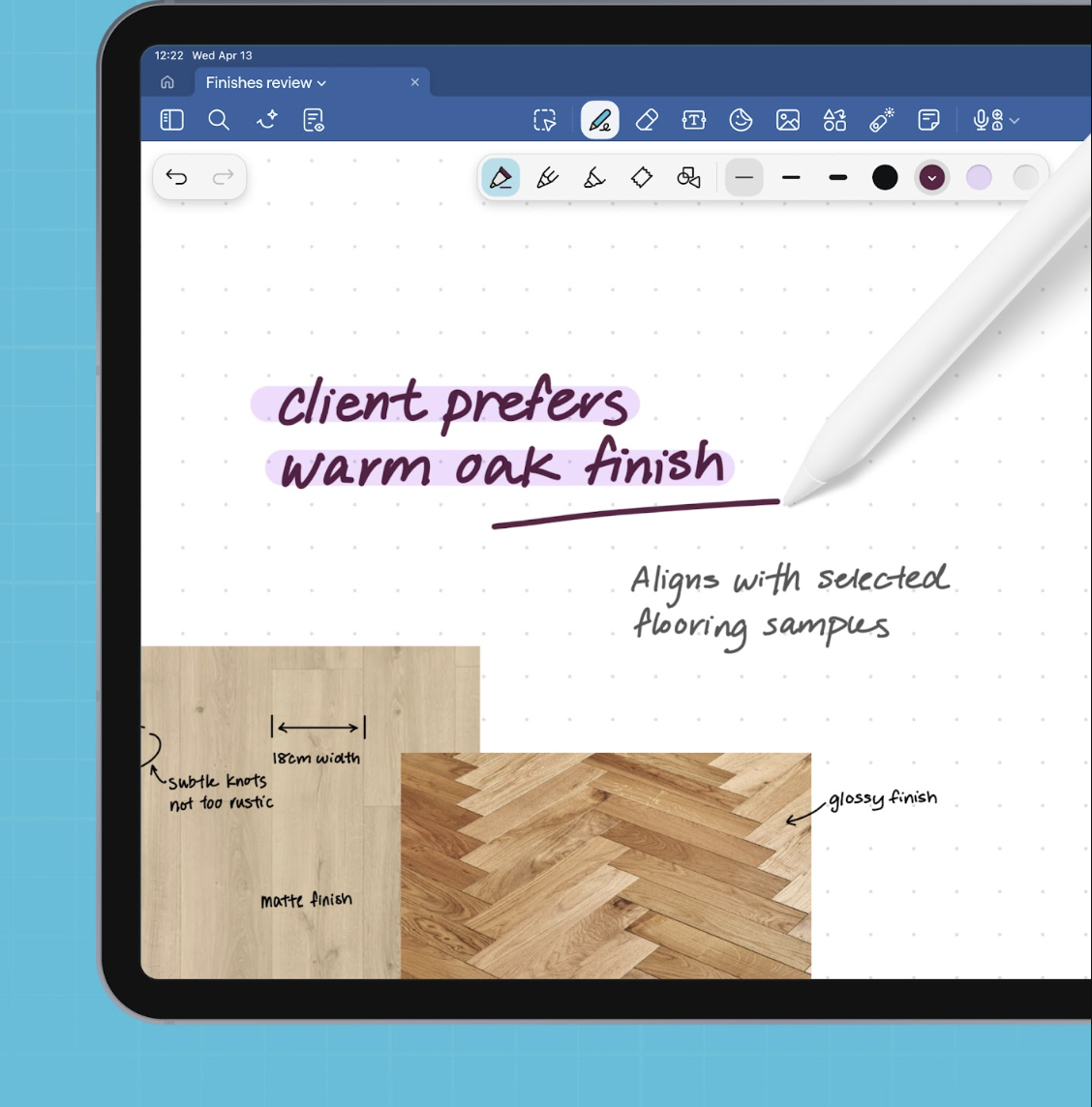
Notability also gives handwriting a central role. Its handwriting experience includes:
- Pressure sensitivity: On supported Apple Pencil models, pressure and tilt affect strokes for more natural sketching and shading.
- Palm Detection: Rest your hand on the screen while you write without adding unwanted marks.
- Shape detection: Draw a shape and hold the stylus down to turn it into a cleaner geometric shape.
- Straight-line recognition: Hold after drawing a line to straighten it automatically.
- Handwriting editing: Select ink to move, resize, restyle, copy, delete, or group it.
- Handwriting recognition and search: Convert written notes to text and search handwriting across your notes.
- Apple Pencil Pro controls: On compatible iPads, hover previews strokes before you draw, while haptic feedback confirms actions such as shape recognition and tool changes.
Its Android app now supports handwriting and drawing with a stylus, including the S Pen, and notes can sync between Android, iOS, and the web through Notability Cloud. Since its Android addition is newer, some features are still missing, including handwriting language settings, Math Conversion, the Ruler, and Tape.
Verdict: Both platforms focus on a smooth stylus-writing experience, but Goodnotes delivers a more mature cross-device experience with Smart Ink editing and dedicated integrations across Apple, Samsung, Lenovo, and other supported hardware.
Goodnotes vs Notability: PDF annotation
Goodnotes treats PDFs as documents you can work on directly rather than attachments you have to jump in and out of. With its PDF annotation, you can import contracts, reports, presentations, forms, technical drawings, and other PDFs, then use the same handwriting and editing tools you use in your notes.
With Goodnotes, you can:
- Write and draw anywhere on the PDF: Add handwritten notes, circle sections, sketch ideas, draw arrows or shapes, and leave feedback directly where it’s needed.
- Highlight and annotate text: You can easily annotate on iPad or other supported devices using the same tools you already use for note-taking. Whether you’re reviewing a contract, marking up a report, or sketching over a technical drawing, you can write, highlight, type, add shapes, and leave visual feedback directly on the page.
- Sign documents: Add a handwritten signature directly to PDFs, which is useful for forms and documents that need sign-off.
- Search what you’ve marked up: Goodnotes makes handwriting searchable, alongside text inside PDFs, so annotations don’t disappear into a long document once you’ve made them.
- Keep PDFs with the rest of your work: Import a PDF as its own document or add it to an existing notebook, depending on how you want to organize the material.
- Export and share the finished PDF: Send annotated PDFs by email, save them to cloud storage, or share a document for others to review and collaborate on.
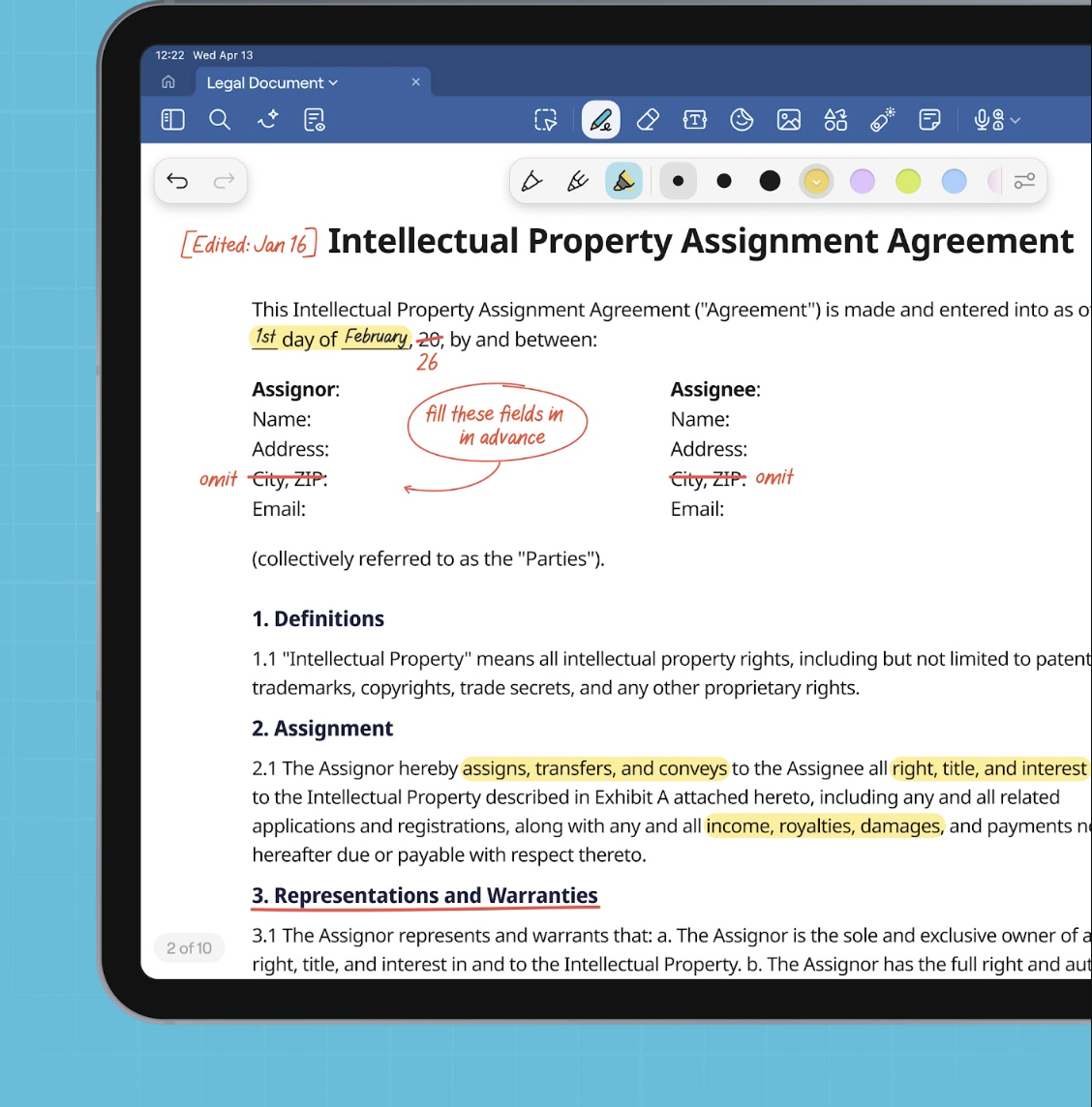
Similar to Goodnotes, Notability also lets you import PDFs directly into your library or add one to an existing note. Then you can annotate it with the same Pen, Pencil, Highlighter, Text, Select, and media tools available elsewhere in the app. You can also scan a physical document and turn it into a PDF inside Notability.
Its PDF workflow includes:
- Freehand markup: Write, draw, highlight, erase, or add movable text boxes directly over a PDF.
- Smart Highlighter: Long-press PDF text and drag to make the highlighter snap neatly to the text rather than highlighting freehand.
- Extra content: Add images and sticky notes on top of document pages when written markup isn’t enough.
- PDF page management: Rotate PDF pages, rearrange them, bookmark important pages, and copy PDF backgrounds between pages using the Content Manager.
- Export: Send the finished document back out as a PDF or export it to a connected service.
Verdict: Both tools manage everyday PDF annotation. Opt for Goodnotes if PDFs are a major part of your professional workflow and you want handwritten review, searchable annotations, signatures, and document organization in the same system. Notability is a good choice for simple markup, if you spend a lot of time highlighting typed PDF text.
Goodnotes vs Notability: Organization and document retrieval
Goodnotes is designed to keep a growing library of notebooks, PDFs, whiteboards, and other documents manageable.
You can create folders and subfolders, move documents between them, customize folders with colors and icons, and switch between grid and list views. Favorites and bookmarks give you quicker access to material you return to often.
- Search across your library: Goodnotes can search handwriting, typed text, searchable PDF text, scanned documents, document and folder titles, and document outlines. You can search across your entire library or within one document, then jump straight to the result.
- Outlines and bookmarks: Create nested document outlines to break longer notebooks or PDFs into sections, then jump directly to the page you need. Outlines can also be searched by title.
- Flexible folder structure: Folders can contain other folders, so you can build hierarchies around clients, projects, meetings, reference material, or however you prefer to organize work.
- Cloud backup: Auto Backup can keep copies of your Goodnotes documents in Google Drive, Dropbox, OneDrive, or WebDAV. This is separate from sync and works as a one-way backup, which gives you an additional copy of important work outside of Goodnotes.
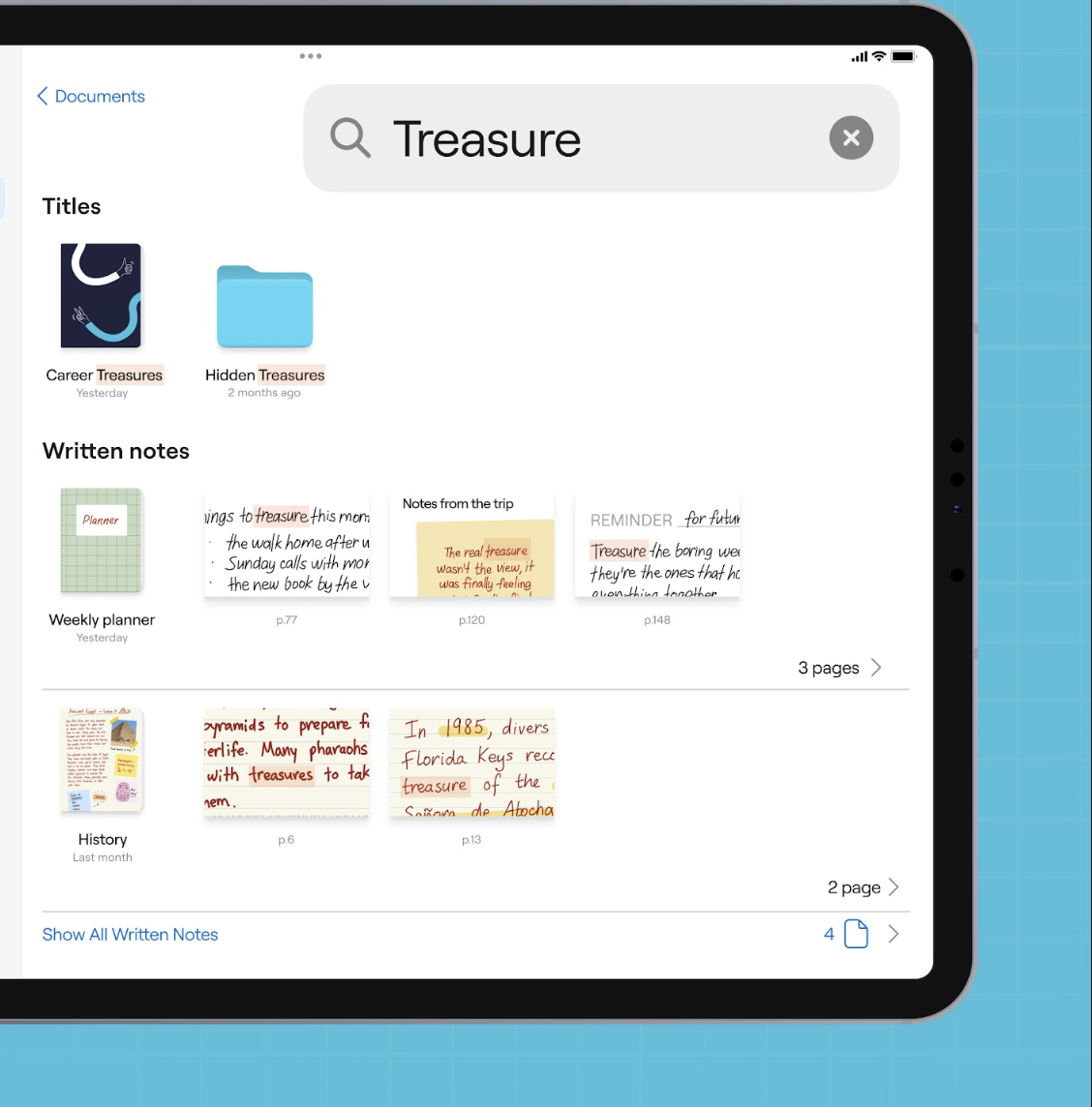
Notability organizes everything through its Library, using a flexible Dividers and Subjects system for organization. The new Notability 16 version lets you nest folders up to six levels deep. You can drag notes or folders into different locations, customize folder colors, sort your library, and switch between list and grid views.
Its retrieval tools are similarly built around getting back to information quickly:
- Search: Notability can search handwriting across your notes, alongside typed content and imported PDFs.
- Bookmarks and page navigation: The Content Manager lets you view all pages, jump to bookmarked pages, see annotated pages, and rearrange or move pages within a note.
- Nested folders: Six levels of folders give you room to separate work by client, project, topic, or any other structure without keeping everything in one long Library.
- Cloud backup: Notability supports one-way third-party backup to services including Google Drive, Dropbox, OneDrive, Box, and WebDAV. Sync is handled separately through Notability Cloud or iCloud, depending on your setup.
Verdict: Goodnotes helps you manage larger or more varied document libraries, with searchable outlines and library-wide retrieval across notebooks, handwriting, PDFs, scans, and folder titles. Notability is a good option if you prefer a simple note-centered Library with clearly defined folder nesting.
Goodnotes vs Notability: Meeting and presentation capabilities
Goodnotes covers meeting notes and workflow from preparation through follow-up with:
- Calendar-connected preparation: Connect Google Calendar, Microsoft Outlook, or Apple Calendar so Goodnotes can create a meeting note with the event title, date, time, and attendees before the meeting starts.
- Audio recording and transcription: Record the conversation while you keep handwriting, typing, or sketching.
- Traceable notes: Link meeting notes to call recording timestamps to easily find exactly what was being said when you took a specific note.
- Live summaries: Goodnotes can surface key points while the meeting is happening.
- Speaker identification: Separate speakers in the transcript so it’s easier to follow who said what.
- Action items and commitments: Automatically detect tasks and follow-up points from the conversation.
- Searchable meeting records: Search the transcript later and jump back to the corresponding point in the recording or notes.
- Presentation Mode: Present from iPad or iPhone over AirPlay or HDMI while hiding Goodnotes controls from the audience.
- Laser Pointer: Use a temporary dot or trail to direct attention without permanently marking the page.
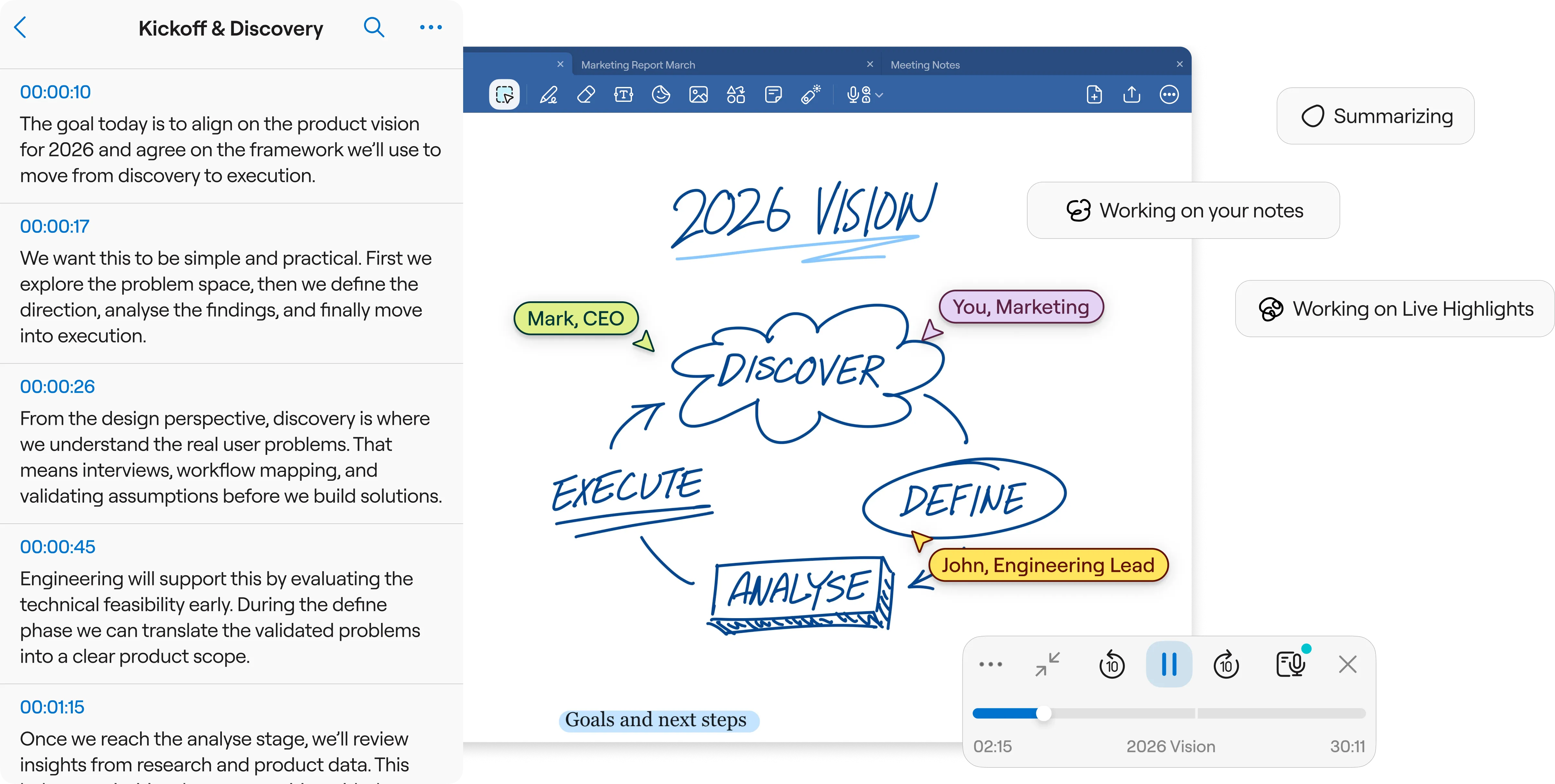
Notability also combines note-taking with audio capture and presentation tools. Its main meeting features include:
- Audio recording: Record a meeting while continuing to write or annotate.
- Note Replay: Tap a handwritten note, sketch, or image later to jump back to the point in the recording when you added it.
- Live Transcripts: Turn recorded conversations into time-stamped text as they happen.
- Smart Notes: Create a structured summary from the live transcript and other note content.
- Action Items: Pull tasks and follow-ups from the meeting content.
- Audio editing: Trim, split, merge, import, and change playback speed for recordings.
- Presentation Mode: Show a note full-screen over AirPlay or HDMI while keeping toolbars and other controls hidden.
- Multi-Note during presentations: Keep a second note visible only to yourself while presenting.
- Laser Pointer: Highlight areas temporarily without leaving permanent marks.
Verdict: Goodnotes is the better fit if you want a meeting workflow that covers preparation, live capture, and follow-up in one place. Notability also includes note-taking, live transcription, summaries, and synced audio review. However, it doesn’t offer the same calendar-connected workflow for preparing meeting notes and carrying action items into follow-up.
Goodnotes vs Notability: Team collaboration
Goodnotes collaboration tools include both live co-editing and asynchronous feedback.
- Real-time collaboration: Multiple people can write, sketch, annotate, or edit the same document; changes appear as they happen.
- Live Cursors: See exactly where teammates are writing or editing. Instant Live Cursor sessions support up to 50 people at once when at least one participant has Goodnotes Pro or AI Pass.
- Comments and feedback: Leave comments directly on the page, alongside sticky notes and annotations, so feedback stays attached to the work it refers to.
- Link sharing and permissions: Share documents through a link and control who can view or edit. Owners can also manage or remove collaborators.
- Cross-device collaboration: Shared work can be accessed across supported Goodnotes devices, which is useful when some teammates are working from tablets and others are on desktop or web.
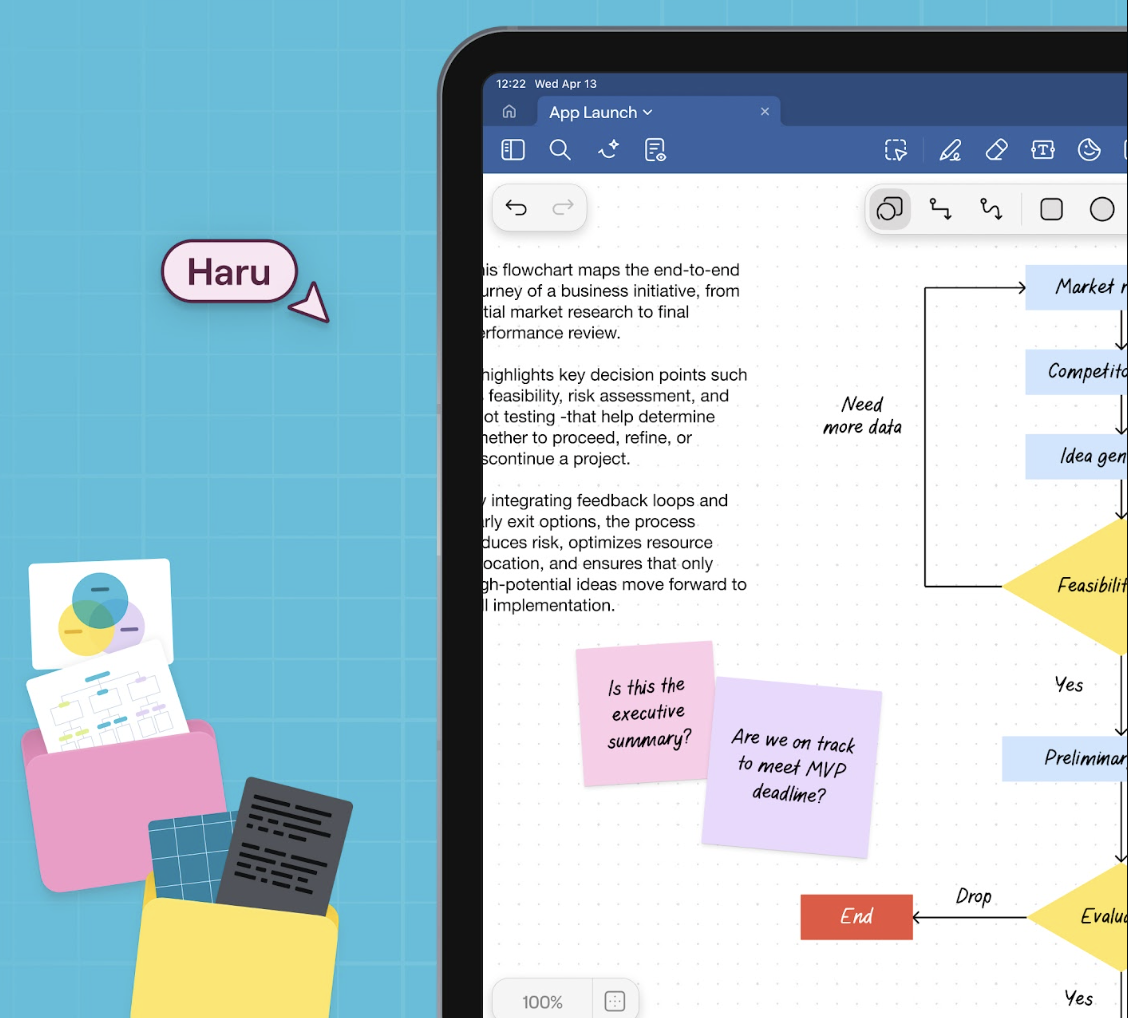
Notability also supports live collaboration, with teams working together on the same note across iOS, Mac, and Web.
- Live collaboration: Multiple contributors can edit the same note simultaneously, with changes appearing automatically for everyone viewing it.
- Presence indicators: See who else is currently viewing or editing the note.
- View and edit permissions: Invite someone by email or link, then decide whether they can view or edit. Notes can also be restricted or opened to anyone with the link.
- Shared Libraries: Notability for Business lets teams keep collections of notes in a shared library rather than sharing everything one note at a time. Library owners can assign View or Edit access.
- Team capacity: A shared note can have up to 100 collaborators, with up to 20 editors actively working on it at once.
Verdict: Goodnotes is the better fit if your team wants to work together live in the same document, with Live Cursors showing where people are writing or editing and comments attached directly to the work. Notability is a better fit if your priority is organizing shared notes into team libraries.
Goodnotes vs Notability: Enterprise capabilities and security
Goodnotes separates its Enterprise offering based on how much control your organization needs over accounts, devices, and where note data lives. That distinction is important if IT or compliance teams are involved in the buying decision. You can read our guide to Goodnotes Pro, Teams, and Enterprise for more details.
- Centralized administration: Goodnotes Teams includes an Admin Console for managing users, seats, permissions, and billing from one place.
- Identity and access controls: Teams supports SAML SSO and domain control, so organizations can control who signs in with company accounts.
- Feature controls: Admins can control which features employees have access to. Enterprise adds AI permissions, custom security requests, and other controls for organizations with stricter policies.
- Enterprise deployment: Goodnotes Enterprise can run without Goodnotes accounts or Goodnotes Cloud. IT distributes a license key to managed iPads and iPhones through an MDM such as Microsoft Intune or Jamf Pro. Notes stay within the organization's infrastructure, with backups sent to its own WebDAV server.
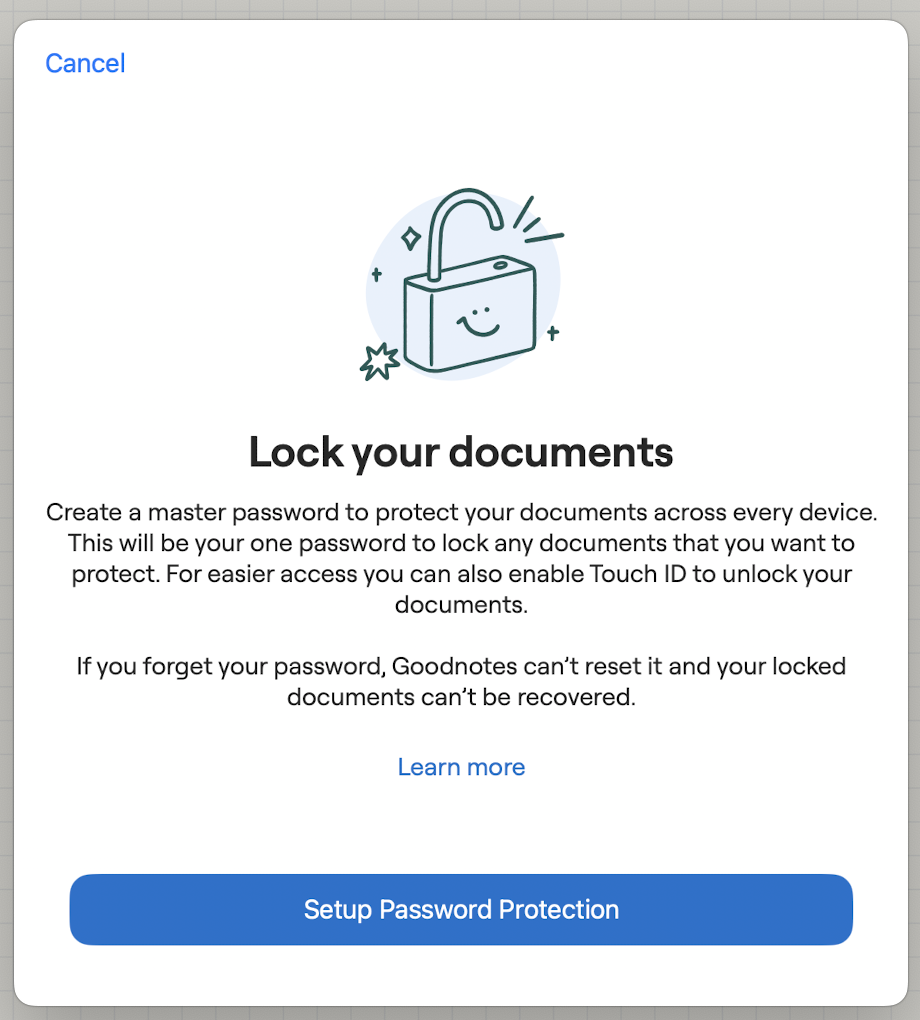
- Document protection: Individual Notebooks and Whiteboards can be password-protected on iOS and unlocked with the password, Face ID, or Touch ID. Goodnotes uses one universal password for locked documents rather than separate passwords for each file.
- Security and compliance: Goodnotes is ISO/IEC 27001 certified and SOC 2 Type 2 compliant, and states compliance with GDPR and CCPA. Security and compliance documentation, including its SOC 2 report and penetration test information, is available in the Goodnotes Trust Center.
- AI data controls: Goodnotes doesn’t access or collect content from your notebooks to train its AI features. Enterprise customers also get additional AI permissions, privacy controls, and governance options for managing how AI is used across the organization.
Notability also has dedicated Business and Business Pro plans with centralized administration and security controls. Its enterprise features include:
- Centralized administration: Business includes centralized user management and billing, along with admin-based feature controls.
- Feature controls: Admins can restrict features across the workspace. These controls apply to all workspace members rather than being configured differently for individual users or groups.
- Version history and audit logs: Business includes 30-day version history. Business Pro extends that to 90 days and adds an Audit Log for greater visibility into activity.
- Device and app management: Notability supports MDM configuration, while Business Pro includes Microsoft Intune MAM integration. IT teams can apply Intune App Protection Policies and configure app-level restrictions.
- Storage and sharing controls: Managed deployments can restrict approved backup providers or disable options such as email sharing, AirDrop, Link Sharing, and access to the Share Sheet. Organizations can also keep information locally on managed devices rather than requiring iCloud.
- Folder protection: Notability can password-protect folders on iOS and Mac and supports Face ID, Touch ID, or the device passcode. It does not currently support passwords for individual notes or the entire app, and locked folders aren't available with Notability Cloud.
- Security and AI controls: Notability has achieved SOC 2 Type II compliance, is GDPR compliant, and doesn’t use customer data to train large language models.
Verdict: Goodnotes offers a broader enterprise toolkit for organizations that need SSO, domain control, centralized administration, and more control over how Goodnotes is deployed. Notability supports main business-management needs and adds useful controls such as Audit Logs and Intune MAM, but its enterprise feature set is currently narrower.
Goodnotes vs Notability: Pricing and plans
Goodnotes splits its plans between individual/prosumer use and Team or Enterprise use. Essential and Pro both include a 7-day free trial, while Teams includes a 30-day free trial. You can also add the AI Pass for $9.99/month to Essential or Pro to unlock the full AI experience (which is automatically included in Teams and Enterprise plans).
Notability splits its pricing between individual plans and business plans. Business and Business Pro both include a 30-day free trial.
Notability Individual plans:
Notability Business plans:
Verdict: Goodnotes offers better value for solo professionals at the higher end, with Pro at $35.99/year versus Notability Pro at $79.99/year. For teams, Notability Business starts cheaper at $60/user/year, but Goodnotes Teams sits between Notability’s Business and Business Pro tiers at $120/user/year, with more advanced admin and enterprise controls included before you move to a custom plan.
Goodnotes vs Notability: Customer support
Goodnotes gives users a few ways to get help, starting with its Help Center and Goodbot, an AI-powered support assistant for quick questions. If you need a human to step in, you can contact Goodnotes Technical Support through dedicated forms for crashes, account and subscription issues, bugs, refunds, and other requests.
- Self-service support: Help Center articles cover features, troubleshooting, accounts, billing, and common technical issues.
- AI support: Goodbot can help answer support questions before you submit a ticket.
- Technical support forms: You can send screenshots, screen recordings, and diagnostic data to help the support team investigate an issue.
- Business support: Higher business tiers add prioritized support, while Enterprise includes dedicated account support.
Notability also has a searchable Help Center, with support available directly from the app.
- In-app support: Submit technical issues and feedback without leaving Notability.
- Feature requests: Search existing suggestions, vote on ideas, or submit your own request.
- Help Center: Guides cover features, troubleshooting, syncing, subscriptions, and recently reported issues.
- Billing support: Purchases made through Apple are handled by Apple Support for payment changes, refunds, and subscription issues.
- Business support: Notability’s Custom Contract includes dedicated support for organizations with more specific requirements.
Verdict: Both platforms offer self-service and direct support. Goodnotes gives users more support routes, including an AI assistant, dedicated issue forms, and prioritized or dedicated support on higher business plans. Notability keeps support simple, with in-app ticketing and dedicated support available on its custom business plan.
Goodnotes vs Notability: The final verdict
So, which is the right note-taking app? For most professionals and teams, Goodnotes is the better all-round choice. The biggest of the core differences is scope. Goodnotes gives you more ways to work across handwritten notes, Whiteboards, Text Documents, PDFs, AI-assisted workflows, meetings, and real-time collaborative editing.
For teams, Goodnotes also adds SAML SSO, domain control, centralized user and admin management, feature controls, AI permissions, Microsoft Intune support, and custom enterprise security options.
That doesn’t mean everyone should choose Goodnotes. You may prefer Notability if your needs are more focused on just note-taking itself. That means work centered on creating, organizing, reviewing and sharing notes.
Ultimately, it’s an element of personal preference, but if you want a wider range of professional workflows as your needs grow, Goodnotes gives you more room to grow.
The last thing you want to be doing is assessing tools again this time next year. So consider your options and make the right decision today.
Join 150+ teams choosing Goodnotes every day
Capture meeting notes, mark up PDFs, sketch ideas, and keep your work moving across devices with Goodnotes.
FAQs
1. Do people prefer Goodnotes or Notability?
There isn’t one universal favorite. Goodnotes tends to suit people who want more control over handwriting, document organization, PDF work, and different ways to structure their notes. Notability appeals to users who want a focused, note-centered experience for creating, organizing, reviewing, and sharing notes
For professional use, Goodnotes is the more versatile and valuable choice because it can handle handwritten notes, Whiteboards, Text Documents, meetings, and team collaboration in the same app.
2. What’s the best note taking app for work?
For most professional workflows, Goodnotes is the better all-round option. You can move between handwritten Notebooks, Whiteboards, Text Documents, PDF annotation, meeting capture, and collaboration, while business plans add admin and enterprise controls as your team grows.
3. Does Goodnotes offer lifetime access?
Yes. Goodnotes offers Special Edition, a one-time purchase with no renewal date or expiration. However, it’s currently available only through the Apple App Store, may not be offered in every region, and doesn’t include the same cross-platform access and full feature set as the subscription plans.
4. Can I get a Goodnotes free trial?
Yes. Goodnotes Essential and Pro include a 7-day free trial, while Goodnotes Teams includes a 30-day free trial with no credit card required. You can also use the Free plan without a time limit if you want to try the basic note-taking experience first. Try Goodnotes for free
5. How can I take notes on iPad?
Download a note-taking app such as Goodnotes, create a notebook, and start writing with your finger or a compatible stylus. With Goodnotes, Apple Pencil is the recommended option on iPad for the full pen-on-paper experience. You can handwrite, type, sketch, organize your notes, and import PDFs to annotate in the same app.
6. Which is the best app for stylus note-taking?
Goodnotes is the best app for stylus note-taking. The note-taking app is compatible with most styluses, and offers gesture support and pressure sensitivity across devices. Notability focuses mainly on the Apple ecosystem.