TL;DR
There are two main ways to record and transcribe meetings on iPad.
The first is through Apple’s native apps: Apple Notes or Voice Memos.
The second option is to use a dedicated recording, transcription, and note-taking tool. Top tools include Goodnotes, Notta, Granola, and Otter AI.
Regardless of which method you opt for, make sure you have all participants’ consent to record the meeting.
Sometimes, shorthand meeting notes aren’t enough. If you’re actively listening to other participants, key information like dates, insights, or action items are bound to slip through. And there’s nothing more stressful than scrolling through notes to find you’ve not taken the next steps for a crucial deadline.
Recording and transcribing meetings with your iPad provides a safety net. It ensures you have the whole meeting in one easy-to-find place. It’s effective and accurate.
In this article, you’ll learn six different ways to record and transcribe meetings on your iPad. That includes both Apple-native options and dedicated AI notetaker tools, along with the benefits and drawbacks of both.
How to record and transcribe meetings on iPad: An overview
If you have a meeting to record, don't worry. We’ve compiled the key information on the best iPad recording and transcription tools to choose from. All of the tools in the table below work for both online and in-person meetings.
How to record and transcribe meetings using native iOS features
The fastest way to record and transcribe meetings is through the native iOS apps on your iPad. You have two options: Apple Notes or Voice Memos. Here’s a detailed breakdown of how to record and transcribe meetings on iPad using both.
Record and transcribe meetings using Apple Notes
Apple Notes lets you directly record audio within a note, so your recording, transcript, and notes sit in one place. This makes it a good option for online and in-person meetings where you want to jot down a few ideas and refer back to the recording when needed.
Here’s how to record and transcribe a meeting with Apple Notes:
- Open the Apple Notes app and tap on ‘New Note’
- Within the note section, tap the ‘Attachments’ button (📎)
- Tap on ‘Record Audio’
- Then, tap on the red ‘Record’ button
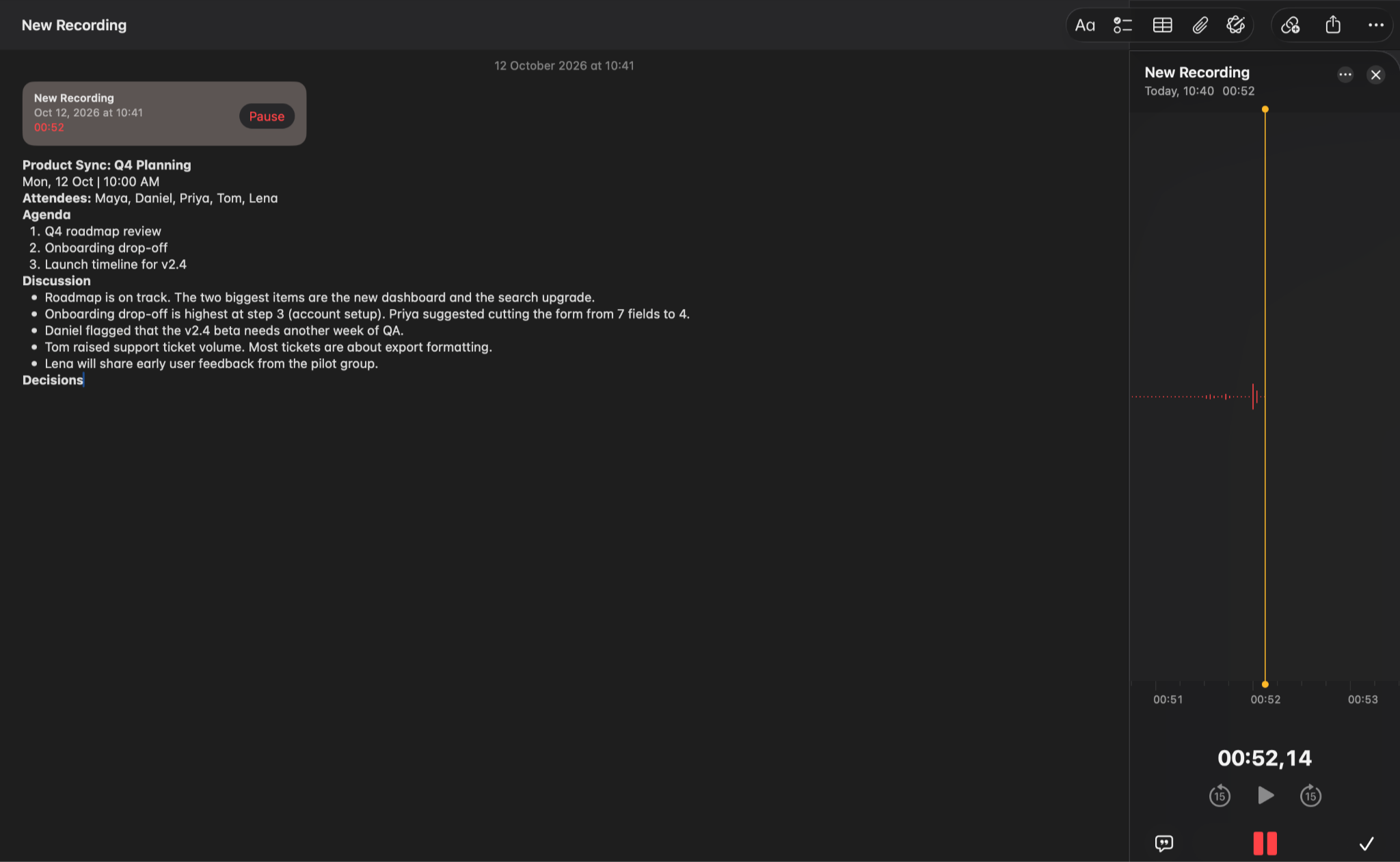
From that moment on, the meeting will be recorded. If you want to see the transcript as it's being created, then tap the ‘Transcription’ icon, shaped like a speech bubble containing quotation marks.
After the meeting, you can tap any line within the transcript to play the audio from that point. If your iPad has Apple Intelligence, tapping ‘Summary’ on a recording will generate one from the transcript itself. With Apple Notes, transcription happens on-device with nothing uploaded. Notes with audio save to iCloud and will sync across your Apple devices as well.
Record and transcribe meetings using Voice Memos
Voice Memos is a simpler option than Apple Notes. While you can record the meeting and get the transcription later, you won’t be able to take shorthand notes within the same app.
This makes Voice Memos a good option when you want to give the speaker your full attention, whether it’s a client meeting or a lecture. It’s ideal for iPad, and you can also use Voice Memos to record and transcribe meetings on Mac, iPhone, and Apple Watch.
Here’s how to start recording your meeting with the app:
- Open the Voice Memos app on your iPad
- Tap the big red ‘Record’ button to start recording instantly
- Consider moving your device either to the center of the room or towards the speaker to ensure you get clear audio
- Tap the ‘Done’ or red square button to automatically save the recording
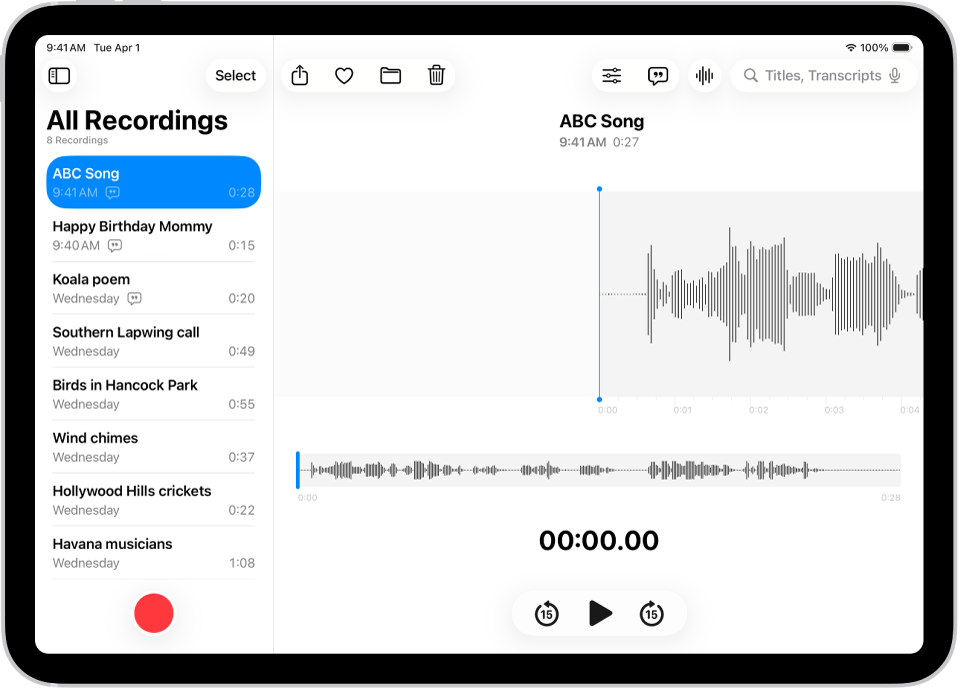
Need to check the transcription? Here’s how:
- Tap on your saved meeting recording
- Tap the three dots icon next to the recording itself
- Select ‘View’ transcript to see the entire transcript recording on your screen
Voice Memos also has a few advanced AI features. After opening the transcript, you can use ‘Writing Tools’ to summarize and organize your text. However, this is only available if your iPad has Apple Intelligence enabled.
Like Apple Notes, transcription happens on the device, while iCloud keeps all recordings in sync across your Apple ecosystem. Turning off iCloud sync means recordings stay only on your device and are deleted; they stay in the Recently Deleted folder for 30 days before they’re lost forever.
How to record and transcribe meetings using a dedicated app
If you’re in a hurry, the native apps on your iPad will help you with recording and transcription. But dedicated apps offer features that make the process easier and more effective.
The next four tools on this list cover all that and more. They’re the best meeting recorder apps for iPad. But first, here’s what they share.
What do these four tools have in common? Regardless of which tool you opt for, they all include:
- The option for audio capture through your device’s microphone
- Automatic conversation transcription saved so you can review it after the meeting
- AI-generated summaries to pull out action items
- Calendar sync so your notes are ready for upcoming meetings
We detail the differences below, but rest assured they all record and transcribe meetings on iPad.
Goodnotes: Meeting recording and transcription + stylus note-taking
Goodnotes is a comprehensive note-taking app that offers tools to help you record and transcribe meetings. Made for people who think, work, and take notes on iPad, Goodnotes audio recording transcribes meetings—syncing any notes you make to the timestamp at which you took them. Following transcription, Goodnotes AI can generate notes, highlight key takeaways, and identify action items from your meeting.
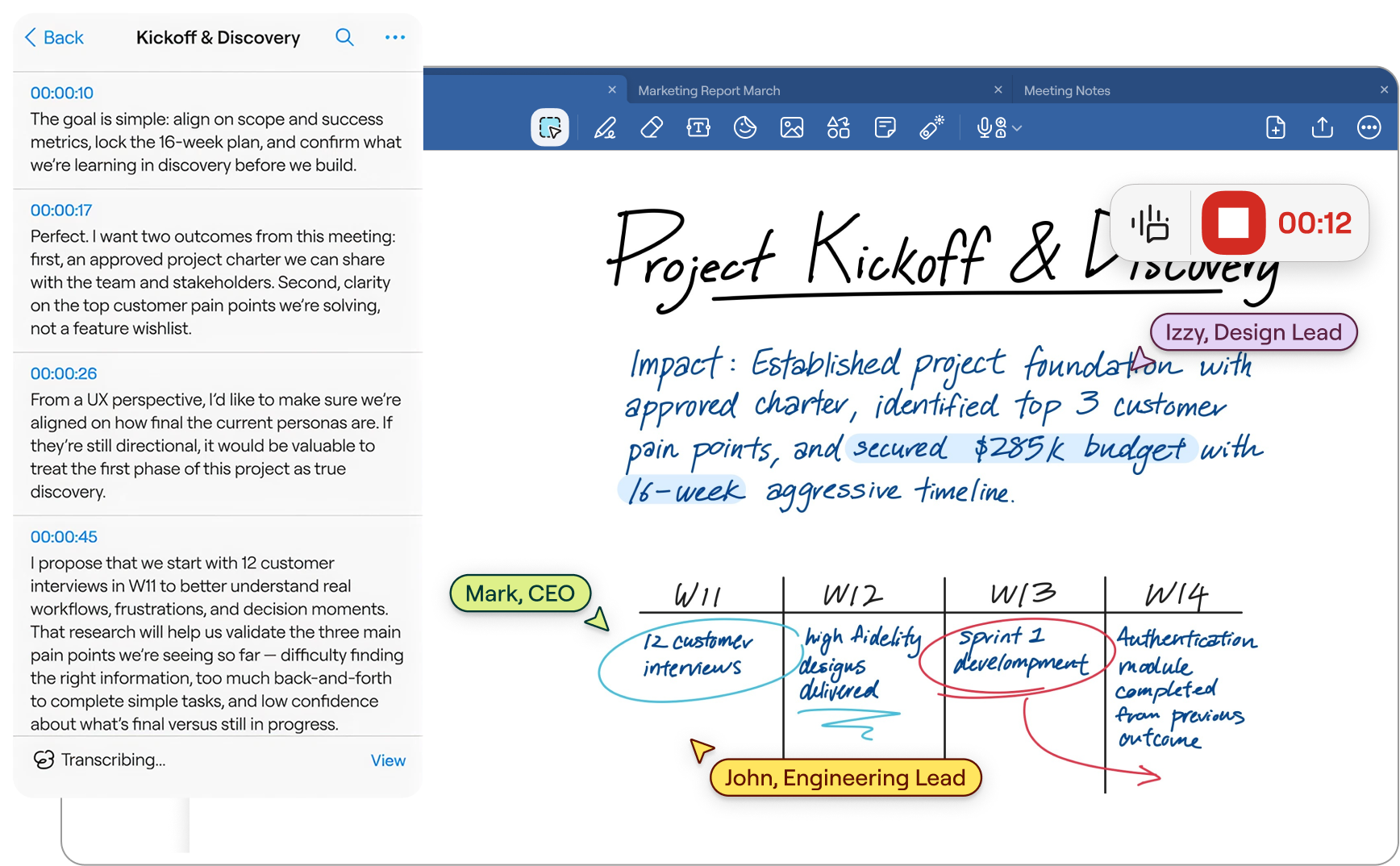
Key meeting recording and transcription features this app supports:
- Audio-synced recordings: Tap on any note you’ve written while recording, and jump to what was being said when you wrote it—so you can immediately get context for your notes.
- Searchable and editable transcription: Search, edit, and share your notes complete with the audio and transcript, or export your summary separately.
- Goodnotes AI for meetings: Use AI to get real-time summaries, action items, and even fill gaps with the Enhance Notes function. You can even use the Ask Goodnotes co-pilot to ask questions about your transcript and surface specific answers.
- On-device or cloud transcription: On-device transcription runs without sending audio to the internet, while cloud transcription on Pro and AI Pass supports 99 languages. Goodnotes doesn't use your notebook data to train its AI.
Pricing
Goodnotes offers a Free plan with 20 minutes of audio recording. The Essential plan costs $11.99/year and unlocks unlimited audio recording and gives you limited access to AI capabilities.
By going with the Pro plan at $35.99/year, you get access to all of Goodnotes’ AI capabilities, as well as the ability to sync across devices. Businesses looking for enhanced security and organizational admin controls can opt for Teams at $120 per seat/year or Enterprise with custom pricing.
Goodnotes does more than record and transcribe your meetings. Access a comprehensive note-taking experience with Goodnotes, so you can combine meeting notes with existing notebooks, whiteboards for brainstorming, and text documents for typed documents. You can also import PDFs for markup and sharing, making it an all-in-one digital workspace for professionals and teams.
Notta: Meeting recording and transcription in 50+ languages
Notta is a meeting-notes and AI transcription tool available as a web app, mobile app, Chrome extension, or desktop app. In addition to real-time transcription in 58 languages, it generates AI summaries and action items.
It records through your device’s microphone and transcribes audio to text on the spot. Alternatively, you invite Notta bots to join Zoom, Google Meet, Microsoft Teams, and Webex calls. Data is encrypted in transit and at rest, and Notta holds SOC 2 Type 1 and Type 2 attestations.
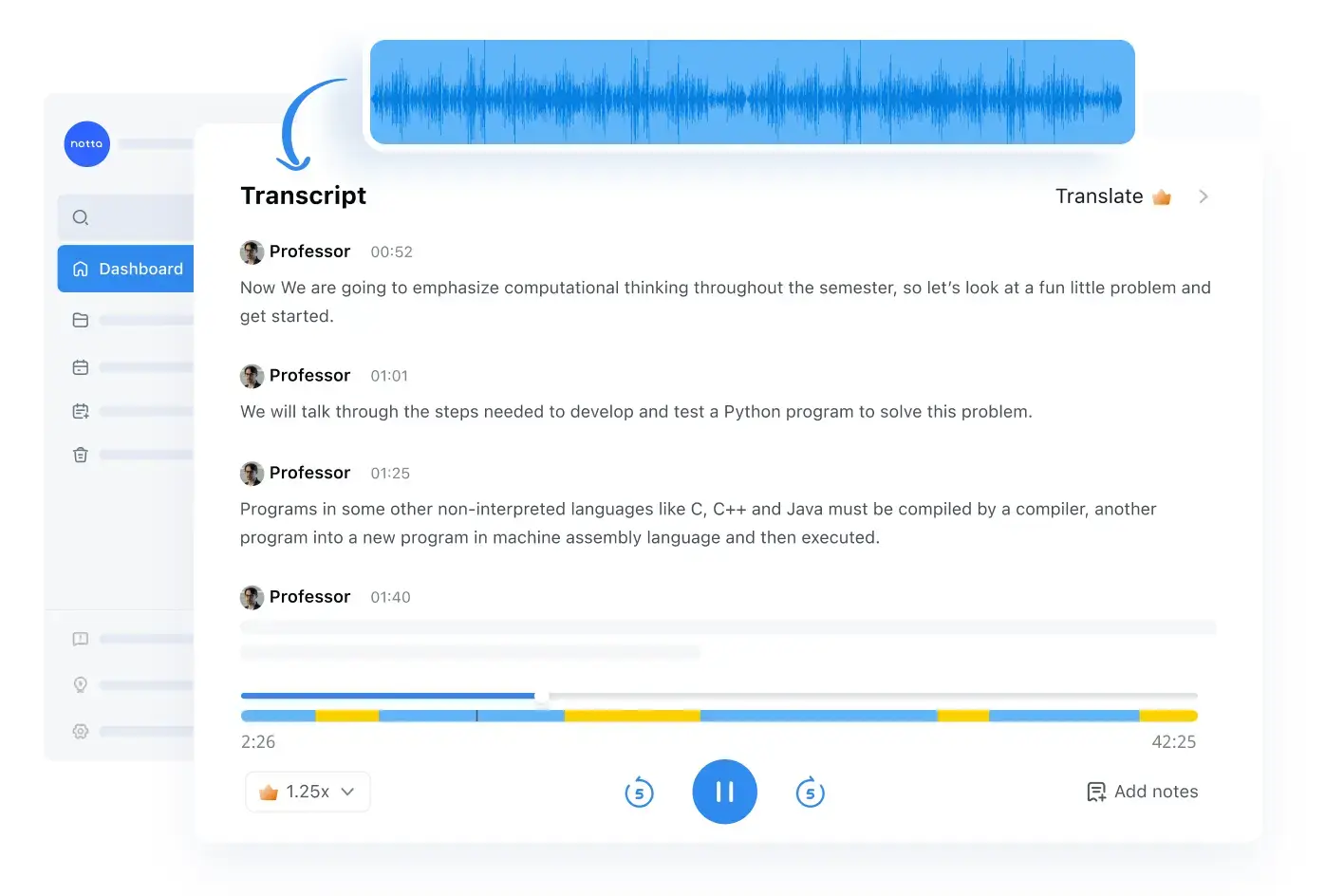
Key meeting recording and transcription features this app supports:
- Templates and prompts: Use summary templates to automatically structure and extract key insights from transcriptions.
- Notta Brain: Use Notta’s AI co-pilot to surface specific answers from multiple meetings at once.
- Clickable timestamps: Custom summaries automatically link back to the exact moments within the transcript.
- Shared and private views: Either add notes to the workspace to share and collaborate with your team instantly, or keep them for yourself with the private tab.
Pricing
Notta offers a Free plan, offering monthly allowances of 120 transcription minutes (with recordings capped at three minutes per conversation), 50 file uploads, and 10 AI summaries.
With the Pro plan at €7/month, monthly allowances increase to 1,800 transcription minutes, up to five hours per recording, 100 file uploads, and 100 AI summaries.
If you tend to take many meetings, then Notta’s Business plan—priced at €189.99/year—could be a fit. It offers unlimited transcription, up to five hours per recording, 200 file uploads, and 200 AI summaries.
Granola: Meeting recording and transcription + AI-enhanced notes
Granola is an AI notepad designed to work on iPad, Mac, Windows, and mobile. Instead of joining your call as a bot and creating a transcription wall of text, it transcribes in the background while you jot short notes. It then uses your shorthand and merges it with the transcript to create polished and contextual notes.
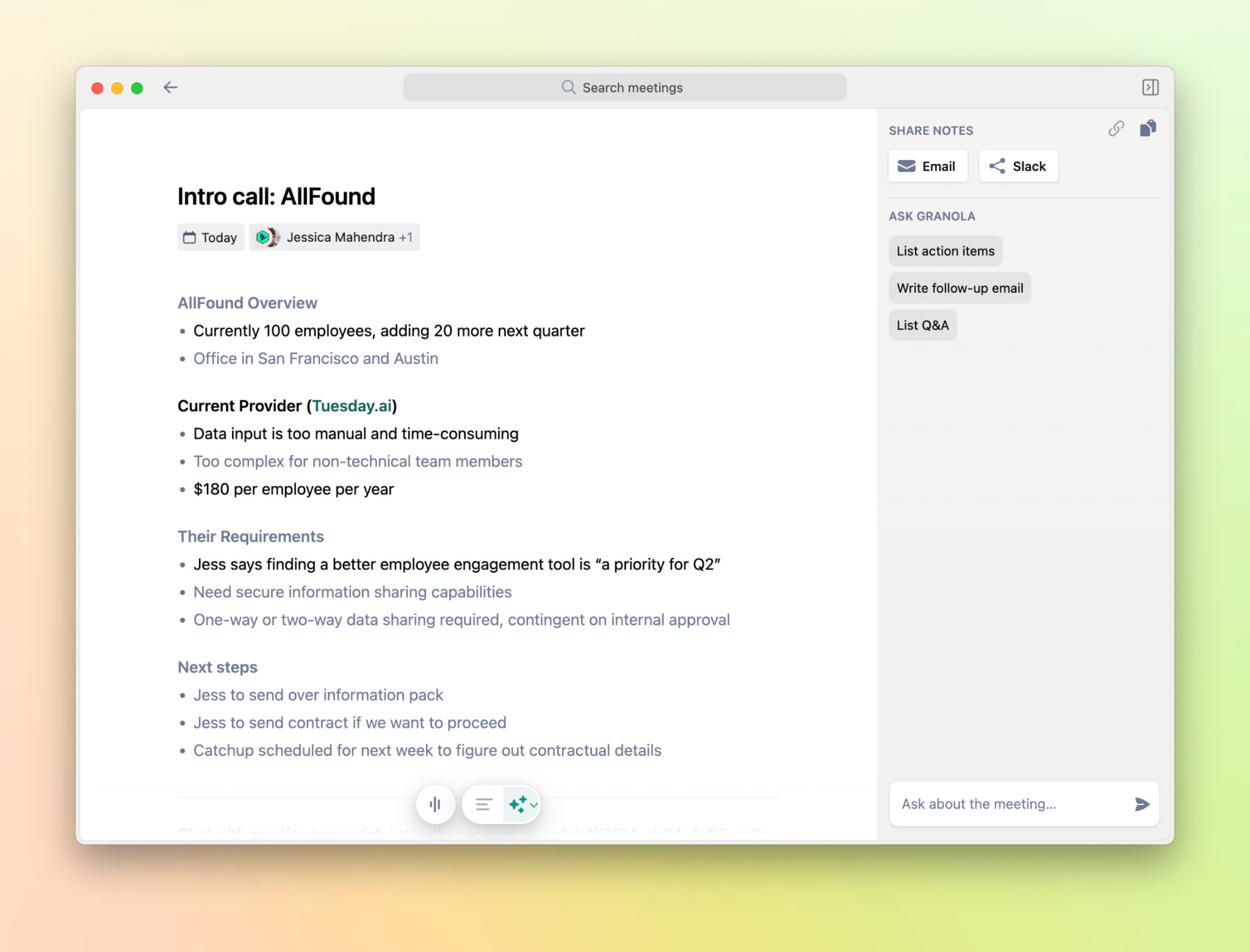
Key meeting recording and transcription features this app supports:
- Notes-first workflow: After jotting notes down, ‘Enhance Notes’ merges them with your transcript into comprehensive, structured notes.
- Meeting templates: Select a meeting template, such as a sales call or project sprint, to ensure you get a summary structure aligned with your meeting’s purpose.
- Sharing and chat: Granola Chat lets you ask questions across meetings; however, this feature isn’t available on iPad.
- Audio deleted after transcription: Granola transcribes the audio and then deletes it, so only the transcript and notes are stored, encrypted in transit and at rest. That means no audio playback. Granola holds SOC 2 Type 2 certification, and you can opt out of model training on Free and Business plans.
Pricing
Granola’s free Basic plan gives users basic recording and transcription features such as AI meeting notes and AI chat within and across meetings, and the option to opt out of model training any time.
The $14/month Business plan includes the same features, plus unlimited meeting notes and history and access to advanced AI thinking models and features.
For teams that need extensive recording and transcription, Granola’s Enterprise plan unlocks enterprise-grade security & admin controls, priority support and usage analytics, and more for $35/month.
Otter AI: Meeting recording and transcription + automated next steps
Otter AI transcribes in real time, labels speakers, and writes summaries while it records. You can then highlight and bookmark important points, add comments, and tag teammates as the conversation moves forward. At the same time, Otter AI acts as a unified hub for your meeting data where you can ask questions through the Otter AI chat.
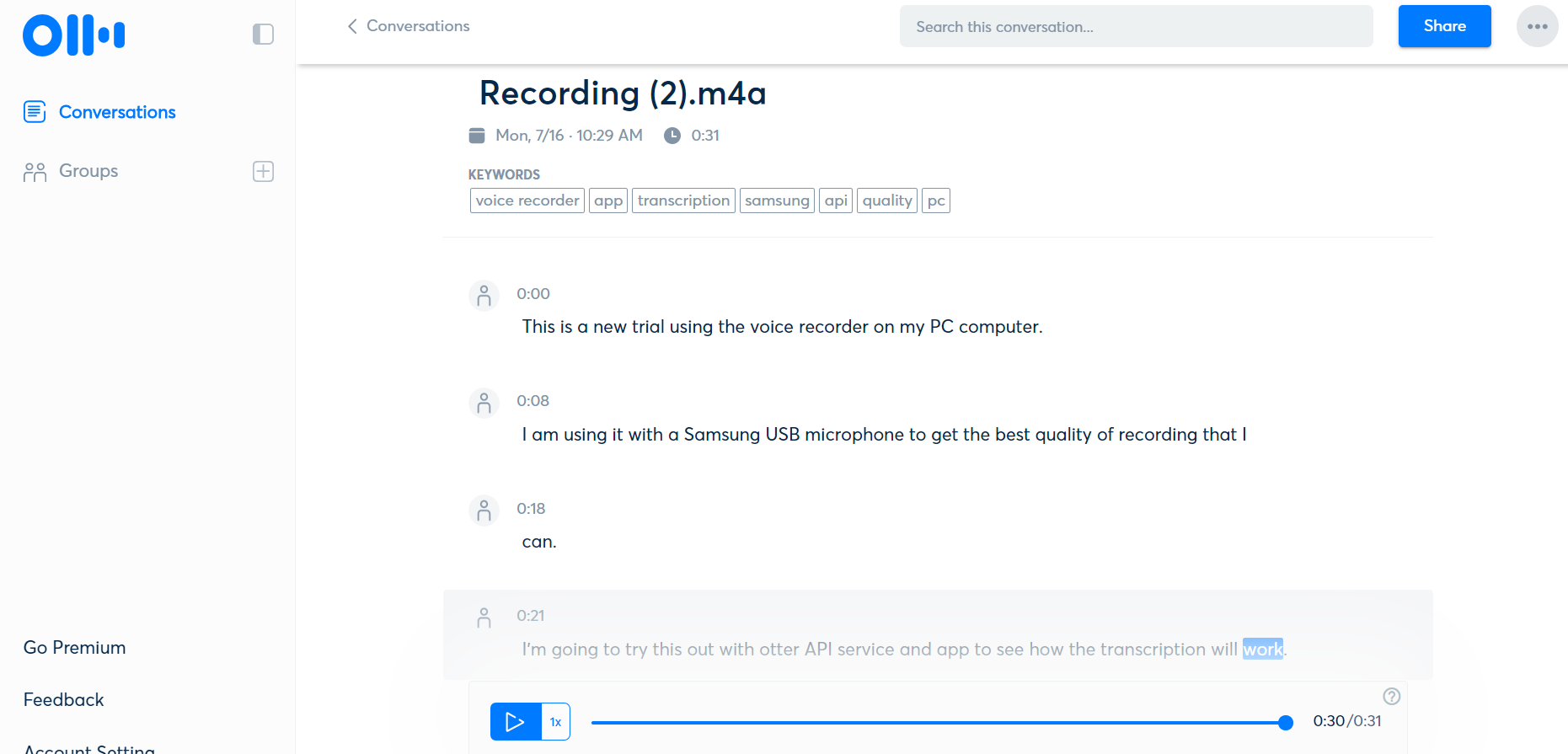
Key meeting recording and transcription features this app supports:
- Live meeting transcription editing: During or after the meeting, tap on any word in the transcript to jump to the audio at that spot, edit the text, or tag speakers while labeling paragraphs and identifying action items.
- AI chat: Ask specific questions about past meetings. Otter’s AI will surface it, saving you time and effort you’d usually spend searching across transcriptions.
- Upload other audio recordings: Get transcriptions from past audio recordings on different apps or platforms. This makes it easy to save calls if you’ve recently switched between tools.
- Security and privacy: Otter holds SOC 2 Type 2 attestation and encrypts data in transit and at rest. It trains its own models on de-identified recordings and transcripts unless you opt out in account settings.
Pricing
Otter AI has a free Basic plan, giving you access to core meeting capabilities like live transcription, speaker identification, audio recording playback, and three lifetime audio and video file imports.
Otter AI’s $16.99 per user/month Pro plan gives you everything in Basic, with the addition of up to 90 minutes per meeting, along with advanced meeting templates, unlimited storage, and integrations with Salesforce, HubSpot, and Zapier.
By upgrading to the Otter AI Business plan at $24 per month/user, you access up to four hours per meeting, enhanced admin features, prioritized support, and more. Larger teams can also opt for the Enterprise plan with custom pricing for enterprise-grade security and controls, access to the customer success program, and more.
Record, transcribe, and act with Goodnotes
Recording and transcribing your meetings on iPad gives you a safety net. It ensures you have all the information you need after the meeting is said and done. Plus, with the right tool, you can distill entire transcriptions into concise, bullet-point summaries, and even get action items for next steps.
Goodnotes is the complete note-taking and transcription tool for people who think, type, and write on iPad. It automatically creates a notebook before every meeting, records from your device’s audio, and creates a transcript in real time.
With advanced AI features, you get summary points and action items as soon as the meeting ends, so you never miss crucial information. Goodnotes’ audio sync lets you connect any notes you’ve taken to the exact moment in the meeting. You go into every meeting prepared, and leave every meeting with the information and confidence to move forward.
FAQs
1. What’s the best app for recording and transcribing meetings on iPad?
The best app for recording and transcribing meetings on iPad is Goodnotes. It combines recording, transcription, and natural-feeling note-taking in a single tool, built for iPad.
2. How can I record and transcribe meetings on iPad for free?
To record or transcribe meetings on iPad for free, you can either use a native app such as Apple Notes or Voice Memos, or you can use the free version of a dedicated transcription tool like Goodnotes, Notta, Granola, or Otter AI.
3. How do I use my iPad to record meetings?
You can use your iPad to record meetings by using Apple Notes:
- Open the Apple Notes app and tap on ‘New Note’
- Within the note section, tap the attachments button(the paperclip icon)
- Tap on ‘Record Audio’
- Then, tap on the red record button
Otherwise, use a dedicated recording and transcription tool like Goodnotes.
4. Does Apple have a live transcription feature?
Yes, since iPadOS 18, Apple's Notes and Voice Memos apps can transcribe speech while you record on supported iPads in ten languages. You can also use Apple Intelligence to summarize the transcript after completing live meeting transcription on your iPad.