TL;DR
A laptop creates distance in client meetings; a paper notebook makes next steps messy. An iPad solves both problems, letting you take notes in the same style as a traditional notebook, while giving you all the power of a laptop. However, it’s only effective when you use the right note-taker app.
Some of the best options for running client meetings on iPad include Goodnotes, Evernote, and Apple Notes. For the most complete note-taking experience, Goodnotes is the best option. Some of its standout features include a true handwriting feel, calendar-triggered note creation, live transcription, and AI-generated recaps—all backed by SOC 2 and ISO 27001 certification for sensitive client data.
You’re about to have a high-stakes meeting with a new client. Every detail is important, so taking notes is non-negotiable.
Using a laptop is your first thought. However, you can’t catch everything and give clients your full attention when you’re too busy typing. Scribbles in a notebook work in the moment, until you go back to read your notes; minimal context and no easy way to share your insights with other stakeholders.
That’s what makes taking notes on an iPad perfect in client meetings: the form of a notebook with the note-taking tech of a standard computer. Here’s why you should switch to iPad for meeting management and note-taking, and three tools to help you do it.
How does using an iPad for client meetings work?
Using your iPad for client meetings involves swapping out your pen and paper or word document for your tablet and stylus. In doing so, and with the right note-taking app, you get access to a bunch of features you don’t have with traditional note-taking.
Instead of jotting down disjointed thoughts while trying to keep up with conversations, an iPad enables you to:
- Minimize what you physically take to every meeting
- Prep the agenda and jot down pre-meeting notes
- Record your call, whether in-person or remote
- Get an accurate transcription of the meeting
- Access automated meeting summaries and notes
- Add your own details and follow-up thoughts
The effectiveness of your iPad note-taking for client meetings largely depends on the app you use to get the job done. A popular option is Apple Notes—Apple’s native note-taking app—but it’s not the best option. Ideally, you want your note-taking app to offer a much wider array of features. When done right, here’s what you can expect:
- Note-taking: Use your iPad’s stylus to jot down anything from agenda points to action items, before, during, and after the meeting.
- Audio recording: Good note-taking tools record the meeting as it happens, transcribing every word into text automatically. Nothing gets missed; nothing depends on how fast you can type or write.
- Note to text: If you take handwritten notes alongside the audio recording, you can easily turn them into text for easy sharing and stakeholder collaboration.
- Editable notes: With an iPad, you can always edit your notes after you’ve written them. Add crucial context or any new developments as your client project progresses.
- Summaries and key takeaways with AI: Once your call’s concluded and you’ve got your transcription, you can access AI-generated summaries and key takeaways to help understand the call at a glance. It can also surface next steps and action items on its own, so nothing quietly falls through the cracks after the call ends.
- Folder-style organization: Unlike flipping through physical notes or manually organizing docs and folders, note-taking tools give you an endless document to keep track of ongoing projects.
Together, these features change the way you run client meetings for the better.
Why your iPad can help you run better client meetings
A successful client meeting requires considerable tact and efficiency. First, you need to consider client relationships. Clients need to feel like you’re listening to them. Clunky typing doesn’t exactly scream “I’m focused on you.” It’s also inefficient: unless you transcribe word-for-word, your notes often lack context and miss key details.
Using an iPad to run client meetings avoids these two downfalls and provides additional benefits you might not have considered:
1. It’s flexible and portable
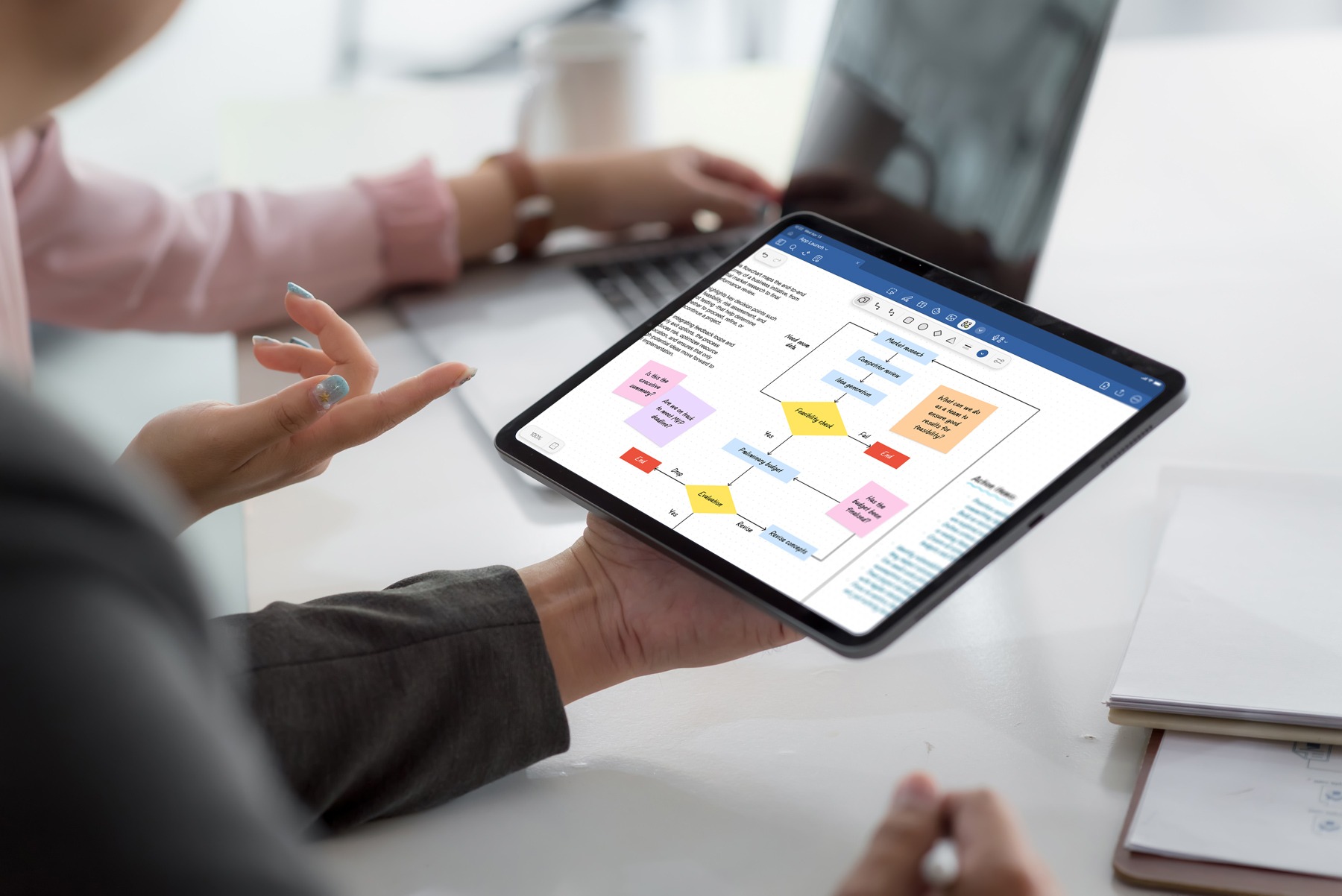
It might be easy to write notes on a legal pad for one client. But as your client list grows, so do the notebooks you need to use. You might have to carry multiple to job sites and client meetings.
This is a recipe for disaster. Not only is it impractical to carry 5+ notebooks around at all times, but it also increases the likelihood you’ll misplace them. Laptop note-taking solves some of these issues, but it’s still not your most portable option—and clunky keys make for annoying meeting background sounds.
An iPad puts an end to all this. Smaller than a laptop and avoids the pre-meeting scramble to find the right notebook. It fits easily in a briefcase or backpack for maximum portability—you can even carry it by hand. Plus, the iPad's battery life can last up to 10 hours during meetings—ideal for days you're back-to-back.
2. It enables easy meeting preparation
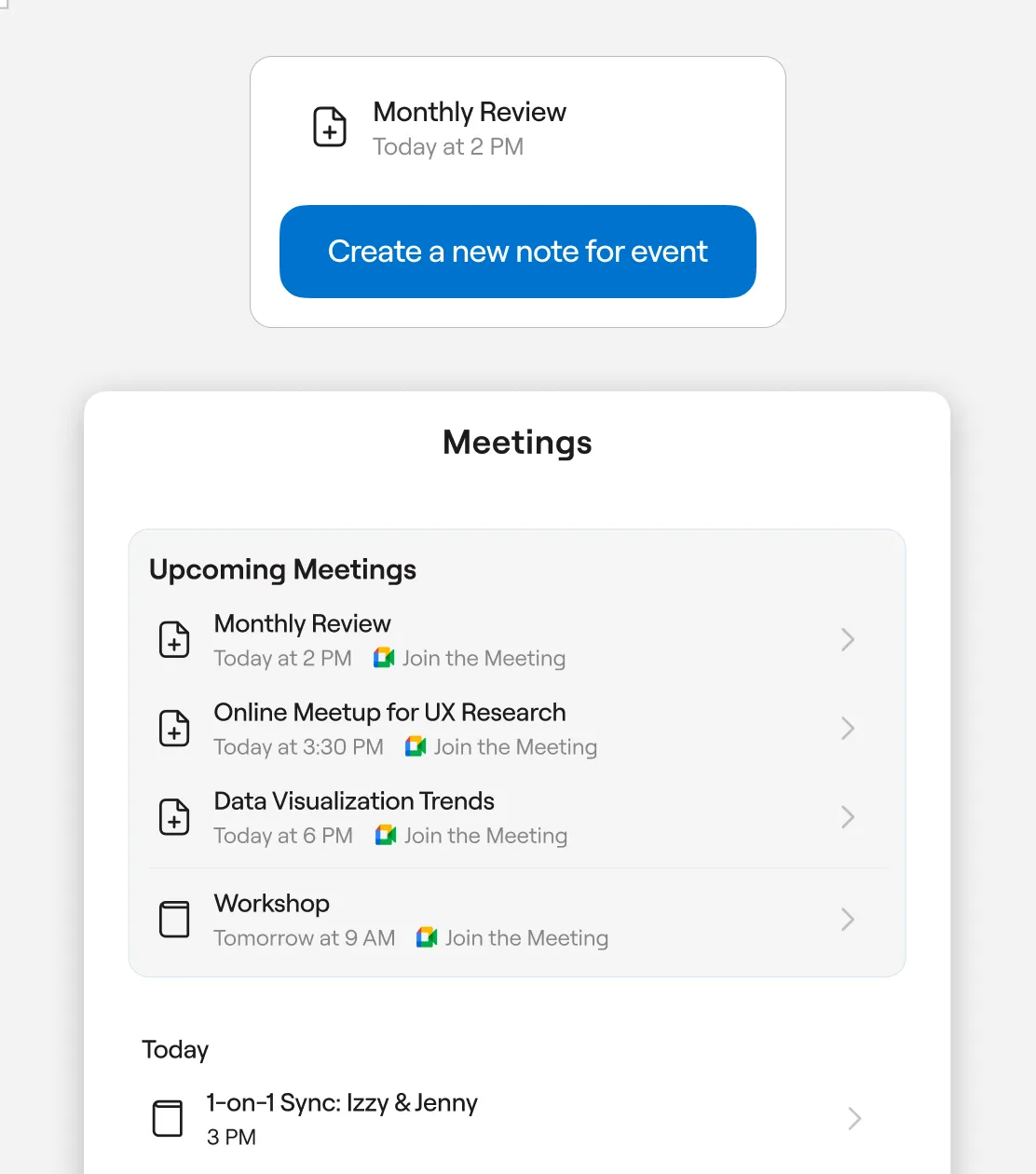
Preparing for a meeting sets you up for success before the actual meeting. By using an iPad note-taking app to manage your client meetings, you can quickly access previous context and work to seamlessly prepare for your next meeting. You can search and summarize previous conversations, sketch out an agenda, create docs beforehand, or draft out related questions. Some tools, like Goodnotes, even create documents automatically with key meeting details, like who, what, when, and why. You’ll be ready to wow your client beforehand without spending hours hunting down previous notes and transcripts.
3. It frees you up to focus on your meeting and clients

Typing takes two hands, and using a laptop means you’re more focused on taking notes instead of listening to the client. A notebook doesn’t necessarily eliminate friction either. When writing the old-fashioned way, you have to keep up with spoken word and juggle multiple notebooks.
iPad note-taking combines what you like about traditional and laptop-based note-taking, and avoids what you don’t. You can record your meeting to stay present in the moment, but also jot down additional thoughts as and when they pop up. No clunky typing, no lagging notes—and tools like Goodnotes link your notes to the transcript, so you know exactly what was being said when you took a specific note.
4. It optimizes post-meeting note organization
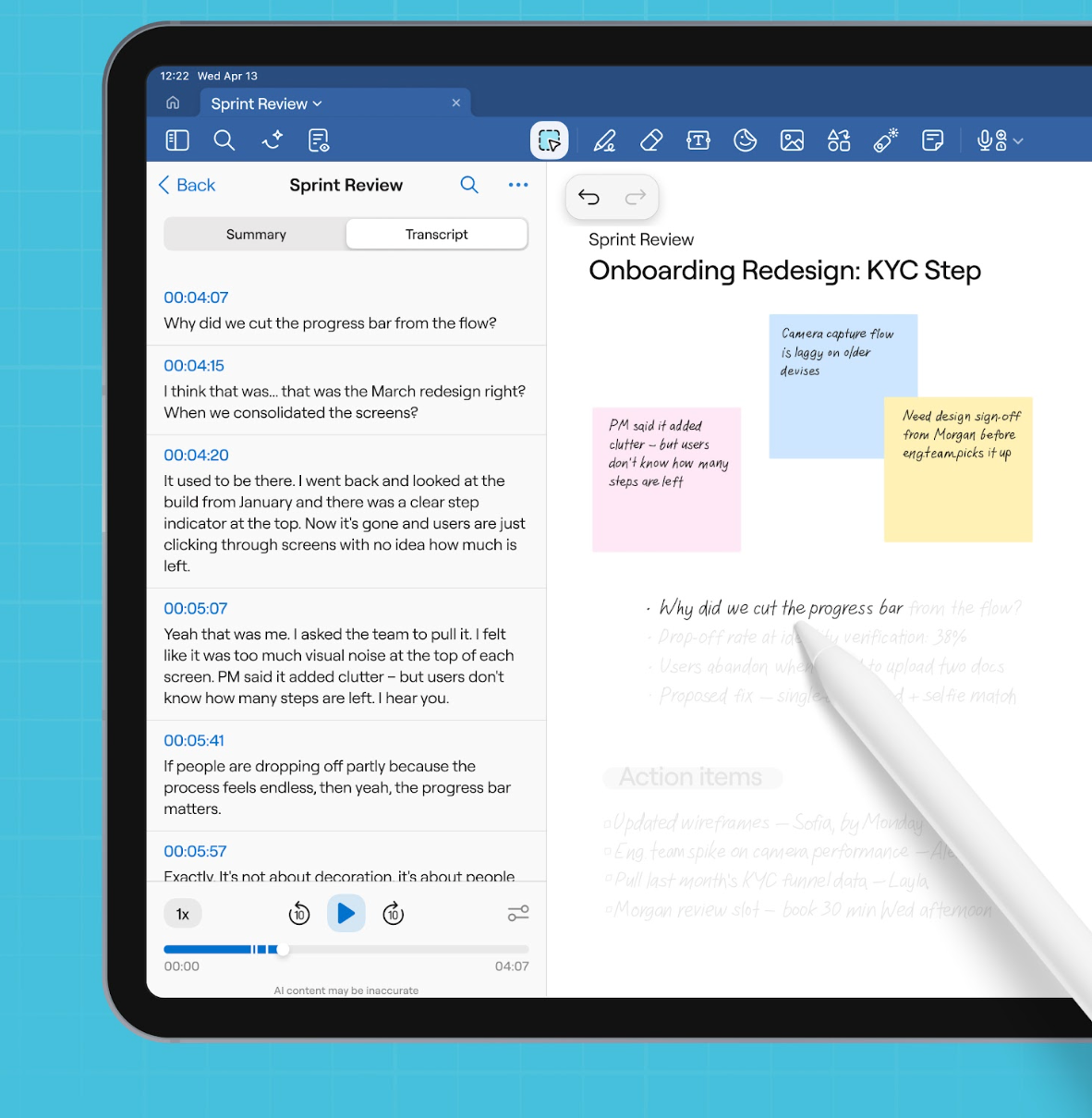
Notes are only as useful as they are comprehensive. If you’ve scribbled the entire meeting through, it can be difficult to read your notes back and understand them yourself—let alone effectively share them with team members. Taking notes on an iPad changes that because you can convert any handwritten notes to text, and have an audio recording to fall back on.
Paper notes are static. What you’ve written during the meeting stays more-or-less the same. iPad-optimized note-taking apps will let you place sound clips from the recording directly in your note file for context, as well as other helpful elements like images and sticky notes.
You can change the formatting, add bullet points, doodle pictures, and create graphs. Then, save the file and send it through to your team members or the client, quickly and easily.
5. It facilitates next step collaboration
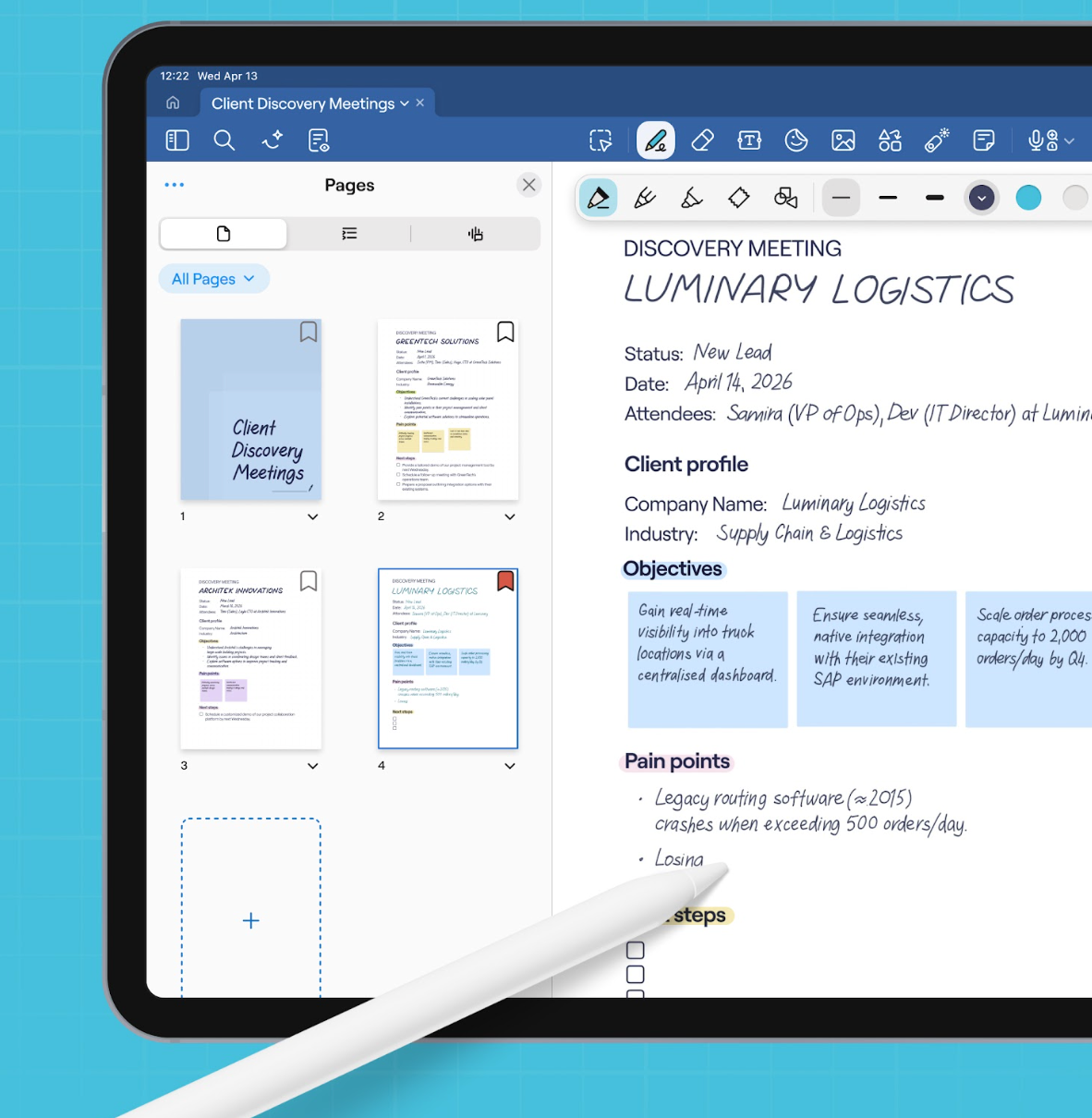
With clear, organized notes from your client meeting, it becomes much easier to send effective follow-ups that move your project forward. From collaborative whiteboard notes to post-call action items, switching to iPad sets the stage for collaborating ahead.
The second the meeting wraps, you can turn a note into a task, assign it, or send it straight to your team or the client. Note-taking tools with built-in AI capabilities go a step further: instead of combing back through the transcript for what was promised, these tools flag it for you as an action item.
A good digital notebook also allows you to collaborate with internal and external stakeholders by sharing a document link. You can do the prep and foundational work, and then invite others to share and develop ideas.
Client meetings: iPad notetaking vs traditional notetaking
3 iPad apps for running client meetings
The iPad is the device for running effective client meetings, but what about the right software? Not all note-taking tools offer the same features or even feel the same when you’re in the meeting. While some focus on ease of writing through handwriting and editing, others act as more of a text-heavy database.
Here are the best three options on the market.
Goodnotes
Goodnotes is a note-taking experience made especially for professionals who rely on a tablet to think, work, or study. From preparing agendas to automatically capturing action items with Goodnotes AI, it’s the most complete note-taking app with a range of features intuitively designed to support professional note-taking.
The core experience includes a multi-modal canvas for sketching, writing, and typing, natural stylus writing, and frictionless PDF annotation; all across devices.
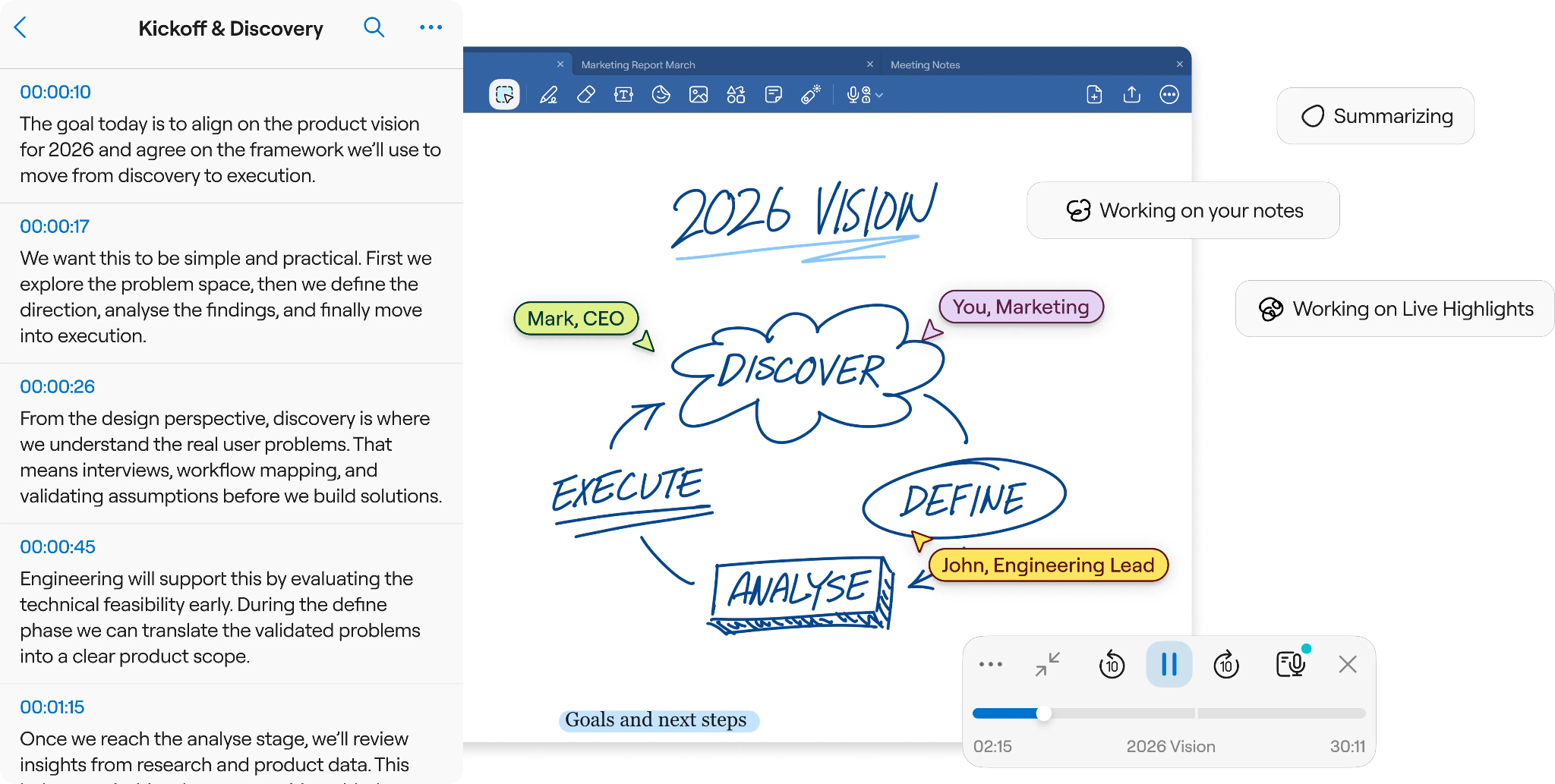
Some of Goodnotes’ standout features to help you run meetings quickly and easily on iPad include:
- Intuitive note-taking: There’s no learning curve when your digital notepad works just like a paper one. Create new notebooks, add pages with a swipe, write with pressure-sensitive strokes and gestures, scribble to erase. It’s intuitive by design, and you can turn your handwritten notes into typed text in a few quick clicks.
- Comprehensive note-taking features: Pens, pencils, highlighters, erasers—all customizable and accessible via the top bar or using your stylus tap gestures. Add images and GIFs to your notes, sticky notes for additional details where needed, and even move your notes around with the lasso tool. There’s even a laser pointer for when you’re showing clients your work, but don’t want to permanently mark the document.
- Audio transcription: Focus on your session by recording meetings, and get live summaries and action items following calls. Any notes you take during meetings are linked to transcription time-stamps, so you can see exactly what was being discussed when you jotted down specific thoughts.
- Calendar connection: Connect your calendar to Goodnotes and the app will automatically create a new document for your call, complete with date, time, subject matter, and attendees. Prep pre-meeting notes in advance, and pick up where you left off during and after your session.
- Smart note search: Can’t remember key details from your last call? No problem—Goodnotes allows you to search your notes, whiteboards, and documents so you can find what you’re looking for.
- Cross-device compatibility: Goodnotes works on Apple, Android, Samsung, Windows, and web browsers to ensure you can easily access and share notes.
- Other helpful tools: Beyond notebooks, Goodnotes also offers Whiteboards for brainstorming and Text Documents for traditional typed documents. With three unique tools, you can cover any type of meeting or note-taking need.
Pricing
All Goodnotes plans are billed yearly, so the prices you see below are for an entire year’s access to digital note-taking with Goodnotes.
Evernote
Evernote is a cross-functional note-taking and task-management platform. It’s built for professionals who want to save time, organize their meetings into tagged groups, and retrieve documents—akin to a digital database system.
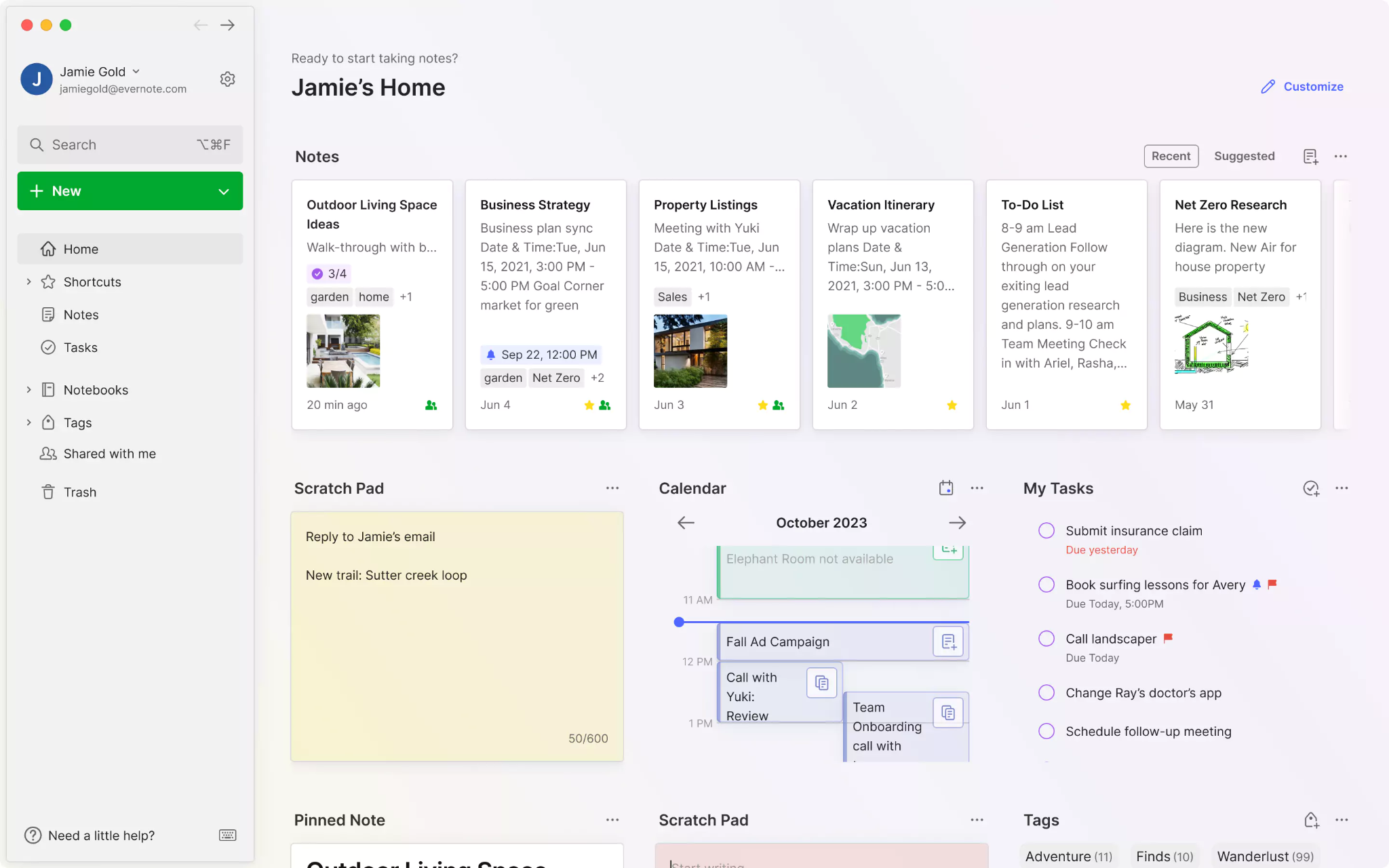
Evernote offers a lot of key note-taking features, similar to Goodnotes. These include:
- Handwritten notes: Use basic pen and pencil tools, scribble to erase text, convert handwriting into typed text, or flip through pages with a swipe.
- Basic annotation tools: Access a standard toolbar with pens, highlighters, and a lasso tool to move items around. You can also add basic images or sticky notes onto pages—but no native GIF collection.
- Audio recording: Records meeting audio while you write and have your written notes linked to specific time stamps in the recording.
- Calendar connection: Just like Goodnotes, Evernote syncs with your calendar to manually create a document pre-filled with the event name, date, time, and attendee list before a call.
- Standard note search: Search your written and typed notes, whiteboards, and imported PDFs to locate specific keywords or conversations.
- Multi-platform support: Available across Apple, Android, Windows, and web browsers, though sync speed and features can vary depending on the operating system.
- A few document formats: Like Goodnotes, Evernote offers notebook templates, a simple digital whiteboard for sketching, and text documents for standard typing.
Evernote and Goodnotes offer similar solutions, but they differ in design focus. Goodnotes was built for iPad and stylus note-taking first and foremost, whereas Evernote was designed as a typed note and document management system—so the handwritten note-taking experience isn’t as natural as with Goodnotes.
They also differ in price, with Evernote coming in at a higher price point:
Pricing
Evernote plans are billed monthly, so these costs are recurring month on month. However, when you choose to pay yearly, you access a 40% discount. With this discount, plans start at $99/year.
Apple Notes
Apple Notes is your iPad’s pre-installed meeting notes tool. As a favorite for professionals looking for a quick way to take handwritten notes, it offers a lot of key capabilities. You can capture audio and notes during calls, organize by client with folders or tags, and pull up your full history—exactly what you’d expect from a stripped-down default note-taker app.
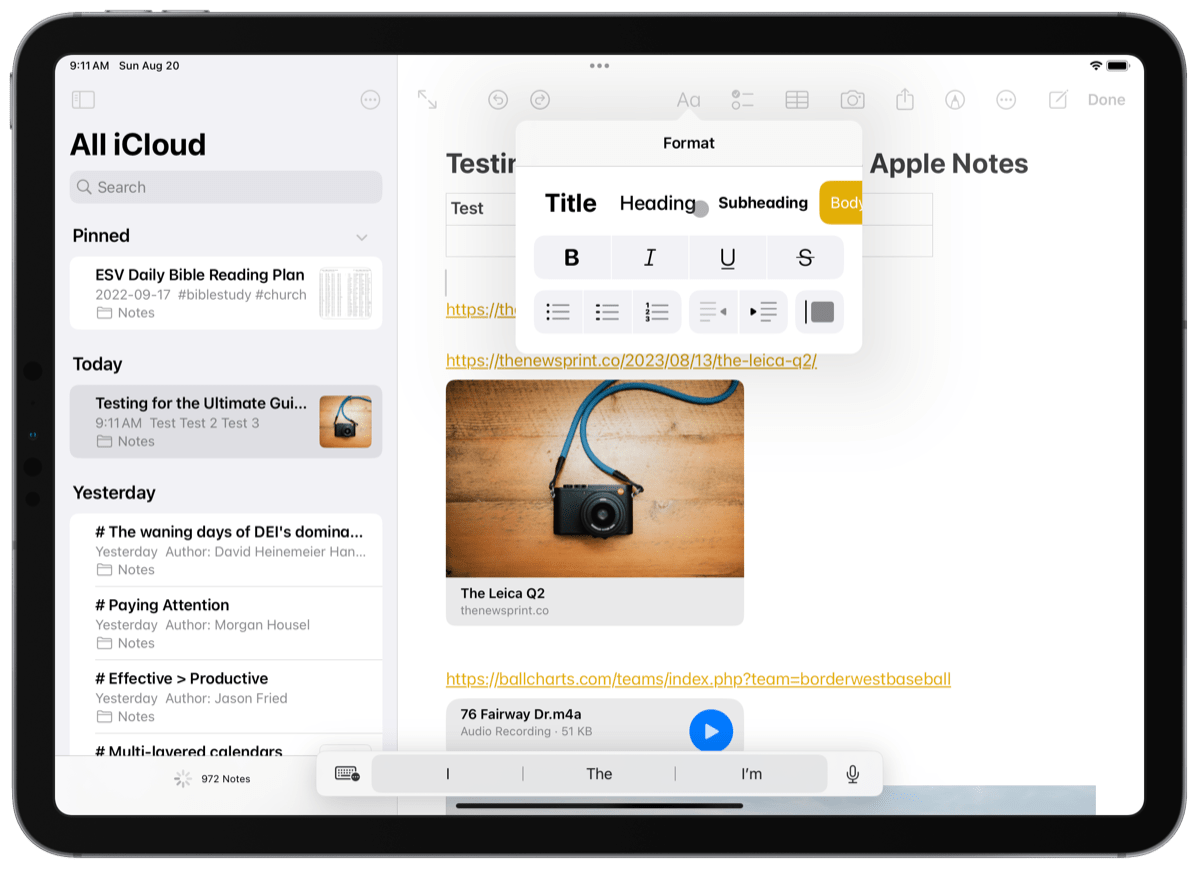
- Handwritten note-taking: the built-in toolbar includes pens, pencils, highlighters, a ruler, and a lasso tool. Insert tables, scan documents with the camera, and easily convert handwritten notes to text.
- Quick note creation: Tap your iPad lockscreen with an Apple Pencil to launch a quick note instantly. Convenient for when you weren’t expecting to take notes.
- Audio recording and transcription: Get real-time transcripts and audio playback. However, no option to link notes to timestamps, like with Goodnotes or Evernote.
- Calendar connection: Attach notes directly to meeting invites, or drop events straight into your notes.
- System-level search: You can search notes without opening the app using Apple’s Spotlight search. As it’s a native Apple app, notes show up in your system searches—meaning you can access them from any screen on your device.
There are definitely some perks that come with using Apple’s native iOS note-taking solution to manage client meetings, but also some drawbacks. Perks look like quick notes from the home screen and searching notes without even entering the app, but drawbacks include document type limitations, cross-device collaboration, and less intuitive note organization. It’s also fully catered towards Apple Pencils, with some features unavailable when using other styluses.
Pricing
Apple Notes is completely free to use, with no in-app purchases or upgrades.
How to use Goodnotes on iPad for client meetings
If using your iPad to manage client meetings and notes is starting to sound like the right option for you, Goodnotes has all the features you want and need. Goodnotes makes it quick and easy to conduct meetings on your iPad, from preparation to next steps.
Goodnotes for meeting prep
Connecting Goodnotes with your calendar auto-generates a document tied to the event, with the scheduled meeting title, date, and attendees. Simply open the Library view, tap the settings icon, and select the Google Calendar option from the integrations list. You’ll also get a reminder right before the meeting starts.
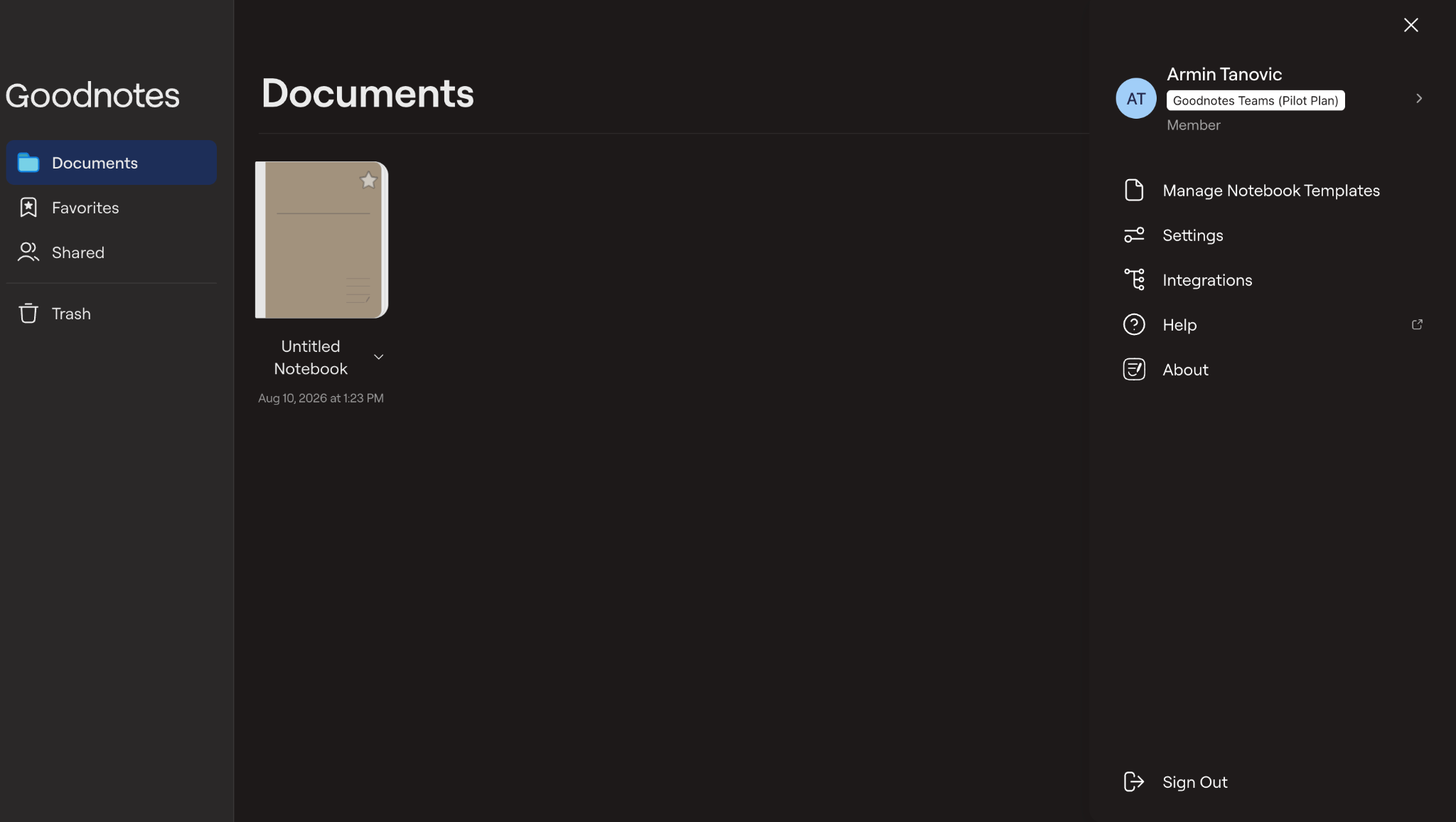
Here’s where you can add your pre-meeting prep and notes. The notebook carries your event’s title and date, so you can begin contextualizing your meeting and writing notes before the call itself. Simply use your stylus to jot down questions or add relevant documents and PDFs within the same notebook.
Goodnotes for note-taking during meetings
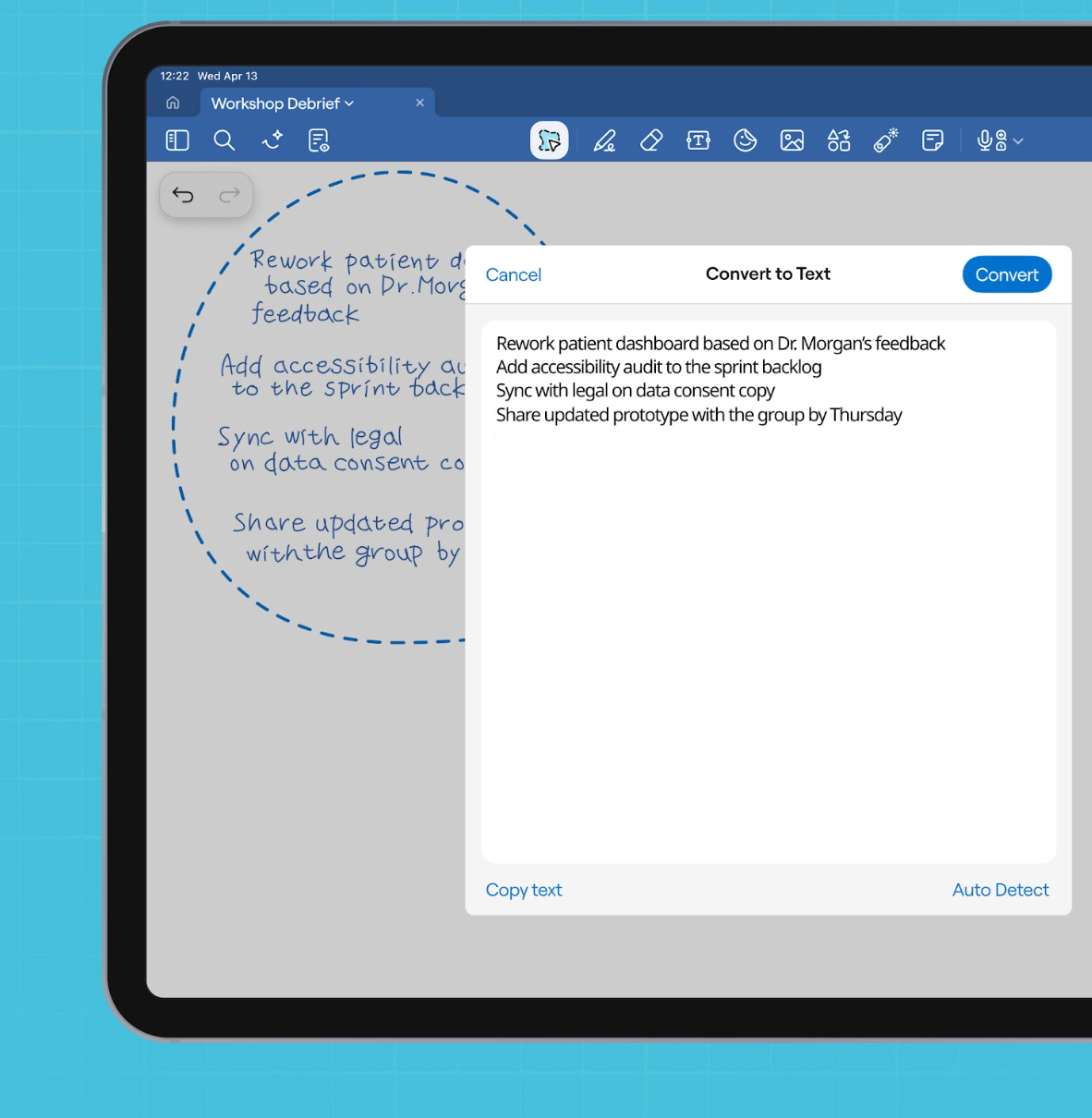
There are two main ways that Goodnotes supports you during calls:
- It provides a workspace for you to jot down notes (which you can easily edit and turn into typed text)
- It enables you to record the meeting in its entirety (so you can pull automated meeting notes and search conversations in full)
The combination of these two capabilities enables you to remain fully focused on your call, while still giving you the opportunity to jot down important thoughts and ideas. Plus, every pen stroke is timestamped, so you can easily jump to what was being discussed when you made the note. You can also invite other stakeholders and participants to collaborate and add comments in the same doc, whatever device they use.
Goodnotes for post-meeting follow-ups
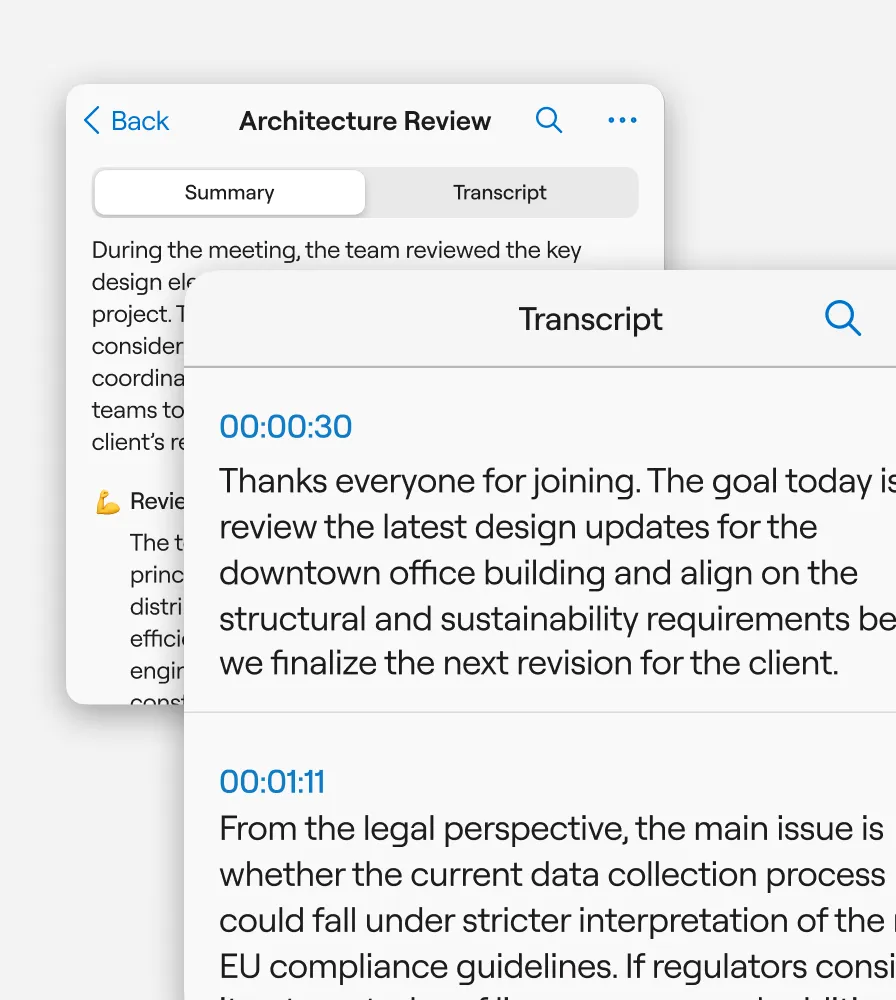
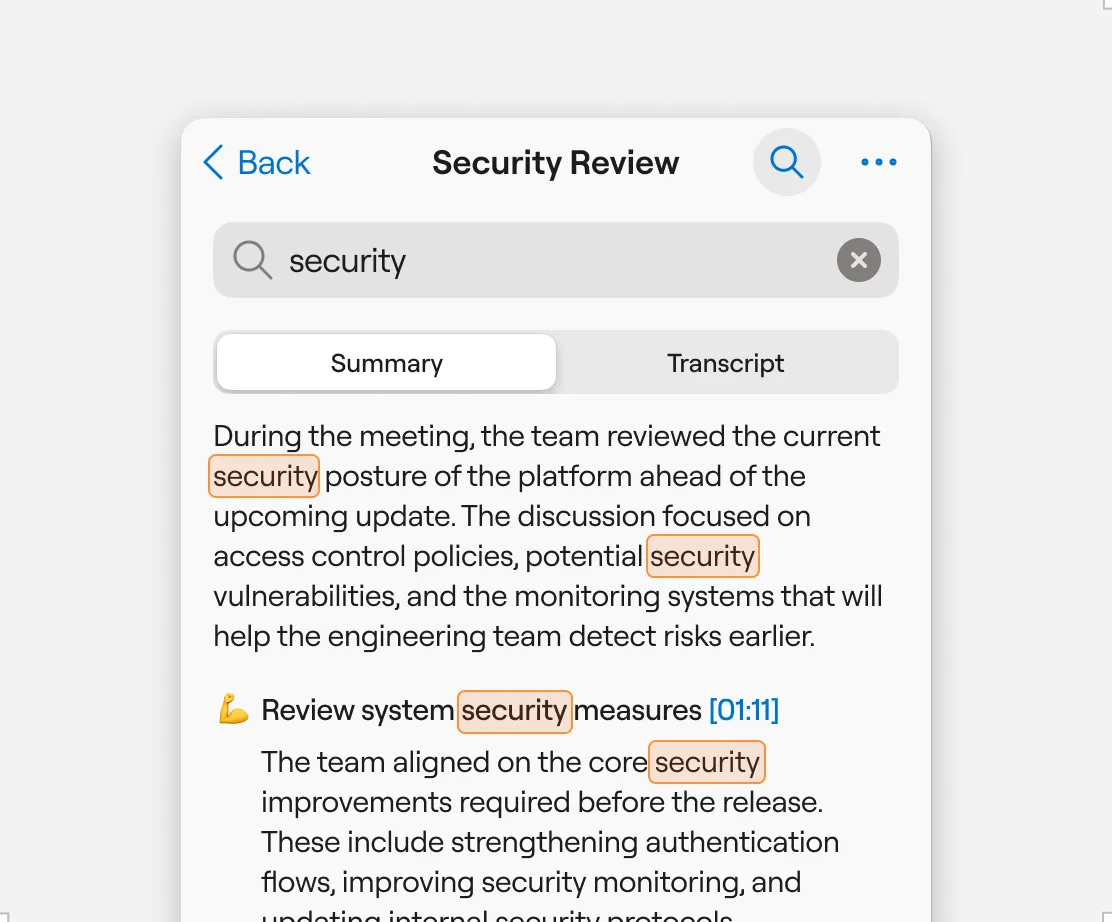
Audio recordings and transcripts are easily searchable by keyword—so you can search conversations for specifics you remember discussing. If you’re working across multiple whiteboards, notebooks, and text documents within Goodnotes, you can search them all at once to get the answers you need.
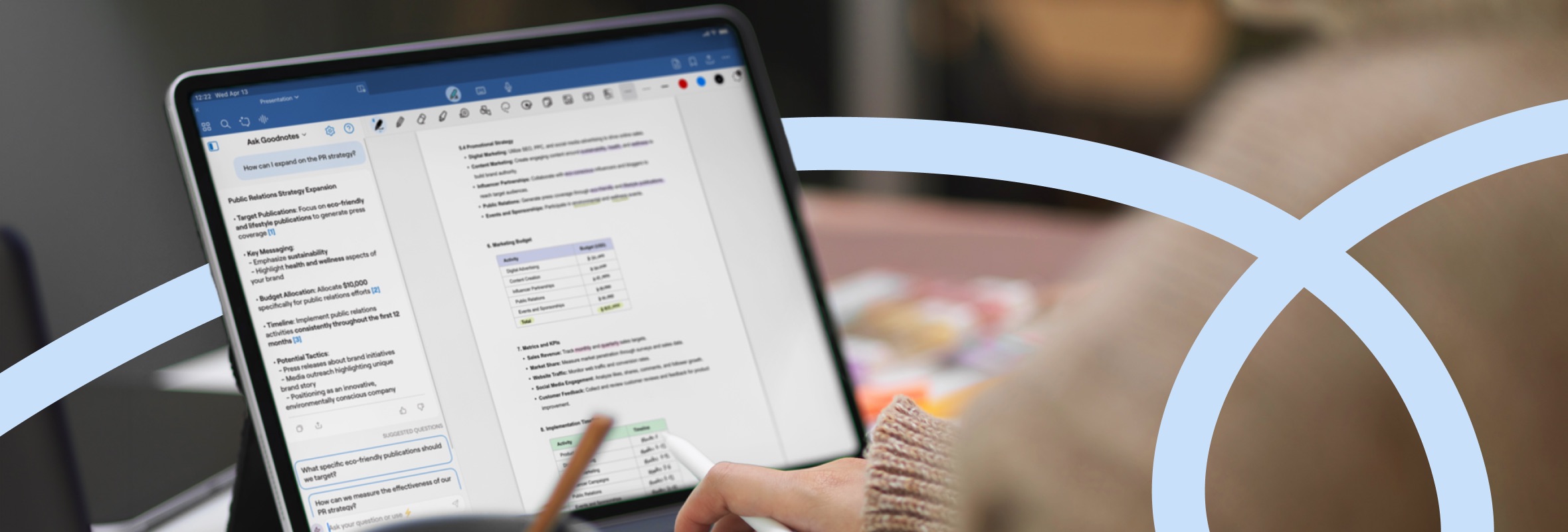
It’s during your post-meeting planning that Goodnotes AI makes your life a lot easier. You can turn long notes and recordings into summaries and key takeaways, and enhance your writing without having to manually go through it yourself. You can easily convert handwritten notes to typed text, and even generate visuals—like diagrams and graphs—based on your notes.
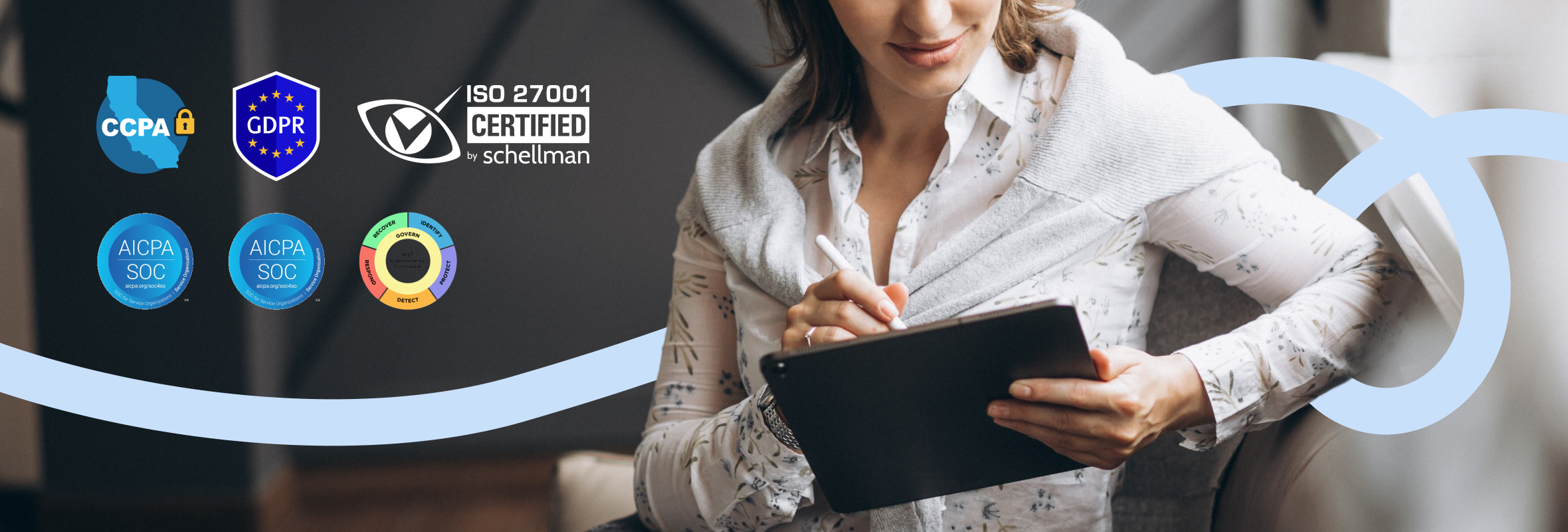
These features help take you from post-call chaos to shareable next steps without the hassle of manual note-taking and organization. And you don’t have to worry about security or compliance; Goodnotes’ security infrastructure is compliant with regulations and fully certified.
Tired of taking notes by hand? Let Goodnotes get it done.
Managing meeting notes with your iPad is better than traditional note-taking because it combines the benefits of both handwritten and laptop note-taking without the drawbacks of either. An iPad is more portable than your 5+ notebooks or clunky laptop and ready to go as soon as you are.
Equipped with Goodnotes, it’s all you need for effective note-taking and meeting organization.
With true handwriting fluidity and simplicity, you get to retain the pen-to-paper feel with no latency. It’s like writing on paper, just noticeably easier. Plus, Goodnotes' intuitive UI means you’ll never find yourself confused: it’s just the digital notebook, the client, and you.
If you’re juggling multiple clients and need to take notes with your colleagues, Goodnotes lets you sync across devices, collaborate in real-time, and use Goodnotes’ AI features to take your notes up a notch.
Activate your free trial before your next meeting, and let Goodnotes make your iPad meeting management easy.
Natural note-taking for professional doers
Goodnotes makes it easy to take notes. From its zero-latency feel to AI features and automatic call summaries, we’ve got you from preparation to post-project high fives.
FAQs
1. Is it unprofessional to use an iPad in a client meeting?
No, it's usually the more professional option of the three. A laptop puts a screen (and clunky typing) between you and the client; a notebook can't be searched or shared afterward. An Apple iPad or iPad Pro, used deliberately, is less invasive than a laptop and more helpful than a notebook, and there are plenty of business iPad apps that help you take quick notes easily and professionally (like Goodnotes!).
2. What are the best apps for client meetings?
The best apps for client meetings are:
- Goodnotes: Auto-creates a note from your calendar, transcribes the call live, and generates a searchable summary with action items, all backed by SOC 2 and ISO 27001 certification for sensitive client material. A natural experience for handwritten notes.
- Evernote: Similar to Goodnotes, with added task management. Records, transcribes, and summarizes business meetings with speaker recognition. More costly, however.
- Apple Notes: Offers native Apple perks, but lacks cross-device compatibility. Take handwritten notes and record audio directly inside a note with a real-time transcript.
3. Can I search my meeting audio recording?
Yes, if you're recording meetings with a tool that enables audio/transcript search. Goodnotes lets you search your meeting notes by keyword and jump straight to that exact moment in the audio recording or transcript.