TL;DR
- Goodnotes combines infinite Whiteboards and stylus-based drawing with Notebooks, PDF annotation, and Text Documents, helping you develop ideas in one app.
- Miro supports cross-functional planning, Mural provides workshop facilitation tools, and FigJam fits product and design teams using Figma.
- Microsoft Whiteboard enables collaboration inside Teams meetings, Stormboard turns ideas into tasks and reports, and Canva Whiteboard connects brainstorming with visual content creation.
- Excalidraw offers hand-drawn diagrams and collaboration without an account.
- Free tools like OnlineWhiteboard.net, Onlineboard.eu, Hivly Draw, and TempCanvas let you draw in your browser without signing up, but some lack real-time collaboration or cloud backups.
A virtual whiteboard gives you the freedom to brainstorm ideas and draw diagrams without running out of space. Whether you’re a teacher explaining a complex concept or a team planning a big project, it gives you room to work through your ideas. You can use sticky notes and images to organize information, rearrange content on the board, and collaborate with others in real time.
But with so many online whiteboard tools available, which one should you choose?
To help you find the right fit, we've rounded up the best online whiteboard apps—including free and paid options—compared on features, pricing, and ideal use cases.
But first, here’s what you want to look out for.
What do the best online whiteboard apps include?
The best online whiteboard apps offer features that support visual planning and teamwork, from infinite canvases and file uploads to real-time collaboration.
Here’s what these features include:
- Infinite canvas: An infinite canvas provides room to add ideas without running out of space. You can zoom in to focus on specific details or pan across the board to explore different sections. This is useful for mapping complex processes or managing large brainstorming sessions.
- Real-time collaboration: Multiple people should be able to contribute to the same board simultaneously. Features like live cursors and comments help remote teams exchange ideas and provide feedback. Teachers can use these capabilities to engage students during interactive classroom activities.
- File upload capabilities: Support for PDFs, images, presentations, and other documents allows users to bring existing materials onto the board. Educators can annotate teaching materials and assignments, while professionals can review designs or share feedback on project documents.
- Drawing and writing tools: Pens, highlighters, shapes, text boxes, and sticky notes make it easier to communicate ideas visually. Stylus support also allows users to write by hand and draw directly on the screen when using compatible devices.
- Ready-made templates: Templates for mind maps, flowcharts, lesson plans, and brainstorming sessions help users create structured boards without starting from scratch. They also make it easier to organize information for meetings or classroom activities.
- Sharing and export options: Shareable links allow users to invite colleagues or students to view and contribute to a board. Export options such as PDF and PNG make it convenient to save completed work or share it with people who don't have access to the platform.
- Cross-device access: You should be able to access your whiteboards across iPad, iPhone, Android devices, laptops, and web browsers. Ideally, your boards should also sync automatically so you can pick up where you left off on another device without losing work.
- Free plans and flexible pricing: A free online whiteboard should provide essential drawing and collaboration features. Paid plans offer more boards, higher upload limits, advanced templates, and additional collaboration capabilities.
The best online whiteboard apps: An overview
The best online whiteboard apps differ in their collaboration features, file upload capabilities, and device compatibility.
Here's a quick look at how the eight tools compare.
1. Goodnotes
Goodnotes is a digital note-taking app that brings handwriting, PDF annotation, and visual collaboration into one place. Its infinite whiteboard gives you space to brainstorm ideas, sketch diagrams, create mind maps, and plan projects without being restricted by page margins.
You can also invite others to contribute through real-time collaboration. There are also templates for brainstorming, meetings, and project planning in the Goodnotes Marketplace.
Goodnotes supports professional services teams with tools to capture client meeting notes, annotate proposals and reports, and keep project documentation organized and searchable. Goodnotes also supports teachers and students through its education tools, which help educators prepare learning materials, distribute assignments, and provide feedback on student work.
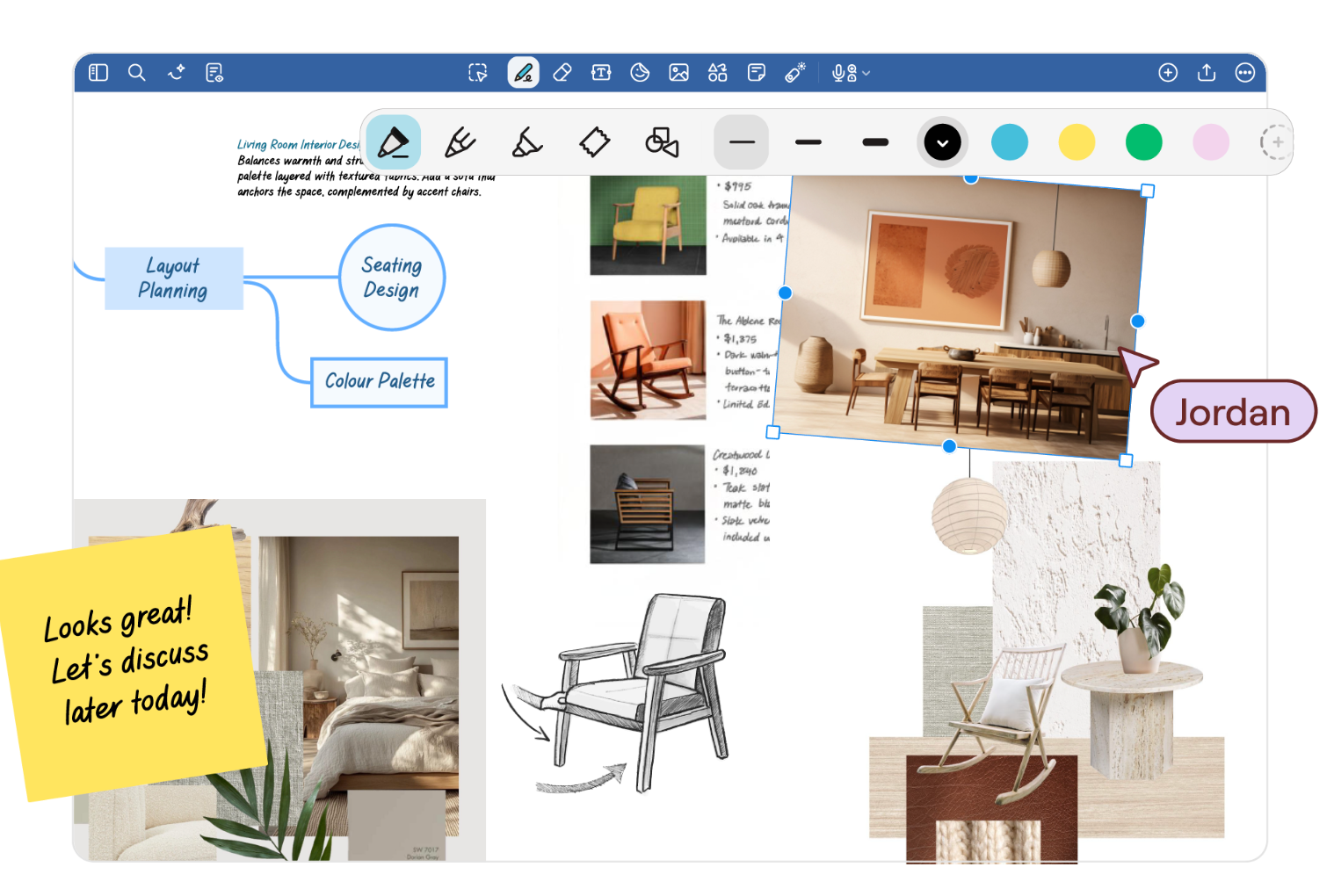
Key whiteboarding features:
- AI-powered diagrams: Use Goodnotes AI to generate editable flowcharts, mind maps, and timelines from prompts. You can also ask AI to summarize content or explain information on your whiteboard. AI Create mode is available with Goodnotes Pro or AI Pass.
- Shapes and diagramming tools: Create flowcharts and process diagrams using shapes and connectors. Goodnotes can automatically smooth hand-drawn shapes, while connectors remain attached when you move or resize diagram elements.
- Lasso Tool: Select handwritten notes, drawings, images, or text boxes and move them around the board. You can also resize, rotate, duplicate, or recolor selected content without recreating it
- Real-time collaboration: Invite others to work on shared whiteboards and see their edits as they happen. Participants can contribute handwritten notes, sketches, and diagrams, making it easier to brainstorm together during meetings or workshops. This requires an eligible paid plan.
- Sticky notes and comments: Add digital sticky notes to capture ideas and use comments to discuss specific content. This helps keep suggestions and feedback connected to the work being discussed.
- Handwriting and drawing tools: The handwriting experience lets you write or sketch with pens, pencils, and highlighters. You can add images and text boxes to explain ideas, annotate visuals, or build out brainstorming boards.
- Reusable elements: Save frequently used drawings, shapes, and text boxes as Elements. You can organize them into collections and reuse them across different whiteboards instead of recreating them.
- Laser pointer: Point to specific areas of a shared whiteboard during presentations or live discussions without permanently marking the canvas.
- Multiple boards: Add several boards within one Whiteboard document and arrange them using the sidebar. This helps keep related diagrams or project plans together.
- Cross-platform collaboration: Access shared work across iPad, iPhone, Mac, Android, Windows, and the web, so teammates can contribute even if they aren’t all using the same device.
- File upload: Goodnotes limits file uploads to 5 MB per file on the Free plan, while paid users on Android, Windows, and Web can import PDFs up to 1 GB and .goodnotes files up to 200 MB.
Pros and cons
Pricing
The Goodnotes Essential and Pro plans both offer a 7-day free trial, while the Teams plan includes a 30-day free trial. You can also add the AI Pass for $9.99/month to Essential or Pro to unlock the full AI experience. Goodnotes AI is included in the Teams plan.
2. Miro
Miro is an online whiteboard and visual collaboration platform. Teams can collaborate in real time or contribute to the same board at different times. Miro also provides templates for workshops, mind maps, flowcharts, and project planning. Beyond traditional whiteboarding, it includes AI-powered tools for generating and organizing content. The platform also integrates with workplace tools such as Slack, Microsoft Teams, Zoom, Google Drive, and Figma.
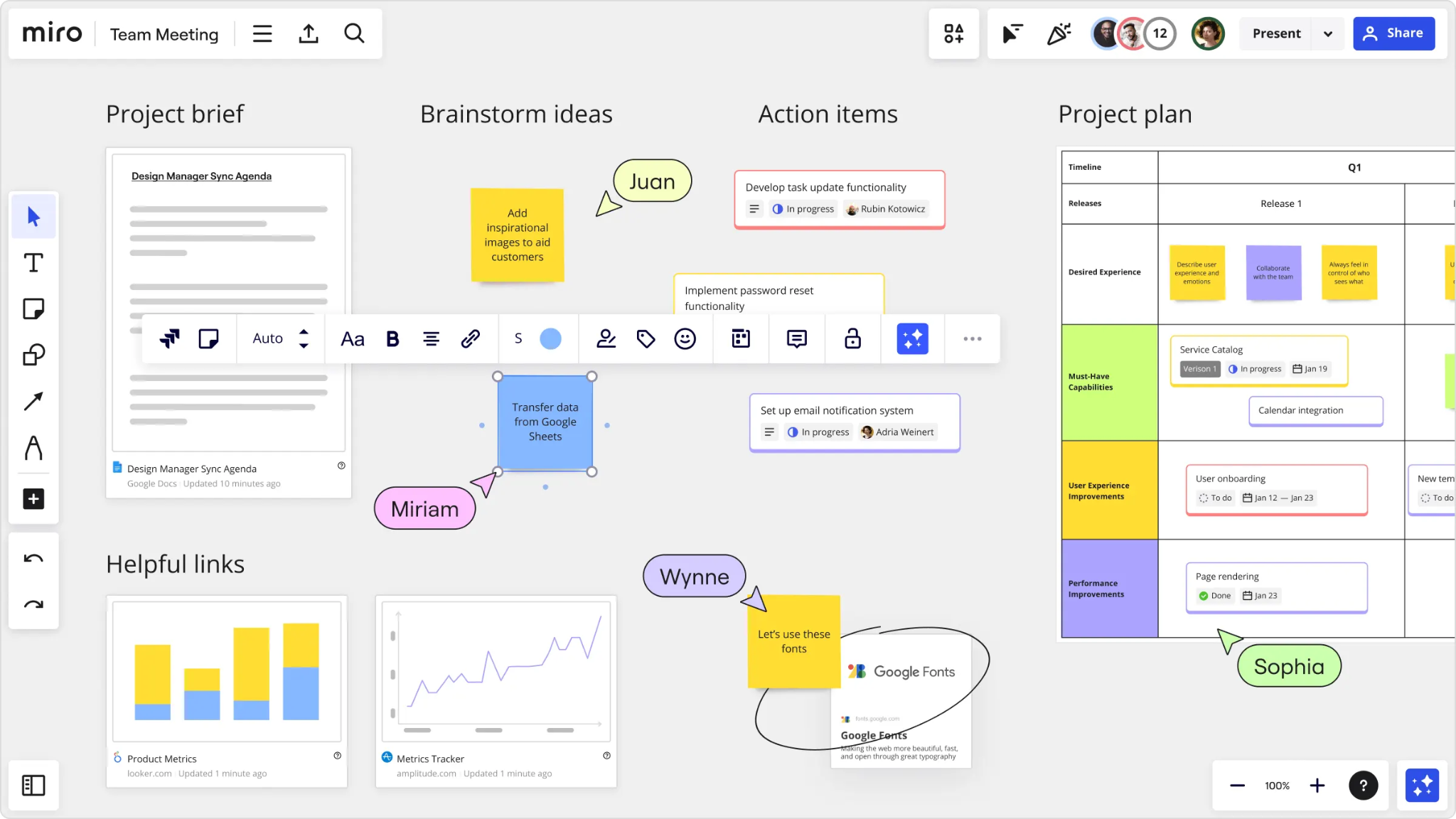
Key whiteboarding features:
- Infinite canvas: Add sticky notes, diagrams, images, and text to a shared board. Zoom and pan across the canvas to navigate large projects.
- Real-time collaboration: Multiple users can edit boards simultaneously. Live cursors, comments, and sharing controls help participants contribute during meetings and workshops.
- Miro AI: Generate diagrams and mind maps from text prompts. AI can also group sticky notes by topic or sentiment and turn brainstorming content into summaries or documents.
- Diagramming tools: Build flowcharts and process maps using shapes and connectors. Miro also supports more technical diagrams, including UML and entity-relationship diagrams.
Pros and cons
Pricing
3. Mural
Mural focuses on facilitating collaborative workshops and group decision-making. It helps facilitators manage how people participate in a session. They can use Private Mode to collect ideas independently before revealing everyone's contributions, then run voting sessions to identify which suggestions the group prefers. Built-in timers help keep activities on schedule, while the Summon feature brings everyone to the same part of the board so they can follow the discussion.
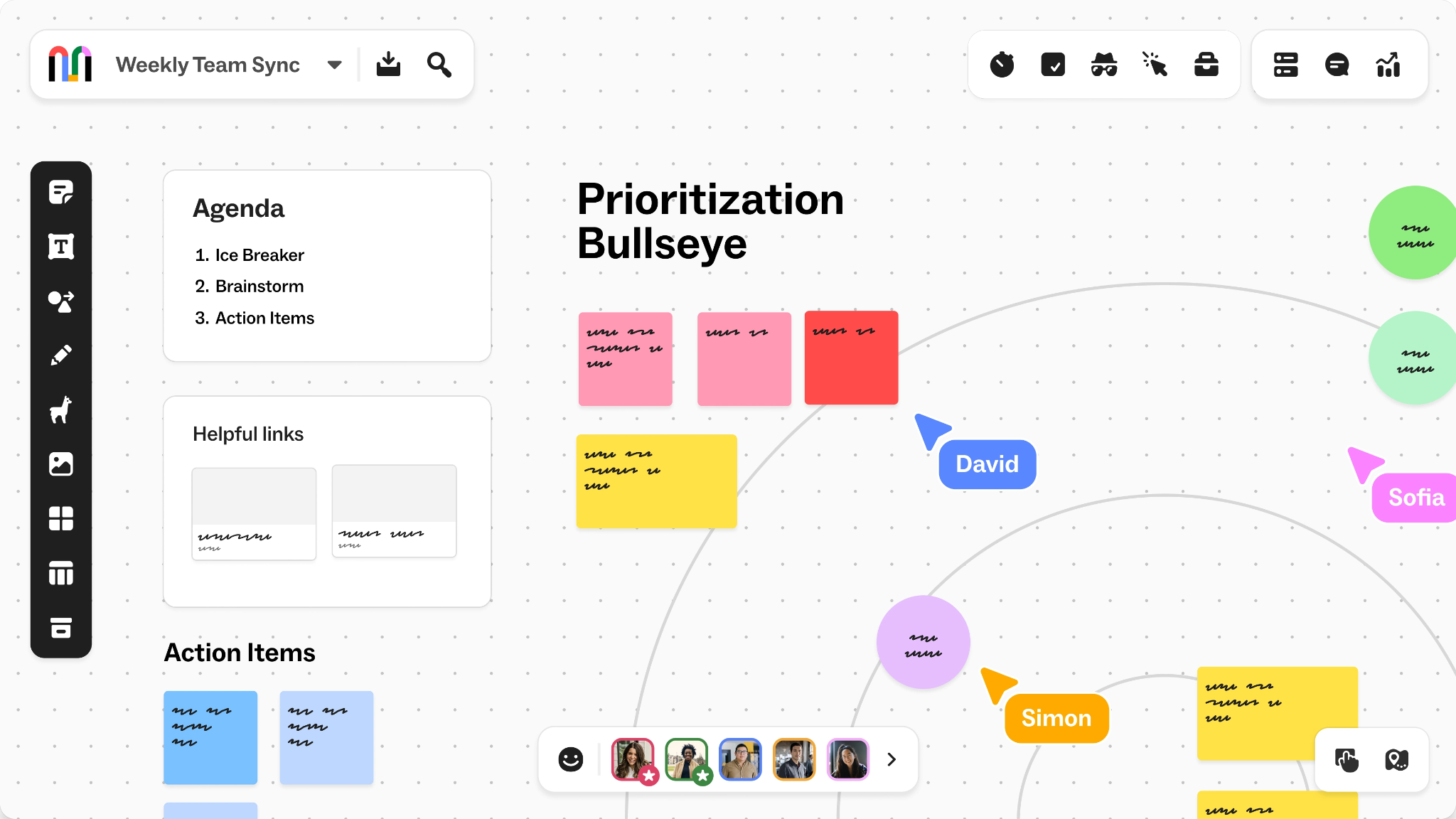
Key whiteboarding features:
- File uploads: Individual uploads have a 45 MB limit, and files under 2 MB are recommended for smoother board navigation.
- Mural AI: Automatically group sticky notes by topic, generate mind maps, analyze the sentiment of written feedback, and summarize discussions into key takeaways.
- Voting sessions: Let participants vote anonymously on ideas to identify priorities and help teams reach a decision.
- Facilitation controls: Use timers to manage activities and the Summon feature to bring everyone to the same area of the whiteboard. Facilitators can also lock objects to prevent accidental changes.
- Outline and presentation tools: Organize board content into a sequence of steps. You can hide sections until they're needed and guide participants through the board without creating a separate presentation.
- Custom templates: Turn an existing board into a reusable template and publish it to your workspace. This helps teams follow the same structure for recurring meetings or workshops.
Pros and cons
Pricing
4. Excalidraw
Excalidraw is a free, open-source whiteboard tool known for its hand-drawn illustration style. You can use it to create flowcharts, mind maps, wireframes, and technical diagrams. The interface is relatively simple, with drawing tools and keyboard shortcuts that help you work quickly. You can use the web whiteboard without creating an account and invite others to collaborate through a link.
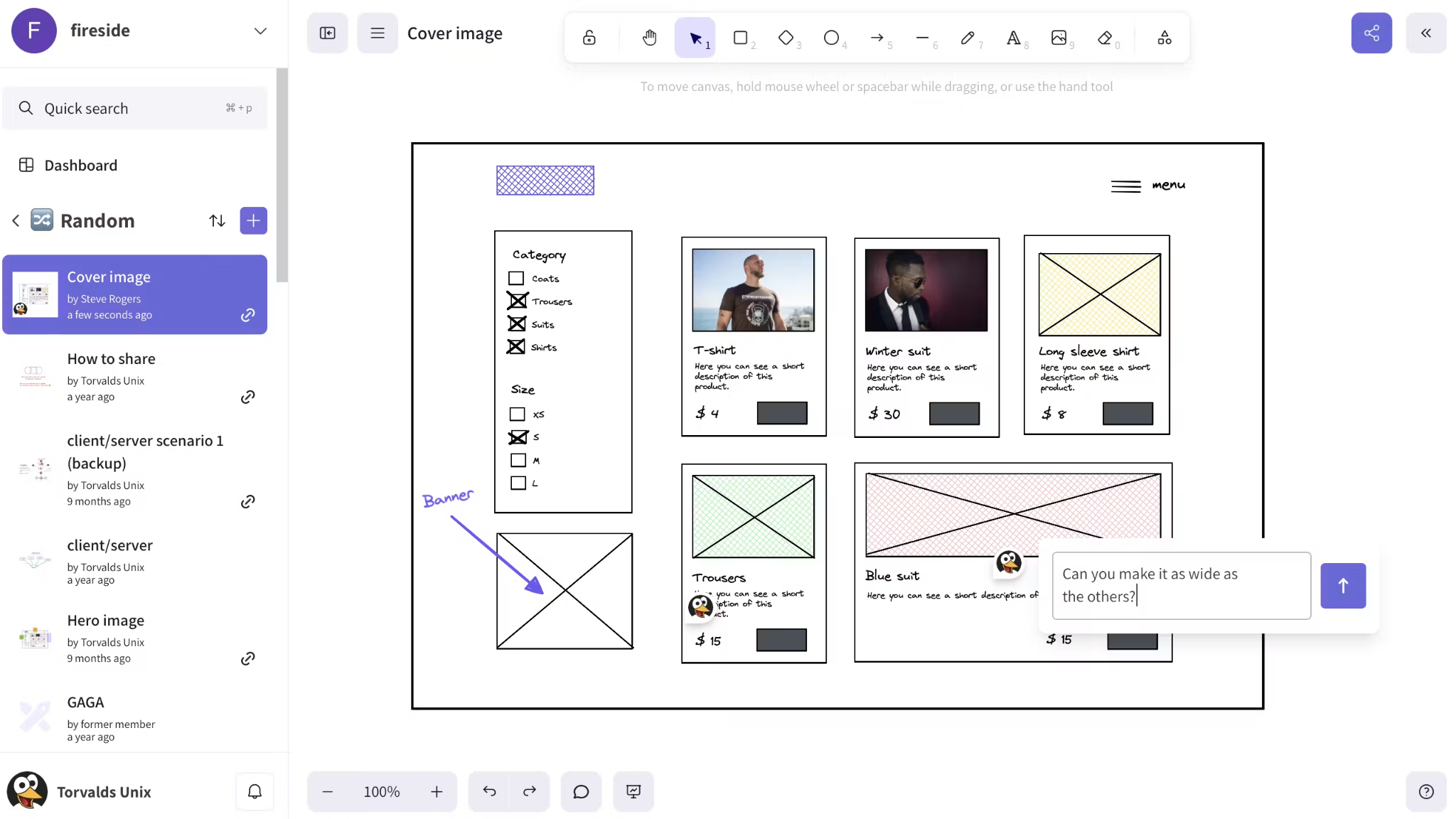
Key whiteboarding features:
- File and image uploads: Import PNG, JPG, SVG, and Excalidraw drawing files into the canvas. The editor has a default image size limit of 4 MB, and larger images may be resized or compressed to fit. PDF and Word document imports aren't natively supported.
- AI diagram generation: Generate editable diagrams from text prompts. Excalidraw also converts Mermaid code into diagram elements that you can rearrange or edit directly on the canvas.
- Element libraries: Access collections of reusable icons and illustrations or create your own library of frequently used elements. This saves time when working on recurring diagrams.
- Frames and presentation tools: Organize related content into frames and guide participants through different sections of a diagram.
- Laser pointer and follow mode: Direct participants' attention to specific parts of the board during live explanations. Follow mode helps everyone stay focused on the same area.
- Export options: Save drawings as PNG or SVG images or export an editable .excalidraw file. Excalidraw+ also supports PDF and PPTX exports.
Pros and cons
Pricing
5. FigJam
FigJam is a visual collaboration tool from Figma, built to help teams move from brainstorming to planning and designing products. Product teams and designers can map user journeys, discuss early concepts, and get feedback before moving into detailed designs. One of FigJam's biggest advantages is its connection with Figma Design.
FigJam also offers 300+ ready-made templates for activities such as project kickoffs, retrospectives, and roadmap planning. The platform supports live audio conversations and integrations with tools such as Jira, Asana, and GitHub.
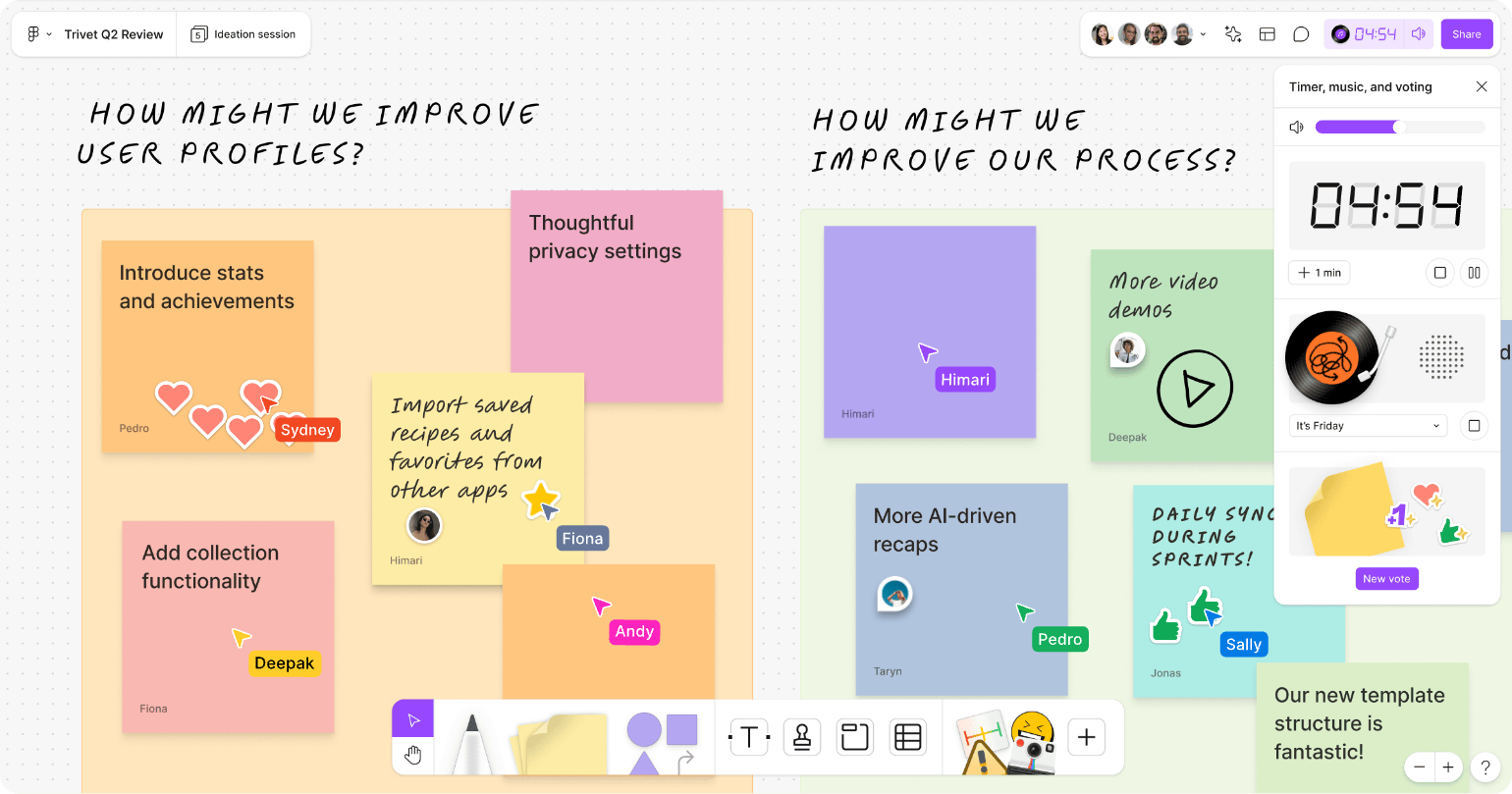
Key whiteboarding features:
- File imports: Upload PDFs, images, and videos in supported formats such as PNG, JPG, MP4, MOV, and WEBM. You can also import CSV data as tables or transfer boards from Miro, Mural, and Lucid. However, FigJam tables have a 500-cell limit, so larger CSV imports require multiple tables. Figma's FigJam documentation doesn't specify a universal maximum upload size for these file types.
- Infinite canvas: Add sticky notes, drawings, and text boxes to a board without fixed page boundaries.
- Drawing and diagramming tools: Create flowcharts and process diagrams using shapes and connectors. FigJam also supports freehand drawing with a mouse on desktop or Apple Pencil on the iPad app.
- Voting and facilitation tools: Run voting sessions to prioritize suggestions. Built-in timers and Spotlight mode help facilitators manage activities and direct participants' attention to specific areas of the board.
- Interactive widgets: Add widgets for activities such as polls and collaborative exercises. FigJam also includes stamps, stickers, and emotes so participants can respond to ideas during a session.
- Export options: Export boards as PNG, JPG, or PDF files. Sticky notes and tables can also be exported as CSV files for use in spreadsheets or other tools.
Pros and cons
Pricing
Figma prices its plans by seat type. Collab seats include FigJam and Figma Slides, Dev seats add full Dev Mode access for developers, and Full seats also include Figma Design for design work.
6. Microsoft Whiteboard
Microsoft Whiteboard is a free online whiteboard tool that integrates with Microsoft Teams and Microsoft 365. Its built-in Teams integration lets participants draw, add sticky notes, and edit the same board directly inside a meeting, without switching apps or sharing their screens. It also supports classroom activities, with templates for lesson planning and group exercises.
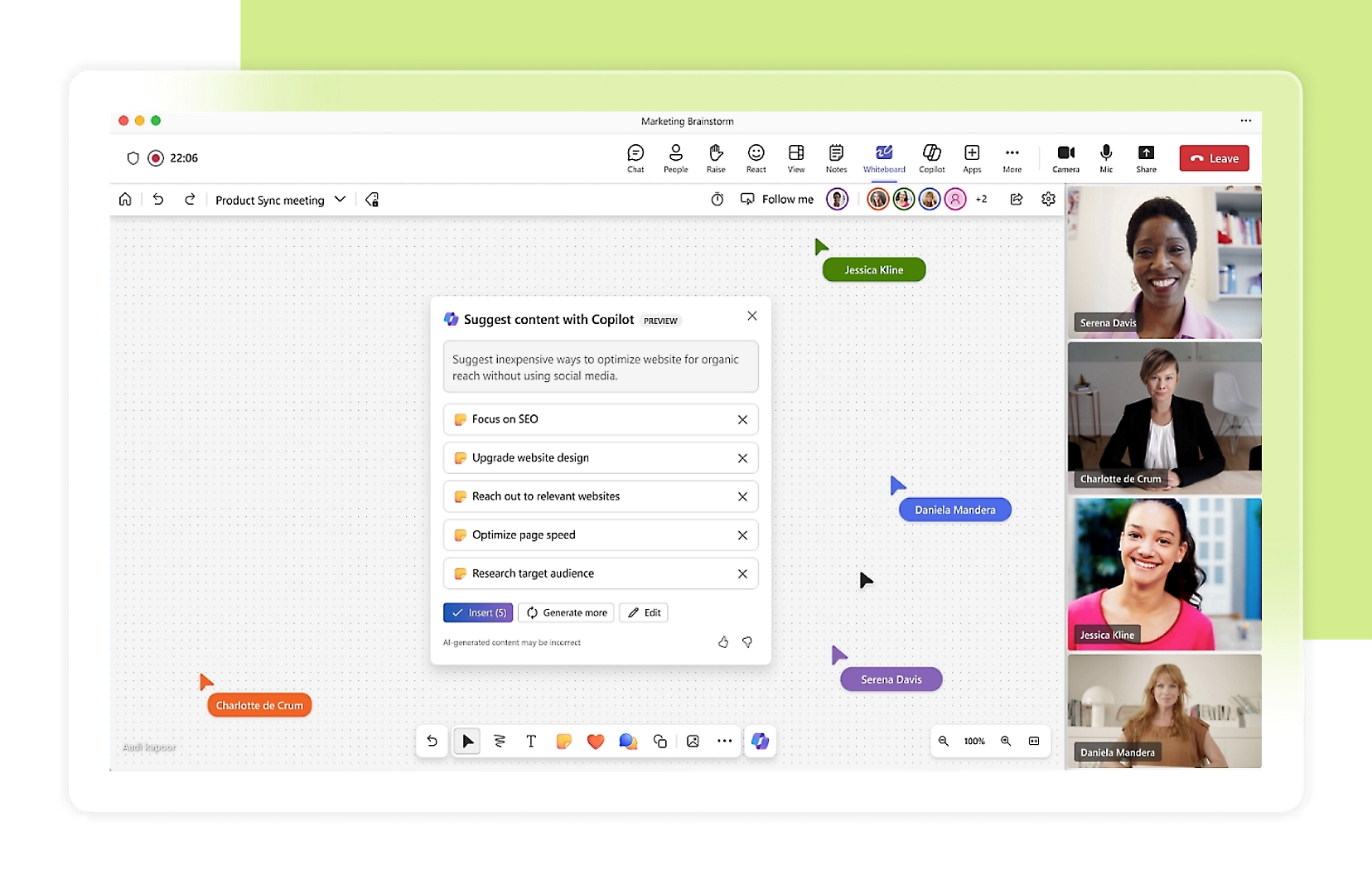
Key whiteboarding features:
- Microsoft Copilot: Generate brainstorming suggestions from prompts, automatically group related sticky notes, and summarize discussions into shareable notes. Copilot requires an eligible Microsoft 365 subscription or Copilot license.
- Lasso and alignment tools: Select multiple objects to move them together. Object snapping and alignment guides help keep diagrams organized without manually positioning every element.
- Reactions and laser pointer: Participants can react to ideas during group discussions. The laser pointer highlights specific areas temporarily without adding permanent marks to the board.
- Custom templates: Save frequently used board layouts as templates and share them with colleagues through OneDrive.
Pros and cons
Pricing
Microsoft Whiteboard is free to use with a Microsoft account, so you don’t need a Microsoft 365 subscription for the core whiteboarding experience. However, some AI features, including Copilot in Whiteboard, require an eligible Microsoft 365 subscription and/or Microsoft Copilot license.
7. Stormboard
Stormboard is a cloud-based whiteboarding tool built around structured meetings and project management. It uses shared workspaces called Storms, where teams can collect ideas, organize feedback, and turn discussions into assigned tasks.
It integrates with Microsoft Office and Google Drive documents directly within a Storm. Team members can edit spreadsheets, presentations, and documents together. Stormboard can also generate reports from whiteboard content to help teams document decisions and track meeting outcomes.
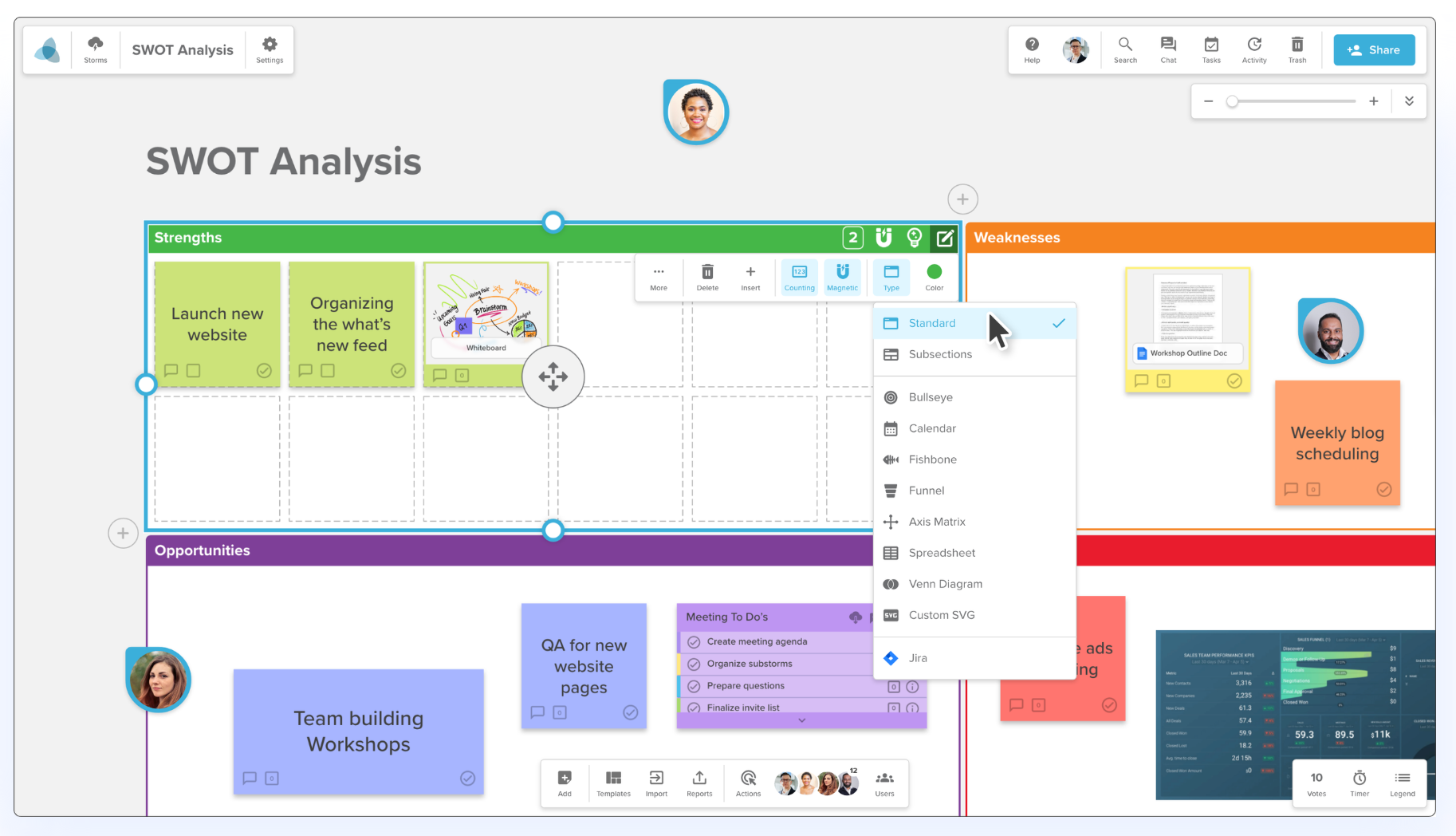
Key whiteboarding features:
- StormAI: Generate templates and brainstorming ideas based on your meeting goals. AI can also summarize selected sticky notes and group them by theme or sentiment.
- Real-time collaboration: Multiple participants can work on the same Storm simultaneously. They can contribute ideas, comment on sticky notes, and vote to prioritize suggestions.
- File uploads: Upload documents up to 20 MB per file from your computer or add files from Google Drive and OneDrive. Stormboard also supports creating Word, Excel, and PowerPoint documents within the platform.
- Customizable templates: Choose from hundreds of templates for brainstorming, project planning, and business processes. Sections can be resized or customized, while magnetic sections automatically organize sticky notes into a grid on eligible plans.
- Task assignments: Turn sticky notes into tasks and assign them to team members. This helps teams keep track of responsibilities after brainstorming sessions.
Pros and cons
Pricing
8. Canva Whiteboard
Canva Whiteboard is a free online whiteboard built into Canva's visual design platform. It enables you to turn brainstorming ideas into presentations, documents, and other visual content without switching apps. Canva also provides an extensive library of design assets and ready-made templates, making it useful for creative teams and educators.
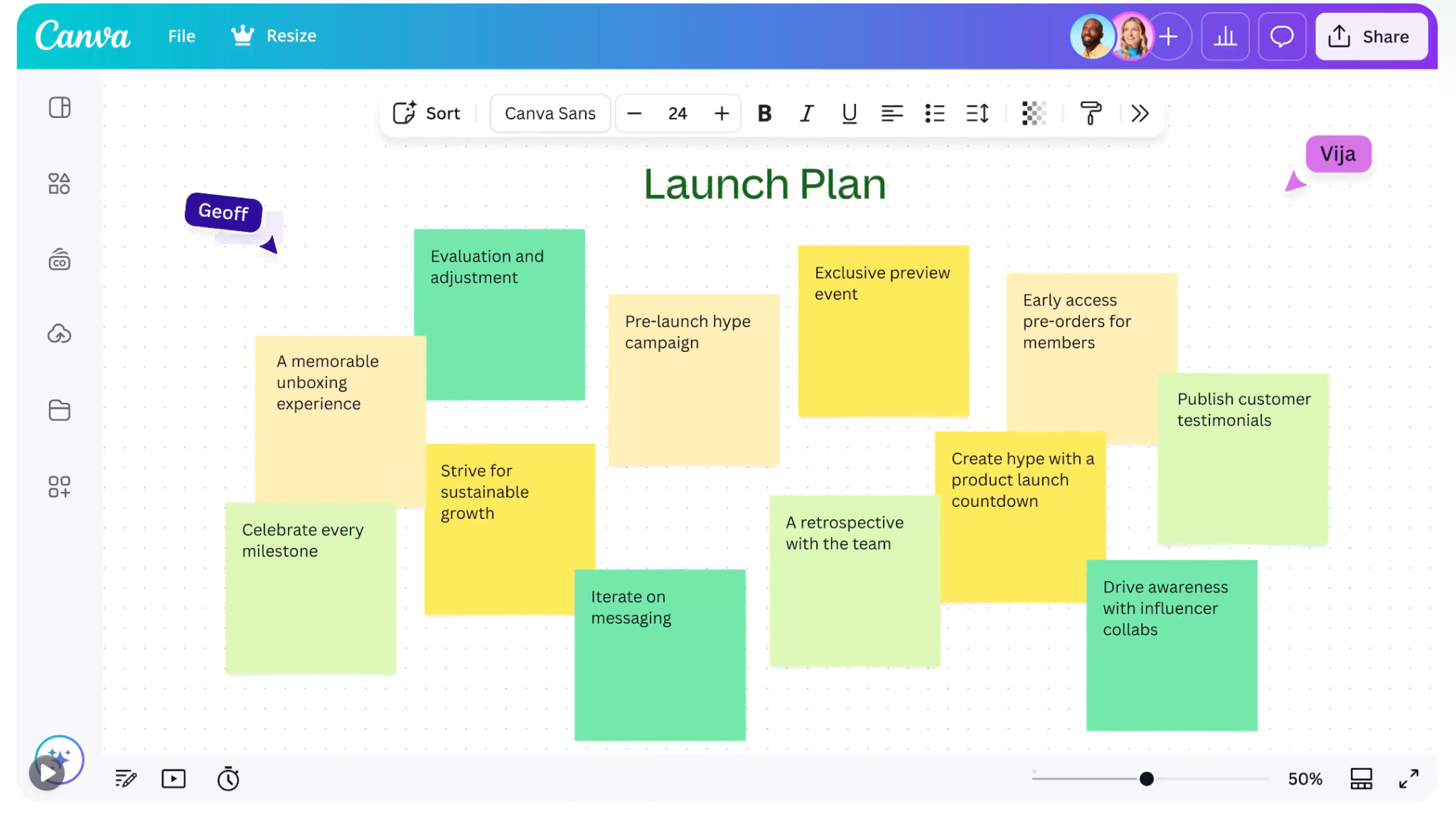
Key whiteboarding features:
- Canva AI: Automatically sort sticky notes by topic, author, color, or reactions. Magic Write can also summarize whiteboard discussions and help turn the content into written documents.
- Drawing and diagramming: Create flowcharts and diagrams using customizable shapes, freehand drawing tools, and automatic connectors that adjust when you reposition elements.
- File uploads: Upload images and supported documents to Canva. JPEG and PNG images must be under 50 MB, while SVG files must be under 3 MB. PDF imports are limited to 300 MB and 500 pages.
- Workshop tools: Use a synchronized timer to manage brainstorming sessions. The Follow feature lets participants focus on the same area of the board during presentations and discussions.
- Export options: Download completed work in supported formats such as PDF, PNG, and JPG. You can also select individual elements to download.
Pros and cons
Pricing
The best free online whiteboard websites
The whiteboard apps covered in the previous section offer more tools for ongoing projects and team collaboration, with paid plans that provide additional features and security controls.
Free online whiteboard websites offer a simpler alternative. You can draw directly in your browser without creating an account or downloading software. However, these tools may lack cloud backups, advanced collaboration features, and business-grade security, making them less suitable for regular or professional use.
Here are four free online whiteboard websites you can use for free without signing up for an account:
1. OnlineWhiteboard.net
OnlineWhiteboard.net includes pens, highlighters, shapes, sticky notes, and text boxes. You can upload images and export completed drawings as PNG or PDF files. Your work is saved locally in your browser rather than in the cloud. It also doesn't support real-time collaboration, so you'll need to export your board or share your screen to show your work to others.
2. Onlineboard.eu
Onlineboard.eu allows multiple people to draw on the same board through a shared link. You can customize pen colors and brush sizes, work on touchscreens, and export drawings as PNG files. Unlike the previous two options, it supports real-time collaboration. However, automatic cloud backups require an account, so anonymous users have fewer options for saving their work.
3. Hivly Draw
Hivly Draw includes freehand drawing tools, shapes, arrows, and text for creating sketches and diagrams. You can also export your work as PNG or SVG files. Your drawings remain on your device rather than being uploaded to cloud storage. It doesn't support real-time collaboration, so it's more suitable for instructing and presenting or individual sketching and diagramming.
4. TempCanvas
TempCanvas includes pens, shapes, text tools, and image uploads. You can annotate images or draw diagrams and export your work as a PNG file. Your work is saved locally in your browser, but there's no cloud storage or real-time collaboration. This makes it more suitable for individual tasks than shared projects.
Go beyond whiteboarding with Goodnotes
The best online whiteboard apps give you room to explore your creativity, explain complex concepts visually, and develop ideas with others.
Goodnotes brings whiteboarding and note-taking together in one app. You can brainstorm on an infinite Whiteboard, sketch diagrams with a stylus, and collaborate with your team in real time. Then switch to Notebooks to capture handwritten notes or annotate PDFs, and use Text Documents to turn your ideas into written plans. Plus, Goodnotes AI generates diagrams and summarizes information, so you can spend less time organizing your work.
Try Goodnotes for free and turn your ideas into project plans.
FAQs
What is the best online whiteboard for classes?
Goodnotes is a great option for teachers who want to explain concepts visually and create interactive lessons. Its infinite Whiteboard lets educators draw diagrams, work through problems, and annotate learning materials using a stylus. Teachers can also use Goodnotes for Education to distribute assignments and provide feedback on student work.
What is the best online whiteboard for teams?
Goodnotes is a great option for teams that want to brainstorm, sketch ideas, and collaborate visually. Its infinite Whiteboard supports real-time collaboration, allowing colleagues to work on diagrams and share feedback. Teams can also use Notebooks to capture meeting notes and annotate PDFs, while Text Documents help organize project plans and decisions. Goodnotes AI can generate diagrams and summarize information, making it easier to turn brainstorming sessions into actionable steps.
Is Canva Whiteboards free?
Yes, Canva Whiteboards is free to use. The free plan includes an infinite canvas, drawing tools, sticky notes, templates, and real-time collaboration. You can also share boards through a link and export them as PDFs or images.
What are the best online whiteboard apps for iPad?
Goodnotes is a great online whiteboard app for iPad, especially if you prefer drawing and writing with an Apple Pencil. Its infinite Whiteboard lets you sketch diagrams, create mind maps, and brainstorm ideas with natural handwriting tools. You can also use the Lasso Tool to rearrange content and Goodnotes AI to generate diagrams. Beyond whiteboarding, Goodnotes includes Notebooks for handwritten notes and PDF annotation, making it useful for studying, teaching, and professional work.