TL;DR
- Microsoft OneNote covers a wide range of note-taking needs, but you may want an alternative if you need direct PDF annotation, more flexible handwriting tools, local file control, or a different way to organize your notes.
- The eight OneNote alternatives compared are Goodnotes, Joplin, Obsidian, Notion, CollaNote, Trilium, UpNote, and Supernotes.
- Goodnotes is a good fit if you want handwriting, typed notes, a whiteboard workspace, PDF annotation, audio recording, search, and AI in the same app, with access across Apple, Windows, Android, and the web.
- Joplin and Trilium give you more control over local or open-source note-taking, Obsidian focuses on connected Markdown notes, Notion uses pages and databases, CollaNote is built around Apple Pencil, UpNote keeps typed note-taking simple, and Supernotes uses short, connected notecards.
- The right choice comes down to how you take notes, how you want to organize them, which devices you use, whether you need offline access, and how easily you can move your existing OneNote content across.
Microsoft OneNote is a digital note-taking app for creating typed and handwritten notes, adding drawings and files, and organizing information into notebooks, sections, and pages. It works across Windows, Mac, iOS, Android, and the web, which makes it a great option—from class notes to long-term knowledge management.
However, depending on your priorities, you may consider an alternative to OneNote for a few reasons:
- You can’t annotate PDFs directly: A PDF is inserted into a note as page images, which you can write, draw, and highlight over. Those annotations stay in the note rather than being added to the original PDF file. So, if you want to share the marked-up version as a PDF, you’ll need to export the annotated OneNote page as a new PDF first—meaning your entire PDF is a singular, scrollable page instead of individual pages.
- Handwriting-to-text isn’t available on iPad: You can handwrite notes in OneNote on iPad, but you can’t convert them into typed text. If you often clean up handwritten notes, turn them into editable text, or reuse them in other documents, you’ll need to retype them or use another device or app.
- OneNote relies on OneDrive for notebook storage and syncing on Mac: OneNote for Mac requires a Microsoft account and OneDrive to create and open notebooks. You can work offline temporarily, but your notebooks are still stored in OneDrive and sync back there when you reconnect. If you want to keep your notes entirely on your device or use a different cloud storage service, this setup may feel restrictive.
In this article, we compare the best Microsoft OneNote alternatives. We look at core features like note organization, handwriting, PDF annotation, search, platform support, collaboration, and pricing to help you find an alternative to OneNote that fits the way you work.
Let’s get started.
1. Goodnotes
Goodnotes is a note-taking app built for people who want to handwrite, type, annotate documents, and keep their notes organized in one place. You can create notebooks and folders, search across handwritten and typed notes, and access your library across iPadOS, macOS, Windows, Android, and the web.
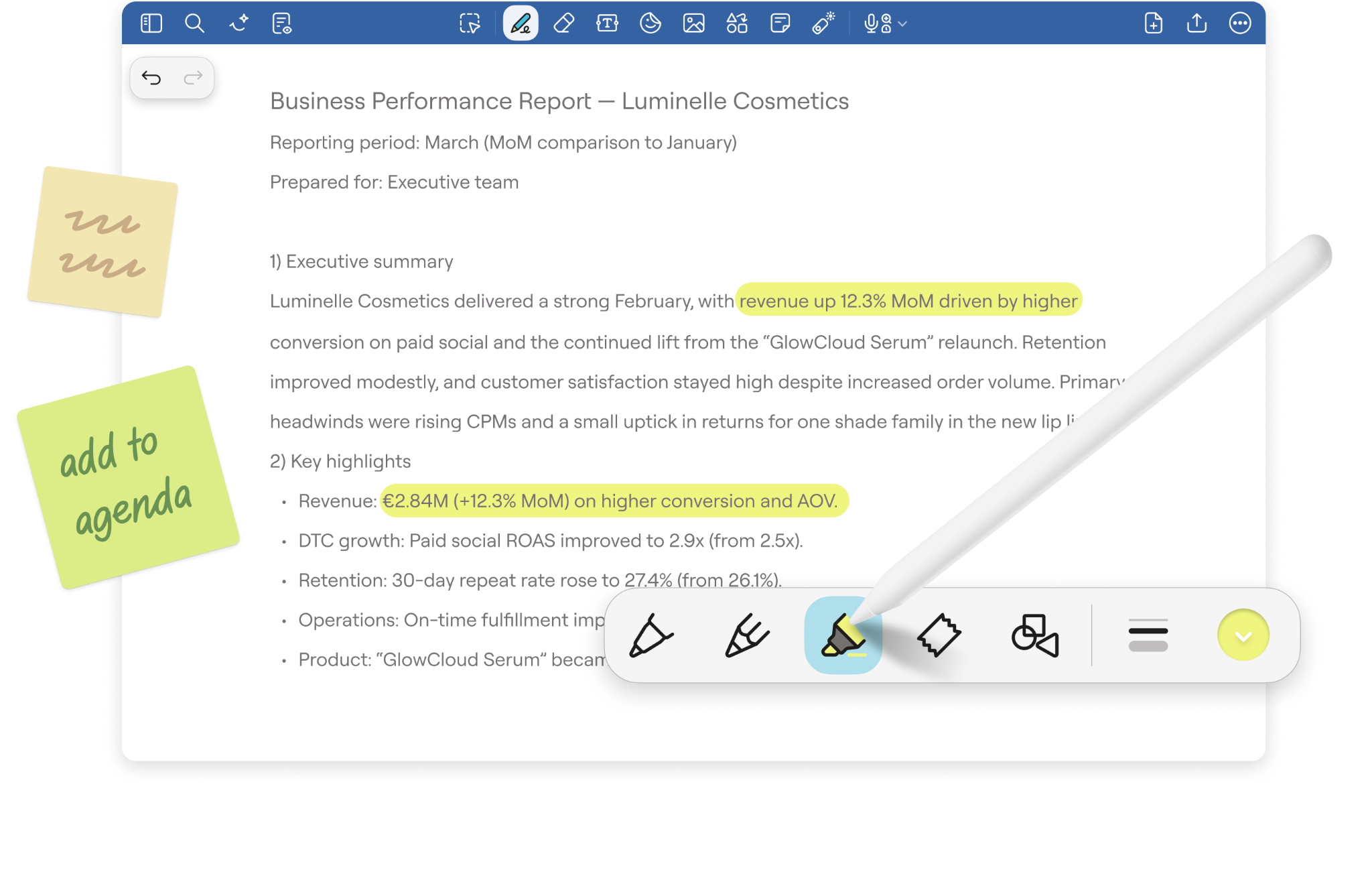
With Goodnotes, you can import and annotate PDFs directly. You can handwrite, highlight, type, and add visual markup to the document, then export the annotated version as a PDF when you’re ready to share it.
On iPad, you can convert handwriting into typed text and search handwritten content later instead of manually going through pages. You can also add audio recordings alongside your notes, which is useful when you want to capture a lecture, meeting, or explanation and revisit it later. Plus, Goodnotes AI, helps you search across PDFs and handwritten notes, summarize content, and find information without manually working through every page.
Key features:
- PDF annotation: Import a PDF and mark it up with handwritten notes, highlights, typed comments, drawings, images, and more. When you’re done, you can export the annotated version as a PDF.
- Handwriting tools: Built for a tablet stylus experience, you can write naturally with pens, pencils, highlighters, rulers, erasers, and other tools. You can also convert your handwriting into typed text when you need a cleaner version.
- Goodnotes AI: Summarize long documents and ask questions about the information in your notes. Ask Goodnotes can help you get answers without manually going through page after page.
- Search across your notes: Find that sentence you wrote three weeks ago without digging through every notebook. Goodnotes can search handwritten notes, typed text, document titles, folder names, and supported PDF text.
- Audio recording: Record a lecture, meeting, or explanation while you take notes, then come back to the audio later. Supported workflows also include transcription and AI summaries.
- Flexible organization: Keep your notebooks and documents in folders and subfolders, favorite the ones you use most, and separate different projects, classes, or areas of your life.
- Cross-platform access: Use Goodnotes on iPad, iPhone, Mac, Android, Windows, and the web, so your notes aren’t tied to one device.
- Collaboration: Share documents with other people and work together in real-time with live mouse tracking, comments, handwriting, annotations, and sketches.
- Device-specific support: Goodnotes works across supported Apple, Samsung, Lenovo, and HP devices, with additional experiences and offers available through partners.
Pros and cons
Pricing
2. Joplin
Joplin is a free, open-source note-taking app for creating text and multimedia notes, including those with images, videos, PDFs, and audio. You can write in rich text or Markdown, save web pages as notes with its browser clipper, and use the app across Windows, macOS, Linux, Android, and iOS. You can choose how your notes sync across devices, with Joplin Cloud, Dropbox, or OneDrive.

Key features:
- Multimedia notes: Add images, videos, PDFs, and audio files to your notes, plus create math expressions and diagrams directly in the app.
- Rich text and Markdown: Write in either a rich text editor or Markdown, depending on how you prefer to structure your notes.
- Web Clipper: Save full web pages or screenshots from Chrome and Firefox directly into Joplin for later reference.
- End-to-end encryption: Protect synced notes with E2EE so only you can access their contents.
- Cross-platform access: Use Joplin on Windows, macOS, Linux, Android, and iOS, with a terminal app also available.
- Customization and plugins: Change themes, choose different editors, and extend Joplin with plugins or custom scripts.
Pros and cons
Pricing
Joplin is free and open-source. The plans below are for Joplin Cloud, which is the paid hosting service for syncing notes across devices, publishing notes online, and collaborating with others.
3. Obsidian
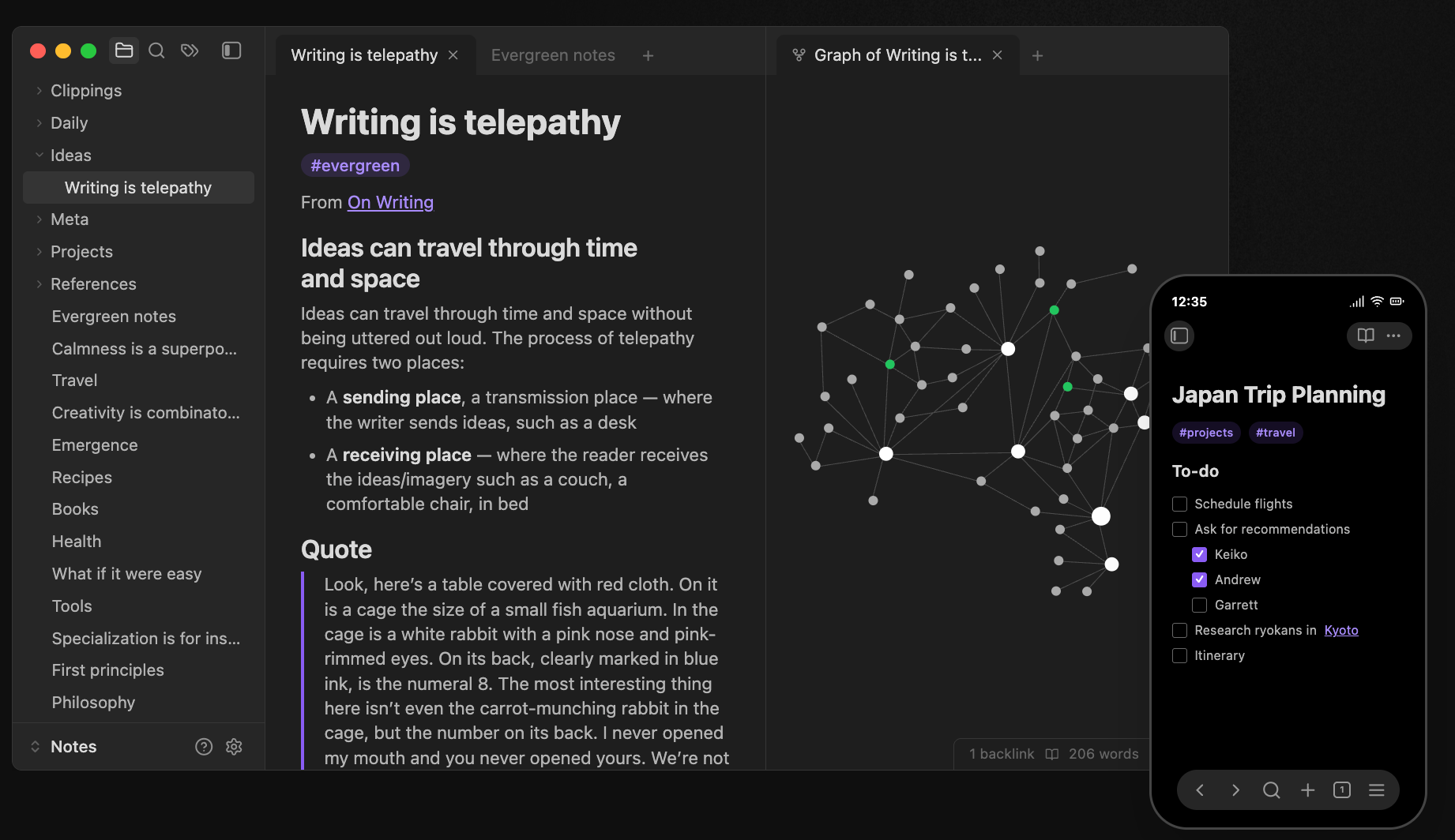
Obsidian is built mainly for typed notes, with your writing saved as Markdown files directly on your device. You can organize notes into folders, link related pages together, and use backlinks to see where ideas connect across your knowledge base.
It works well if you want to build a long-term personal knowledge system. You can connect meeting notes, research, readings, projects, and other information, then use Graph view to see those relationships or Canvas to map ideas visually.
Key features:
- Canvas: Lay out notes, PDFs, images, audio, web pages, and text cards on an infinite 2D canvas to map ideas more visually.
- Organize by properties: Add structured information such as dates, checkboxes, numbers, links, and tags to notes, then use that data to organize your knowledge base.
- Advanced search: Search across note content, properties, tasks, sections, and blocks, with support for filters and more specific queries.
- Plugins and customization: Extend Obsidian with core and community plugins to adapt the app to your own note-taking and knowledge-management workflow.
Pros and cons
Pricing
4. Notion
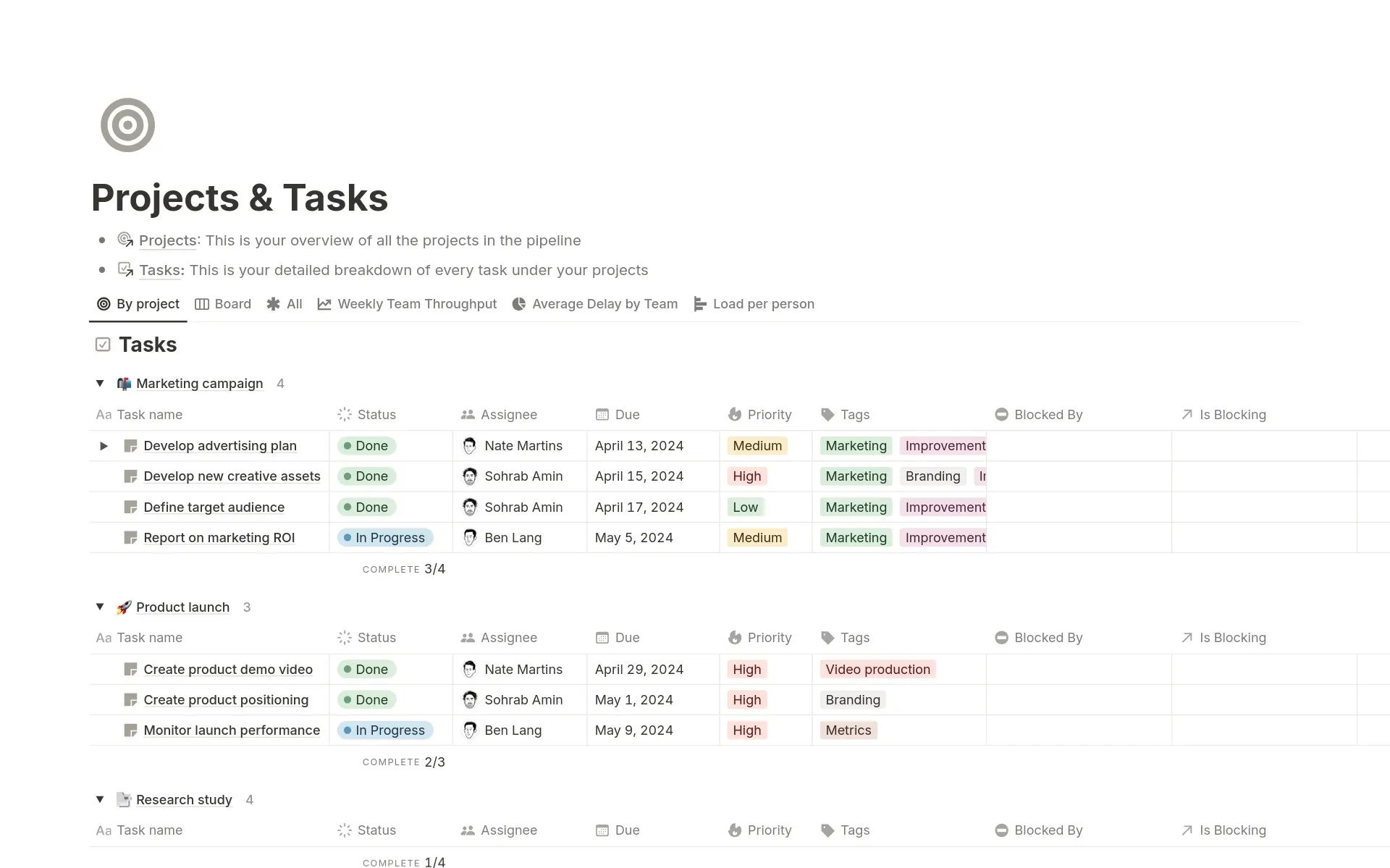
Notion is a note-taking and knowledge management app built primarily around typed pages, databases, and linked information. You can create pages for meeting notes, research, projects, or personal reference material, then organize them with nested pages, tags, database properties, and different views such as tables, lists, calendars, and boards.
Key features:
- Database flexibility: Turn notes into structured entries with properties such as dates, statuses, tags, and links, then view them as tables, lists, boards, calendars, or timelines.
- Linked pages: Connect related notes and reference material across your workspace instead of keeping everything in separate folders.
- Workspace search: Search page titles and page content across your workspace, with filters to narrow results by location, date, or creator.
- Web Clipper: Save articles, research, and other web pages directly into Notion, then organize them inside a page or database for later.
- Notion AI: Search across your workspace, summarize pages, help edit or draft content, and answer questions based on information you’ve saved.
Pros and cons
Pricing
5. CollaNote
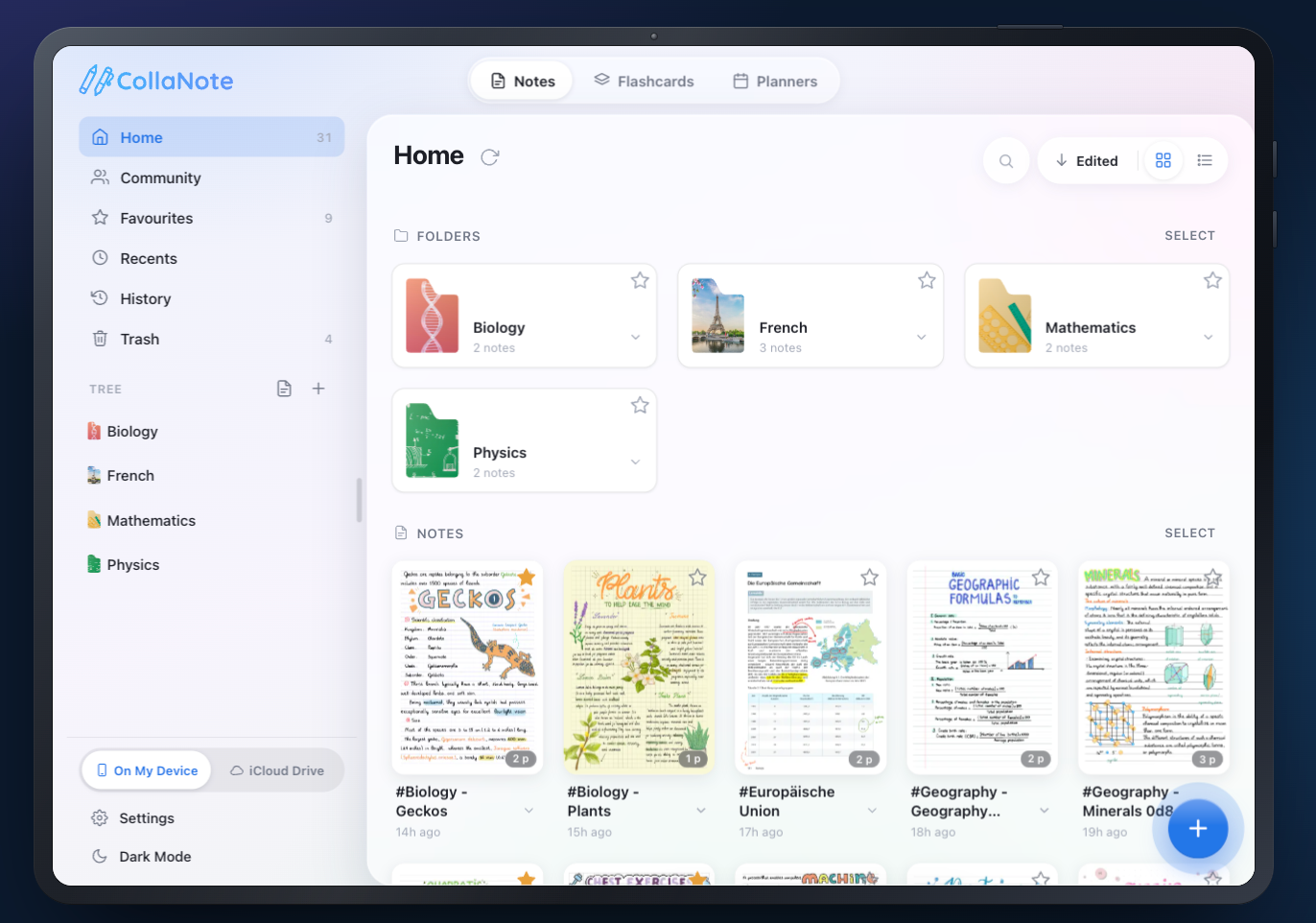
CollaNote is a handwriting-focused note-taking app for iPad, iPhone, and Mac. You can write with Apple Pencil using 50+ pens and brushes, add typed notes, and annotate imported PDFs, PowerPoint files, and Word documents. It also supports audio recording alongside your notes; you can replay a recording and jump back to what you were writing at that moment.
Key features:
- PDF and document annotation: Import PDFs, PowerPoint files, and Word documents, then highlight, sketch, and write directly on the page without changing the original file.
- Audio-linked notes: Record audio while you write, then tap a word later to jump back to the exact moment it was written. CollaNote can also turn recordings into transcripts.
- AI tools: Use AI to summarize and search notes, solve handwritten equations, or turn simple sketches and prompts into illustrations and stickers.
- Built-in translation: Select text and translate it into 90+ languages.
- Digital planners: Keep planners, habit trackers, and to-do lists alongside your notes, with hyperlinks to move between sections quickly.
Pros and cons
Pricing
CollaNote is free to download and offers a Premium plan for a $13.90 one-off payment.
6. Trilium
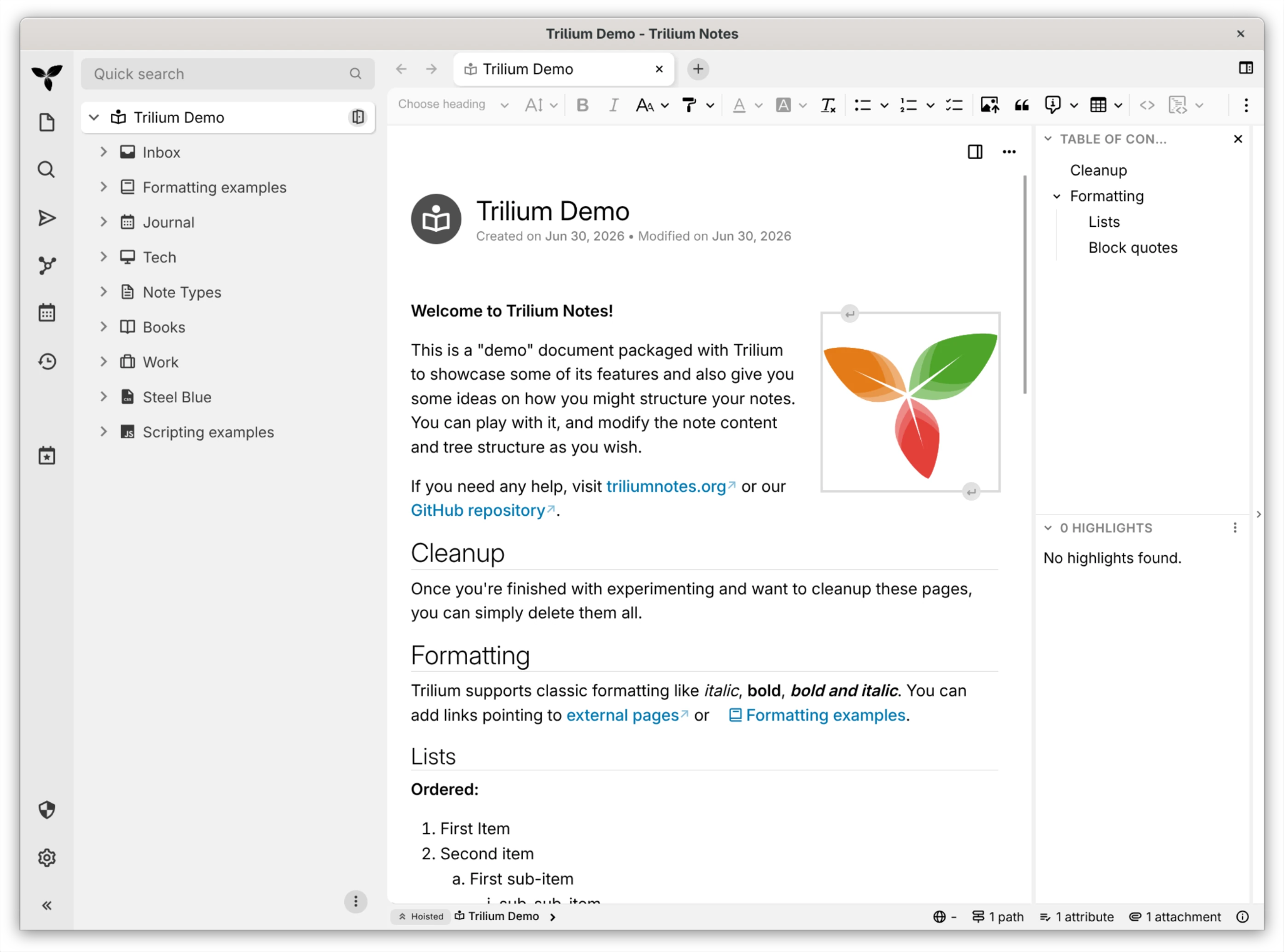
Trilium is a free, open-source note-taking app that helps you organize information into a personal knowledge base. You can organize notes in a hierarchy, link related information, add labels and relationships, and search across both notes and attached PDFs or images. Trilium works locally on desktop and can sync across devices through a self-hosted server.
Key features:
- Hierarchical notes: Organize information in a note tree, where any note can contain sub-notes.
- Labels and relations: Add labels to categorize notes or create relationships between them, which helps connect information across a larger knowledge base.
- Web Clipper: Save selected text, images, screenshots, or entire web pages directly into Trilium from Chrome or Firefox.
- Protected notes: Encrypt sensitive notes and keep them behind a password-protected session.
Pros and cons
Pricing
Free and open-source, with no paid tiers, accounts, or feature paywalls.
7. UpNote
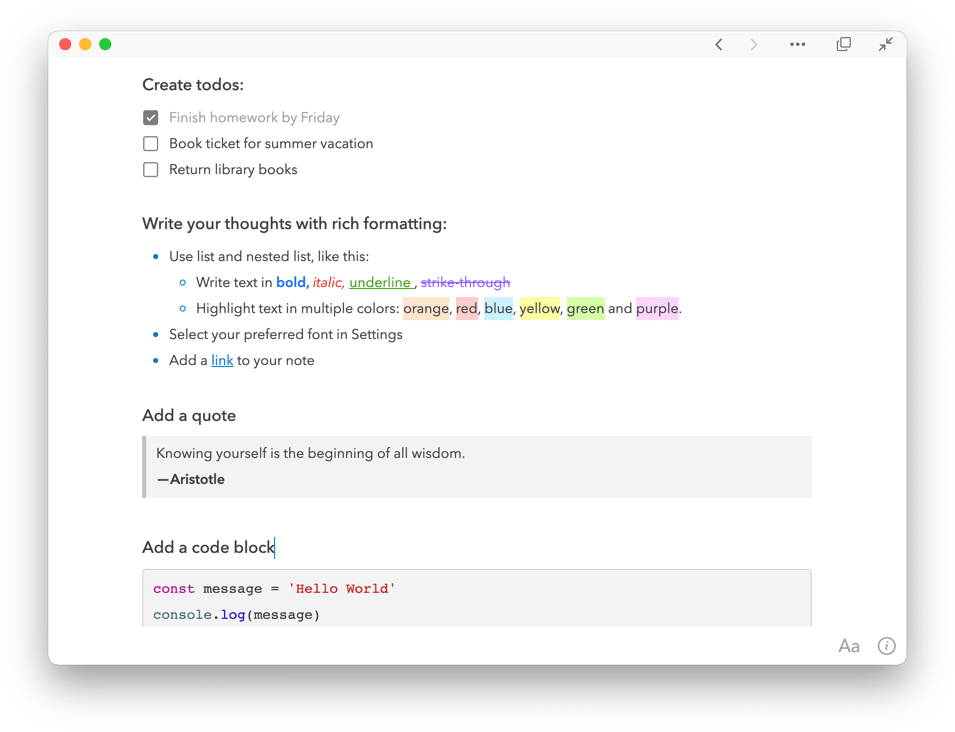
UpNote lets you create typed notes with rich text or Markdown, then organize them with nested notebooks, hashtags, pinned notes, and Spaces. You can also add images, links, attachments, tables, quotes, and code blocks to your notes. Your notes sync across Mac, Windows, Linux, iOS, and Android, and are available offline when you don’t have an internet connection.
Key features:
- Collapsible sections: Hide longer sections inside a note so you can keep detailed notes easier to scan.
- Note version history: Review earlier versions of a note and restore content if you accidentally change or delete it.
- Web Clipper: Save articles and web pages directly into UpNote from your browser.
- Templates: Create reusable note layouts for meeting notes, journals, checklists, or project updates.
- Export options: Export notes as PDF, HTML, Markdown, or plain text if you want a copy outside UpNote.
- Locked notes: Protect individual notes or notebooks with a passcode, while keeping them out of system search until they’re unlocked.
Pros and cons
Pricing
UpNote Premium costs $1.99/month or $39.99 for lifetime access.
8. Supernotes
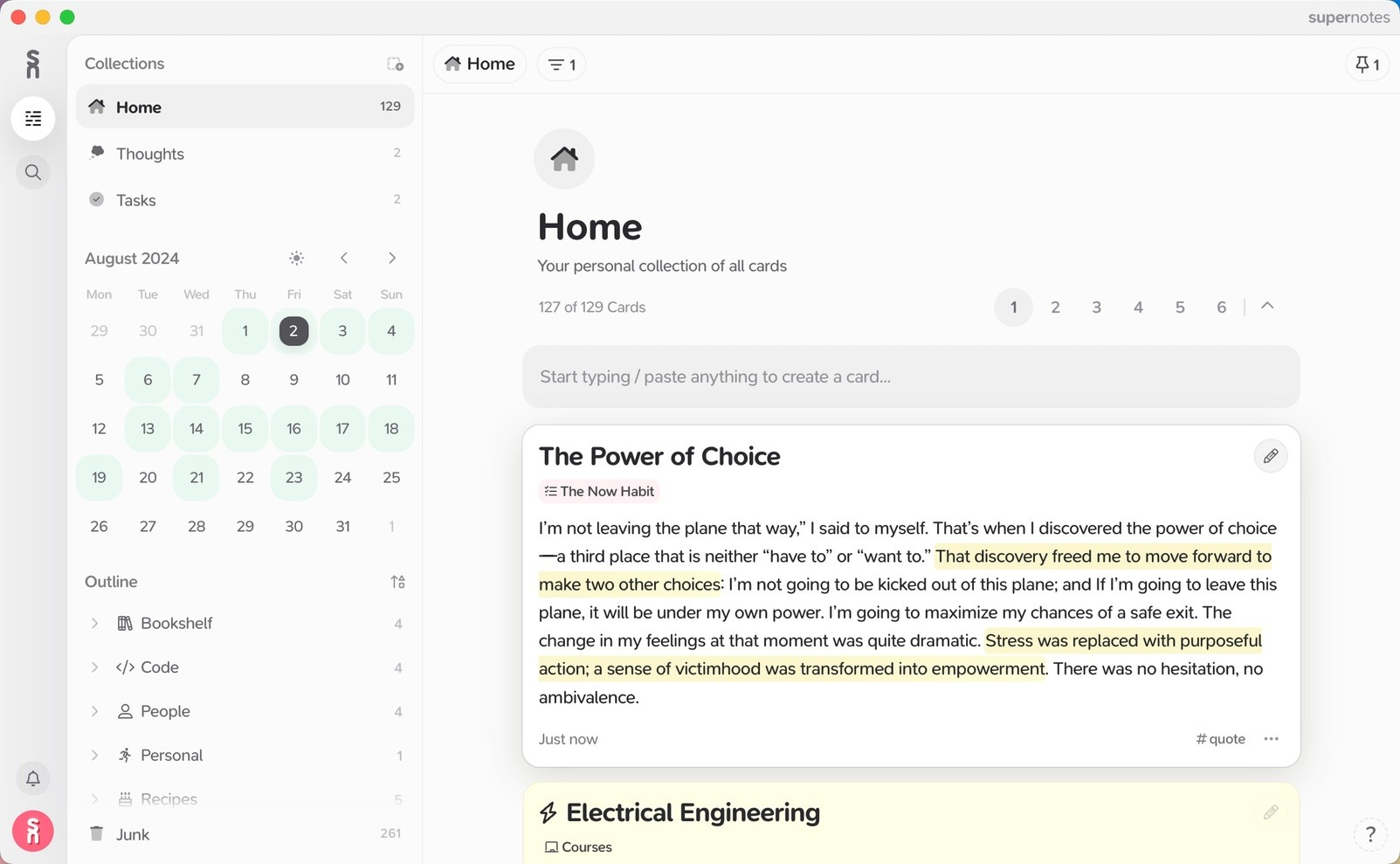
Supernotes is a personal knowledge management tool built around short, linkable notecards. Each card can hold text, equations, tables, images, checklists, and other information, which you can organize into hierarchies, tag, search, and connect to related cards. You can also visualize those connections in 2D or 3D Graph View, collaborate on cards in real time, and access your notes across Mac, Windows, Linux, iOS, Android, and the web.
Key features:
- Multiple note views: Switch between Columns, Table, Flashcard, Calendar, Map, and Graph layouts depending on how you want to review your cards.
- AI tools: Use AI for tasks such as proofreading, tag suggestions, and card organization.
- Import tools: Bring notes across from Obsidian, Roam Research, Google Keep, Notion, or Markdown files, with formatting and bidirectional links preserved where supported.
- Rich card editor: Add equations, tables, checklists, images, code blocks, footnotes, and Mermaid diagrams to individual cards.
Pros and cons
Pricing
Compare Microsoft OneNote alternatives
Before choosing a OneNote alternative, you need to first identify what you rely on most—whether that’s its notebook structure, handwriting, file handling, search, or cross-device access. Then, you can compare alternatives that impact your day-to-day workflow most:
- How you take notes: Think about whether you mostly type, handwrite, sketch, record audio, or capture quick notes throughout the day.
- How you organize information: OneNote uses notebooks, sections, and pages, while other tools take different approaches to data organization. Obsidian uses linked notes and local Markdown files, Notion uses pages and databases, and other apps rely on folders, tags, or cards. The right setup depends on how much structure you want around your personal notes.
- Which devices you work on: Check support for Windows, Mac, iPad, iPhone, Android, and web before you switch. Apple users may be happy with an Apple-first app, while Windows users or anyone working across multiple devices will need broader platform support.
- How offline access works: Some apps keep your notes available automatically in offline mode, while others require you to download pages first or depend more heavily on cloud access.
- Where your notes are stored: If data ownership matters to you, look at whether the app stores notes in its own cloud, on your device, or in files you control. An open-source alternative or an app built around local Markdown files may give you more control over where your notes live.
- How easy it is to move your OneNote library: If you want to replace OneNote completely, check whether the app supports direct imports and what happens to formatting, attachments, links, or handwriting during migration.
- Whether you need collaboration: If you mainly use OneNote for personal note-taking, team collaboration features may not matter much. If you regularly share notes with other people, check whether the app supports real-time editing, comments, permissions, or guest access.
The table below makes those differences easier to compare at a glance.
People who prefer short, connected notes over conventional notebooks.
Organizes information as short, connected cards rather than notebooks and pages.
Switch from OneNote today
Some OneNote competitors focus on providing linked knowledge bases and local files, while others focus on handwriting, PDF annotation, and simpler personal note-taking. Deciding what matters most to you is essential for selecting the right tool.
Goodnotes brings handwritten and typed notes, direct PDF annotation, audio recording, advanced search, and AI tools into one place. Goodnotes AI can help summarize documents and find information you’ve already saved, which is useful when your note library starts getting bigger. It also gives you a simple way to keep everything organized with folders and notebooks, while you access your notes across iPad, iPhone, Mac, Windows, Android, and the web.
Try Goodnotes for free to start simplifying your note-taking experience.
FAQs
1. What is the best Microsoft OneNote alternative?
The best Microsoft OneNote alternative depends on your workflow. For example, Goodnotes is an ideal option if you take handwritten notes, annotate PDFs, record audio, or want AI tools alongside your notes. If you mainly type and want more control over local files or knowledge management, Joplin or Obsidian may suit you better.
2. Which OneNote alternative has stylus support?
Goodnotes and CollaNote both support stylus-based handwriting. Goodnotes works with Apple Pencil and other compatible active pens on supported Android and Windows devices. UpNote also supports Apple Pencil, although handwriting is added through a separate drawing screen rather than the main note-taking experience
3. Is there a completely free OneNote alternative?
Yes. Goodnotes offers a free forever plan with core note-taking, handwriting, PDF markup, audio recording, and limited AI features—although it has limits on the number of files and storage. Joplin and Trilium are also free OneNote alternatives, with Trilium offering no paid tiers or feature paywalls.
4. Which is the most similar OneNote alternative?
Goodnotes is one of the closest OneNote alternatives if you want one place for different types of notes. You can handwrite, type, sketch, record audio, annotate PDFs, create notebooks, use whiteboards and text documents, and search across your content. Goodnotes also adds AI tools for working with your notes and supports access across iPad, iPhone, Mac, Windows, Android, and the web.