TL;DR
You can convert handwriting to text on iPad in several ways:
- Copy as text: Lasso your handwriting in Apple Notes (or select it with your finger), then tap Copy as Text to convert it instantly.
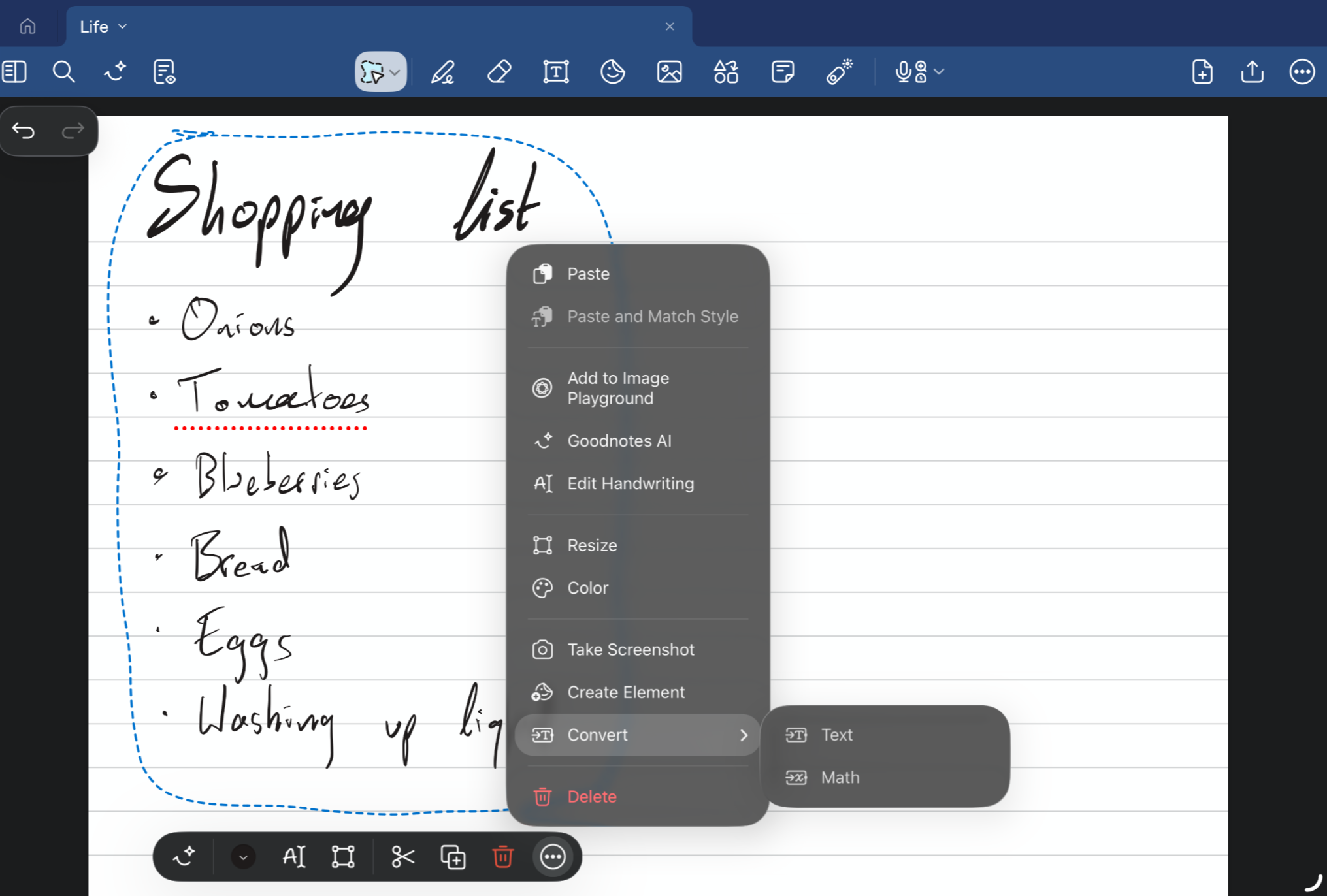
- Note-taking app: In an app like Goodnotes, lasso your handwritten notes and tap Convert to text to turn them into clean, typed text.
- Apple Scribble: Turn on Scribble in Settings > Apple Pencil, then write directly into any text field—it's converted to typed text as you go.
- Camera OCR: Snap a photo of your paper notes and run it through an OCR tool, like Apple Live Text, to turn the image into digital text.
Converting handwriting—whether physical or digital—to text helps make your notes clearer, more editable, and more shareable. And luckily for you, there are multiple ways you can do it.
This article will teach you how to convert handwriting to text on iPad, including when and how to use each method.
Let’s get started. Let’s get started.
How to convert handwriting to text on iPad: A quick guide
Convert handwriting to text in Apple Notes: Copy as text
Apple Notes is your iPad’s native notes app—making it a popular option for quickly jotting down thoughts, to-dos, shopping lists, and more. You can write anywhere in the notepad and convert your handwriting to text in a couple of quick clicks.
Here’s how to convert handwriting in Apple Notes to text in four easy steps:
- Open the note that contains your handwriting
- Tap the Markup button in the top right-hand corner of your note (next to the Share button)
- Select the Lasso selection tool from the toolbar, to the right of the eraser
- Circle the handwriting you want to convert
- Tap the three dots that appear upon selecting your handwriting
- Tap Convert to Text from the dropdown menu
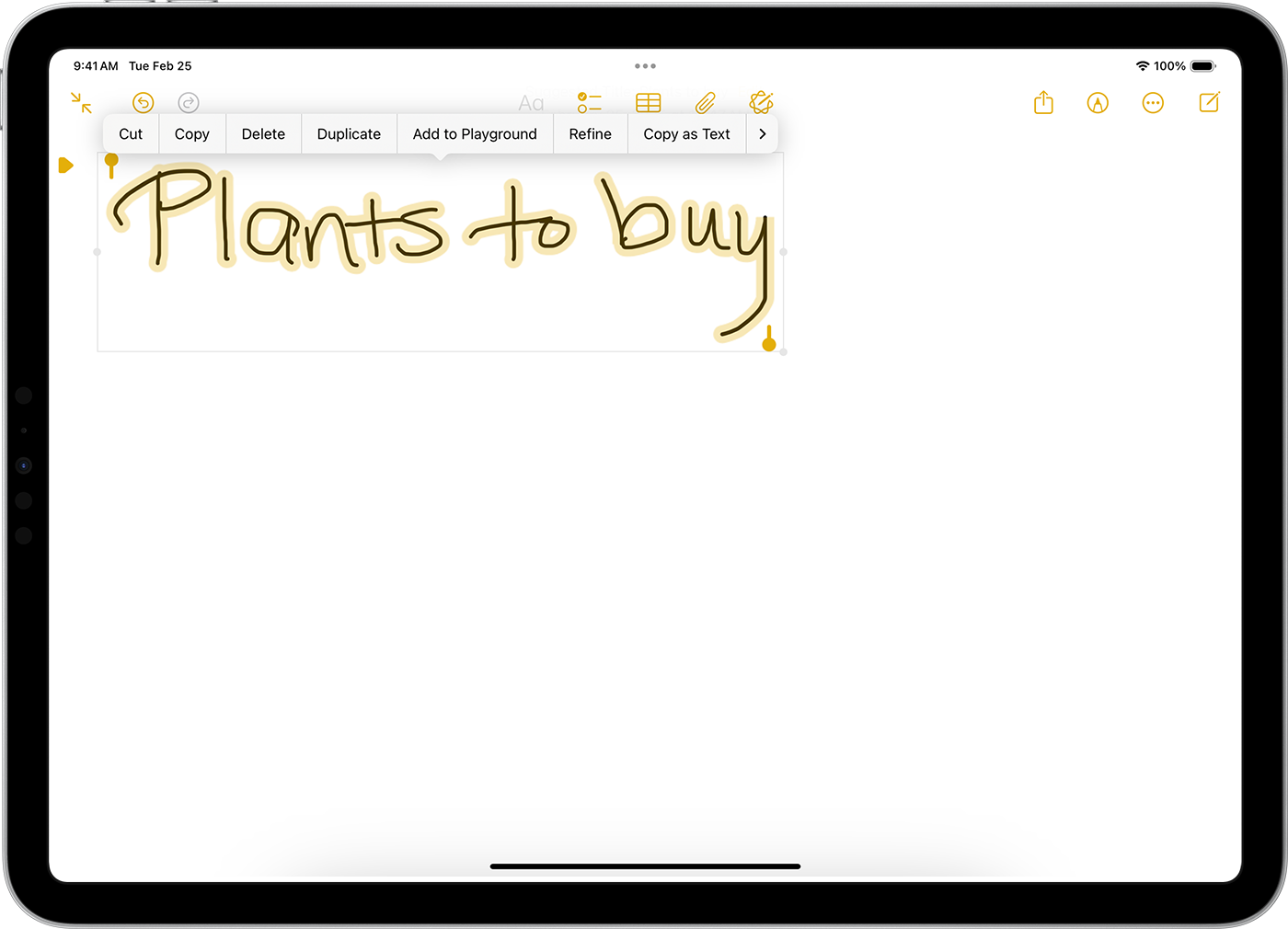
Your selected handwriting will then turn into text that you can edit, copy, paste, or share with others.
You can also select handwriting by holding down on it with your finger. This allows you to use the text selection cursor (with grab handles) to manually select your handwriting. From there, tap your selected text and hit Convert to Text.
Use a third-party iPad app with handwriting recognition: Note-taking app
If you regularly think, plan, and organize through a range of notebooks, then a third-party note-taking app with handwriting recognition is the best way to go.
There are plenty of good apps available with handwriting functionality. For example, an app like Goodnotes lets you turn handwritten notes into text on iPad and save them in searchable notebooks, whiteboards, and documents.
Here’s how an independent note-taking app like Goodnotes lets you easily turn handwriting into text:
- Open the Goodnotes app and create a new document
- Use your stylus to take notes with the fountain pen tool, ballpoint pen, pencil, and more
- Tap the Lasso tool in the top toolbar
- Draw a loop around your handwritten notes
- Tap inside the circled selection
- Tap Convert to text from the pop-up menu
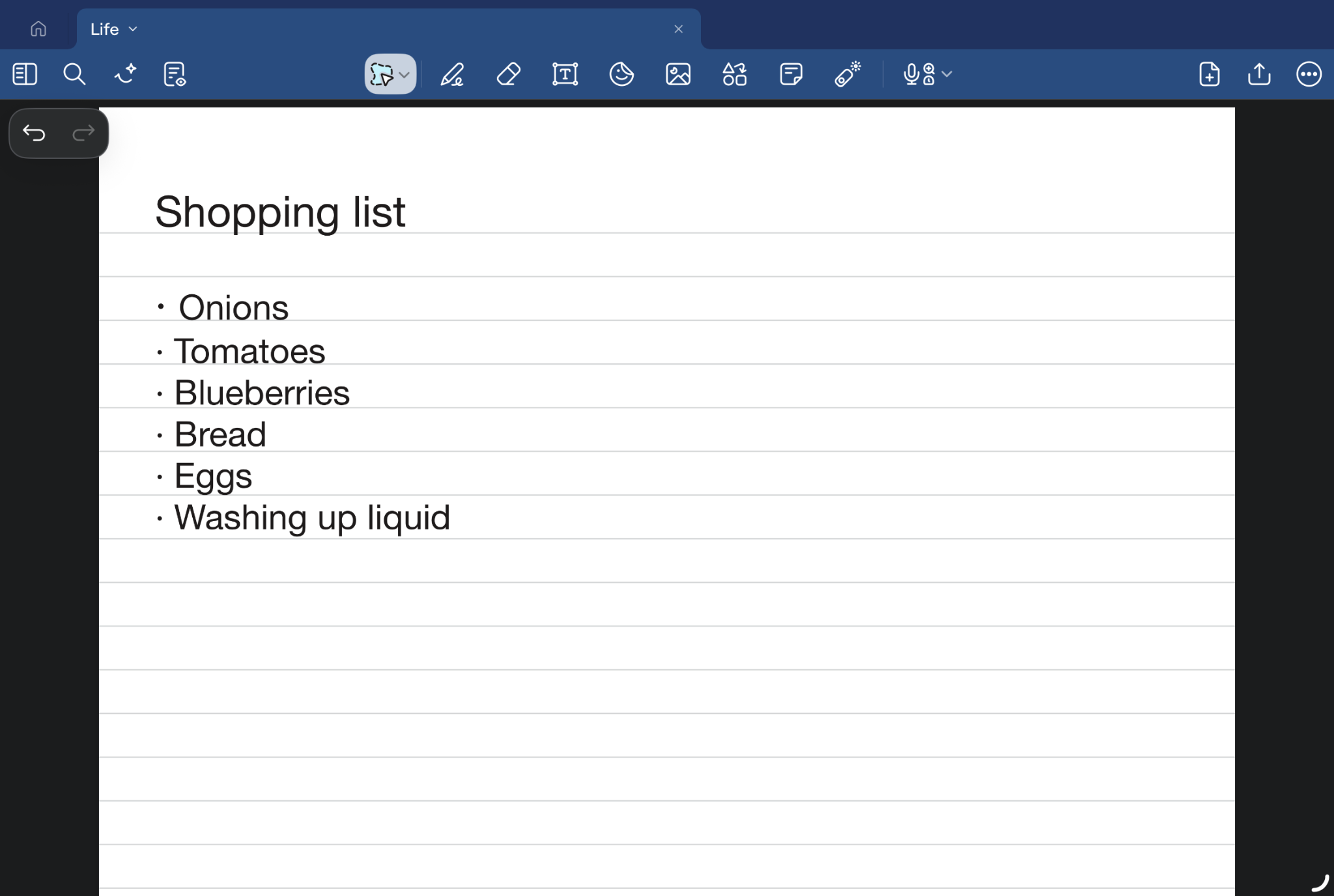
- Tap the final Convert option to replace your handwriting with typed text. You’ll also see an option to correct your text if Goodnotes doesn’t read your handwriting correctly.
📝Goodnotes can do more than convert your handwriting to text. You can use Goodnotes to annotate PDFs, type up documents, brainstorm on an infinite canvas, and much more.
Turn handwriting to text in text fields: Apple Scribble
Apple Scribble is a feature that you can access from the second you set up your iPad. It automatically converts your handwriting into text with an accuracy rate of 95%. All you have to do for this method to work is ensure it’s enabled on your iPad and start writing:
- Open Settings
- Tap on Apple Pencil
- Toggle Scribble setting on
- Go to any app with a text field
- Directly write in the text field, and Scribble converts it to text automatically
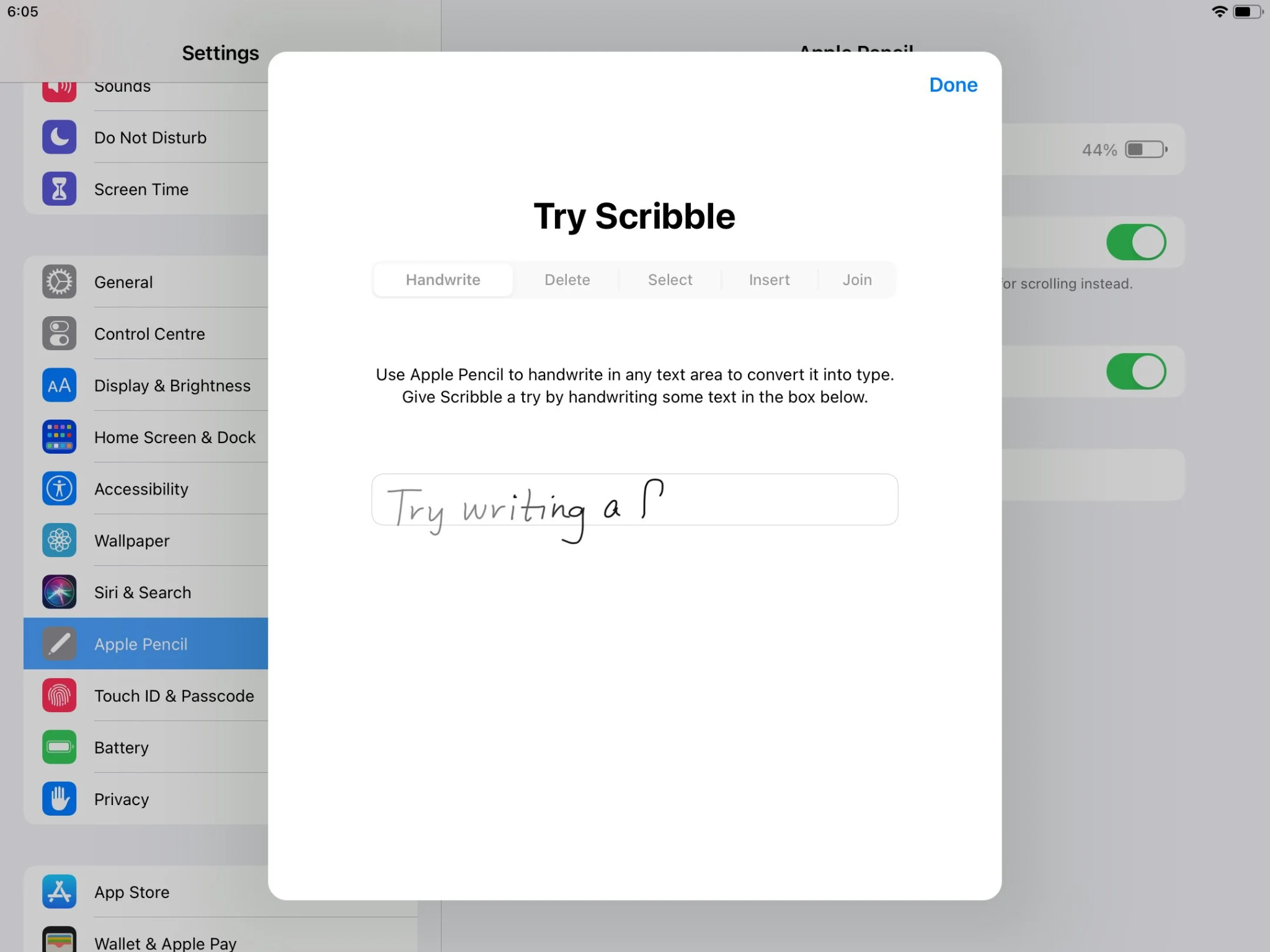
Keep in mind that Apple Scribble only works for in-the-moment handwriting-to-text. It’s not for converting blocks of handwriting to text. Its main use cases are search bars, emails, forms, and short text fields, not extensive notes. It also exclusively works with Apple Pencil.
Turn handwritten notes on paper into digital text on iPad: Camera OCR
If you’ve got physical handwritten notes taken with pen and paper, you can convert them to text using OCR software. OCR technology picks out letters, words, numbers, and patterns to convert them into digital text; no need to manually transcribe your notes.
Here’s how it works on iPad:
- Take a well-lit, focused photo of your paper notes (large, clear handwriting helps improve recognition, too!)
- Upload the image to an OCR app or online tool
- Hit Next, and the tool will convert your picture into digital text
- Check the output for any errors
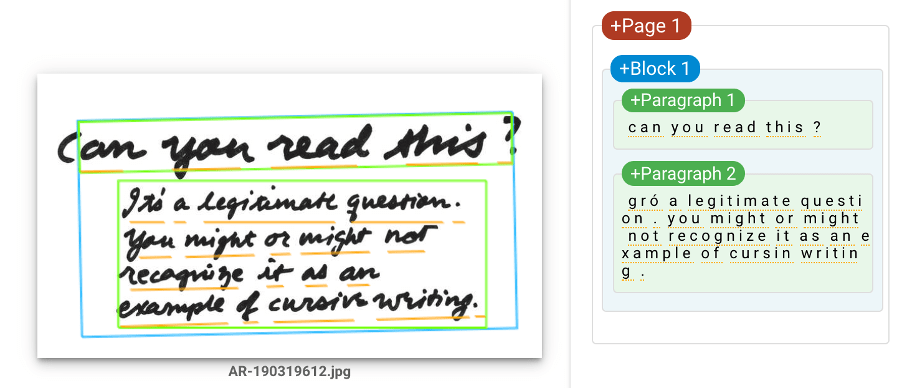
OCR is especially handy when you’re dealing with notes from multiple sources and need a quick, easy way to convert them to digital text and share them with others. Apple Live Text is the free OCR tool that lives on your iPad, while Google also offers a free Google Docs OCR tool within Google Drive. Other trusted online OCR tools include Handwriting OCR and OCR Space.
Use Goodnotes for handwriting-to-text, typing, and more
Turning your handwriting into text instantly makes your notes more searchable and shareable. Whether you need to share meeting notes with your team, turn lecture notes into digital flashcards, or simply share the shopping list you scribbled down with your partner, there's multiple ways to get the job done.
If you often find that you need to take handwritten notes and convert them to text, try Goodnotes. The note-taking app gives you an easy way to take handwritten notes and turn them into digital text.
The smooth stylus experience retains the pen-to-paper feel with no latency, and you can easily turn any page into typed, searchable text in a couple of taps. If you'd rather type for parts of your notes instead of writing everything by hand, Goodnotes lets you switch freely between the two, sync your notes across devices, and even create custom paper templates for note-taking your way.
FAQs
1. Can I convert handwriting to text on iPad without an Apple Pencil?
Yes, you can. You can write with a finger or stylus in a note-taking app before converting that handwriting to text. Scribble is the only method that requires an Apple Pencil for handwriting-to-text.
2. Can iPad convert cursive handwriting to text?
Yes! But it depends on your note-taking app's accuracy. Most note-taking apps (native and third-party) will be able to handle cursive handwriting reasonably well, provided that it’s legible.
3. Is there an app to convert handwriting to text iPad?
Yes, there are multiple note-taking apps that convert handwriting to text after you’ve taken notes on your iPad, such as Goodnotes. With Goodnotes, you can use the Lasso tool to quickly select handwriting and convert it to digital text. Apple Notes is another option that comes pre-installed on your iPad.
4. Is handwriting search the same as handwriting conversion?
No, these are two different functionalities. Handwriting search helps you find content inside your handwritten notes, while handwriting conversion turns those notes into typed, editable text.