.png)
Choosing the right iPad for college is one thing, but once you’ve got it, what are the apps that matter most?
There are hundreds of student apps out there, and it’s easy to get overwhelmed by options. The apps below are organized by what job they do, because a note-taking app and a study AI aren't the same kind of tool, and they shouldn't compete for the same slot on your home screen.
Everything here is free to download or has a free tier that's genuinely useful. Where there's a paid plan worth knowing about, we've said so.
How we chose these apps:
- Free to download, or a free tier that covers the main use case
- 4.0 stars or above on the App Store
- Solves a real student problem, not a niche one
Note-taking & annotation
Ditch the notebooks and heavy textbooks. These apps make note-taking fun, and accessible.
Goodnotes
Price: Free to download, see goodnotes.com/pricing for current plans App Store: 4.8 ★
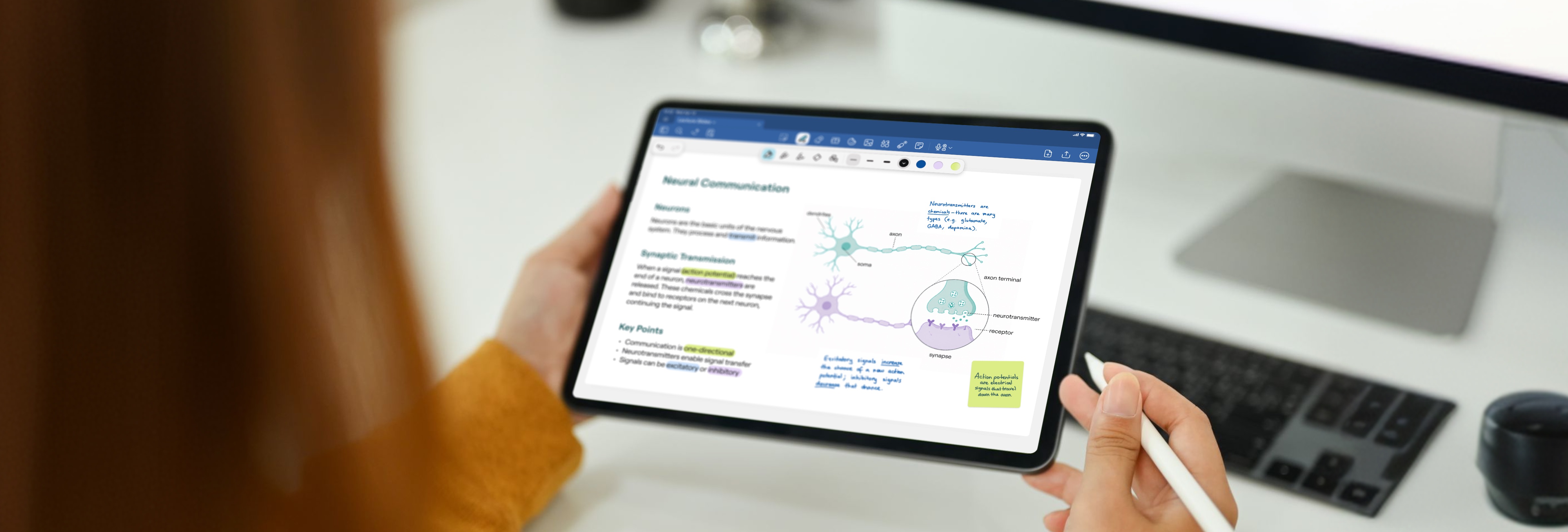
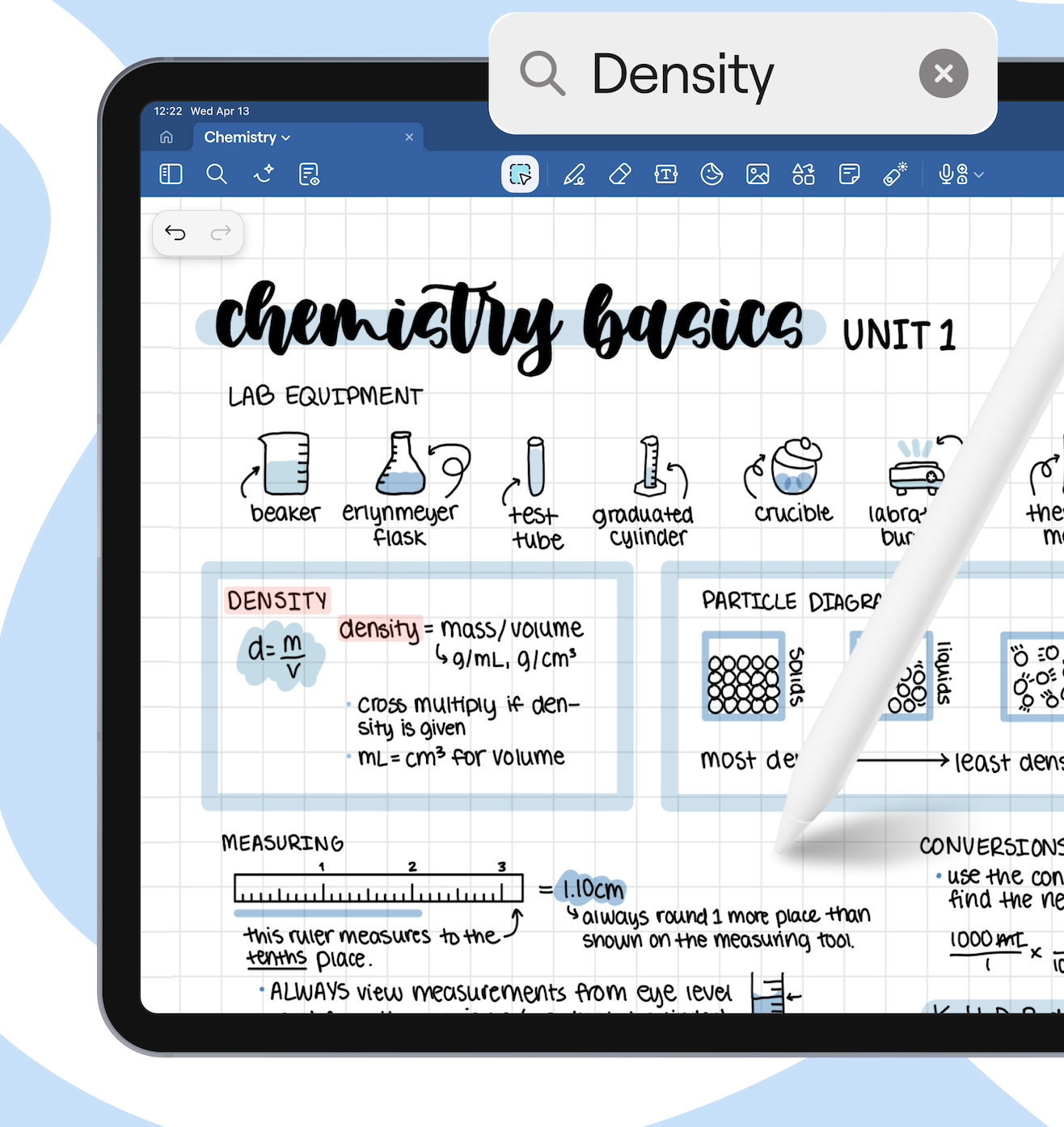
Goodnotes is where you write. Handwrite with an Apple Pencil, type, annotate PDFs, sketch diagrams, create flashcards, it's all in the same app, and everything you've ever written is searchable. That last part matters more than it sounds: three months from now, when you can't remember which notebook that formula was in, you can just search for it.
A snapshot of what you can do with Goodnotes:
- Handwrite notes in class and search them later by keyword, your handwriting is fully indexed.
- Import lecture slides as PDFs and annotate directly on them.
- Record audio during lectures, synced to your notes. Then tap any word to replay what was said at that moment.
- Create flashcards from your notes and use the built-in AI to quiz yourself before exams.
- Organize notebooks by subject, semester, or however your brain works.
Download and try Goodnotes for free.
If you've been comparing Goodnotes to Notability, the short version is this: Notability edges ahead specifically for audio-synced lecture recording, but Goodnotes covers more ground for everything else, including PDF annotation, AI study tools, folder organization, and templates. For the majority of students, Goodnotes is the stronger all-round choice.
PDF Expert
Price: Free to download, PDF Expert Pro subscription for advanced features App Store: 4.7 ★
A lot of what students actually do on an iPad is working with PDFs. Lecture slides, journal articles, textbooks, past papers. Goodnotes handles annotation well, but PDF Expert is what you reach for when the PDF itself needs managing: merging problem sets, compressing a file before submission, filling in a form, or marking up a paper for a supervision.
If your course involves a lot of admin paperwork or you regularly need to edit PDFs rather than just annotate them, it's worth having alongside Goodnotes.
Organization
Notes are only useful if you can find them, and finding them is only possible if everything is in one system.
Notion
Price: Free (generous personal plan) App Store: 4.0 ★
Notion is your college command center. It's the one place where your schedule, your assignment tracker, your reading list, your research notes, and your group project pages can all live together without you having to email things to yourself.
There's a learning curve. But the student template library means you don't have to design anything from scratch. Most students start with a ready-made academic dashboard, adapt it once, and don't touch the structure again.
Notion pairs well with Goodnotes: Goodnotes for in-lecture handwriting and annotation, Notion for planning and tracking everything around those notes.
What you can do with Notion:
- Build a weekly study dashboard with your timetable, upcoming deadlines, and to-dos in one view
- Track assignments with a database: status, due date, module, notes all in one place
- Collaborate on group projects with shared pages, tasks, and timelines
- Keep a reading list that shows what you've read, what's next, and your notes on each paper

Microsoft OneNote
Price: Free App Store: 4.5 ★
OneNote is the free option for students who split their time between an iPad and a Windows laptop, or whose university runs on Microsoft 365. It syncs across every device and platform (iPad, Windows, Mac, Android) and if your institution already uses Microsoft, there's a good chance your university account includes it.
It's built more for typing than for Apple Pencil work. For organizing research, clipping web content, and collaborating on typed notes with classmates, it's excellent. AI features are available via Microsoft Copilot integration.
What you can do with OneNote:
- Organize notes in notebooks, sections, and pages. The structure maps well to how universities divide subjects
- Sync across every device, including Windows and Android
- Clip articles and web content directly into a note
- Collaborate in real time with classmates on shared notebooks
Collaboration & storage
At some point, studying stops being solo. These two apps handle the parts that happen between you and other people, like sharing files and making things look good.
Google Drive
Price: Free (15 GB storage) App Store: 4.7 ★
Google Drive is where shared files live. Group project folders, slides your lecturer posted, documents you're co-editing with classmates. Most universities integrate with Google Workspace, so there's a good chance you already have a university account with more storage than you'll use.
The workflow that works: finish something in Goodnotes, export it as a PDF, drop it into a shared Drive folder. Your group has it immediately. No emailing attachments, no version confusion.
What you can do with Google Drive:
- Store and share files for group projects without emailing attachments back and forth
- Co-edit Google Docs and Slides in real time with classmates
- Access your files from any device: iPad, laptop, university computer
- Back up important documents before submission deadlines

Canva
Price: Free; Canva Pro available (student discounts often available) App Store: 4.8 ★
Canva is the fastest way to make something look good. Presentations, infographics, poster assignments, essay covers – it has templates for all of them, and the iPad app is genuinely good for editing on the go.
If you do a lot of presentations, Canva is worth having. It removes the friction of starting from a blank slide in PowerPoint and gets you to something that looks considered, fast.
What you can do with Canva:
- Build presentation slides from professional templates – faster than starting from scratch
- Create infographics for data-heavy or science assignments
- Design posters, flyers, or social media content for student societies
- Export finished work as PDF, PNG, or PowerPoint
AI tools for studying
AI tools for students have settled into two useful jobs: helping you understand dense material faster, and helping you review before exams. The ones worth adding to your setup are the ones that work on your actual content.
NotebookLM
Price: Free (Google account required) App Store: —
NotebookLM is Google's study-focused AI. You upload your lecture notes, readings, or PDFs, and it answers questions about them. The key thing: it only uses what you've uploaded, so it won't hallucinate something that isn't in your materials. That makes it more trustworthy for exam prep than general AI chatbots.
It can also generate a study guide, create an FAQ from your notes, or produce an audio overview – a short podcast-style summary you can listen to on the way to campus.
What you can do with NotebookLM:
- Ask questions about your lecture notes and get answers that cite the exact paragraph
- Generate a study guide from a week's worth of lecture slides
- Create an audio summary of dense readings to listen to while commuting
- Upload multiple sources and ask it to compare or synthesize across them
Otter.ai
Price: Free tier (300 minutes/month); Pro subscription available App Store: 4.5 ★
Otter.ai transcribes your lectures in real time. Open the app when the lecture starts, and by the end you have a searchable text transcript – no rewinding, no trying to decode your own shorthand. It picks up different speakers too, so it works for seminars and group discussions.
The setup that works well: Otter running for the full transcript, Goodnotes open for the things that are actually worth writing down. You get the safety net and the focused notes.
What you can do with Otter.ai:
- Transcribe lectures in real time – skim the text version instead of rewinding audio
- Search across multiple transcripts for a specific term or topic
- Share transcripts with classmates who missed a session
- Ask Otter AI to summarize the key points from a recording
Your complete iPad study setup
Most app roundups treat these as separate picks. The reason this one is organized differently: these apps work better together than they do alone, and Goodnotes sits at the center of most students' setups.
Here's what a typical day looks like when everything's connected:
- Morning: Notion – check today's deadlines and what you're covering in lectures
- In lecture: Goodnotes for handwriting, Otter.ai running for the full transcript
- After lecture: import the lecturer's PDF slides into Goodnotes, annotate them against your handwritten notes
- Group project: files in Google Drive, presentation built in Canva
- Revision: NotebookLM to quiz yourself from your uploaded notes; Goodnotes AI to generate practice questions from your handwritten revision
You don't need all of these on day one. Goodnotes, Notion, and Google Drive covers most students for most of the year. Add the others as your workload develops.
Further reading